
This guide provides an overview of AWB Management, its benefits, and the steps to set up air waybill (AWB) numbers in GoFreight. By default, access is granted to users with the roles of Admin, Operation Manager, and General Manager.
1. What is AWB Management?
AWB Management is a feature that enables you to create and store consecutive air waybill numbers issued by airlines in GoFreight’s air waybill database.
2. Benefits of Using AWB Management
- Reduces Manual Entry Errors – Ensures accuracy when selecting airline AWB numbers.
- Enhances Workflow Efficiency – Streamlines air export file processing.
Note: Only Admin, Operation Manager, and General Manager users have permission to create AWB numbers in AWB Management.
3. Where to Access AWB Management
To access AWB Management:
- Go to [Settings].
- Select [AWB No. Management].
This will take you to the setup page.

4. How to Set Up AWB No.
- Click the green plus (+) button to add a new row.
- Under Carrier, select the Trade Partner of the airline for the AWB numbers.
- Example: Enter 297 for China Airlines.
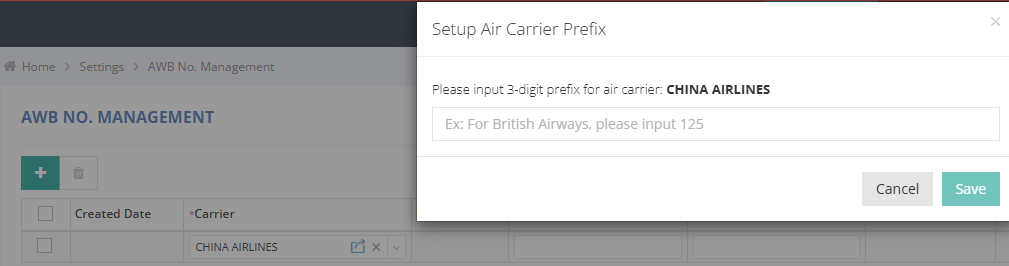
- Example: Enter 297 for China Airlines.
- If no IATA Prefix has been saved under the Trade Partner, a pop-up window will prompt you to enter the prefix first.
- If the IATA Prefix has already been saved under the Trade Partner, you can proceed to the next step to enter the AWB number range.
- Air Carrier Prefix: Enter the airline's three-digit prefix.
- Enter the AWB number range:
- Begin No.: The starting number of the range.
- End No.: The ending number of the range.
- Note: Both Begin No. and End No. must contain exactly 7 digits. If either number contains fewer than 7 digits, or if the End No. is smaller than the Begin No., the system will not allow you to save the entry.
- (Optional) Enter any additional information in the Remark column.
- Click Save to save the AWB number range.
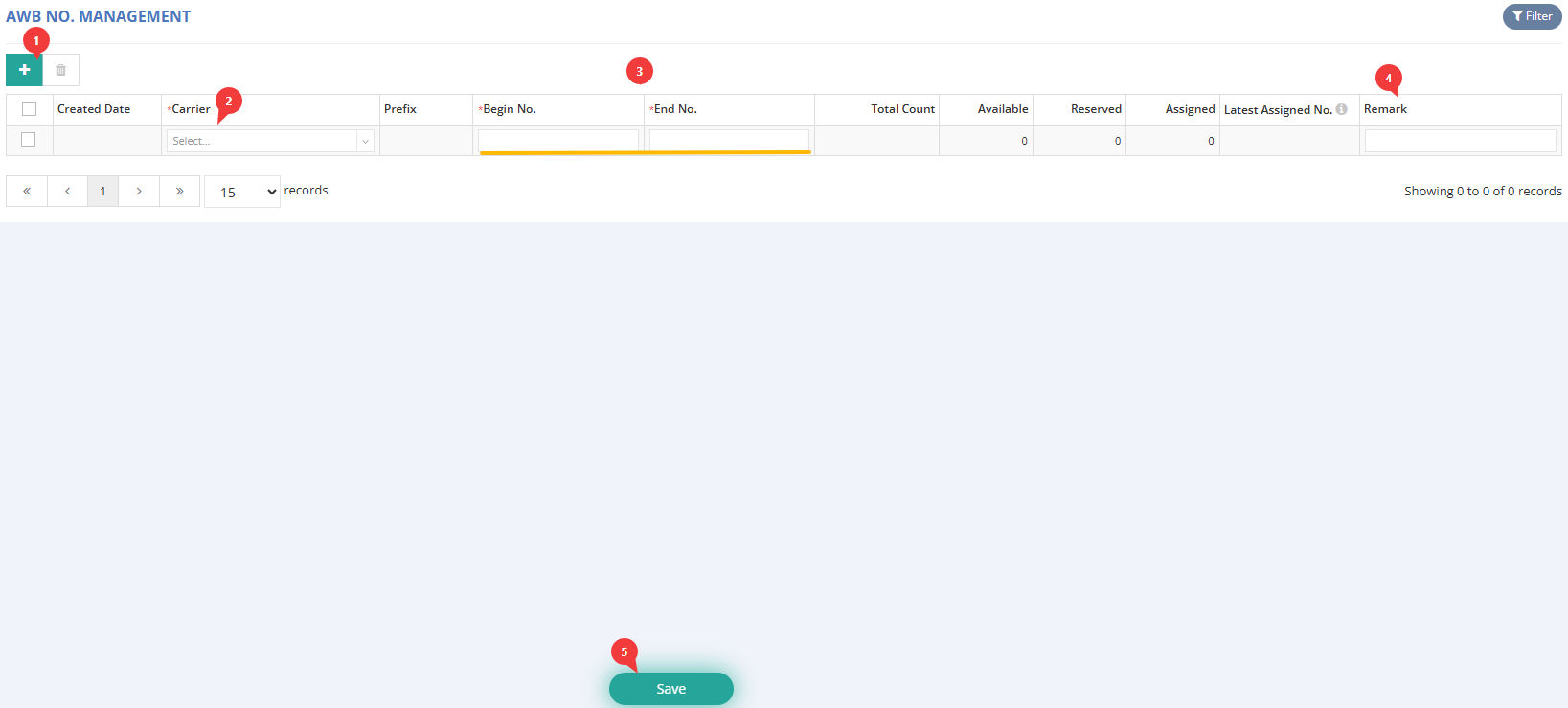
Note:
- The Created Date automatically records the date when the AWB number range is created in AWB No. Management.
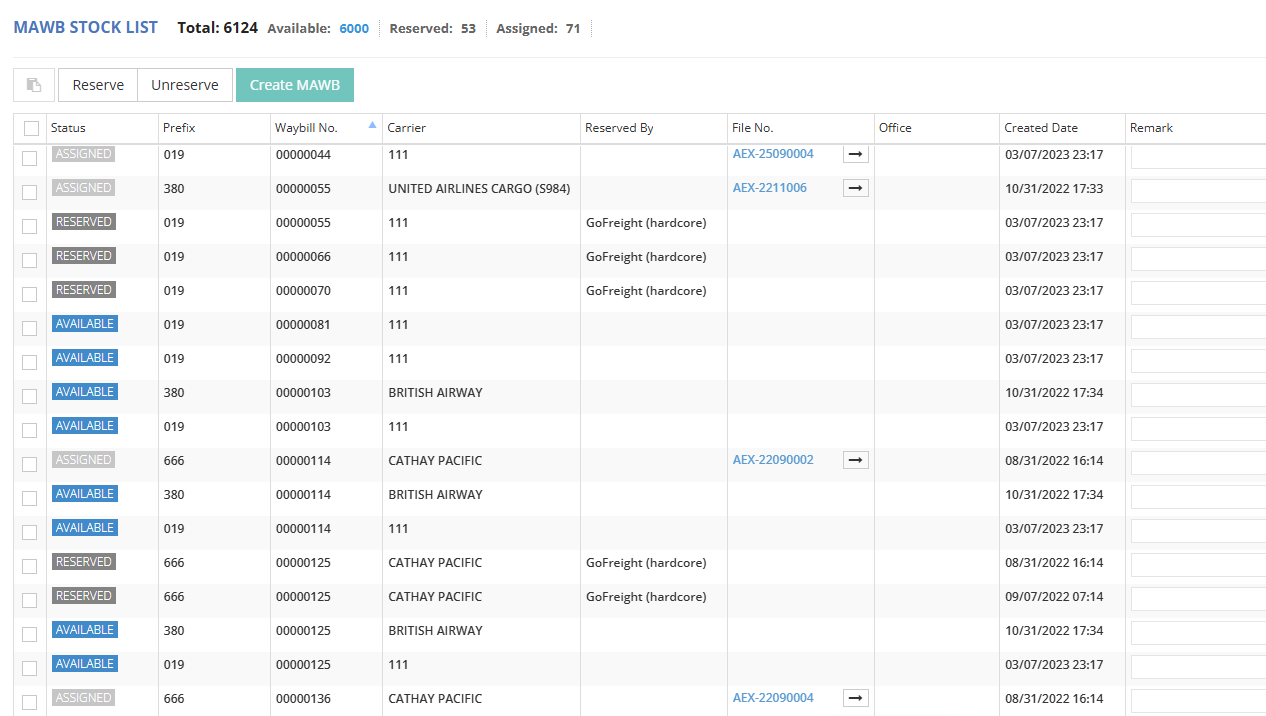
- Once saved successfully, the AWB number range will be synchronized to the AWB Stock List under the Air Export module.
- The Total Count, Available, Reserved, and Assigned fields will be displayed under both AWB No. Management and the AWB Stock List once the new AWB number range is saved successfully. These fields help your team review the status and usage of your AWB number.
5. Tracking Assigned AWB Numbers
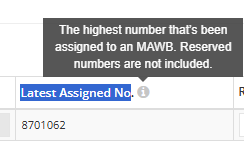
Once an AWB number is assigned and saved in an Air Export Shipment, the Latest Assigned No. column will automatically update, allowing you to track the last number used from that range.
The Total Count, Available, Reserved, and Assigned fields will also update automatically, allowing your team to monitor AWB number availability and usage.
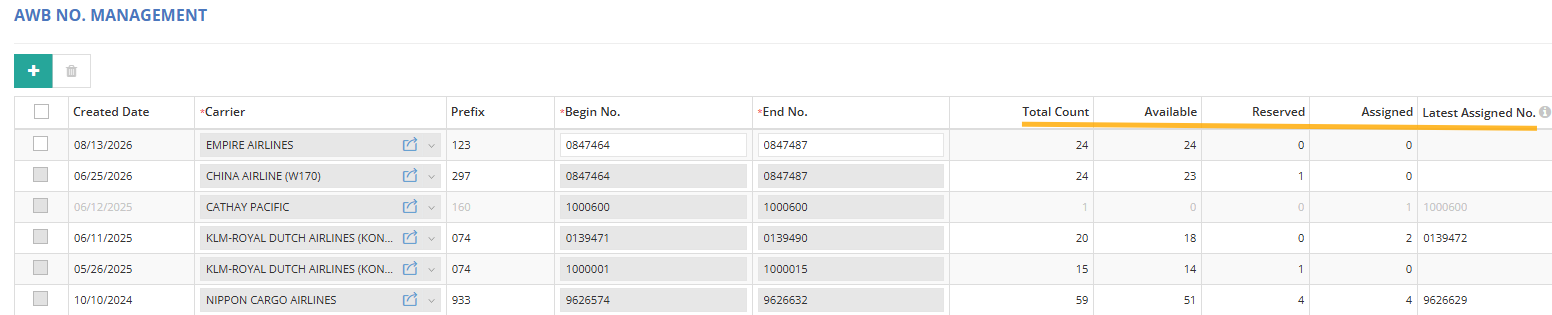
The MAWB Stock List under the Air Export Module will also reflect the Mawb numbers in the list view once the AWB management has been set up.
For a visual guide on using this feature, please refer to the following video:
You might also be interested in:
- MAWB Stock List Management User Guide
- How to Create a New Air Export Shipment for e-AWB
- How to Submit e-AWB in GoFreight