
The Batch Update Container feature allows users to upload an Excel file to update container information in bulk during the last mile tracking stage.
This feature is designed to update existing containers only. It does not support creating new containers in the system.
⚠️ Note:
This feature is disabled by default. If you would like to enable it, please contact GoFreight Customer Support.
How to Update Container Information
To update container information in bulk, follow the steps below:
Step 1 — Prepare Your Excel File
Prepare an Excel file containing the container information you want to update.
Note:
- To update Trucker information, please enter the Trade Partner’s Name (TP code is not supported).
-
To update Weight information, do not include the unit. The system will automatically apply the default weight unit configured in GoFreight.
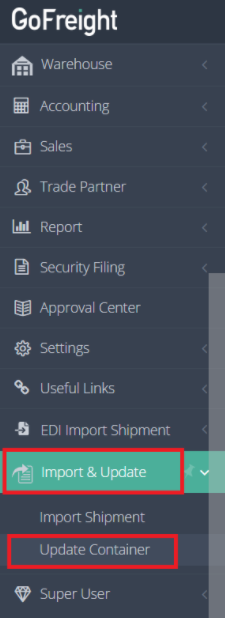
Step 2 — Navigate to the Update Container Page
Go to: Import & Update → Update Container
You will enter the Update Container page.
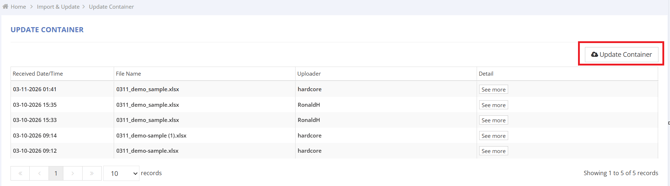
Step 3 — Upload the Excel File
- Click the Update Container button in the upper-right corner.
- Upload your prepared Excel file.
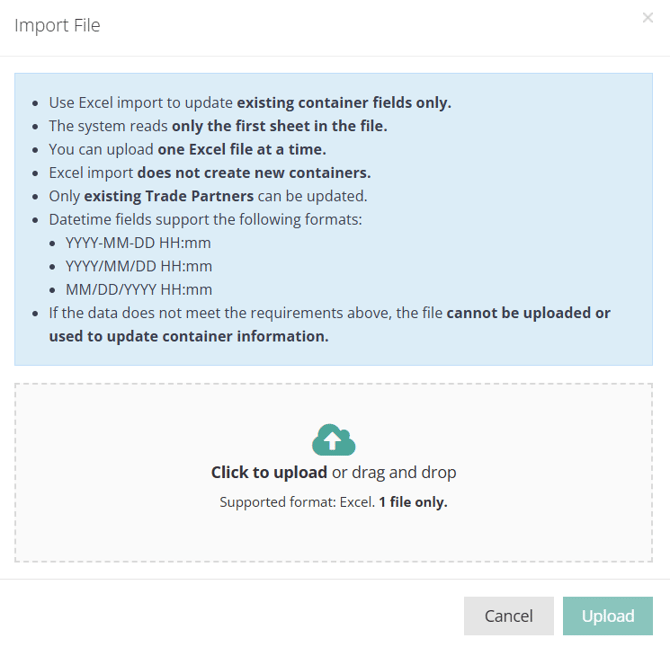
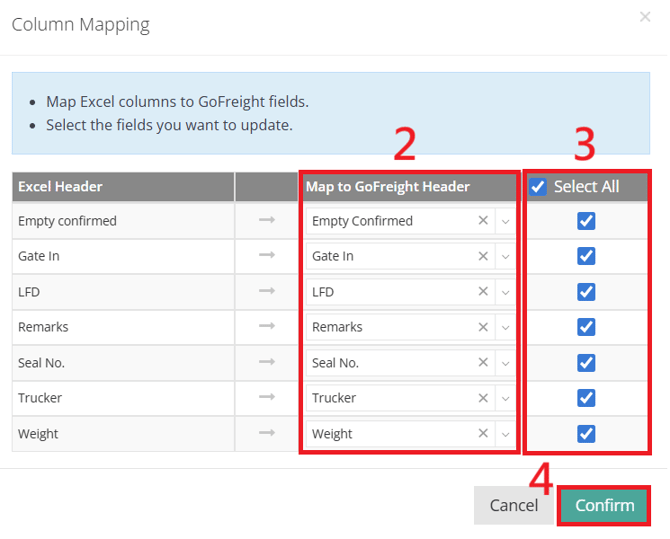
Step 4 — Column Mapping
After uploading the file:
- In Column Mapping, select Container No. as the key identifier.
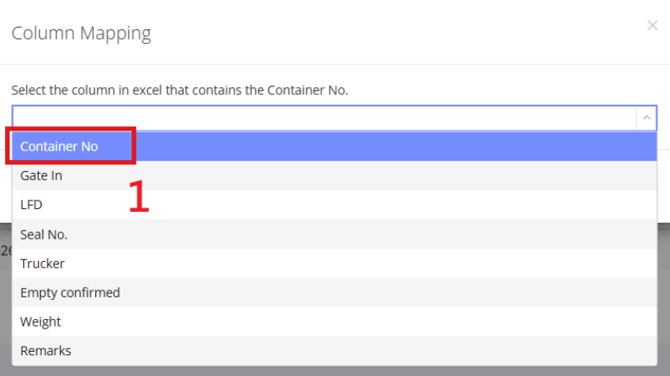
- Map your Excel headers to the corresponding GoFreight system fields.
Note:
The following fields are currently available for mapping in GoFreight: Appt., ATA Door, CNRU No., CPRS No., Empty Confirmed, Empty Return, ETA Door, F. Destination ETA, FDD, Gate In, Gate Out, Internal Marks, IT No., LFD, Measurement, Pick Up, Pick Up No., PKG, Place of Delivery ETA, Rail Start, Remarks, Seal No., Seal No2., Storage Start Date, Storage End Date, Trucker, Unload from Vessel, Weight, Yard Location. - Select the fields you want to update.
- Click Confirm to proceed.
Step 5 — Upload Result
After confirmation:
- If the upload is successful, the system will display the number of containers successfully updated.

- If there are errors, the system will display error messages for review.
Possible error types include:
- Container number not found in the system

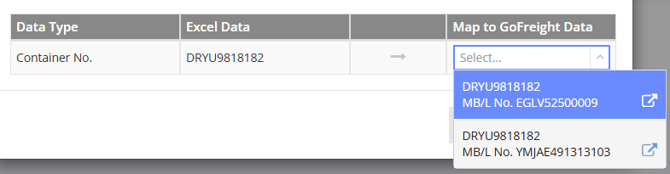
- The same container exists in multiple MBLs.

In this case, select the MBL you want to update from the right panel.
Upload History
On the Update Container page, you can view your upload history, including:
- Upload time
- File name
- Uploader
- Detail
To see more information about a specific upload:
- Click See More in the Detail column.
- The system will display any error messages or processing details related to that upload.
This helps users quickly identify and correct issues in the uploaded file.
You might also be interested in:
- How to Quickly Maintain Container Information by Importing Containers
- How to Batch Update Shipments?
- How to Complete Container Information?