
GoFreight allows users to save commodity information under a Trade Partner. This enables OP to quickly load commodity details into shipment entries in the Ocean Export module.
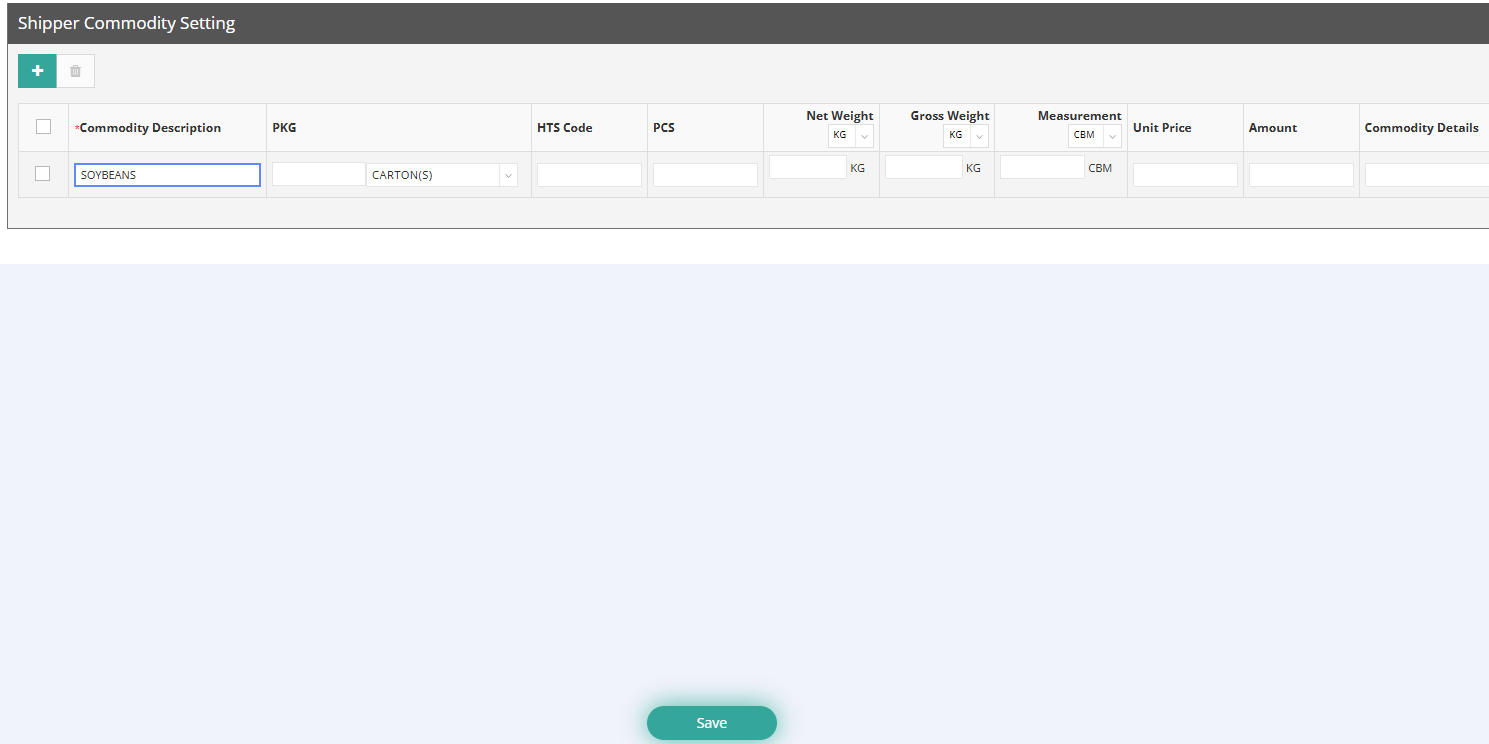
Users with permission to create and edit Trade Partners can add commodity data, including:
- Commodity Description
- Package (PKG)
- HTS Code
- Net Weight / Gross Weight
- Measurement
- Unit Price
- Amount
- Commodity Details

Add Commodity to Trade Partner
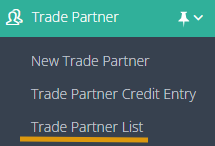
- Navigate to Trade Partner List
- Select an existing Trade Partner
- Go to the Commodity tab
- Click “+” to add a new commodity
- Enter the required information
- Fields such as Net Weight, Gross Weight, and Measurement can be left blank if they depend on actual shipment details
- Click Save

Apply Commodity to Ocean Export Shipment
- Open an Ocean Export shipment
- Go to the Container and Item tab
- Scroll to the Commodity / Manifest Commodity section at the House level
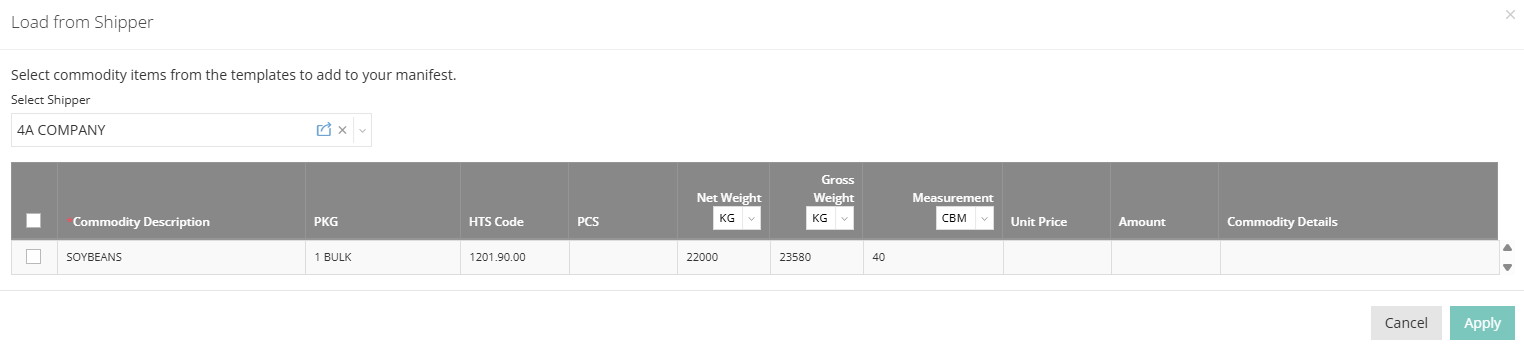
- Click Load from Shipper
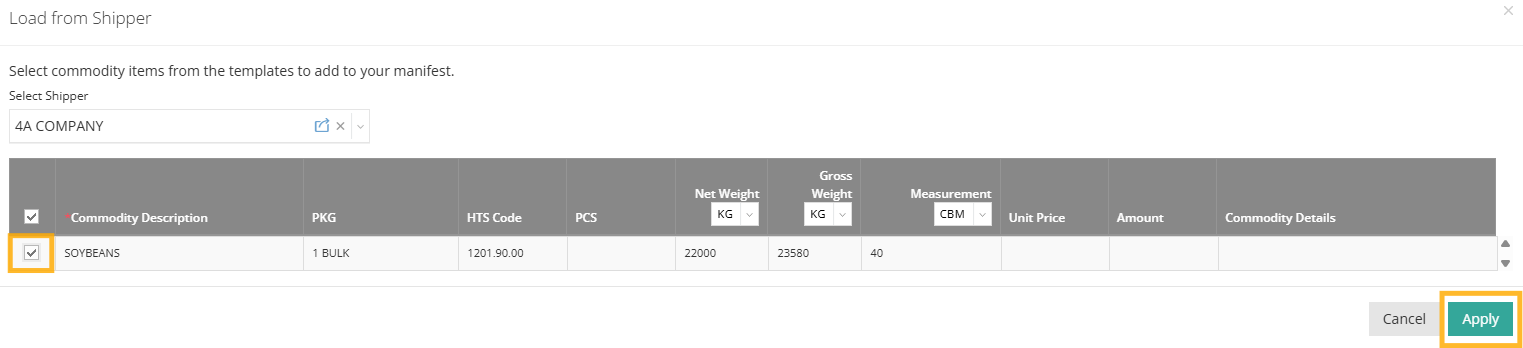
- A pop-up will display saved commodities under the selected Trade Partner (Shipper)
- Select the desired commodity and click Apply
The commodity details will be populated based on the saved data.



Add New Commodity from Shipment and Sync to Trade Partner
If a new commodity is created during shipment entry, users with permission can save it back to the Trade Partner for future use.
Steps:
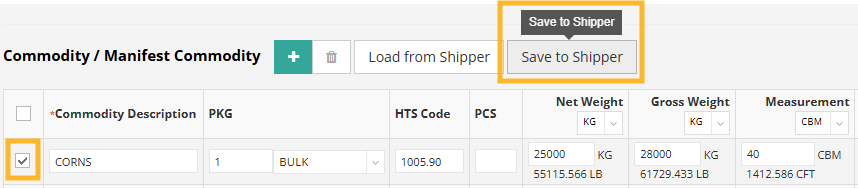
- Click “+” to add a new commodity
- Enter the commodity details
- Click Save to Shipper
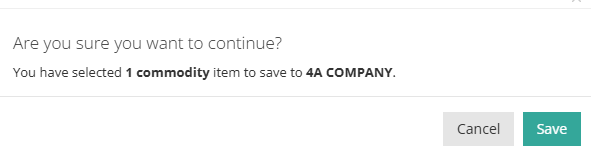
- A pop-up window will appear to confirm saving the commodity to the Trade Partner. Click Save if the information is correct
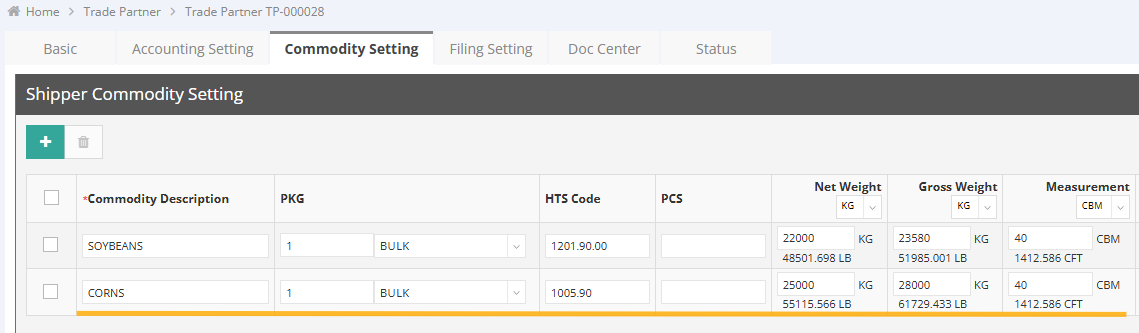
- You can recheck the Trade Partner file to confirm the commodity has been added
The new commodity will be synchronized to the Trade Partner’s Commodity settings for future shipments.
Remarks:
- For users who do not have permission to edit Trade Partner, the Save to Shipper action will fail and an error message “Submit fail” will be displayed.
- The Commodity Description can be duplicated and saved under the Trade Partner.


You might also be interested in:
- How to Create and Manage Trade Partners
- How to Manage Carrier Contract Number by Trade Partner
- Generating a Commercial Invoice in Ocean Export