
To add a new receipt, follow these steps:
1. In the navigation bar on the left-hand side, select "New Receipt" under the "Warehouse" module and the "Receipts" feature.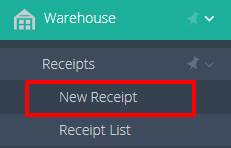
2. Fill out the required fields marked with a red asterisk. You can either uncheck the "Warehouse Receipt No." box to manually input the receipt number or allow the system to auto-generate it. Additionally, set the post date (Received Date/Time).
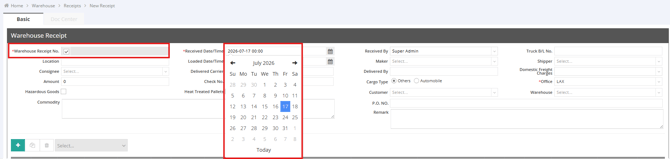
3. Complete any other necessary information.
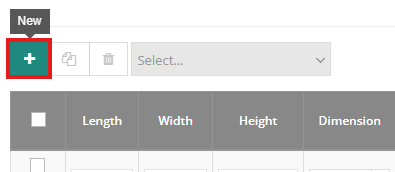
4. Click the green "+" button to add an item line.
5. Enter the relevant information as needed:
-
- Example input:
- Length: 40 / Width: 40 / Height: 70
- Dimension: CM
- PKG: 24
- Unit: CARTON
- Sku/P.O.No./Commodity: SK77-PO882-MONITOR
- Pallet Qty: 1
- Total PCS: 24
- Volume & Measurement: Calculated automatically.
- Actual Weight: Enter manually.
- Example input:

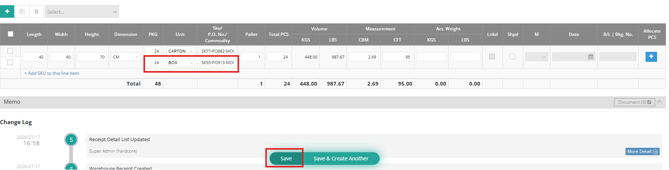
💡Note: If you have other commodities on the same pallet, click "+Add SKU to this line item”. The Warehouse Receipt will maintain the pallet, dimension, PCS, volume, and weight values on one line item, while each SKU will have its own PKG, Unit, and SKU/P.O.No./Commodity row.

Input the PKG, Unit, and Commodity in this sub-item line, then click Save.
You might also be interested in:
- How to Create a New Receiving in the Warehouse Module?
- How to Generate Documents from the Warehouse Receipt ?
- How to Use the Item List for Warehouse Operations