
How to Assign HBL to Multiple Container(s)
When you have multiple containers for your shipment, please follow the instructions below to assign your containers to your HB/L.
For ocean shipments (ocean import/ocean export):
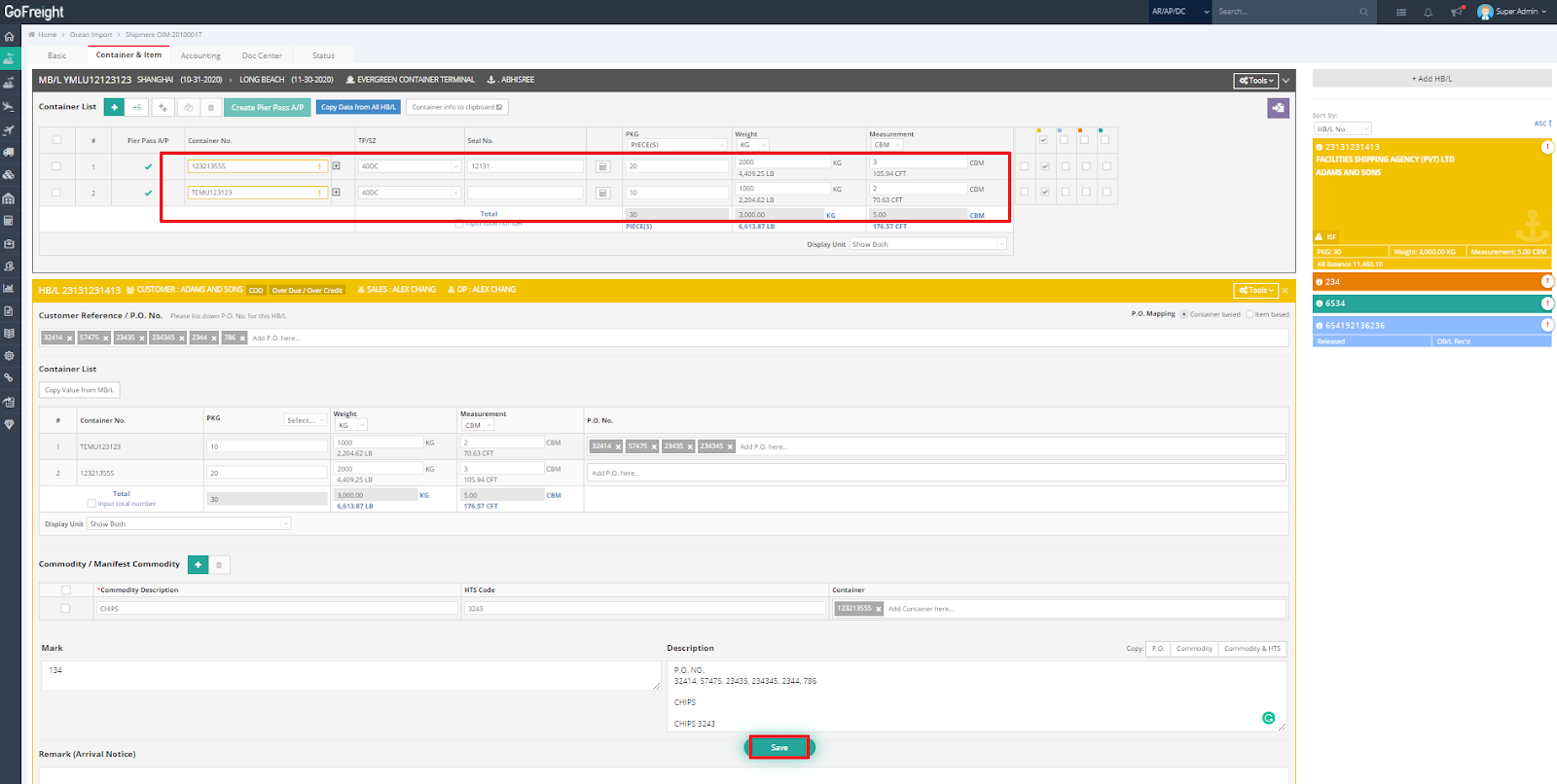
1. In the MB/L section, click the purple icon “Assign Container” at the upper right corner to assign your HB/Ls to containers.
2. Enter the PKG/Weight/Measurement for your HB/L.
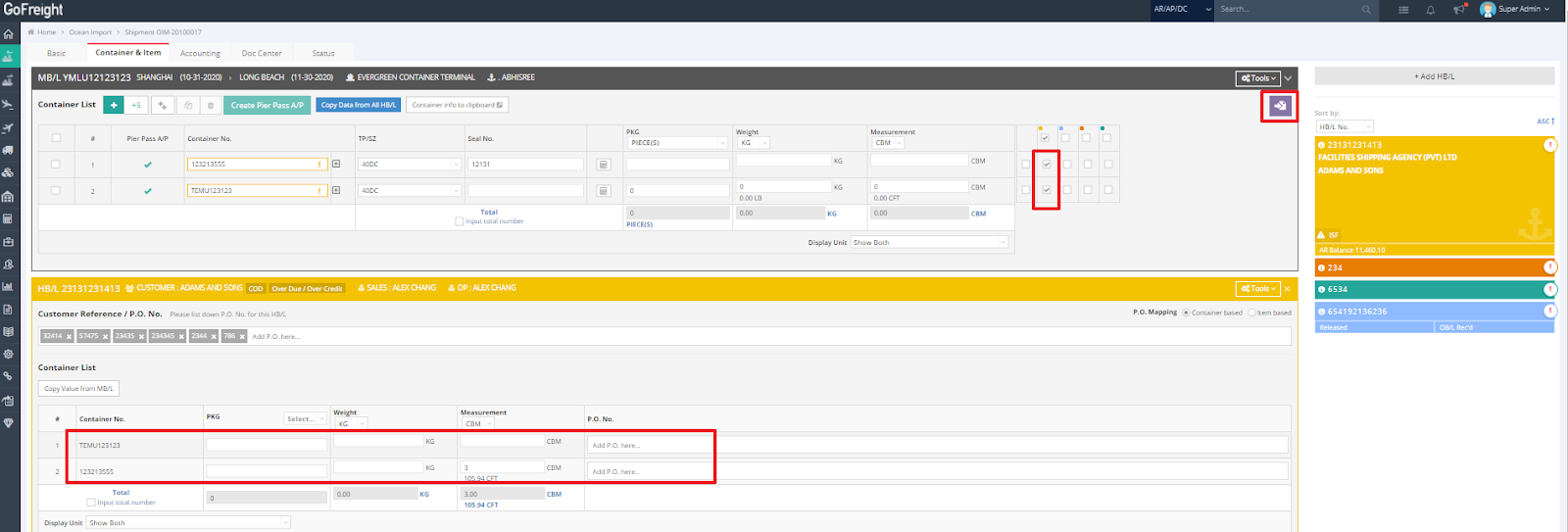
3. Complete the "Mark and Description of Goods" information for the HB/L below, then click “Save”. Repeat this process for any remaining HB/Ls to assign them to containers and enter their PKG/Weight/Measurement.
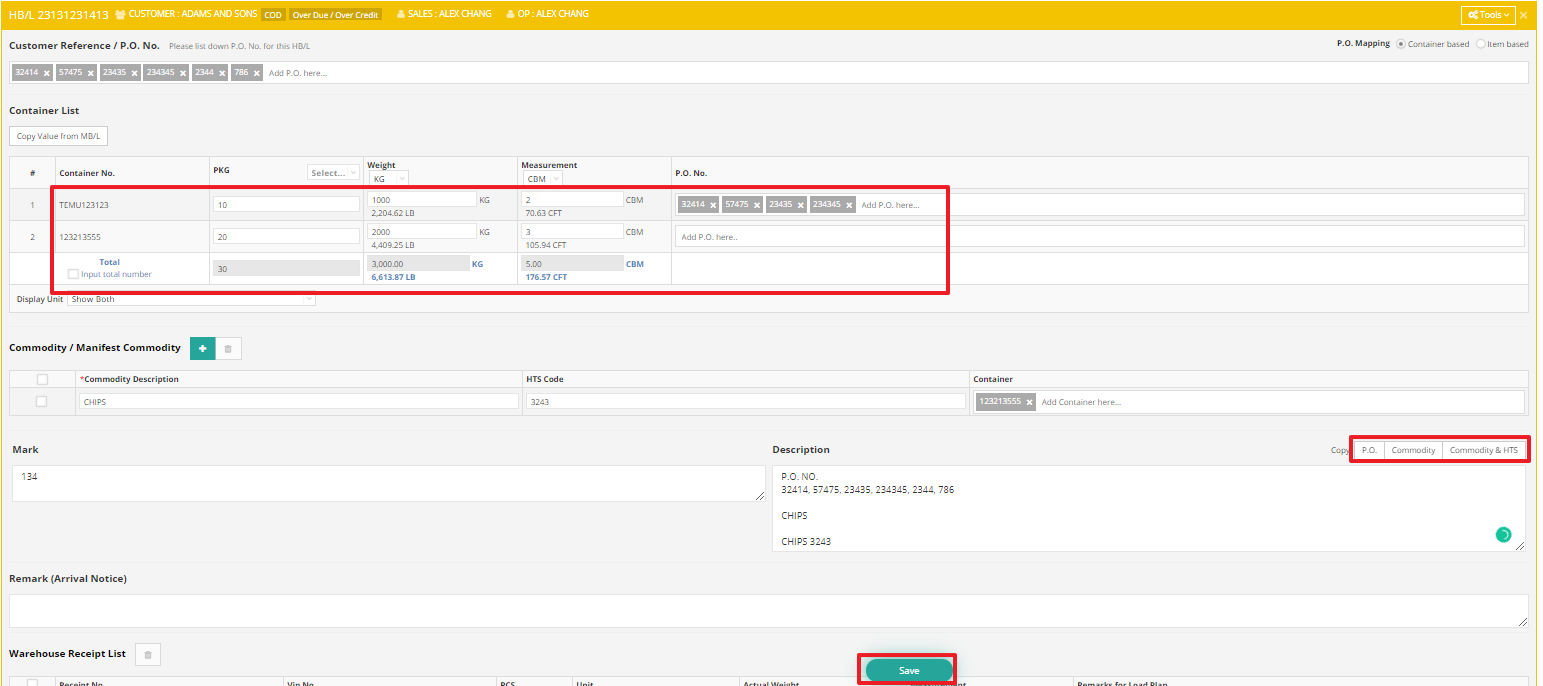
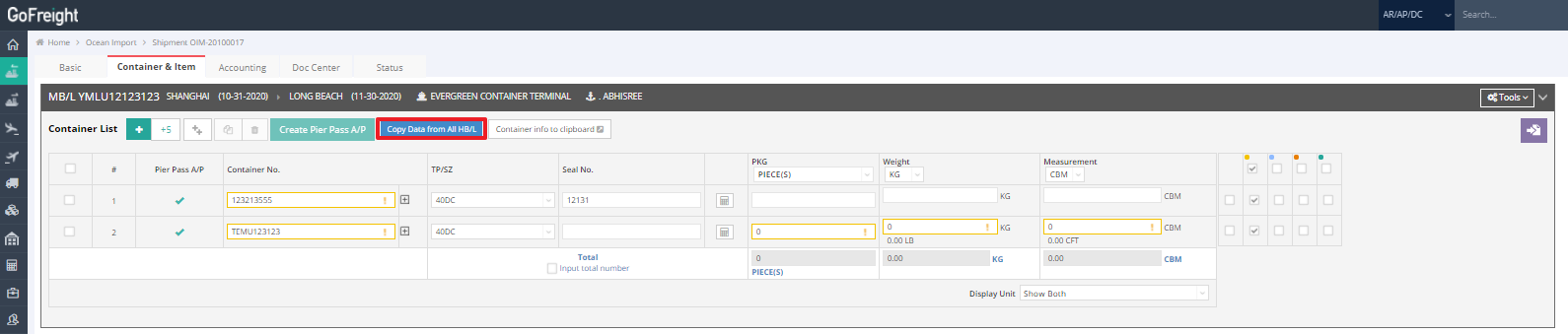
4. Lastly, scroll up to the MB/L and click “Copy Data from All HB/L”.
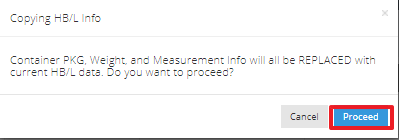
5. In the pop-up message, click “Proceed” to continue.
6. GoFreight will calculate the total PKG/Weight/Measurement of all HB/Ls and display the combined total on the MB/L. Please ensure that you have entered the PKG/Weight/Measurement for all your HB/Ls.
You might also be interested in:
- How to Assign Container(s) to Different HB/L?
- How to Complete Container Information?
- Ocean Import – Shipment Entry Page