
Follow these steps to batch-update shipments in the GoFreight system:
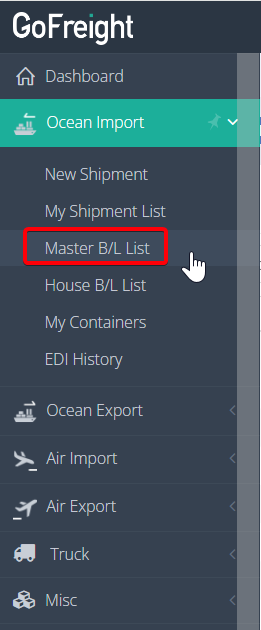
- Access the Master B/L List: Go to “Ocean Import” > “Master B/L List” on the navigation bar.
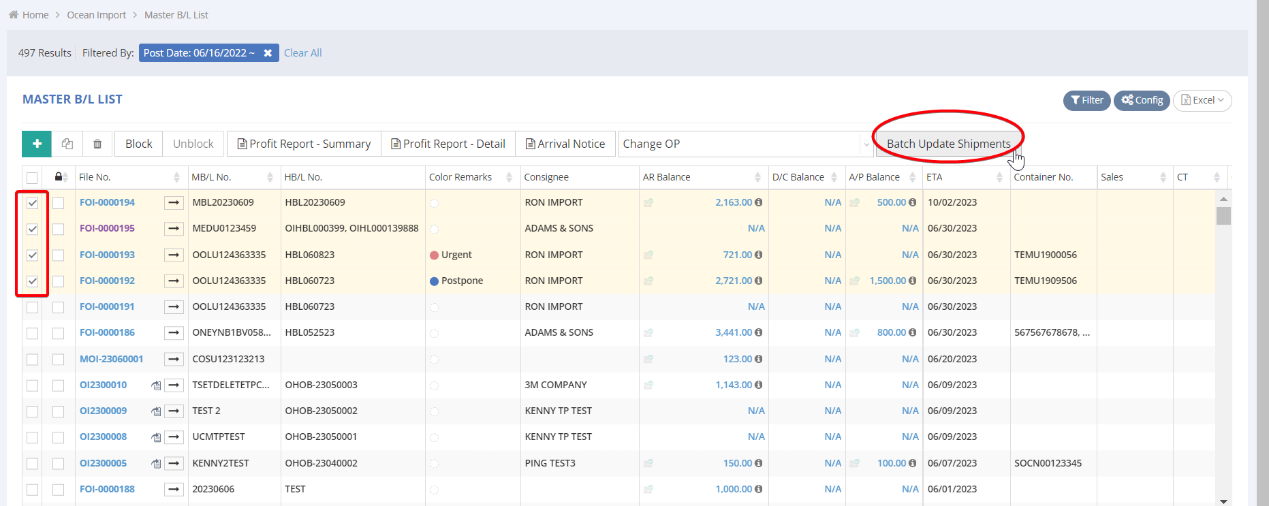
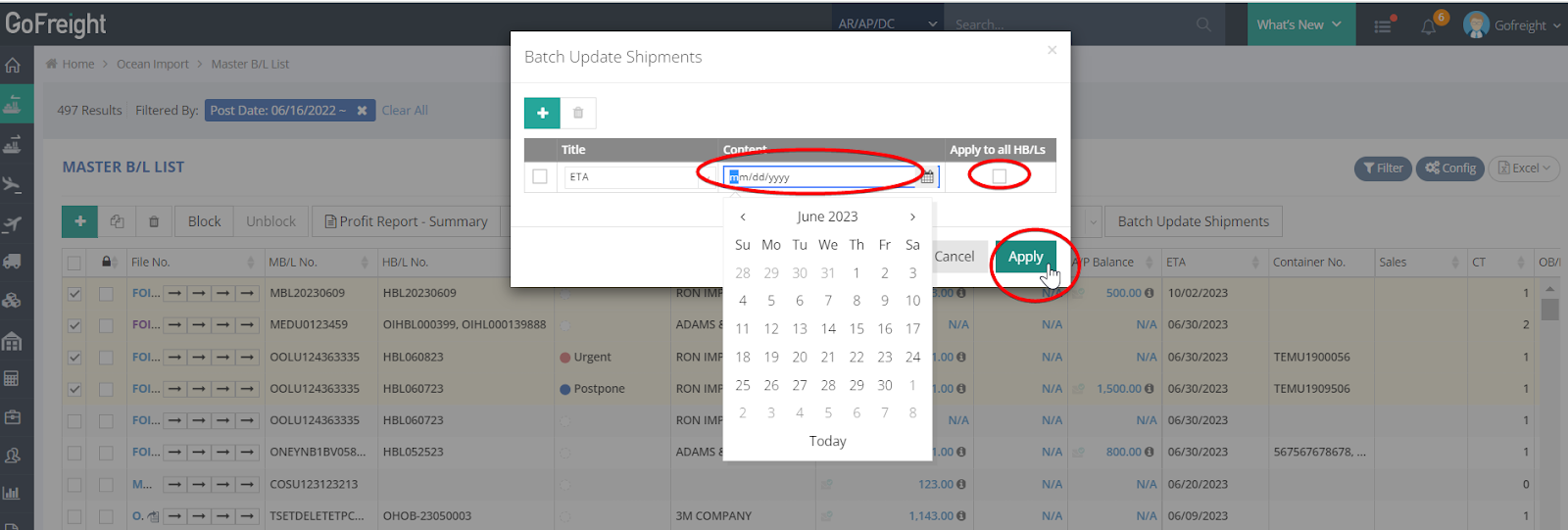
- Select Shipments: Choose multiple shipments you wish to batch update by selecting them in the first row. Then, click “Batch Update Shipments.”
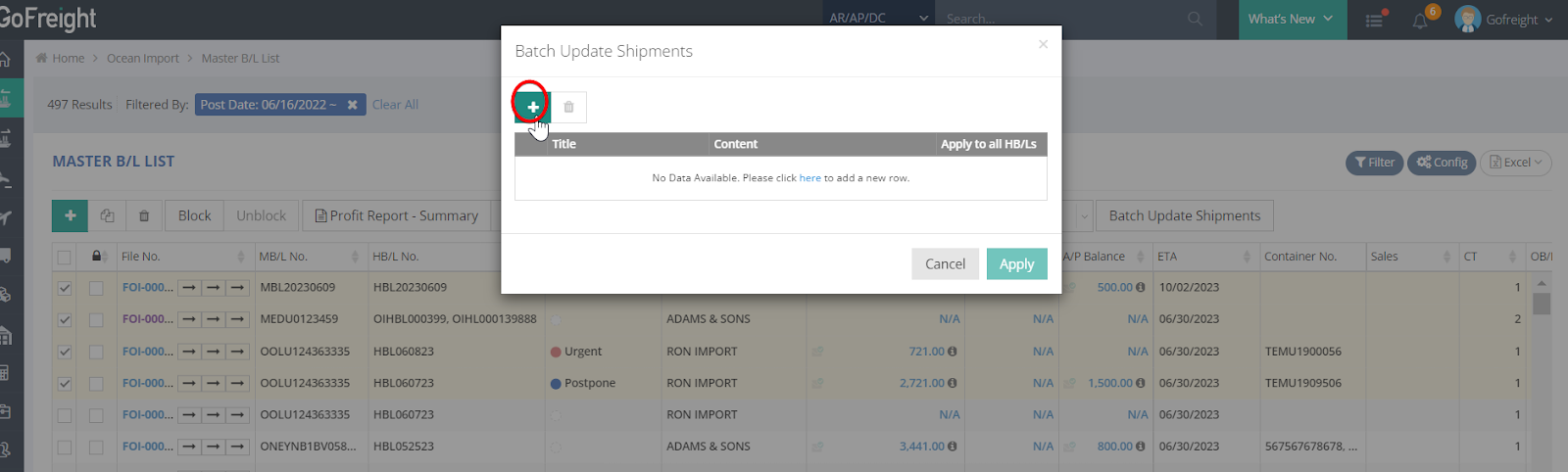
- Add Update Item: In the pop-up message, click the green icon “+” to add the item you want to batch update.
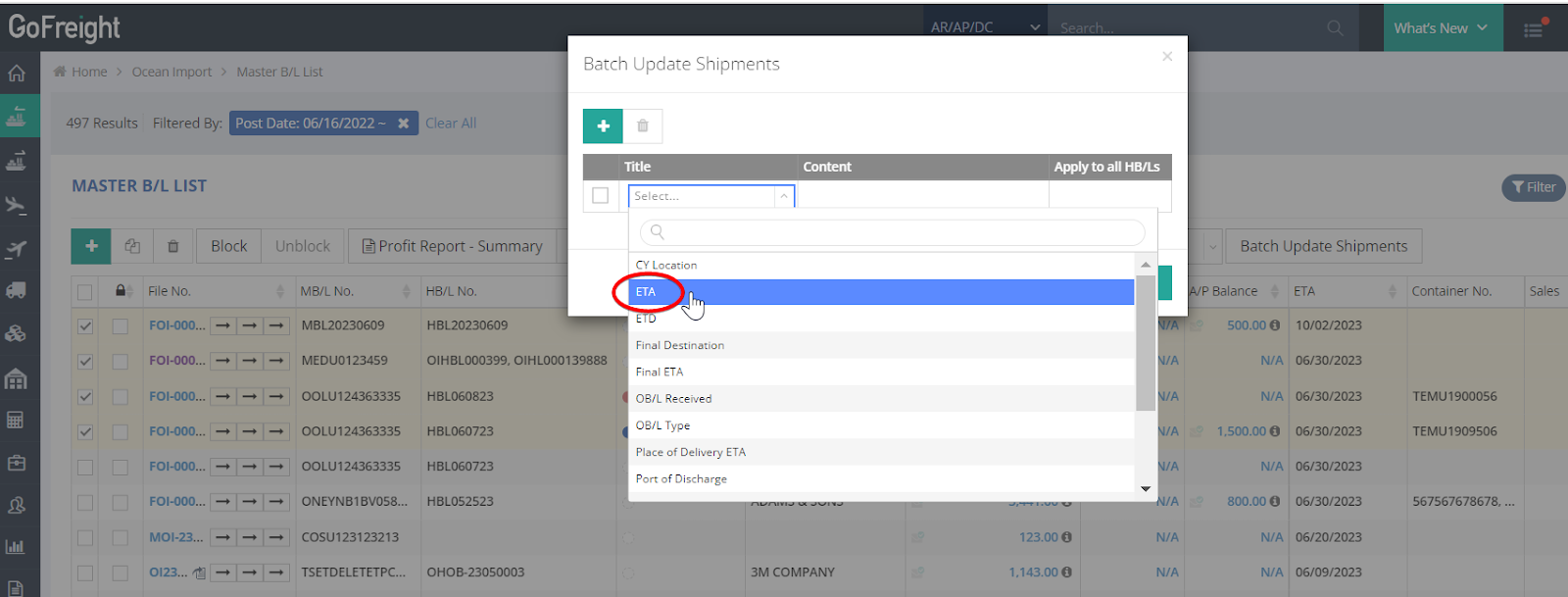
- Choose Item to Update: For example, if you want to batch update the “ETA” for the selected shipments, click “ETA.”
- Enter New Date: Select the date in the “Content” field. If necessary, check the box “Apply all HB/Ls,” then click “Apply.”
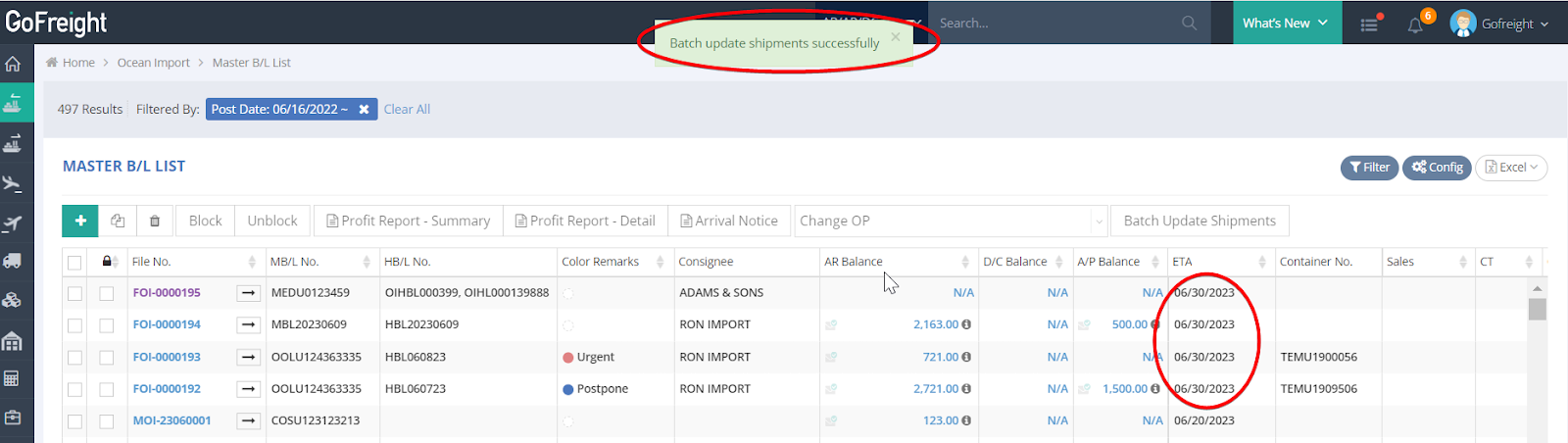
- Confirmation: After clicking “Apply,” a confirmation message will appear stating “Batch update shipments successfully,” and the ETAs will be updated accordingly.
By following these steps, you can efficiently update multiple shipments at once.
You might also be interested in:
- Batch Update Container
- How to Change the OP in Batch for Multiple Shipments?
- How to Batch Change the Sales in Charge?