
This article explains how to configure the To Do List / To-Do Alert in GoFreight so users can receive task reminders based on module, role, shipment dates, and specific field conditions. It is useful for setting up operational workflow alerts such as ISF filing reminders, Freight Release checks, HBL/MBL notifications, and shipment task tracking from the Dashboard or shipment pages. Good search keywords include: To Do List Setting, To-Do Alert, shipment task reminder, workflow alert, ISF reminder, Freight Release reminder, HBL notification, MBL notification.
Introduction
When you log in to GoFreight, users with the roles General Manager, Operation Manager, Operation, or Operation Assistant will see the To Do List section on the Dashboard.

- If you are a General Manager or Operation Manager, you will be able to view the to-do items for the entire Operation team.
- If you are an Operation or Operation Assistant user, you will only see your own tasks.
Currently, the To Do List feature is available in the following modules:
- Ocean Import
- Ocean Export
- Air Import
- Air Export
If you are a new GoFreight user, the system already includes default To Do List settings for the Ocean Import and Air Import modules.
You can also directly access shipment files from the To-Do Alert list located next to What’s New in the top-right corner of the GoFreight screen.
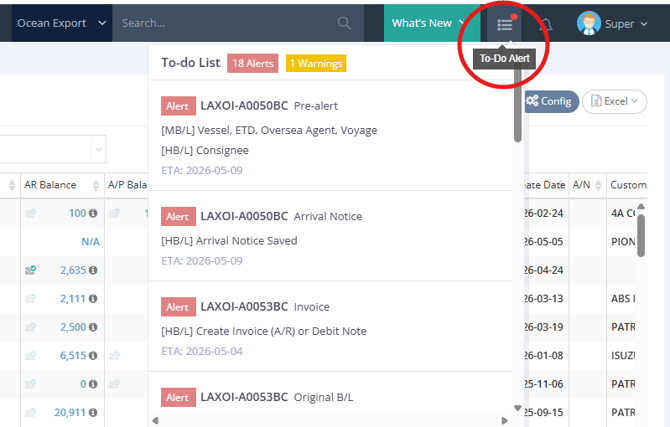
To learn more about how to read and use the To Do List on the Dashboard, please refer to this article: How to Use the To-Do List on the Dashboard in GoFreight?
In This Article, You Will Learn
- Where To Do List alerts appear in the system
- How to configure customized To Do List workflows for your team
Where Will You See To Do List Alerts?
1. Shipment Entry Page
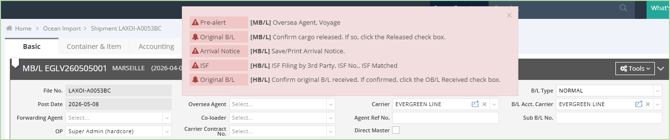
You will see a To Do List alert panel when opening a shipment entry page.
The notification will disappear automatically after a few seconds. You may also close it manually by clicking the X button in the top-right corner of the alert window.
Tip:
The To Do List is only a reminder tool. It does not block or affect your daily operations or system usage. Even if tasks are not completed, you can still manage and edit shipment files normally. However, we encourage you to use this feature to help track and complete your operational tasks.
2. Status Tab in a Shipment File
You can also view To Do List milestones at the House level under the Status tab in the shipment file.

At the House level, you can view the following information for each To Do List milestone:
- Task
- Status
- Condition
There are three visual status indicators to help users quickly identify task priority:
- ✅ Green check mark — Completed or not required
- 🔔 Yellow bell — Should start processing
- ❗ Red exclamation mark — Requires immediate attention
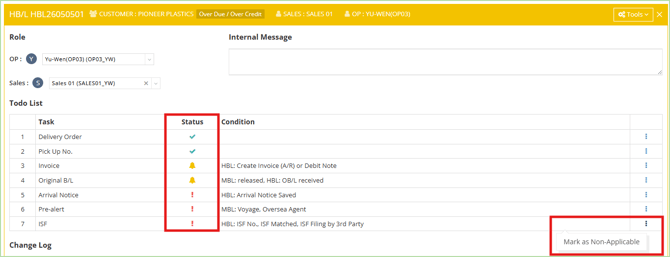
You can also click the three-dot icon on the far-right side of the task row and select Mark as Non-Applicable if the task does not apply to the shipment file.
After doing so, the task status will become N/A.

If you would like to remove the N/A status, click the same icon again and select Remove Non-Applicable.

How to Configure To Do List Workflows for Your Team
If the default To Do List workflows in GoFreight do not match your team’s internal operation process, you may create and edit To Do List settings.
This access is granted to users with the following role:
- General Manager
If additional user roles or specific users require this access, please include the details in your request email. Approval from a user with the Admin or General Manager role is also required in the same email thread.
After access is enabled, go to:
Settings → To Do List Setting
to become familiar with the configuration interface.
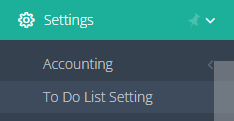
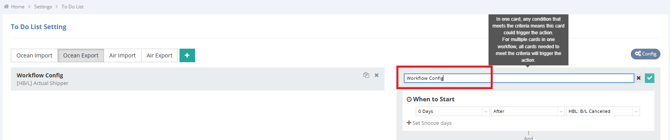
To Do List Setting Interface
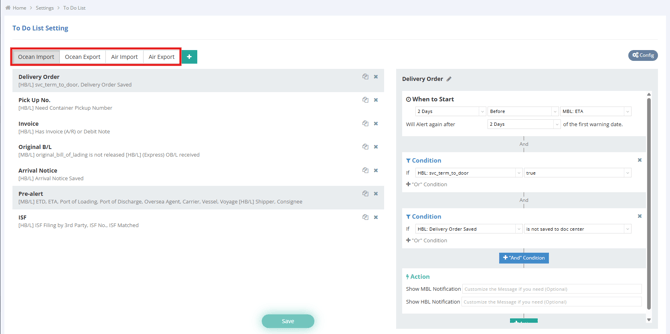
In the To Do List Setting interface, you can configure To Do List workflows for:
- Ocean Import
- Ocean Export
- Air Import
- Air Export
By default, only Ocean Import and Air Import contain preconfigured To Do List workflows.
Once you have create/edit access, you may customize the workflows based on your team’s operational process.
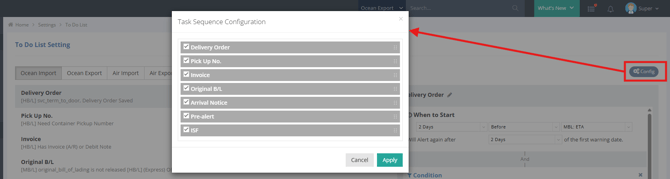
Config Function
The Config function on the right side allows you to open the Task Sequence Configuration panel.
Here, you can:
- Adjust the order of tasks
- Choose whether tasks appear in the To Do List
You can reorder tasks simply by dragging and dropping them. After making changes, click Apply to save them.
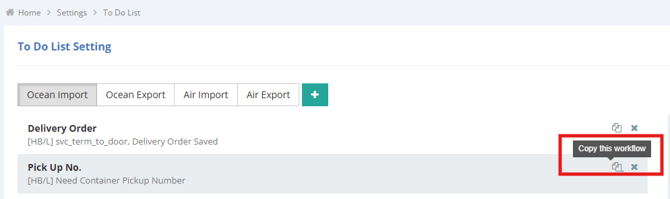
Additional Functions
Each task also includes the following options:
- Copy this workflow (the Copy icon)
- Delete this To-Do (the X icon)
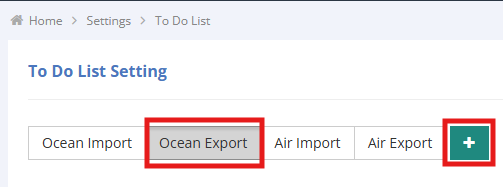
To create a new To Do List workflow:
- Select the module where you want to create the workflow
- Click the green + icon next to the module name
You may rename your new task by clicking the icon, “ ”, next to Workflow Config. After entering the task name, click the green check mark to save it.
Configuration Example 1
Scenario
The Ocean Export Operation team should check whether the MBL (Master Bill of Lading) has been freight released 7 days before ETA.
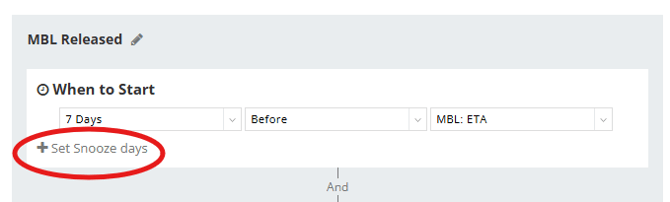
When to Start
Configure the reminder timing as follows:
- First dropdown: 7 Days
- Second dropdown: Before
- Third dropdown: MBL: ETA
Tip:
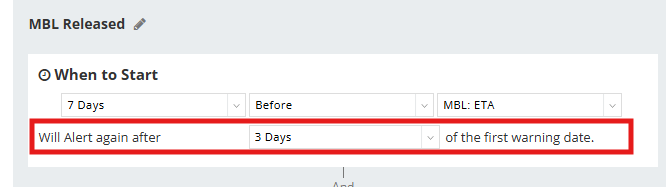
You may also configure Snooze Days so the system can remind users again if the task remains incomplete.
Condition
Configure the trigger condition:
- First dropdown: MBL: Frt. Released (Check)
- Second dropdown: checkbox unchecked
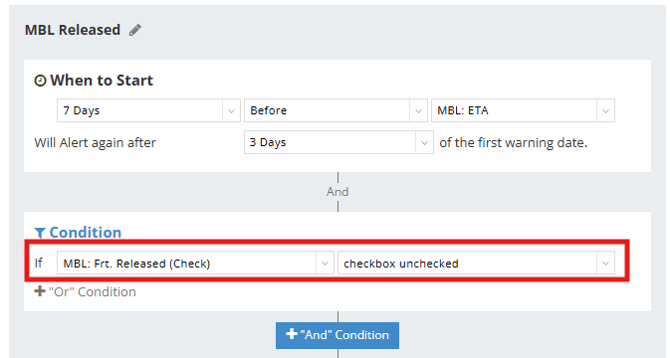
There are two condition relationship types:
- Or — alert triggers if any condition is met
- And — alert triggers only if all conditions are met
In this example, no additional Or/And conditions are configured, so the alert will trigger based on this single condition only.
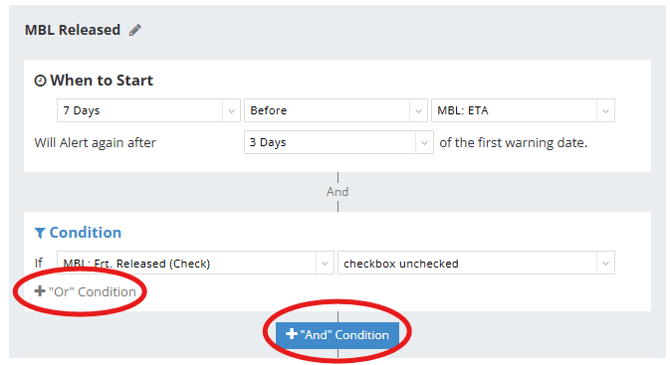
The field MBL: Frt. Released (Check) corresponds to the Freight Released checkbox on the Ocean Export shipment entry page.
This means the alert will trigger when:
- The shipment is within 7 days before MBL ETA
- AND the Freight Released checkbox is still unchecked

Action
Configure the action message for the Operation team.
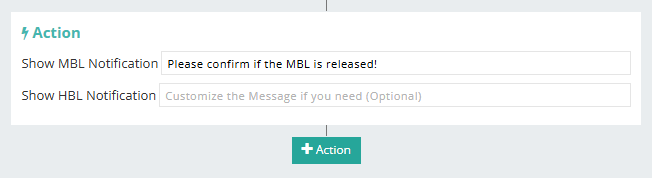
In the Show MBL Notification field, enter:
“Please confirm if the MBL is released!”
If the alert should appear at the HBL (House Bill of Lading) level, you may instead enter the message in Show HBL Notification.
If additional actions are required, click the green +Action button.
Click Save to save the configuration.
Verify Your Configuration
After setup is complete, test whether the alert triggers successfully.
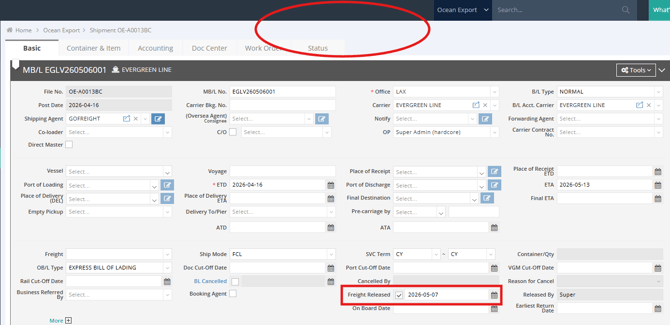
If configured correctly, the alert will appear at the top of shipment files that meet all trigger conditions.

To remove the alert, simply check the Freight Released checkbox at the MBL level. Once selected, the alert will no longer appear. This confirms the workflow is functioning correctly.
Configuration Example 2
Scenario
The Ocean Import Operation team should check whether the ISF Filing (Importer Security Filing, ISF 10+2 Filing) has been submitted and received a Matched status 3 days before MBL ETD.
Note:
This ISF To Do alert is already included in the system by default.
This example is provided to explain the configuration logic and workflow concept.
You may still modify the setup to better fit your team’s operational process.
When to Start
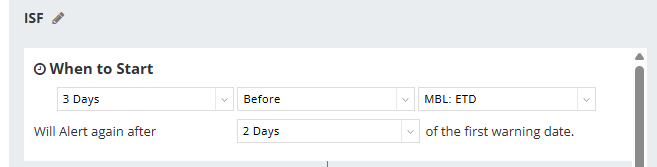
Configure as follows:
- First dropdown: 3 Days
- Second dropdown: Before
- Third dropdown: MBL: ETD
The system will send another alert 2 days after the first warning if the task is still incomplete.
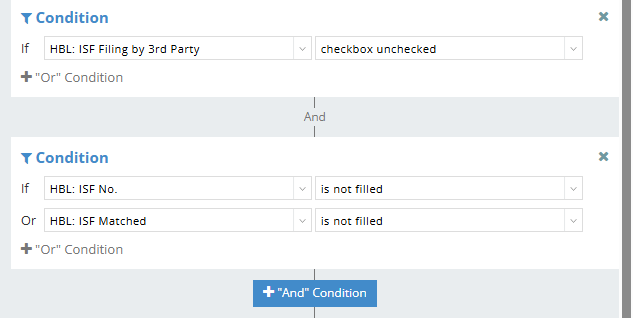
Condition
First Condition
- First field: HBL: ISF Filing by 3rd Party
- Second field: checkbox unchecked
AND Second Condition
This means both the first condition and the second one must be met.
The second condition contains two sub-conditions connected by Or, meaning either one can trigger the alert.
Sub-condition 1
- First field: HBL: ISF No.
- Second field: is not filled
OR Sub-condition 2
- First field: HBL: ISF Matched
- Second field: is not filled
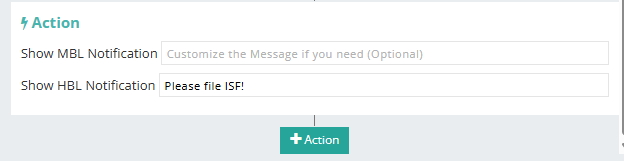
Action
In Show HBL Notification, enter:
“Please file ISF!”
Verify Your Configuration
If configured successfully, the alert will appear at the top of shipment files that meet the trigger conditions.

You may then review the HBL entry page and confirm:
- ISF Filing by 3rd Party is unchecked
- ISF No. is empty
- ISF Matched Date is empty
Therefore, the alert conditions are met.

To stop the alert from appearing, complete the required task according to your configured conditions. In other words, once any of the above conditions is no longer met, the alert will disappear.
For example:
- Check ISF Filing by 3rd Party
- OR fill in either ISF No. or ISF Matched Date
Once completed, the alert will disappear. Please give it a try!
You might also be interested in:
- How to Use the To-Do List on the Dashboard in GoFreight ?
- What is the Status Tab in a shipment file?