
If the freight charges on your invoice have not yet been confirmed, you can save them as a draft. Once all the details are confirmed, you can convert the draft to a normal invoice.
Here are the steps.
- Navigate to the invoice page and click on the “Tools” button located in the upper right corner.
- Select “Convert to Normal” from the dropdown menu. This action will change the draft into a normal Invoice.
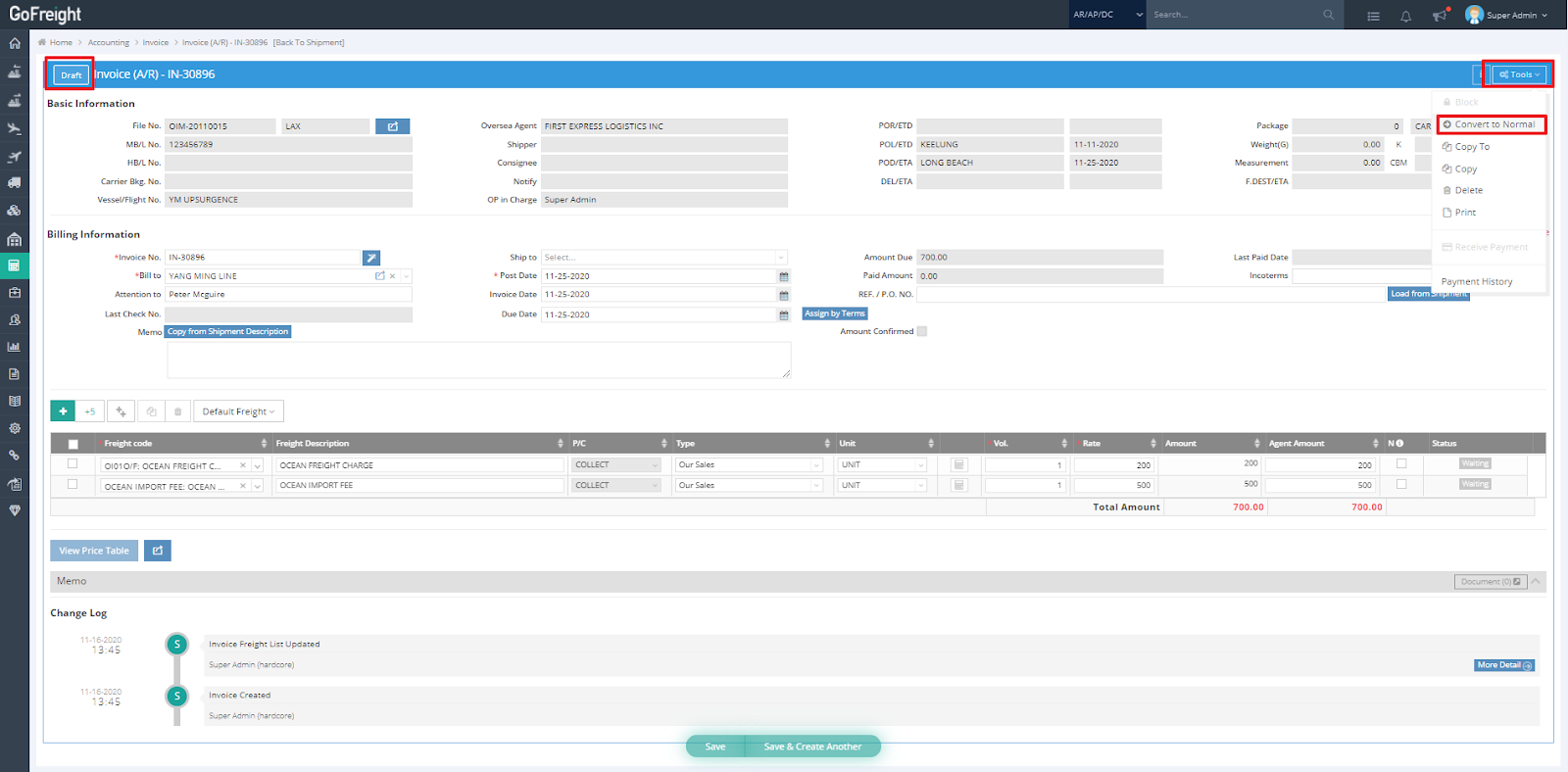
If you would like to convert a Normal invoice back to a Draft one, please go to the "Tools" menu on your invoice entry page, and click on "Conver to Draft".
You might also be interested in:
- How to Create Accounts Receivable (AR) Invoices in Invoice Mode?
- How to Create Accounts Payable (AP) Invoices in Invoice Mode?
- What is Post Invoice, and How does it work?