
The Shipment Entry module in GoFreight allows users to create and manage Ocean Import and Ocean Export shipments.
The Shipment Entry page is organized into two main sections:
- Master Bill of Lading (MB/L): The master-level shipment information.
- House Bill of Lading (HB/L):The house-level shipment information associated with the MB/L. You can create one or multiple HB/Ls. Depending on your shipment requirements.
This article explains how to create a new shipment, enter MB/L and HB/L information, review automatically populated fields, and verify shipment details before generating shipment documents.
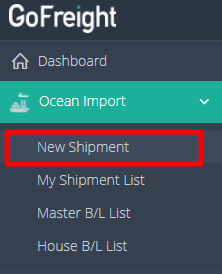
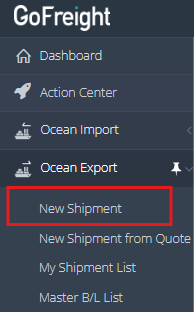
1. Create a New Shipment- Navigate to Ocean Import or Ocean Export, depending on the shipment type.
- Click New Shipment to open the Shipment Entry page.
- Review the MB/L and HB/L sections.
- Start entering the required shipment information.
2. Create the Master Bill of Lading (MB/L)
In the MB/L section:
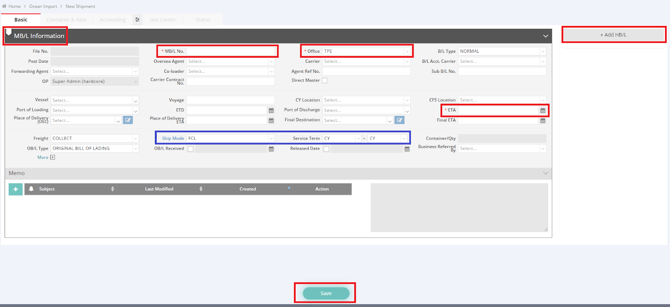
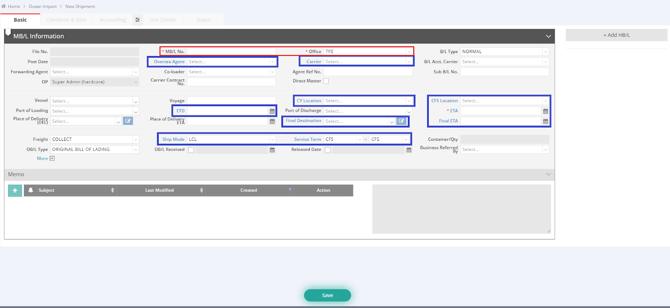
- Complete all mandatory fields marked with a red asterisk (*).
- For Ocean Import, the required fields include:
- MB/L No.
- ETA (Estimated Time of Arrival)
- Review the Office field. It is automatically populated based on your default office settings.
- Enter any other applicable shipment details.
- Click Save.
Note: Required fields and available options may vary depending on the shipment type and your company's configuration.
- FCL
- LCL
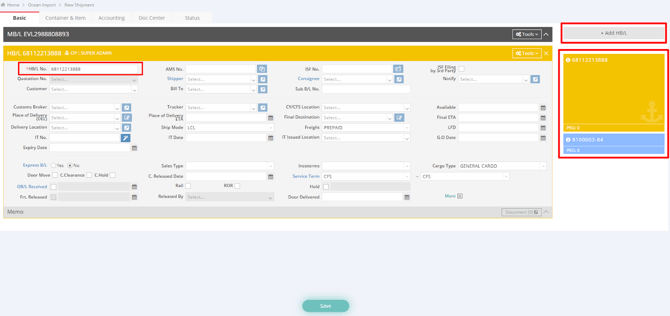
- Click the [+] button in the upper-right corner of the HB/L section to create a new HB/L.
- Complete all mandatory fields marked with a red asterisk (*).
- For Ocean Import, enter the required HB/L No. and complete the other applicable details.
- If the shipment contains multiple HB/Ls, repeat the process to add additional HB/Ls.
- Click Save.
The system uses different colors to distinguish individual HB/Ls, making it easier to identify and manage multiple house bills within the same shipment.
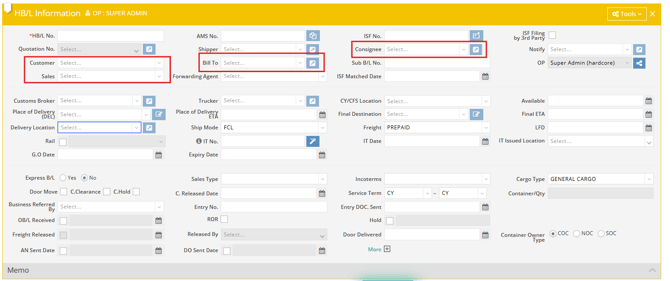
GoFreight can automatically populate certain fields using information stored in the Trade Partner database.
Depending on the available Trade Partner information, automatically populated fields may include:
- Consignee
- Customer
- Bill To
- Sales
To replace an existing Trade Partner selection:
- Click the [x] button to clear the current value.
- Select the correct entry.
Note: Always review automatically populated information to ensure that the details are accurate before saving the shipment.
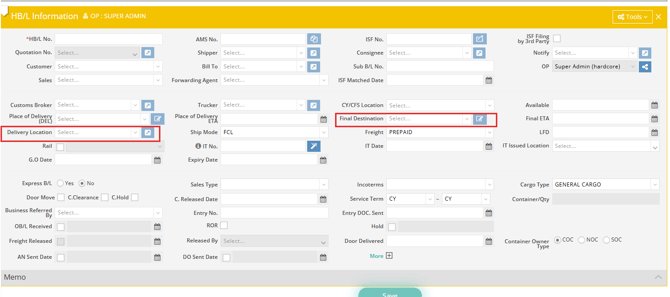
5. Automatically Populate Final Destination from Delivery Location (Ocean Import)For Ocean Import shipments, GoFreight can automatically populate the Final Destination field on an HB/L based on the selected Delivery Location.
When a Delivery Location is selected, the system uses the associated Trade Partner's city and state/province to find a matching standard location. If exactly one matching location is found, Final Destination is empty, and the MB/L is unlocked, the system populates the field automatically.
How to Trigger Automatic Population
- Open the Ocean Import shipment.
- Go to the Basic tab and locate the relevant HB/L.
- Make sure the Final Destination field is empty.
- Select the appropriate Trade Partner in the Delivery Location field.
- If exactly one matching standard location is found, the system automatically populates Final Destination.
- Review the populated value. If the field remains blank, select the correct location manually.
- Click Save.
Requirements for Automatic Population
Automatic population requires the following conditions:
- The selected Trade Partner has city and state/province information.
- Exactly one matching standard location is available to the shipment's office.
- The MB/L is not locked.
- The Final Destination field is empty.
Important Notes
- Existing values are preserved: GoFreight does not overwrite an existing Final Destination. To trigger the lookup again, clear Final Destination, then clear and reselect Delivery Location.
- Location matching: The system matches the Trade Partner's city and state/province. If a country is recorded, it is also included in the matching criteria. If the country is blank, the system uses the available city and state/province information.
- No unique match: If no matching location is found or multiple matches exist, Final Destination will not be populated automatically. Select the correct location manually.
- Standard locations only: Custom locations are excluded from the automatic matching process.
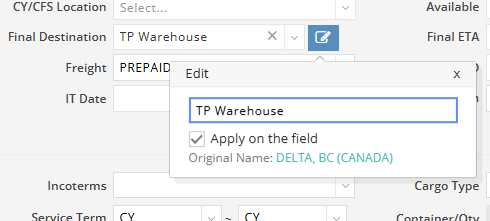
- HB/L-specific behavior: Only the selected HB/L's Final Destination is affected. Other HB/Ls and the MB/L remain unchanged.
- Manual editing: You can manually change Final Destination when necessary. The saved HB/L value continues to be used in shipment documents.
- Other triggers: Final Destination may also be populated when Load by Consignee or existing Consignee-related behavior fills in Delivery Location. The same conditions apply: Final Destination must be empty, and exactly one matching standard location must be found.
Before generating or sending an Arrival Notice, review the shipment and bill of lading information to ensure that all relevant details are complete and accurate.
Pay particular attention to:
- Shipment parties and consignee information.
- Routing information.
- Delivery Location and Final Destination on the relevant HB/L.
- Other information required by your company's Arrival Notice template.
If Final Destination is included in the generated document, confirm that the correct value appears on the relevant HB/L before generating the document.
Follow your company's established process for generating and sending Arrival Notices.
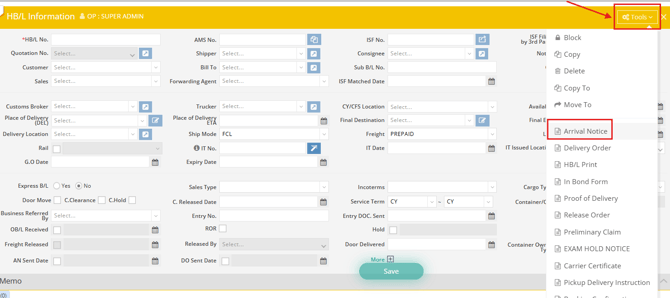
Before completing shipment entry, review the shipment and its associated bills of lading.
- Confirm that the shipment details are accurate.
- Verify the required MB/L information.
- Review the information entered for each HB/L.
- Check automatically populated fields and correct any missing or incorrect information.
- Confirm that Final Destination is correct on the relevant Ocean Import HB/L before generating documents.
- Click Save and verify that the changes have been retained.
Following these steps helps ensure that shipment information is complete and accurate before proceeding with the next stage of shipment processing.