
Document types allow you to create document categories that match your company's operational workflow. Once activated, a document type becomes available when users upload documents through Doc Center for the corresponding shipment and bill type.
PrerequisitesTo access and manage document types, you need the following permissions:
- Can View Document Type: Allows you to access the Document Types page.
- Can Add/Edit/Deactivate Document Type: Allows you to create, edit, activate, and deactivate document types.
By default, Operator Managers, General Managers, and Administrators have both permissions. Your company's permission settings may differ.
Supported Shipment and Bill of Lading TypesYou can create document types for the following shipment types:
- Ocean Import
- Ocean Export
- Air Import
- Air Export
- Truck
- MISC
For Ocean Import, Ocean Export, Air Import, and Air Export, you can create document types for either HBL or MBL.
Truck and MISC support MBL only.
Create a Document Type Step 1: Open the Document Types PageNavigate to Home > Settings > Document Types.
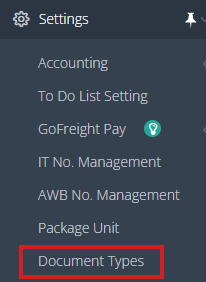
The Document Types page displays document types only. System document types do not appear on this page.
Step 2: Select a Shipment and Bill of Lading (B/L)Select the Shipment Type and B/L where you want to use the document type.
For example, select Ocean Import and Master B/L to create a document type for Ocean Import master shipments.
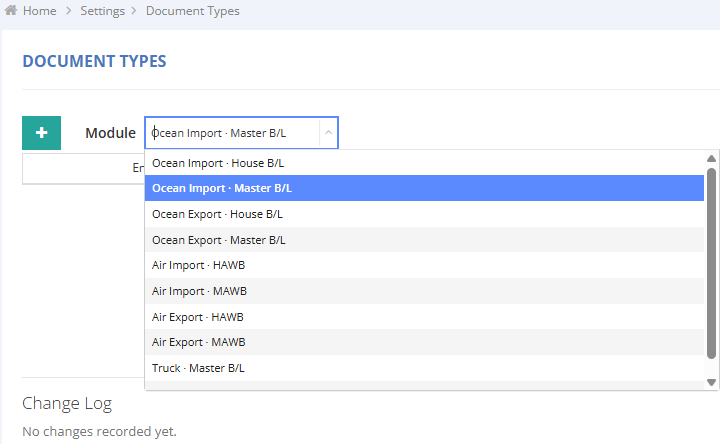
The list displays only the document types assigned to the selected Shipment Type and B/L Type combination.
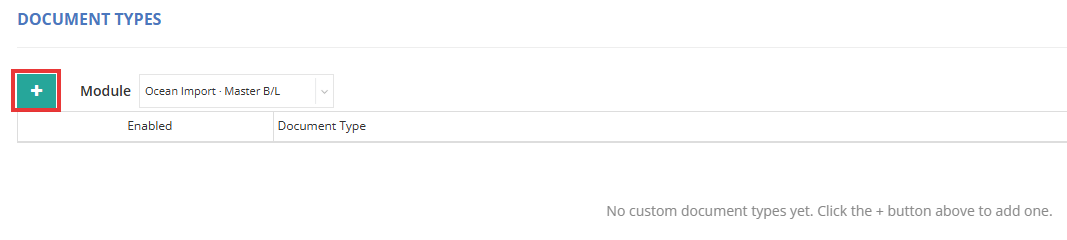
The table includes the following columns:
- Document Type
- Status
- Actions
Use the page's creation action to add a new document type.
Enter a clear and descriptive name.
Example: Packing Photo
Each document type is assigned to one Shipment Type and Bill of Lading Type combination. You cannot change this assignment after the document type is created.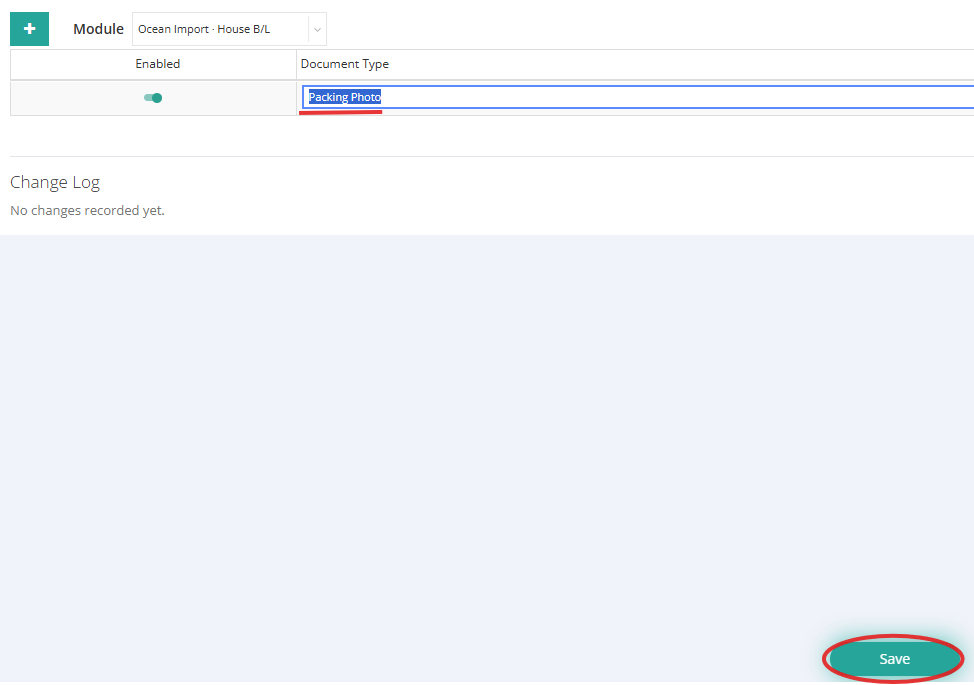
Set the document type to Enabled, then save your changes.
Once activated, the document type becomes available in the Doc Center upload list for the selected Shipment Type and Bill of Lading Type.
For example, a document type created for Ocean Import > MBL is available only when uploading documents to an Ocean Import MBL. It is not available for Ocean Import HBLs or other shipment modules.
Use a Document Type in Doc Center- Open a shipment that matches the document type's assigned Shipment Type and Bill of Lading Type.
- Open the shipment's Doc Center.
- Start a document upload.
- Select the document type from the Type list.
- Complete the document upload.
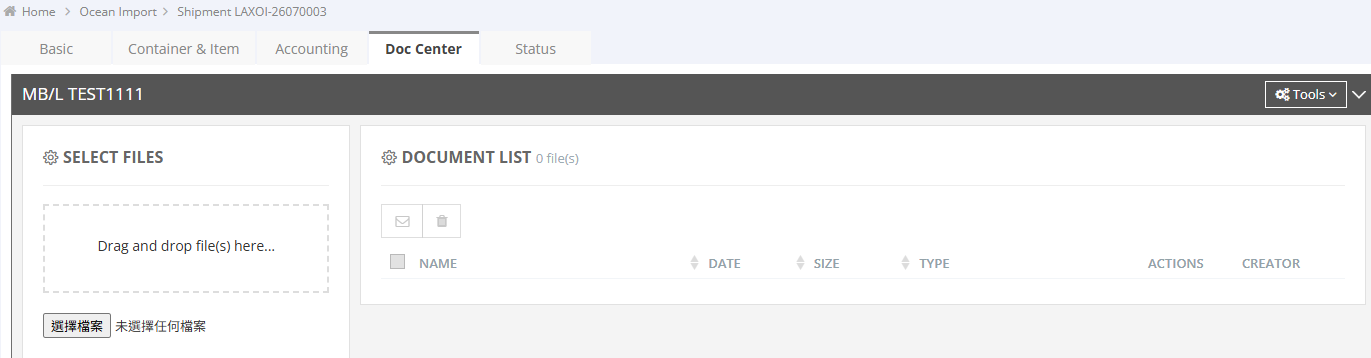
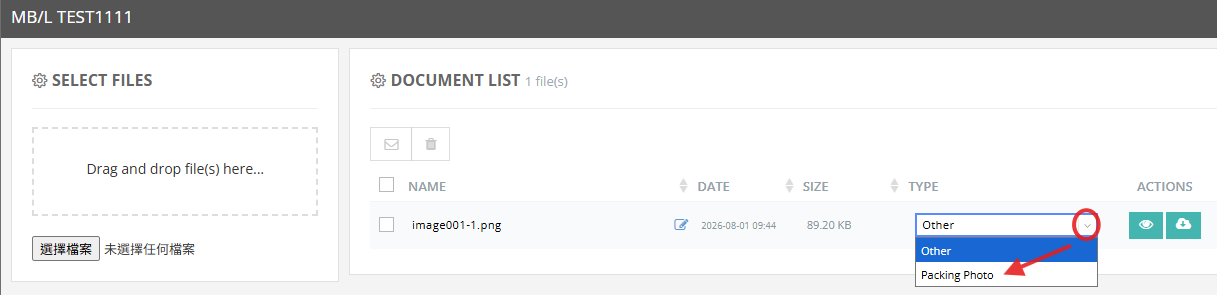
Only active document types assigned to the current shipment and bill type appear in the Type list.
- Navigate to Home > Settings > Document Types.
- Select the Shipment Type and Bill of Lading Type assigned to the document type.
- Locate the document type in the list.
- Update the document type name or status ( Green: Switch on Enabled, Gray: Switch off on Enabled )
- Save your changes.
Document type names do not need to be unique. Use clear and descriptive names to help users select the correct document type during upload.
Deactivate a Document TypeDocument types cannot be deleted. Deactivate a document type when you no longer want users to select it during document uploads.
- Navigate to Home > Settings > Document Types.
- Select the Shipment Type and Bill of lading Type assigned to the document type.
- Locate the document type in the list.
- Switch off to gray on the Enabled button to deactivate the document type and click SAVE.
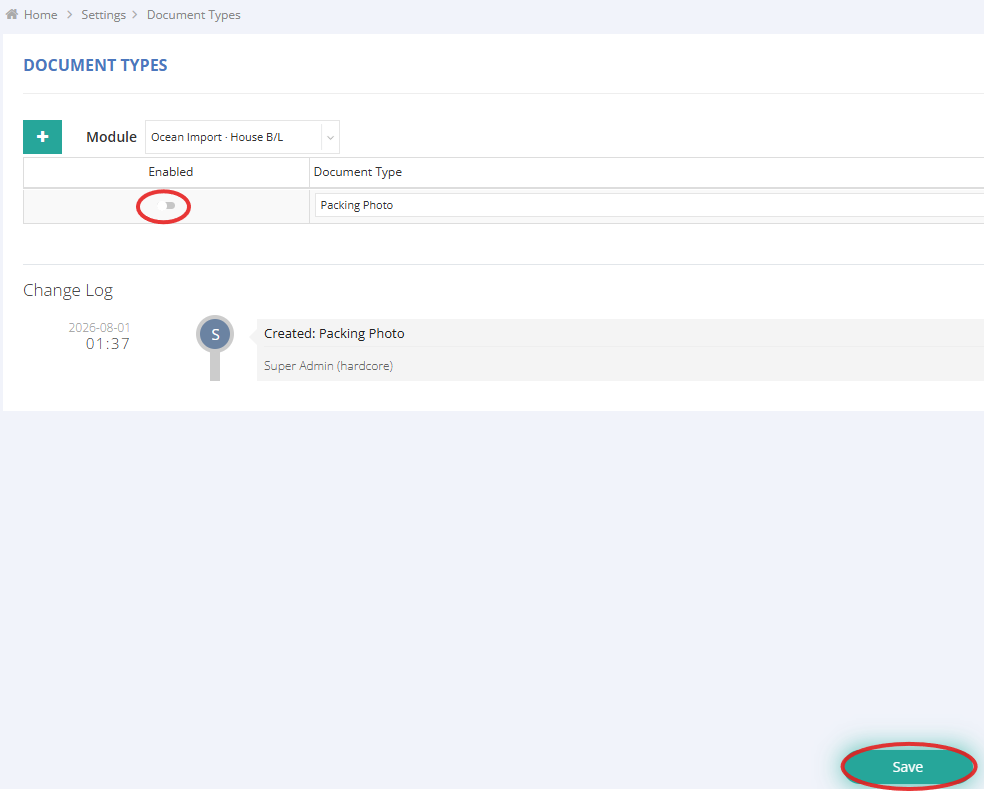
After a document type is deactivated:
- It no longer appears in the Doc Center upload list.
- Documents previously uploaded using the document type remain available.
- The document type can be reactivated later, if needed.
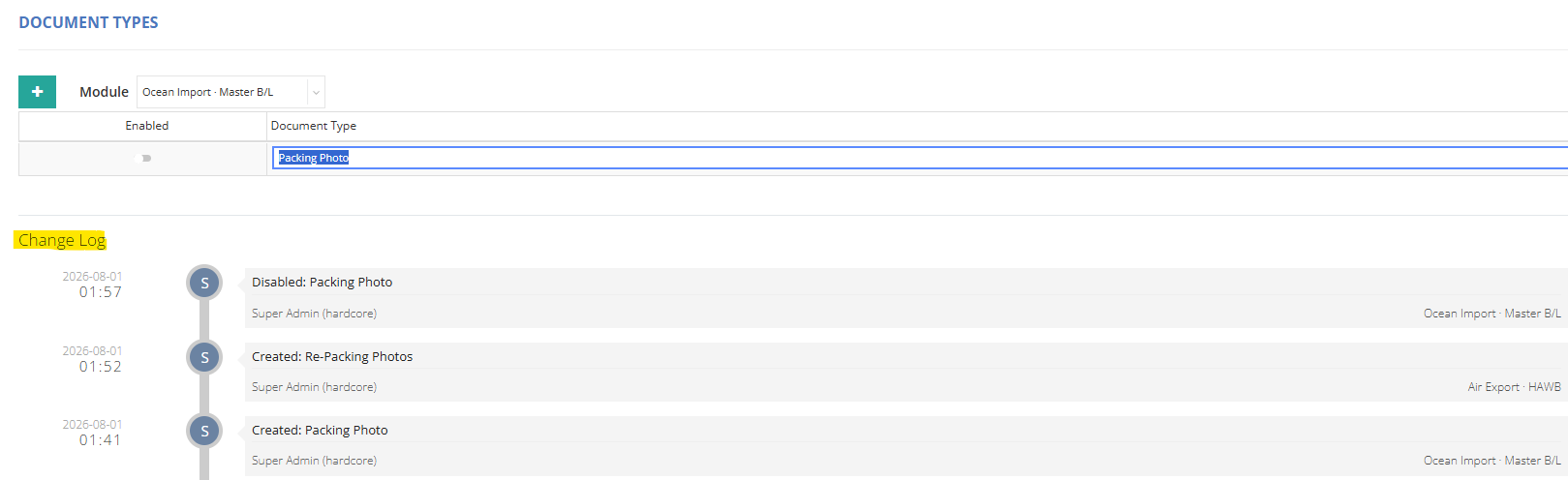
Open the Change Log from the Document Types page to review changes made to document types.
The Change Log records:
- Document type creation
- Changes to the document type name or status
- Document type deactivation
- The user who made the change
- The field that was changed
- The value before and after the change
- The date and time of the change
- Each document type can be assigned to only one Shipment Type and Bill Type combination.
- You cannot move an existing document type to another combination. Create a new document type under the required combination instead.
- System document types do not appear on the Document Types settings page and cannot be managed from this page.
- Document types are not available for Warehouse, Accounting, Quotation, ISF, Customer Booking, or Vessel workflows.
- This feature does not change the file formats supported by Doc Center.
Document types allow you to organize uploaded documents based on your company's workflow.
You can create, edit, activate, deactivate, and review changes to document types from the Document Types settings page. Active document types are available only in the matching Doc Center upload workflow. If a document type is later deactivated, documents that were previously uploaded using that type remain available.
You might also be interested in:
- How to Manage Shipment Documents?
- Auto-Saved Generated Documents to the Doc Center
- How to Use the Document Package Feature for Air Export Documents