
GoFreight supports multiple email templates, enabling users to select the appropriate template for various business scenarios when sending emails from the system.
By default, users with the Admin or General Manager role have permission to create and manage email templates.
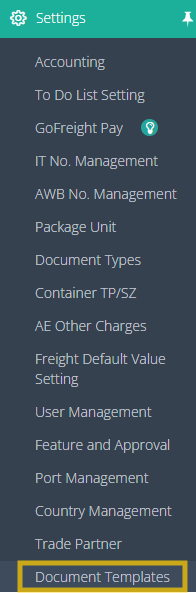
Create a New Email Template- Navigate to Settings > Document Templates from the menu bar.
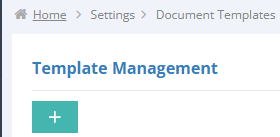
- Click the + button to create a new template.
- The New Template page will open. Complete the required fields to configure the template.
Click on + to add new templates.
Required Fields
The fields marked with a red asterisk (*) are mandatory.
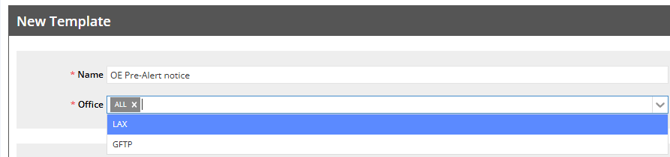
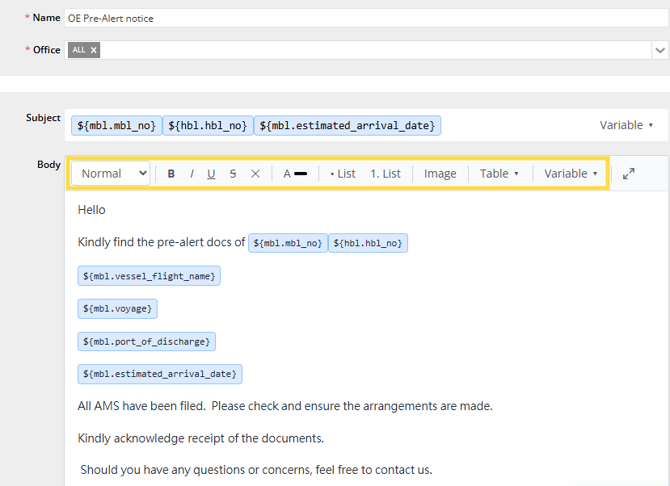
- Name: Enter a name for the email template.
- Example: OE Prealert Notice
- Office: Select the office where the template will be available.
- If your company has multiple offices, the default value is All, making the template available to all offices.
- You may also select a specific office if you want the template to be used only by that office.
Subject
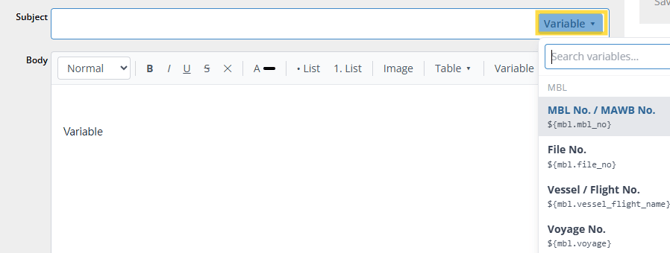
Enter the subject of the email, or click Variable at the end of the Subject field to insert predefined variables. These variables can also be used in the Email Body and will automatically populate shipment information when the email is sent.
For example, the following variables can be inserted into the subject:
- MBL No./MAWB No.
- HBL No./HAWB No.
- ETA
Email Body
Enter the email content in the Body field. You can also click Variable to view and insert shipment-related information into the email.
Commonly used variables include:
- MBL No./MAWB No.
- HBL No./HAWB No.
- Vessel/Voyage
- ETA
- ETD
- Shipper
- Consignee
The email editor provides various formatting tools, allowing you to customize the email content using:
- Font styles and sizes
- Bold, italic, and underline
- Bulleted and numbered lists
- Text alignment
- Images
- Tables
- Hyperlinks
These tools help create clear, professional, and well-formatted email templates.
Signature
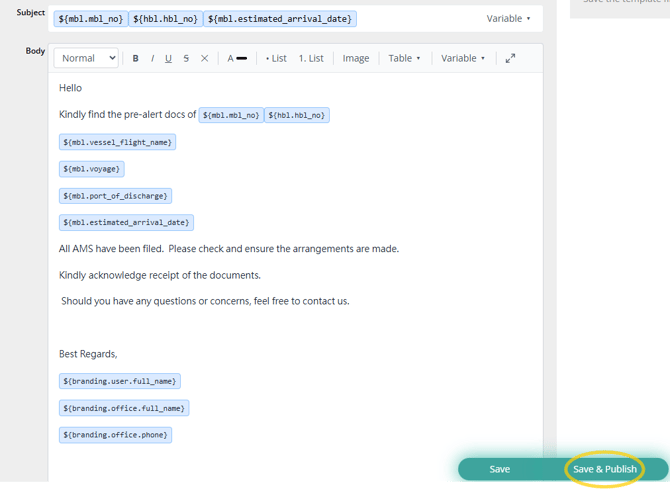
A signature is required when creating an email template.
You can enter plain text or insert images, such as a company logo, as well as hyperlinks directly into the signature. Images and links can also be inserted into the email body, allowing you to customize the template according to your business needs.
Once you have finished configuring the template, choose one of the following options at the bottom of the page:
|
Action |
Status |
Available for Selection |
Description |
|
Save |
Draft |
❌ No |
Saves the template for future editing. The template remains in Draft status and is not available for users to select until it is published |
|
Save and Publish |
Published |
✅ Yes |
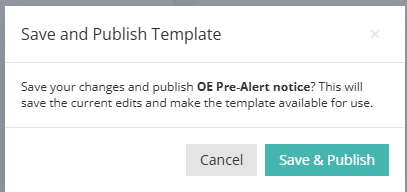
Saves and publishes the template, making it immediately available for users to select from the template list. |
LIVE PREVIEW
Once the template has been saved, you can check the LIVE PREVIEW on the right-hand side of the page to view how the actual email content will be.
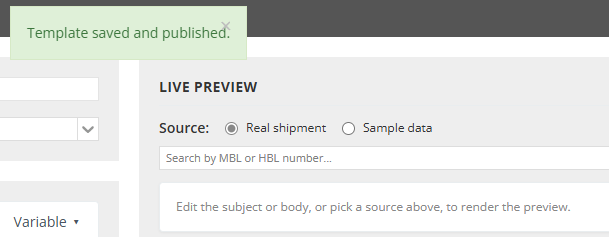
For a more accurate preview, select Real Shipment and enter the Master B/L or House B/L number (or MAWB/HAWB for air shipments). The preview will display the corresponding shipment information based on the selected record.
You can review the preview, make any necessary adjustments to the template, and save your changes.
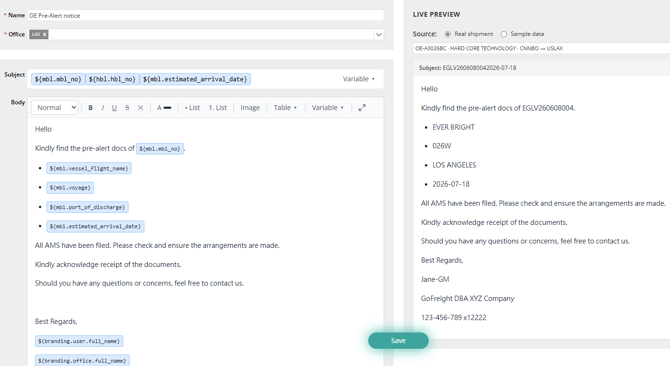
If any changes are required to the existing template, users with the Admin or General Manager role can access the Document Templates to make modifications, such as unpublishing the template or adjusting the offices for the template.
You can also search for template names, office, and status directly in the top right-hand side of the page if there is a longer list of templates in the future.

Applying the Email Template
To apply the email template in the system, for example, under an ocean export shipment ready to send pre-alert documents:
- Click on the tools of Master for Document Packages or Pre-alert under the Tools of House.
- Under the document preview, click the Email icon.
- The email page will display the normal email. Scroll down to the bottom, where “Select Email Template” is shown next to the Cancel button.
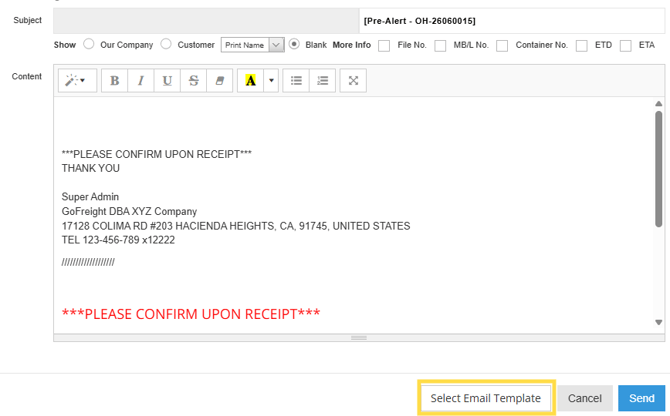
Click on Select Email Template, and the page will direct you to the Email Template Selector.
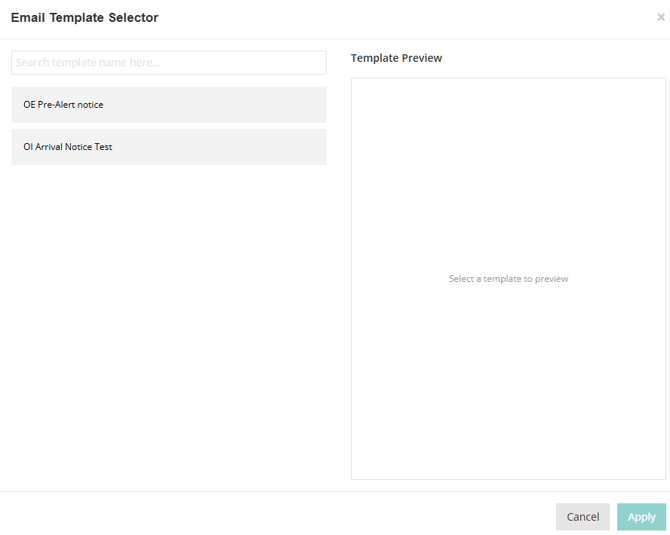
Choose the template you would like to apply.
Once you click it, the preview page will appear on the right-hand side for your viewing.
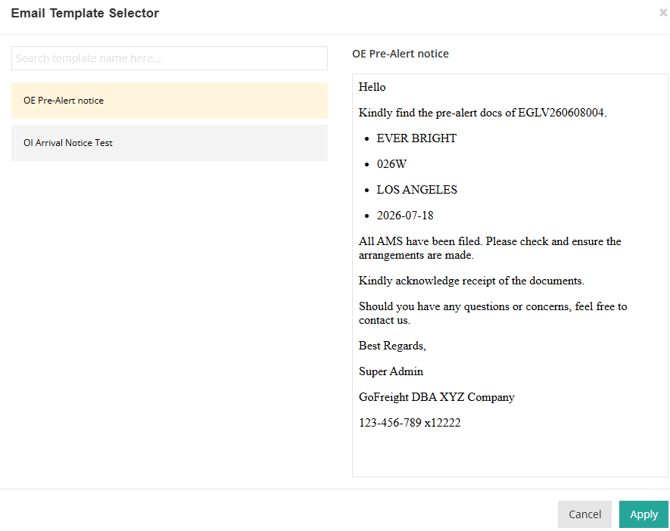
Click on Apply for the next step.
The email template will be applied and displayed on the page.
After confirming all details, click the “Send” button to deliver the email to the customer.
Current Limitations-
Email Preview
The following 2 limitations only affect the Email Preview. The actual email sent to recipients will not be affected.
1. Bullet Alignment
In the preview window, bullet points may appear misaligned with the corresponding text.
2. Bullet List Line Spacing
The line spacing between bullet points in the preview may appear larger than expected.
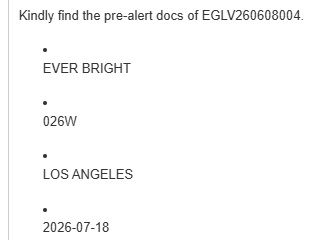
-
Email Variables
HBL/HAWB Variables in Master-Level Emails
If an email template contains HBL/HAWB variables and the email is sent from the Master B/L or MAWB level, the HBL/HAWB variables will not be populated.
This is because a single Master B/L or MAWB may contain multiple House B/Ls or HAWBs. When sending an email from the Master level, the system does not support selecting a specific House shipment to retrieve House-level variable values.
Impact: HBL/HAWB variables cannot be populated when emails are sent from the Master B/L or MAWB level.
Should you have any questions regarding the Email Template, please feel free to contact GoFreight Support at support@gofreight.com.