
What Is GoFreight-to-GoFreight EDI?
GoFreight-to-GoFreight EDI (referred to in this article as GF EDI, also known as GoFreight EDI) allows shipment data to be exchanged directly between two GoFreight tenants (two different GoFreight environments. Instead of sharing shipment information through emails, PDFs, Excel files, or manual data entry, users can transfer shipment data electronically from one GoFreight system to another.
A common use case is when an overseas agent creates a shipment file and sends it to a destination agent through GF EDI. Another common use case is data exchange between a headquarters office and its overseas branch offices. The receiving party can then use the transmitted data to create and manage its own shipment file.
GF EDI can also be configured as a two-way communication channel. For example, your overseas agent can send shipment data to you, and you can also send shipment data back to your overseas agent. If you would like to enable two-way transmission, please let the GoFreight team know during the setup process.
Benefits of GF EDI
- Eliminate duplicate shipment data entry between overseas and destination agents
- Reduce email attachments, manual copy-and-paste work, and key-in errors
- Lower data exchange costs when both parties use GoFreight
- Allow the receiving party to create shipment files more quickly and continue local handling, tracking, billing, and document workflows
If your overseas agent is also using GoFreight, this feature is available as a complimentary value-added service.
💡Note: If your overseas agent is not using GoFreight, please contact your Customer Success Manager directly or email the GoFreight Support Team via support@gofreight.com to learn more about the Agent EDI add-on service and pricing.
Supported Workflow in The System
GF EDI currently supports the following shipment flows:
- Ocean Export → Ocean Import
- Air Export → Air Import
Scenario Used in This Article
To help explain how GF EDI works, this article uses the following example:
- Agent C = Origin agent in China (sender)
- Agent US = Destination agent in the United States (receiver)
In this scenario, Agent C sends an Ocean Export shipment to Agent US, which receives the shipment as an Ocean Import file.
💡Note: Company names, Trade Partner codes, and other records shown in this article are sample data used for demonstration purposes only.
Part 1: Sending a Shipment via GF EDI (Agent C)
After GF EDI has been enabled, Agent C can send shipment data directly from an Ocean Export shipment file.
Step 1: Select the Designated Trade Partner
Within the Ocean Export shipment, Agent C must select the designated Trade Partner that represents Agent US.
Once the correct Trade Partner is selected in the field “(Oversea Agent) Consignee” at the MBL (Master Bill of Lading) level, the GoFreight EDI option will become available in the Tools menu.
⚠️Important: During the GoFreight EDI setup process, please inform the GoFreight Support Team which Trade Partner should be designated as your overseas agent. The GoFreight EDI option will only appear when that designated Trade Partner is selected in the shipment file. Selecting another Trade Partner with a similar name will not trigger the GoFreight EDI option.

Step 2: Submit the Shipment
From the Tools menu, select GoFreight EDI.
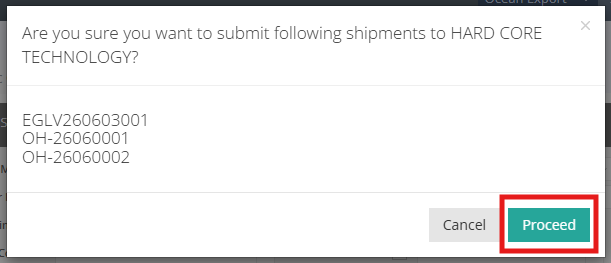
A confirmation window will appear showing the shipment data that will be transmitted.
In the example below, the shipment contains:
- One MBL (Master Bill of Lading)
- Two associated HBLs (House Bills of Lading)
Click Proceed to submit the shipment.
Step 3: Verify Successful Submission
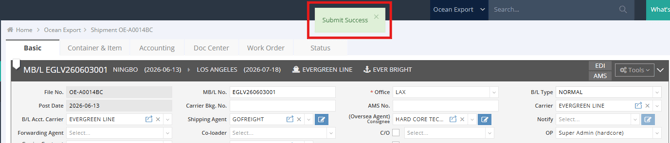
If the transmission is successful, a Submit Success message will appear at the top of the screen.
You can also verify the submission through the following indicators:
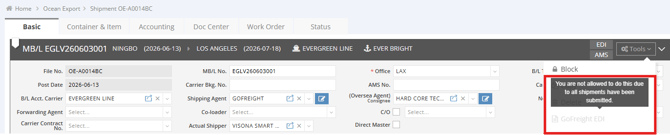
- The GoFreight EDI option in the Tools menu becomes disabled
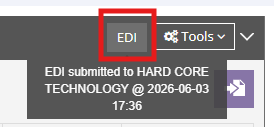
- An EDI label next to the Tools menu allows you to verify the submission status quickly. Hover over the icon to view the recipient and the date and time the shipment was sent via GF EDI.
- An EDI Submit Successfully record appears in the Status tab Change Log
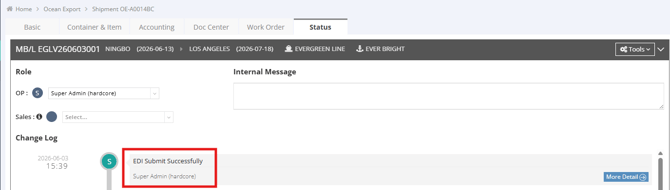
⚠️Important: GF EDI is a create-only process. Once a shipment has been submitted through GF EDI, it cannot be sent again. If shipment information is updated after transmission, the receiving party must manually update the shipment in its own GoFreight system. For this reason, we recommend entering as much shipment information as possible before sending the EDI.
Part 2: Receiving a Shipment via GF EDI (Agent US)
After Agent C submits the shipment, Agent US can review and manage the imported shipment using the following two methods within Ocean Import.
Method 1: Review Imported Shipments in EDI History
Navigate to:
Ocean Import → EDI History
The EDI History feature becomes available after GF EDI is enabled.
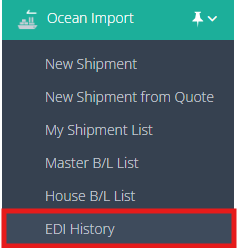
This page displays all shipment files received through GF EDI.
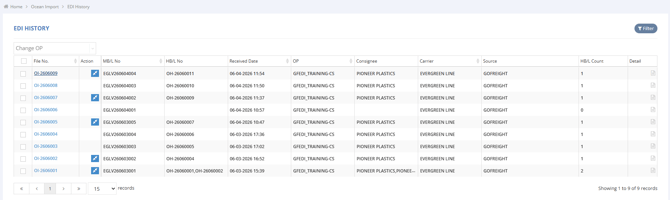
View Shipment Details
The list displays information such as:
- File information
- HBL count
- EDI Detail
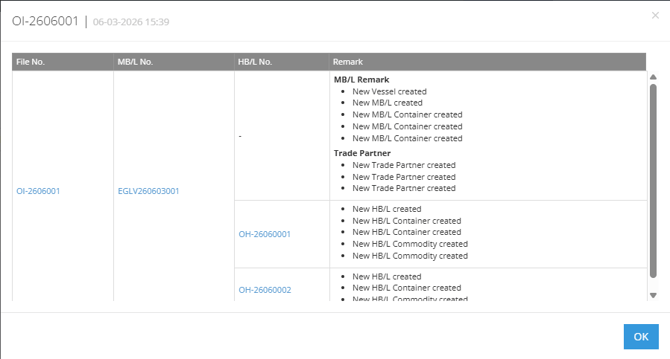
Click the Detail icon to review the shipment information received through GF EDI.

The Detail page shows the shipment data that has been created in your GoFreight system.
Review Trade Partner Mapping
When GF EDI imports shipment data, the system automatically checks whether the transmitted Trade Partners already exist in your GoFreight database.
To review the mapping status, click the blue Action icon.

When No Matching Trade Partner Exists
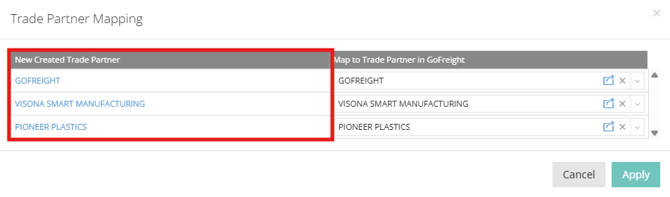
If the transmitted Trade Partner cannot be matched to an existing Trade Partner record, GF EDI automatically creates a new Trade Partner. You will see these newly-created trade partners in the New Created Trade Partner field on the Trade Partner Mapping panel.
You can click any Trade Partner hyperlink to review its information.
Map to an Existing Trade Partner
If an equivalent Trade Partner already exists in your system, you can manually map the newly created Trade Partner to the existing one.
Search for the desired Trade Partner under: Map to Trade Partner in GoFreight
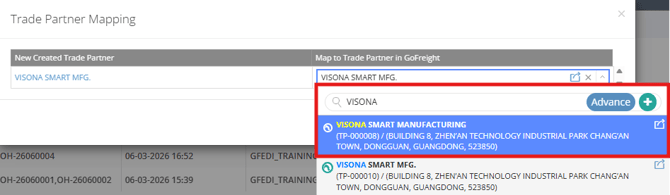
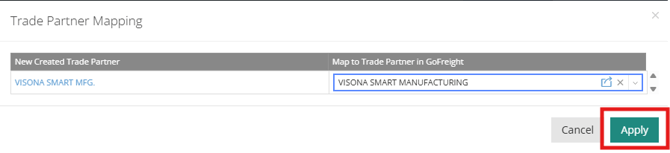
In this showcase, we select an existing trade partner, instead of the newly created one. Then click Apply.
What Happens After Mapping?
After the mapping is completed:
- The newly created Trade Partner becomes Inactive
- Future references will use the mapped Trade Partner
If all Trade Partners were successfully matched during import, the mapping icon will not appear.

Assign an Operation User
By default, newly imported shipments are assigned to the EDI agent account and have not yet been assigned to an Operation user in your team.

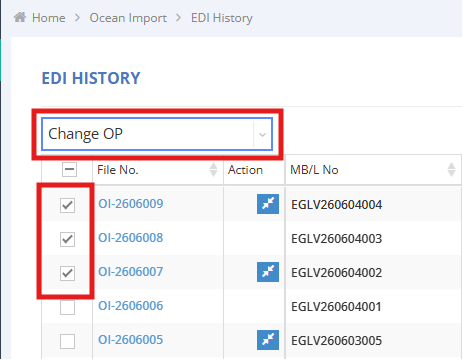
From the EDI History list, select one or more shipment files.
The Change OP dropdown will become available, allowing you to assign the shipment to the appropriate Operation user.
Method 2: Review Imported Shipments from Master B/L List or House B/L List
Imported GF EDI shipments can also be identified from:
- Ocean Import → Master B/L List
- Ocean Import → House B/L List
An EDI icon appears next to the File No. field, indicating that the shipment was created through EDI.

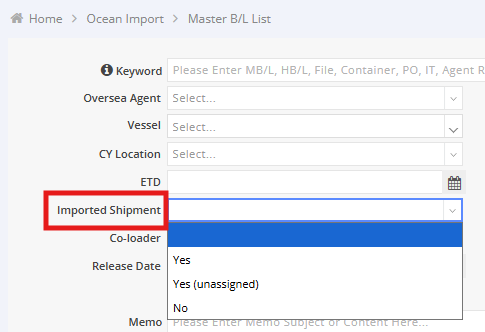
Filter Imported Shipments
The Imported Shipment filter provides three options:
- Yes
- Yes (Unassigned)
- No
For example, if you want to find imported shipments that have not yet been assigned to an Operation user, select Yes (Unassigned).
Required Information for GF EDI Setup
To set up GF EDI, please prepare the following information and include it in your email to the GoFreight Support Team:
1. Approval from Both Parties
Please include an Admin, General Manager user, or authorized decision-maker from both GoFreight environments in the email thread.
The GoFreight Support Team will require confirmation from both parties before enabling the GF EDI connection.
2. Designated Trade Partner Records
Specify which Trade Partner record should be used to represent the other party in each GoFreight environment.
GF EDI transmission is triggered based on the designated Trade Partner selected in the shipment file.
3. Direction of Transmission
Specify whether the connection should be:
- One-way transmission (Party A → Party B), or
- Two-way transmission (Party A ↔ Party B)
4. Office Mapping (If Applicable)
If either GoFreight environment contains multiple offices, please specify which office(s) should be connected through GF EDI.
For example:
- Party A’s Shanghai Office → Party B’s Los Angeles Office (One-way)
- Party B’s Shenzhen Office → Party A’s Chicago Office (One-way)
- Party A’s Taiwan Office ↔ Party B’s Toronto Branch Office (Two-way)
If multiple office-to-office connections are required, please provide the complete mapping information for each connection.
5. Environment Information
Provide the URLs of both GoFreight environments to be connected.
🧷Appendix A: Supplemental Information – Data Transfer Details
This appendix provides a detailed reference of the data transferred through GF EDI for Ocean and Air shipment workflows.
Ocean Workflow
The following sections summarize the shipment data that can be transferred through GF EDI.
💡Note: GF EDI does not transfer Accounting data and Doc Center documents. Only shipment operational data is transferred through GF EDI.
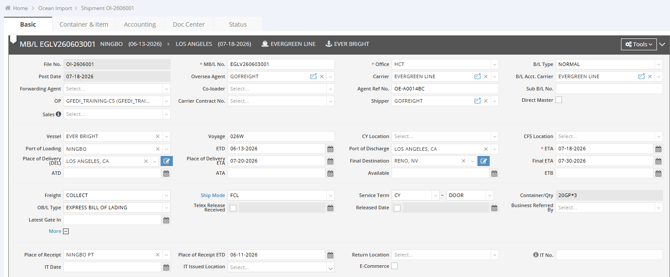
MBL Information (Non-Direct Master)
GF EDI transfers the following MBL data:
- MBL No.
- B/L Type
- Carrier
- B/L Acct. Carrier
- Agent Ref No. (Agent C’s Origin Ocean Export File No.)
- Oversea Agent (Agent C's Company Name)
- Shipper (Agent C's Company Name)
- Vessel
- Voyage
- Port of Loading
- ETD
- Port of Discharge
- ETA
- Place of Delivery
- Place of Delivery ETA
- Final Destination
- Final ETA
- Freight
- Ship Mode
- Service Term
- Container / Qty
💡 Note: The Container / Qty field is automatically populated based on the transmitted container quantity and TP/SZ information.
- OBL Type
- Place of Receipt (under “More” section)
- Place of Receipt ETD (under “More” section)
HBL Information
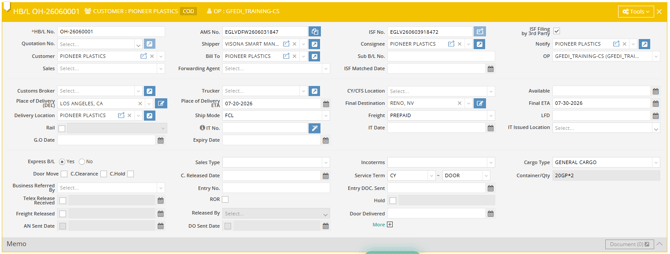
GF EDI transfers the following HBL data:
- HBL No.
- AMS No.
- ISF No.
- Shipper
- Consignee
- Place of Delivery
- Place of Delivery ETA
- Final Destination
- Final ETA
- Ship Mode
- Freight
- Express B/L
- Service Term
- Container / Qty
Container Information
MBL Container List
- Container No.
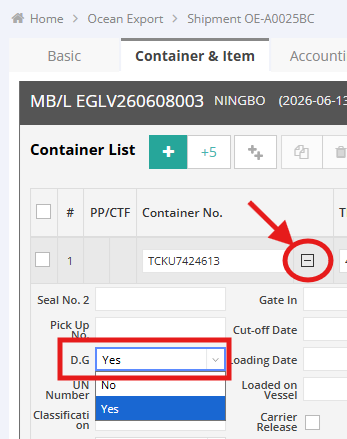
- D.G (Dangerous Goods)
💡 Note: Next to the Container No. field, there is a “+” expand button that allows users to input additional container-related information. The “D.G” field value can be transmitted to the destination system. Default is “No”; select “Yes” for DG container. This information is available in the same Container section of the receiver’s Ocean Import file.
- Remark
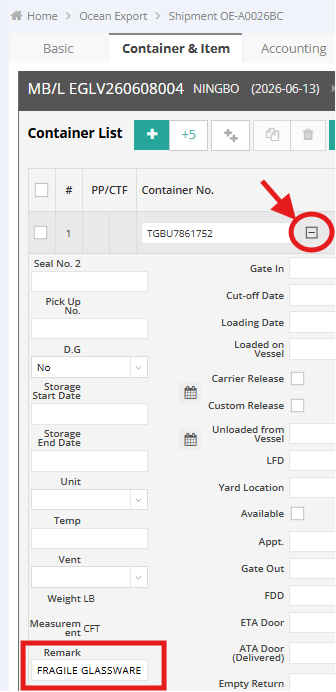
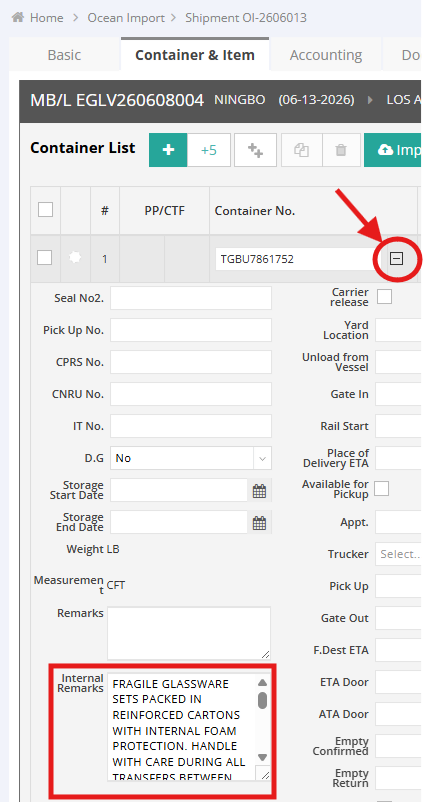
💡 Note: The Remark field in the expanded Container section supports up to 512 characters. Its content can be transmitted via GF EDI and mapped to the Internal Remarks field in the destination system’s Ocean Import container record.
- TP/SZ
- Seal No.
- PKG
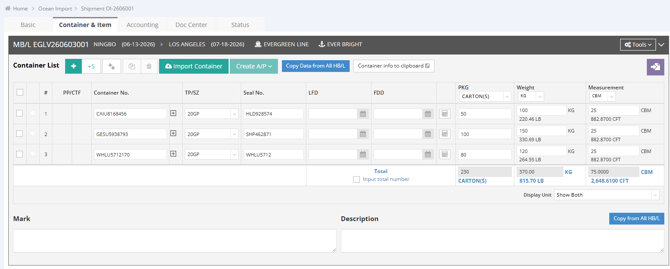
- Weight
- Measurement
💡 Note: GF EDI transmits both KG and LB (or CBM and CFT) exact values for weight and measurement fields to ensure precision. The destination system writes values directly from the transmitted dual-unit data instead of recalculating or converting units, preventing rounding differences that may cause discrepancies between origin and destination systems.
HBL Container List and Commodity
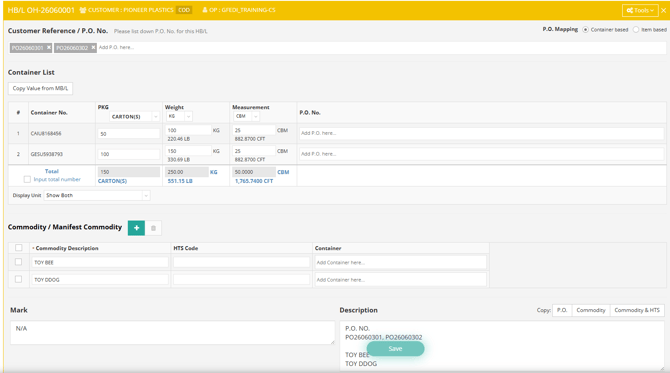
- Customer Reference / P.O. No.
- Container List (Container No., PKG, Weight, and Measurement)
- Commodity Description
- Mark
- Description
💡Note: GF EDI Behavior Additional Details
- If an ISF No. is received through EDI, “ISF Filing by 3rd Party” will be automatically checked.
- HBL Notify, Customer, Bill To, and Delivery Location are synchronized from the transmitted Consignee, following your default system configuration.
- HBL Sales Type and HBL Cargo Type are not transferred. Therefore, Sales Type will remain blank, and Cargo Type will default to GENERAL CARGO.
- The destination Weight field will be populated with the Gross Weight from the origin Ocean Export shipment.
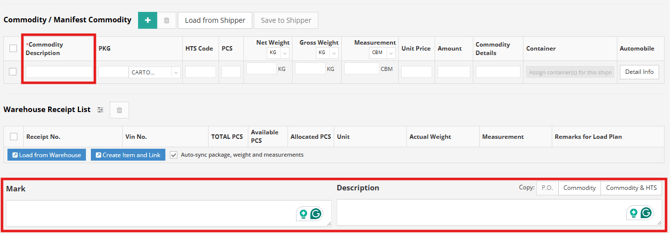
- The Ocean Export MBL Mark and MBL Description are not transferred to the Ocean Import MBL; however, the HBL Mark and HBL Description are transferred.
📌For GF EDI transmissions, the Mark and Description fields are limited to 512 characters, and the Commodity Description is limited to 128 characters. Content exceeding these limits will be truncated during transmission, so the destination shipment file may not receive the complete text.
Direct Master Scenario
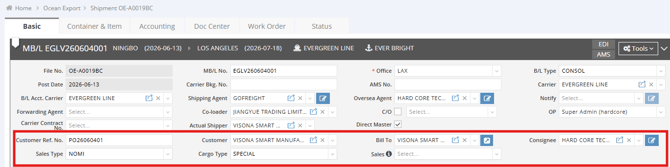
In a Direct Master shipment, there is no House B/L (HBL). As a result, certain fields that are normally maintained at the HBL level will instead be entered at the Ocean Export MBL level. These include: Customer Ref. No., Customer, Bill To, Consignee, Sales Type, Cargo Type, and Sales.
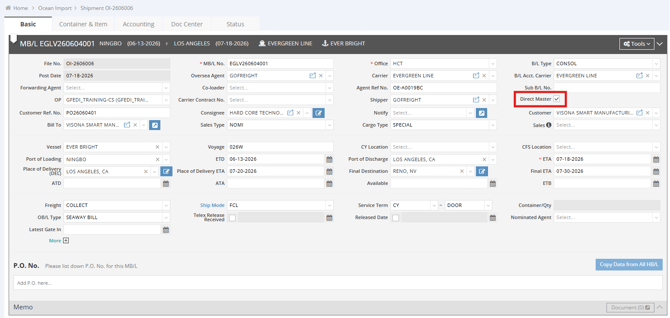
When the shipment is transferred via GF EDI to the receiver’s Ocean Import file, in addition to the MBL (Non-Direct Master) data described above, the system will also bring in the following Direct Master-specific information:
- Direct Master checkbox (checked)
- Customer Ref. No.
- Consignee (Agent US’s Company Name)
- Customer
- Sales Type
- Cargo Type
Change Log Tracking
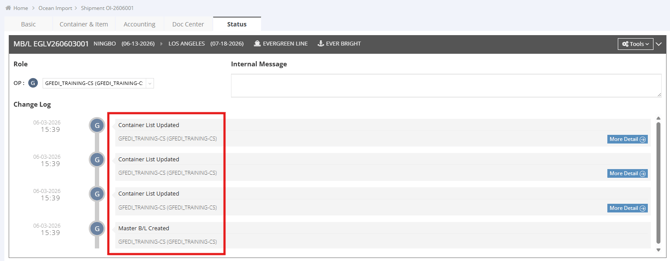
All changes made by the GF EDI process are recorded in the shipment's Status tab under Change Log.
This allows users to review the shipment creation history and EDI-related activities.
Air Workflow
The operational process of sending an Air Export shipment file from the sender to the receiver's Air Import file is the same as the Ocean workflow described above in Part 1.
💡Note: How to Locate Received GF EDI Shipments
Since Air Import does not currently provide an EDI History feature, please navigate to Air Import > MAWB List or HAWB List to locate received shipment files. (MAWB = Master Airway Bill; HAWB = House Airway Bill)
The Air Import module currently does not provide an Imported Shipment filter in either the MAWB List or HAWB List. You can use known shipment information to locate the imported shipment, such as:
- Post Date
- HAWB Shipper
- Flight No.
- Departure Airport
- Destination Airport
- Other shipment details
Alternatively, you can also use the Config function to move the OP column to a more visible position.
Shipments created through GF EDI will display GF EDI in the OP field, allowing you to identify imported shipment files. Once located, you can assign the shipment to the responsible operator to continue the remaining workflow.

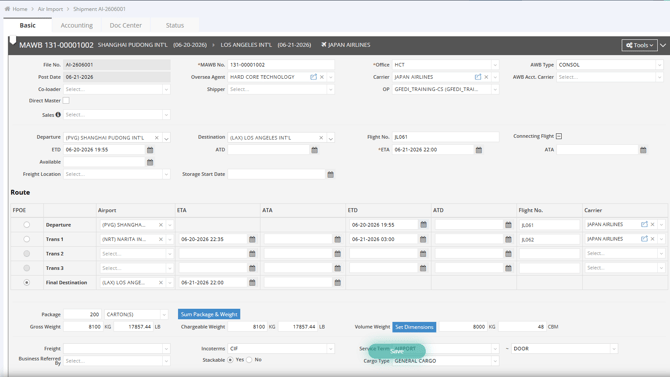
MAWB Information (Non-Direct Master)
GF EDI transfers the following MAWB data:
- MAWB No.
- AWB Type
- Carrier
- Co-loader
- Departure
- ETD
- Destination
- ETA
- Flight No.
- Connecting Flight
- Package
- Gross Weight
- Chargeable Weight
- Volume Weight
- Incoterms
- Service Term
💡Note: Cargo Type and Stackable Yes/No are not transmittable.
HAWB Information
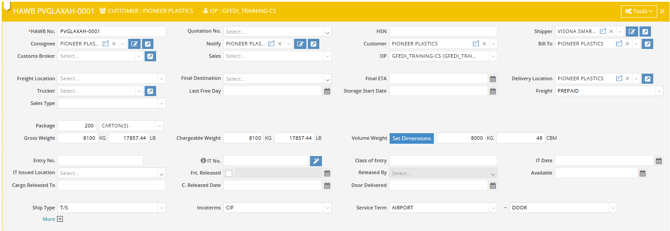
GF EDI transfers the following HAWB data:
- HAWB No.
- Shipper
- Consignee
- Package
- Gross Weight
- Chargeable Weight
- Volume Weight
- Ship Type
- Incoterms
- Service Term
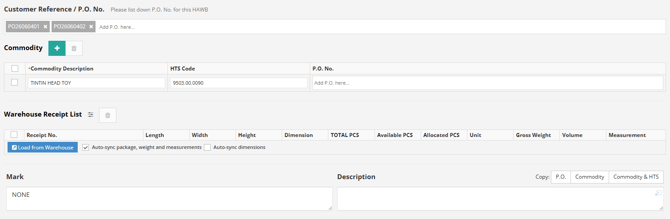
- Customer Reference / P.O. No.
- Commodity
- Mark
MAWB Information (Direct Master)
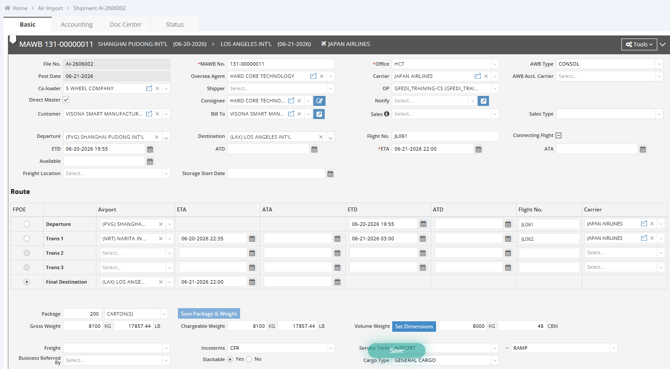
GF EDI transfers the following MAWB data:
- MAWB No.
- AWB Type
- Carrier
- Co-loader
- Consignee
- Departure
- ETD
- Destination
- ETA
- Flight No.
- Connecting Flight
- Package
- Gross Weight
- Chargeable Weight
- Volume Weight
- Incoterms
- Service Term
💡Note: Cargo Type, Sales Type, and Stackable Yes/No are not transmittable.
You might also be interested in:
- How to Add a New Shipment in Ocean Import or Ocean Export?
- Receiving a Pre-Alert in Ocean Import
- How to Generate and Manage Pre-Alert Documents in Ocean Export