
GoFreight supports AFR (Advanced Filing Rules) submission for Ocean Export shipments to Japan. This feature is not included by default in your GoFreight system. To enable AFR, you must first obtain an AFR Report ID and Password from NACCS. Once you have the credentials, you can then request access from GoFreight. The application process typically takes a few business days to complete. Once approved, a GoFreight support agent will activate the AFR feature for your account.
After activation, you can submit AFR filings directly from the shipment page, which eliminates the need for duplicate data entry. The AFR Filing function is available for Ocean Export shipments to users with the roles of Operations (OP), OP Manager, and General Manager within the system.
For more detailed information about the application process and pricing, please refer to the related article or contact support@gofreight.com.
How to File an AFR
Step 1: Navigate to the AFR Filing Page
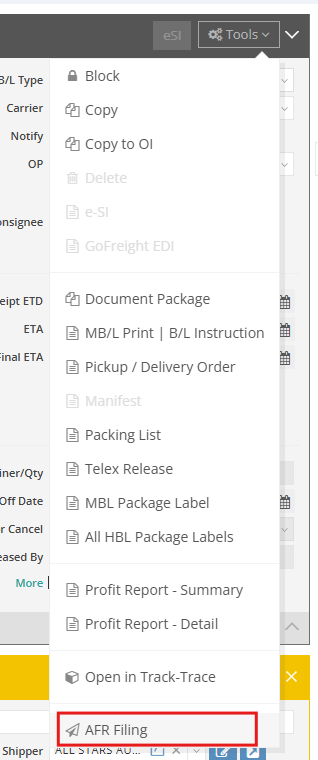
Go to Ocean Export > Shipment Entry, click the Tools button at the top right of the MBL section, and select “AFR Filing.”
Step 2: Complete ZONE 1 – MBL Information
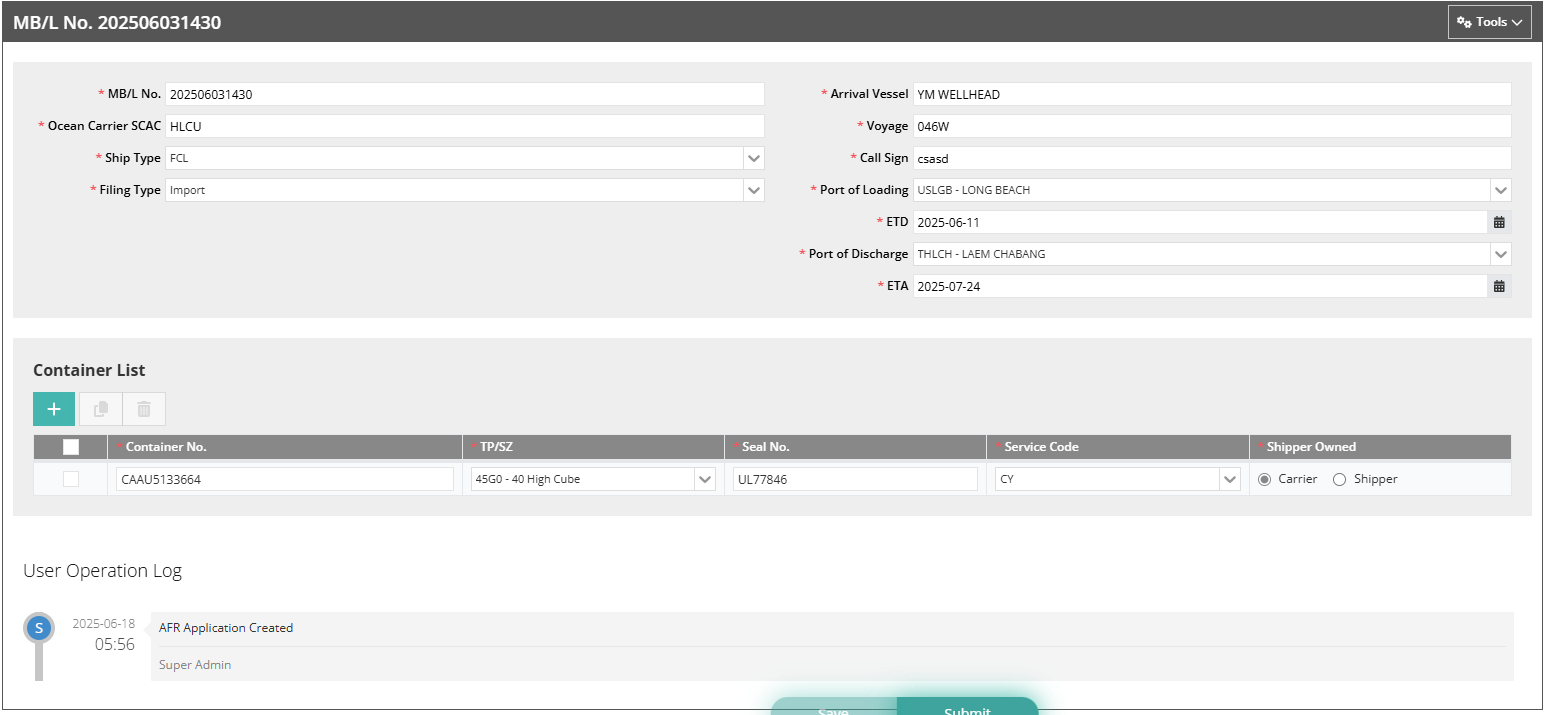
All fields in this section are mandatory. The system will auto-fill available data from the Shipment page to minimize double entry. Please review and ensure all information is accurate and complete.
Step 3: Complete ZONE 2 – HBLs Information
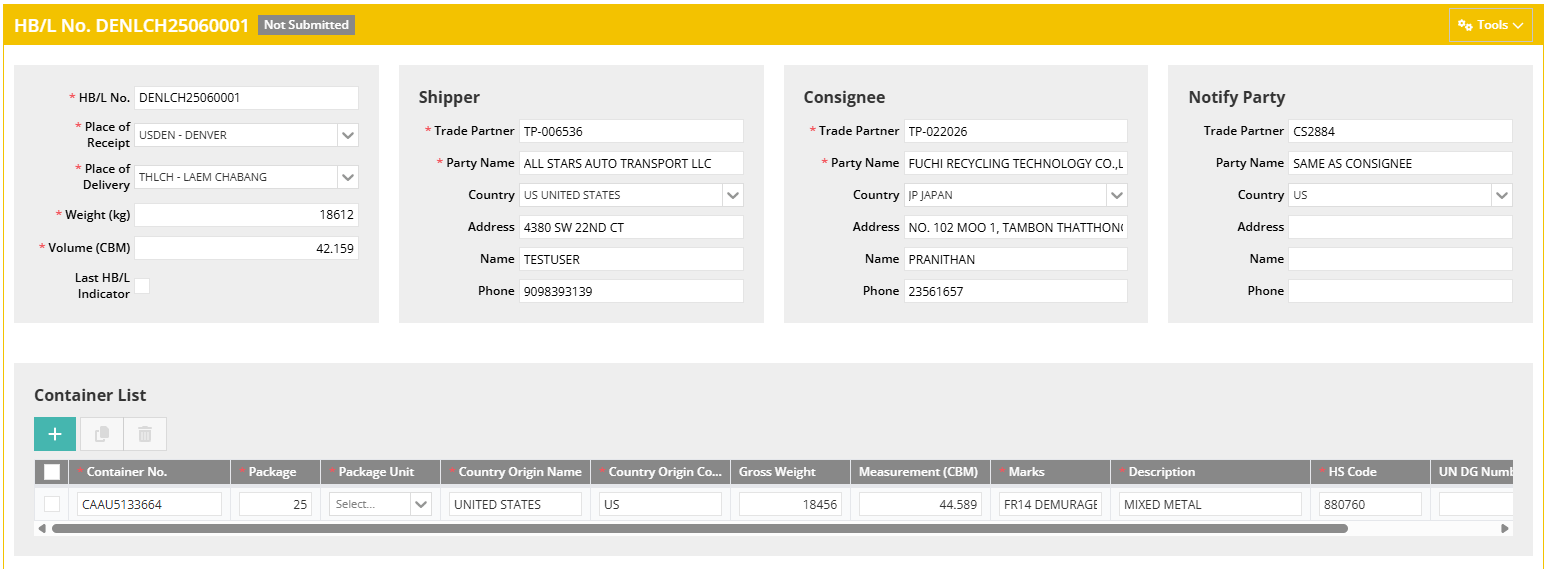
This section is also pre-filled with known data. Carefully verify that all required fields for each HBL are correctly filled out. If there are multiple HBLs, use the panel on the right to switch between them and confirm each one is complete.
Step 4: Confirm and Submit
After verifying all HBLs, check the “Last HB/L Indicator” box on the final HBL to indicate it is the last one under the MBL. Make sure the submitted data matches the carrier’s information. Then click “Save” and “Submit.” After you save the AFR filing, you can return to the original Shipment Entry page at any time by clicking “Tools > View Shipment” in the top-right corner of the MBL section.
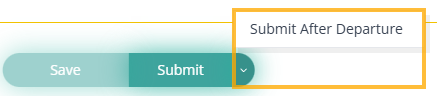
If the shipment has already ATD and you need to submit, move your cursor to the dropdown arrow next to “Submit.” Click ”Submit After Departure“ to file the AFR.

****Note: NACCS will only begin the match verification process after the “Last HB/L Indicator” is checked and submitted. This indicator cannot be unchecked once submitted.
How to Read the Logs on the AFR Page
All records and statuses related to the filing are shown in two sections:
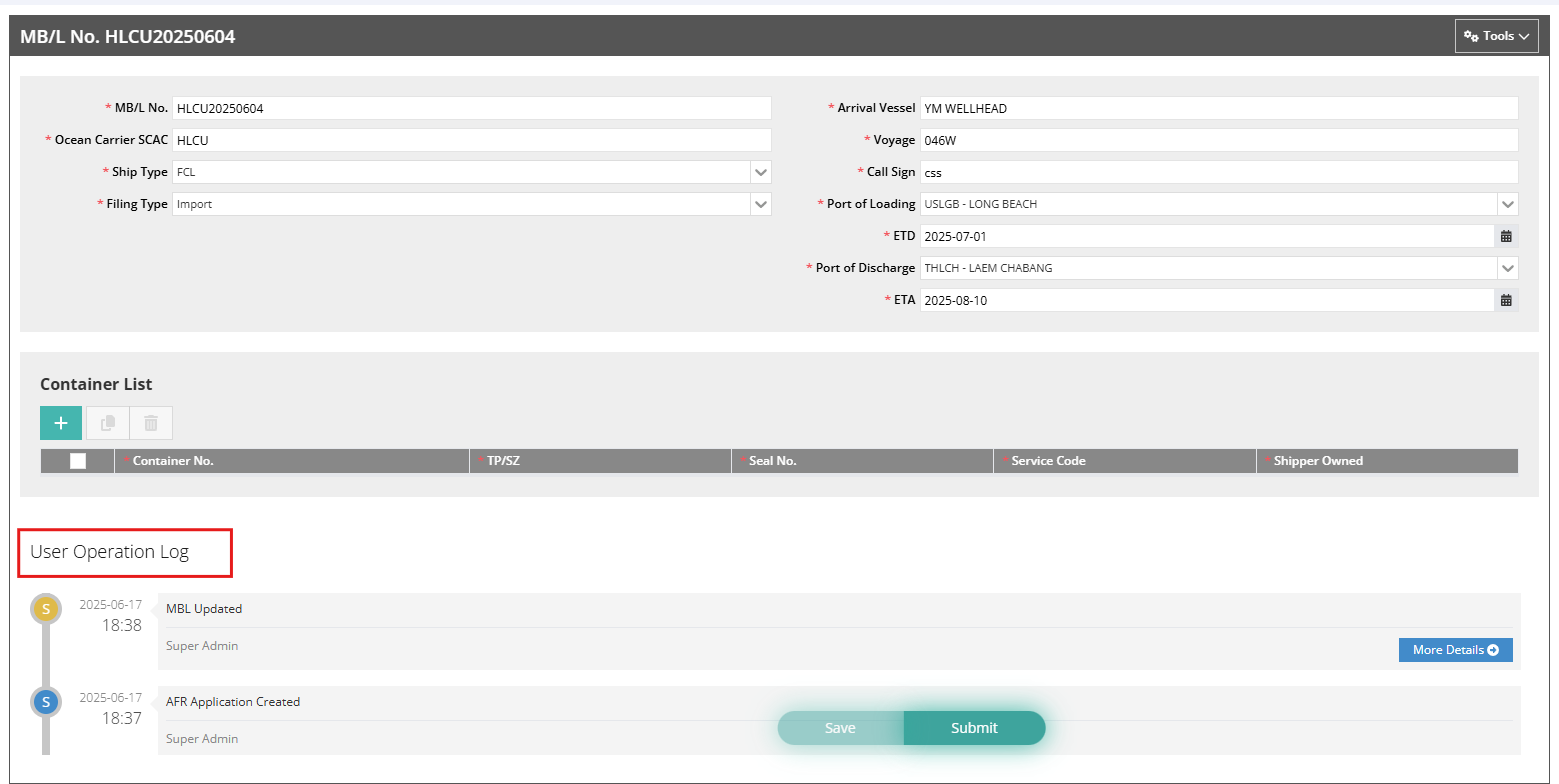
- User Operation Log:
Displays changes made to MBL and HBL information, including who modified which fields and when OP saved or submitted.
- AFR Response Log:
After submission, the status for each individual HBL is shown at the bottom of the filing. Since match status is tracked per HBL, a match on one HBL does not guarantee all are matched. Please confirm each HBL has received customs match confirmation.
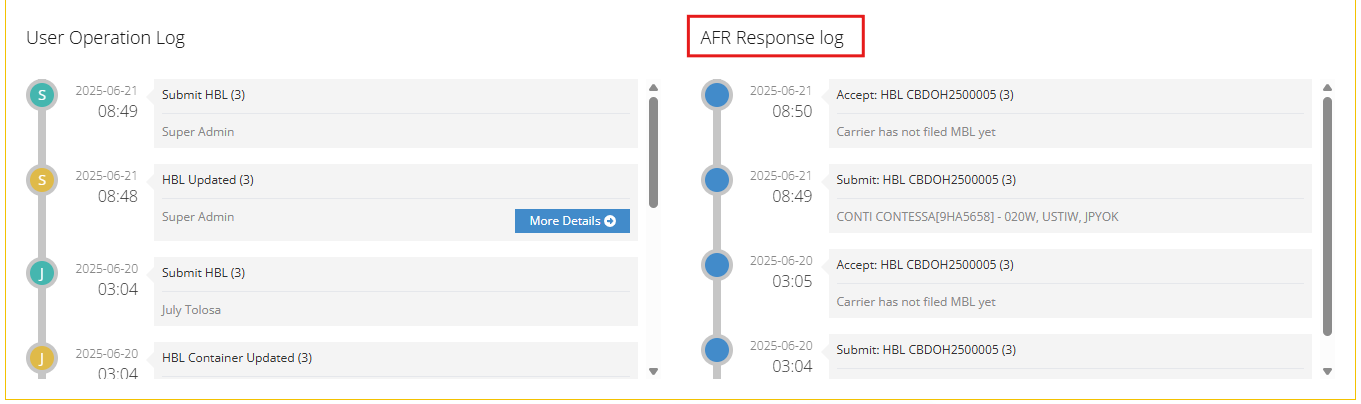
AFR Filing Response Statuses
You can view the response statuses of all HBLs by navigating to Security Filing > AFR List. Use the Filter function to quickly locate the specific filing you're looking for. Alternatively, you can also check the response status directly within each individual HBL filing.
Below are the common AFR response statuses you may encounter:
- Submit: AFR has been sent. If no update appears after 10 minutes, please email support@gofreight.com. Note: This excludes NACCS maintenance periods.
- Accept: AFR has been received by NACCS. If the status does not update to “Accepted” after 5-10 minutes, please email support. Note: This excludes NACCS maintenance periods.
- Warning: It means the submission was accepted, but some fields may be incomplete or incorrectly formatted. It’s recommended to review and resubmit until a match is received.
- Reject: Submitted information is incorrect and cannot be accepted. Please refer to the NACCS error code manual to correct and resubmit.
- Matched: The filing information matches customs data.
Note: NACCS will only begin the match verification process after the “Last HB/L Indicator” is checked and submitted. This indicator cannot be unchecked once submitted.
- Hold: Customs has temporarily put the filing on hold for further review, possibly due to missing/incorrect data, random inspections, or sensitive cargo. Check response messages for details.
- Hold Cancel: Customs has lifted the hold. The shipment can now proceed through the normal clearance process without further action.
FAQ
During AFR submission, certain response codes may indicate rejection reasons or required actions for resubmission. Please refer to the following guidance:
Warning: XML File Format Error / Vessel Not Found
- Message:
Failed to submit AFR application: Cannot process. The XML file format error. Manifest Route Arrival Vessel ⇒ Vessel Name: Manifest Route Arrival Vessel ⇒ CallSign {XXX} is not found.

- Reason: The vessel name or call sign is not available in the system database.
- Action: Please email us the vessel name and call sign. We will coordinate with the vendor to add the vessel to the system as soon as possible.
Warning: Carrier Put in Ocean B/L Type

- Message: AFR is submitted and accepted with a warning in the response log.
- Reason: The carrier may have submitted a different B/L type from your shipment.
- Action: This does not impact customs clearance. You may request the carrier to correct the B/L if needed. No action is required from your side, as the forwarder cannot modify the filing after submission.
Rejected Code: E0033
- Meaning: The file is in DMF (Data Message Finalization) status. Japan Customs does not allow further modification.
- Action:
No deletion or modification is allowed after DMF.
Changes can only be made with Japan Customs approval.
Please monitor the status; if a HOLD is issued, amendments may be allowed per customs instructions.
Rejected Code: E0035
The AFR filing procedure is not available due to "Departure Time Registration (ATD)." The shipment has already departed (ATD).
Meaning: AFR filing is not available due to Departure Time Registration (ATD). The shipment has already departed.
Action: To resubmit AFR after departure, please click “Submit After Departure” next to the Submit button.
Rejected Code: S0012
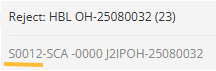
S0012 refers to: "Entered Carrier Code is not available because it is not registered in NACCS."
Meaning: The entered Carrier Code is not registered in NACCS.
Example: For Yang Ming, the correct SCAC Code is YMLU, not YMJA.
Action: Please verify and update the correct carrier code.
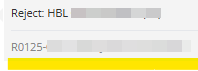
Rejected Code: R0125
Meaning: Incorrect consignee information.
Action: Ensure the consignee’s address includes:
- Zip code
- City name
- Phone number
Rejected Code: R0093
The code refers to the same UN/LOCODE entry in the Port of Discharge Code and Place of Delivery Code, which is not allowed because a Temporary Landing Identifier has been entered.

Meaning: Port of Discharge and Place of Delivery cannot have the same UN/LOCODE when a Temporary Landing Identifier is entered.
Action:
- Ensure Port of Discharge ≠ Place of Delivery.
- Verify if the Filing Type is “Tranship” or “Import”.
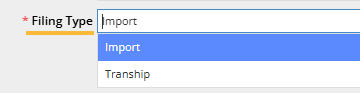
For AFR (Advance Filing Rules) filing, the Transship type refers to shipments that are not imported into Japan for domestic use but transit through a Japanese port to another destination/country.
🔹 Transship Type (AFR)
- The cargo arrives at a Japanese port (e.g., Tokyo, Yokohama).
- It is not cleared for import into Japan.
- It will be transshipped to another country (e.g., China, Taiwan, etc.).
You might also be interested in:
- How to Apply Filing in GoFreight?
- How to File ICS2 (ENS) in GoFreight
- How to File ACI/eManifest in GoFreight