
GoFreight supports eBooking in the Ocean Export module, including Booking Request/Confirmation, eSI (Electronic Shipping Instruction), and eVGM (Electronic Verified Gross Mass), providing a complete electronic submission process to the carrier once the application and the setup are completed.
After activation, users can submit Booking Requests, eSI, and eVGM directly within GoFreight.
Who Can Submit
By default, the following user roles are authorized to submit Booking Request, eSI, and eVGM:
- Operations (OP)
- OP Manager
- General Manager
If additional users require access, please contact us at support@gofreight.com
How to Send eBooking (Booking Request)
Through an Ocean Export File
Users can also submit an eBooking from an existing Ocean Export file. From the Master B/L List:
- Go to: Ocean Export > Shipment Entry
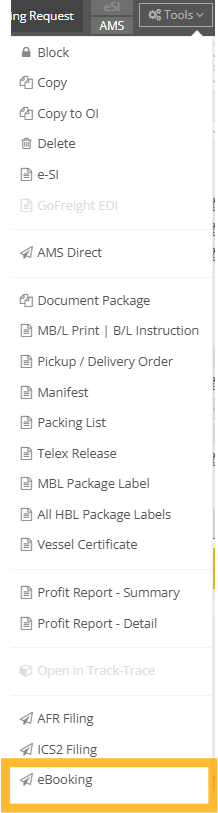
- Click the Tools button at the top right of the MBL section
- Select: “eBooking”
Booking Request Overview
After clicking eBooking, the system will redirect you to the eBooking page with the booking information displayed.
The Booking Request is shown in the first tab of the eBooking page.
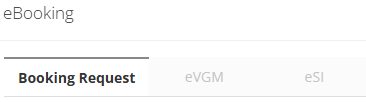
The first section displays the Booking Party information, with the Carrier details shown on the right-hand side of the page.
In the middle section, you will find Charge Payment Instruction.
1. Click the green + icon
2. Add a new role
3. select appropriate:
-
-
Charges Category
-
Buying Freight option
-
Payment Location
-
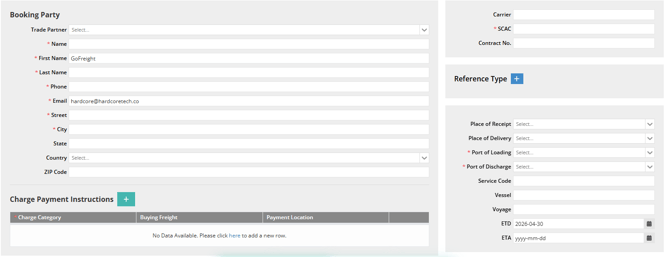
Scroll down the page, and the system will automatically synchronize the Shipper, Consignee, and Trucker information, as well as the Forwarding Agent, based on the Booking data.
If Special Handling is required, select the appropriate option from the drop-down list and enter details in the Remark field.
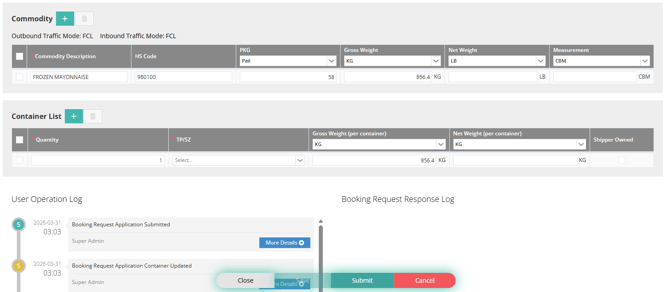
The Commodity Item and Container List will also be displayed according to the information from the Booking page.
Once all information is confirmed and saved, click "Submit".
The submission result will be displayed in the Booking Request Response Log at the bottom of the page.
eBooking Field Synchronization
The following fields are automatically synchronized from the Booking file:
-
-
- Booking Party: Shipping Agent information
-
-
-
- Carrier: Carrier details
-
-
-
- SCAC: Automatically populated from the Carrier’s Trade Partner profile
-
-
-
- Shipper: Actual Shipper information
-
-
-
- Consignee: Consignee details
-
-
-
- Door Pickup Appointment: Pickup appointment information
-
-
-
- Trade Partner: Cargo Pickup information from the Booking file
-
-
-
- Container List: Container details
-
-
-
- Commodity Item: Commodity information
-
Booking Confirmation Date Auto-updates After Acceptance
Once the Booking Request is accepted, the following fields will be automatically updated:
-
-
- Doc Cut Off Date
- Doc Cut Off Date
-
-
-
- Port Cut Off Date
- Port Cut Off Date
-
-
-
- VGM Cut Off Date
- VGM Cut Off Date
-
-
-
- Carrier Booking Number
- Carrier Booking Number
-
-
-
- Place of Delivery ETA
-
Please note:
If any data has already been pre-filled, the booking confirmation will overwrite them.
Synchronization Logic:
-
-
If the Booking has not yet been created into a Master B/L or House B/L, the booking confirmation will be synchronized back to the Ocean Booking file.
- If the Booking has already been created into a Master B/L and House B/L, the booking confirmation received from the carrier will be synchronized directly to the Master B/L file.
-
eSI Overview
After the Booking Request and shipment data are completed, the next step is eSI.
Most information is synchronized from the master shipment data, except for:
-
Freight Term (Origin)
These fields must be selected manually. -
Details on the B/L: Only "Name" and "Details on B/L" will be printed on the B/L.
The information can be maintained in the Trade Partner’s Filing Settings tab.
Once configured, it will be automatically populated for future filings.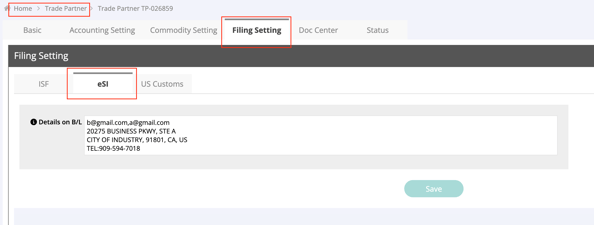
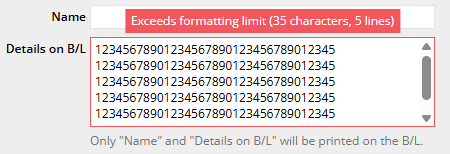
Please ensure the field is entered correctly, as this information will be transmitted on the HBL. "Details on the B/L" will only be transmitted upon customs request when your shipment is required to submit ICS2 .
"Details on the B/L" is also validated based on carrier requirements. The format may be rejected if it does not comply with the carrier’s rules. Please follow the system prompts if adjustments are required.
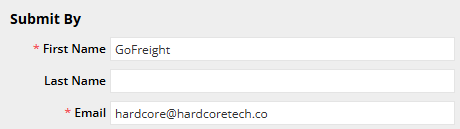
The Submit By field is populated based on the OP assigned to the Master shipment. Even if another user submits the eSI, the assigned OP will still appear in the Submit By field.
eVGM Overview
After the Booking Confirmation and eSI are confirmed by the carrier, the next eBooking stage is eVGM. To access eVGM:
1. Go to the Master B/L
2. Click Tools > ebooking
3. Select the second tab: eVGM
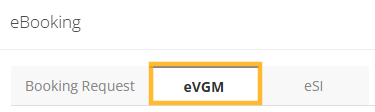
All shipment information is automatically synchronized to eVGM.
Field Synchronization:
- Shipper and Responsible Party:
Populated from shipment data - Consignee:
Populated from shipment data - Forwarder:
Populated from Shipping Agent information
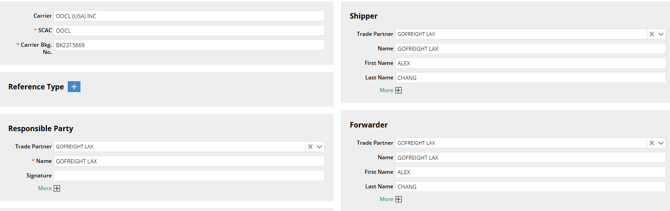
The Submit By field is populated with the OP in charge of the Master B/L.
The Authorized Person can be selected from the Trade Partner list.
Please note: The Signature field is mandatory.

How to Update Filing Info from Shipment
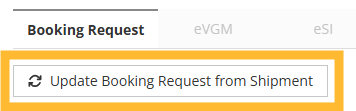
If updates are made in the Master B/L, user can click:
Update Booking Request/eVGM/eSI from Shipment
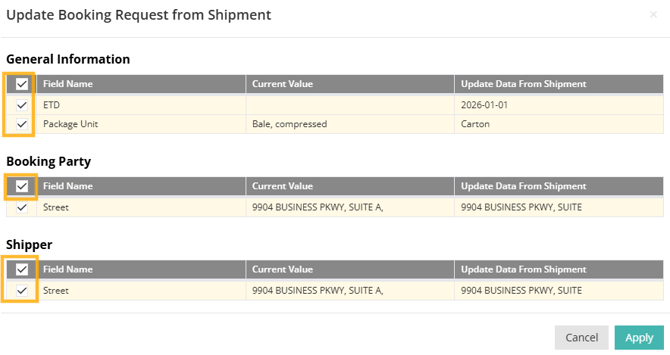
A pop-up window will appear, allowing you to select which data to update in the Booking Request.
How to Read the eBooking Log/Status
There are two log sections available on the eBooking page.
User Operation Log
This log records user actions, including:
- Who edited the information
- What information was changed
- When the data was saved or submitted
Response Log
This log appears after submission and displays:
- Error messages with detailed information, if any.
- Filing status updates
After the submission, both the User Log and Response Log are displayed at the bottom of the page.
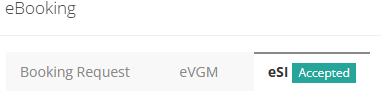
Once the filing is accepted by the carrier:
-
The eSI tab under the eBooking will turn green.
-
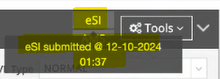
The Shipment Basic tab will display the filing status next to the Tools option
-
Hovering over the status will display the submission date and time
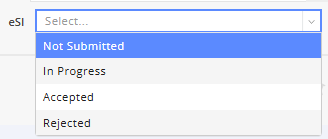
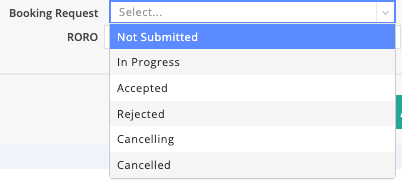
The eSI status can also be filtered and viewed from the Master B/L List.
Filing Statuses Explained
- Not Submitted:
The filing has not yet been submitted. - In Progress:
The filing has been sent to CargoSmart and is awaiting response from the vendor and carrier. - Accepted:
The carrier has confirmed and accepted the filing. - Rejected:
The submitted filing was rejected. - Cancelling:
A cancellation request will be sent to the carrier.
Please note: Only Booking Requests can be canceled - Cancelled:
The carrier has confirmed the cancellation request.
Remarks:
If you previously submitted the eSI through the legacy GoFreight eSI tool:
-
The original eSI option under Tools will be renamed to eSI (Legacy).
-
Historical eSI records can still be reviewed through the legacy option.
- For any new shipment, please use:
- eBooking > eSI
If a user accidentally open the new eBooking > eSI for a shipment that already submitted through the legacy service, the system will displays a reminder notification directing them to review the record under eSI (Legacy).

You might also be interested in:
- How to Apply for eSI with GoFreight?
- How to Create a Booking in Ocean Export
- How to Generate Shipping Instructions for Ocean Export