
The Income Statement provides a detailed breakdown of the company’s revenue, costs, and expenses. Revenue is represented by G/L codes starting with '4' (e.g., G/L code 4XXXX), while costs are tracked under G/L codes beginning with '45' (e.g., G/L code 45XXX), and expenses are listed with G/L codes starting with '5' (e.g., G/L code 5XXXX). This structure follows GoFreight's standard General Ledger (G/L) code system, distinguishing between operating and non-operating activities.
Who Can Access the Income Statement
By default, only the General Manager, Accounting Manager, and users with the Accounting role have access. Users in other roles can access this feature if approved by an Admin or General Manager. GoFreight support agents can also grant access, with or without modifying the user’s role.
Generating an Income Statement in GoFreight
To generate an Income Statement in GoFreight, please follow the steps below:
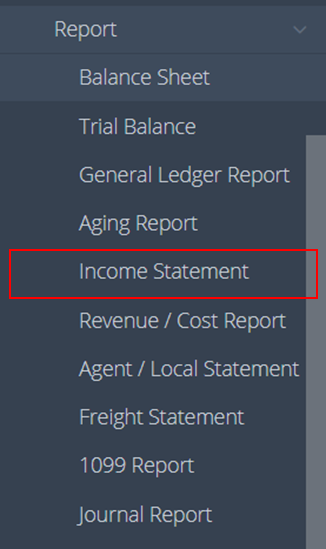
- Navigate to “Accounting” > “Report” > “Income Statement” on the navigation bar.
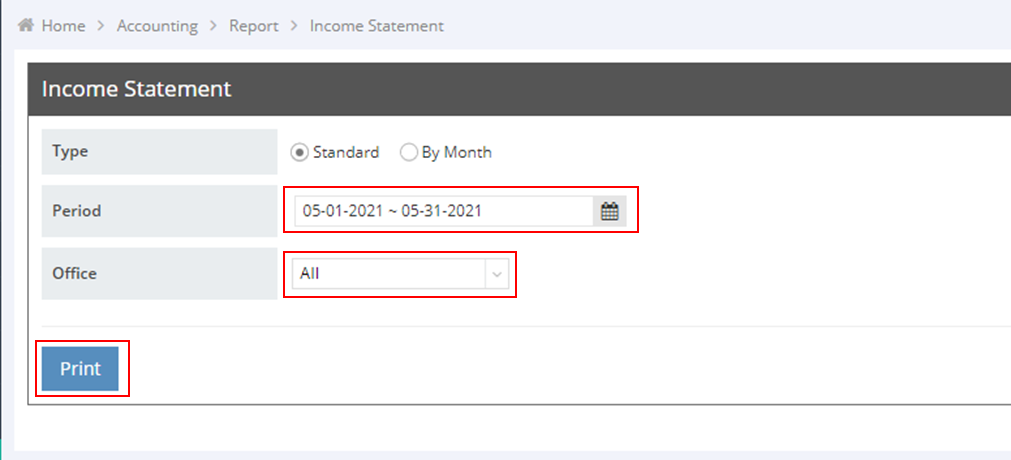
- Set the desired criteria and then click “Print.” Please note: The dates referred to as 'Period' here are based on the Invoice Post Date, not the Shipment Post Date.
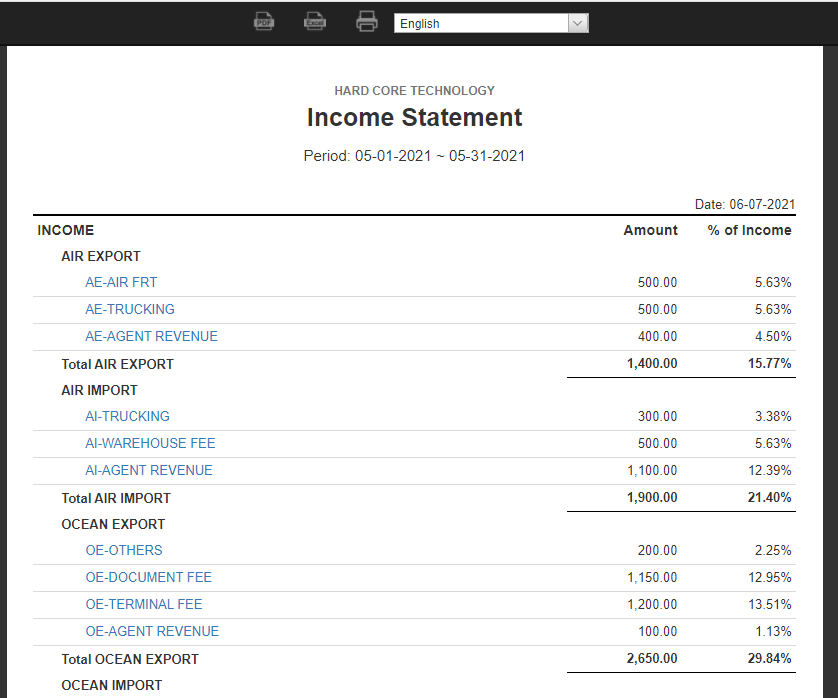
You will see a sample Income Statement displaying the values of income, expenses, gains, and losses, which are used in the equation to calculate net income. Click on the Billing Code hyperlink to view more details. This will take you to the G/L Detail (Landscape) report.
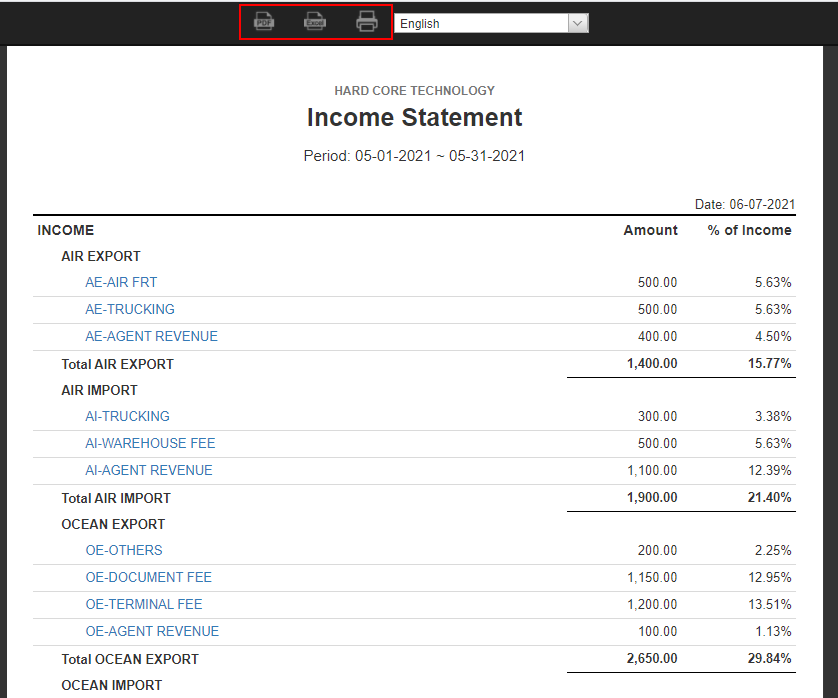
You can download the document as a PDF or Excel file, or print it directly by clicking the buttons located at the top of the preview page.
You might also be interested in:
- How to Generate a Balance Sheet in GoFreight?
- How to Generate a Trial Balance in GoFreight ?
- How to Generate a General Ledger Report in GoFreight?