
This guide will guide you in generating and printing a Booking Confirmation for an Ocean Import House Bill of Lading (HBL) shipment.
The Booking Confirmation in the Ocean Import module utilizes the shipment data already saved in GoFreight and follows the Default Ocean Import Booking Confirmation layout.
Prerequisites
By default, the Booking Confirmation is only available in the Export module.
To enable this feature, Print Booking Confirmation in the Ocean Import Module, please contact the GoFreight Support team at support@gofreight.com.
Step 1: Open the Ocean Import HBL Shipment
- Access the Ocean Import shipment file that requires a Booking Confirmation, and navigate to the HBL level.
- Ensure the shipment includes the booking details you wish to display on the form.
Step 2: Open Booking Confirmation
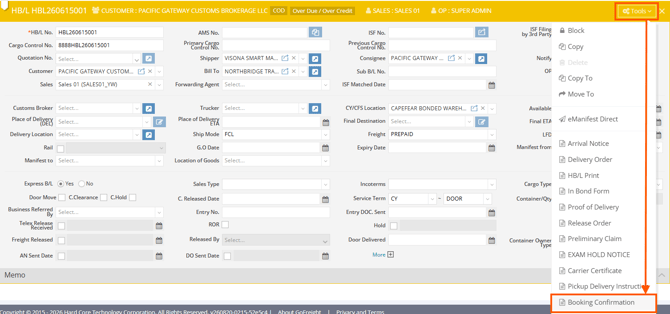
At the HBL level, open the action menu and select Booking Confirmation.
✏️Note: All Trade Partner company names used in this article are for testing and demonstration purposes only and do not represent real companies or company data.
Step 3: Review the Booking Confirmation
Verify the information on the preview before printing or exporting the form:
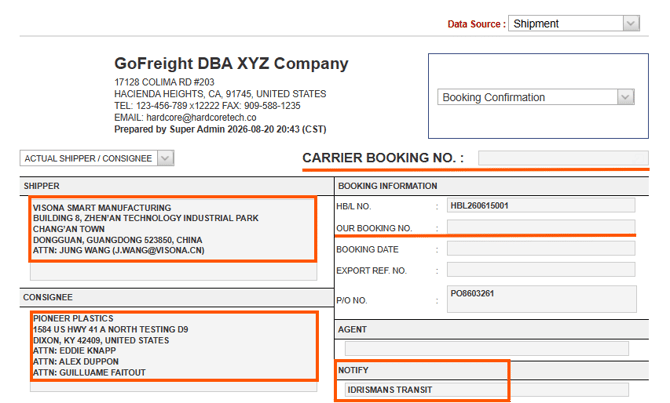
- Shipper, Consignee, and Notify
- Carrier and Booking No.
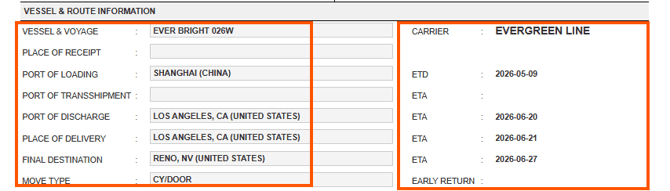
- Vessel and Voyage
- Port of Loading (POL), Port of Discharge (POD), and Place of Delivery
- Estimated Time of Departure (ETD) and Estimated Time of Arrival (ETA)
- Container details
- Cargo description
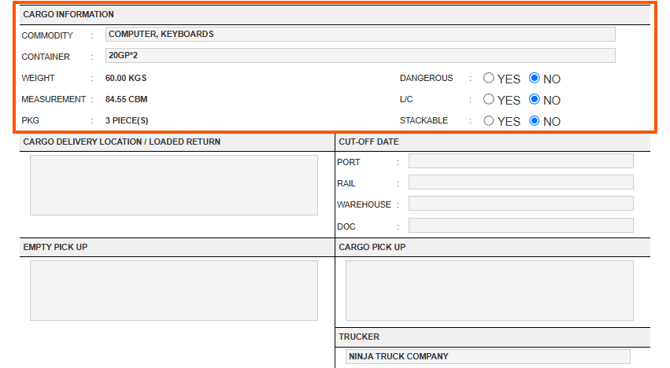
💡Important: The Booking Confirmation automatically uses the information available in the corresponding fields of the Ocean Import file. If the required information is not available, the field will be left blank. You can manually enter the information on the Booking Confirmation printing preview page. Fields shown in gray on the preview page can be edited manually.
Step 4: Save, Print, or Email the Booking Confirmation
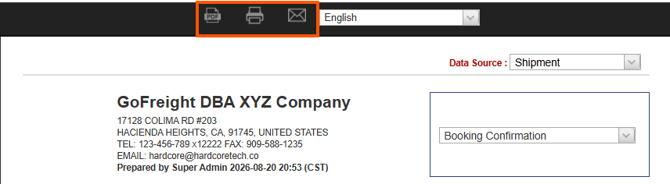
After reviewing the Booking Confirmation, use the options at the top of the preview page:
- Click Save as PDF to download the form as a PDF.
- Click Print to print the form.
- Click Email to send the form by email.
Additional Information
- The form uses the generic Default Ocean Import Booking Confirmation layout. A customized layout is available upon request as a paid customization service.
You might also be interested in:
- Ocean Import – Shipment Entry Page- How to Print HBL in the Ocean Import Module
- How to Generate a Delivery Order (DO) for Ocean Import Shipments in GoFreight