
You can now import container information using an Excel file at the Ocean Export shipment MBL level.
How to Access the Feature
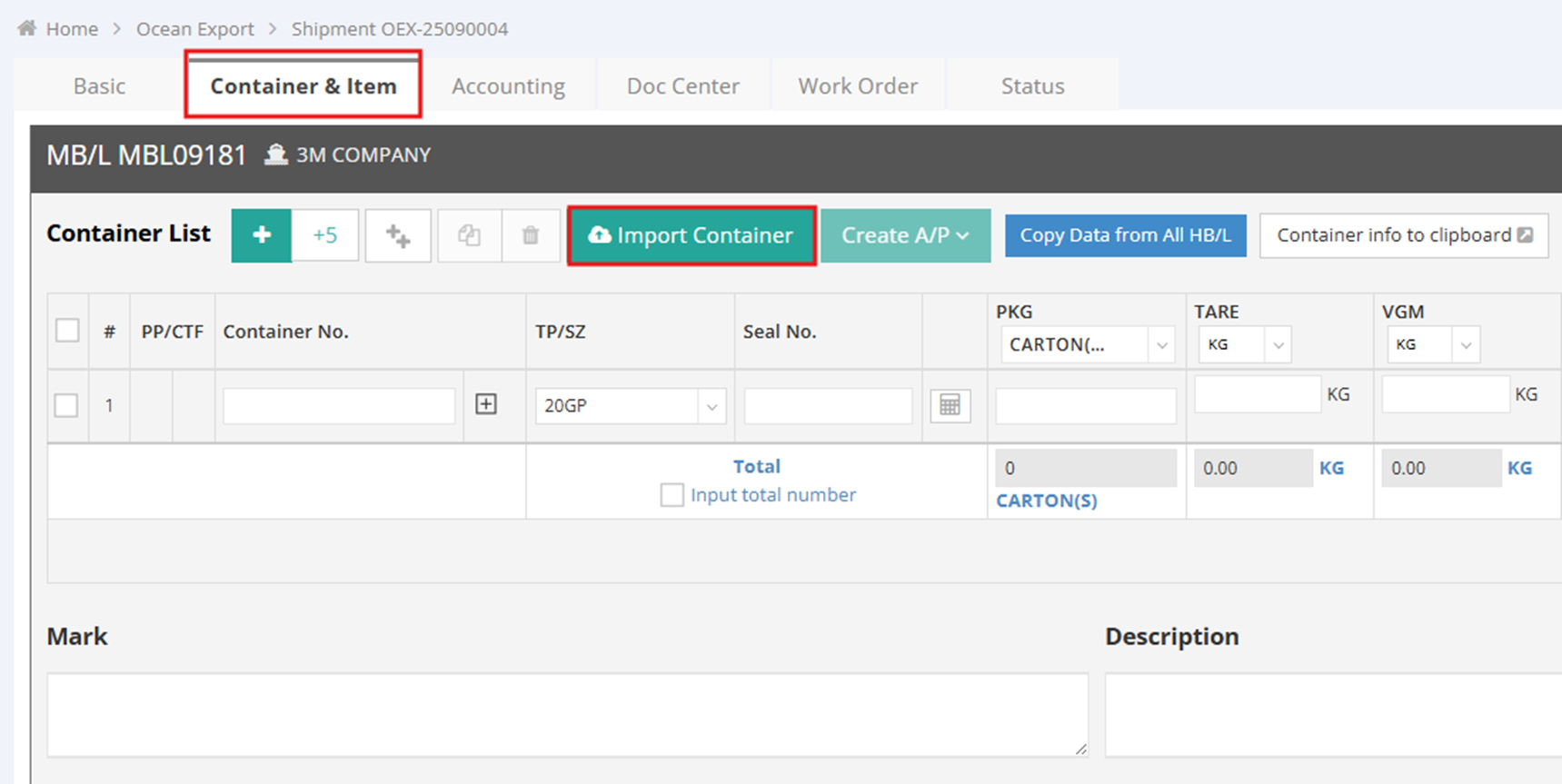
- Navigate to your Ocean Export shipment.
- Select the Container and Items tab.
- Click on the Import Container button.
Download the Template
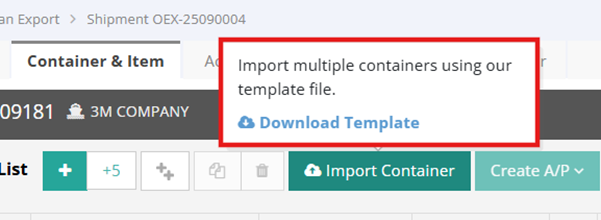
- Hover over the Import Container button and select Download Template, or click on it to open the table of contents.
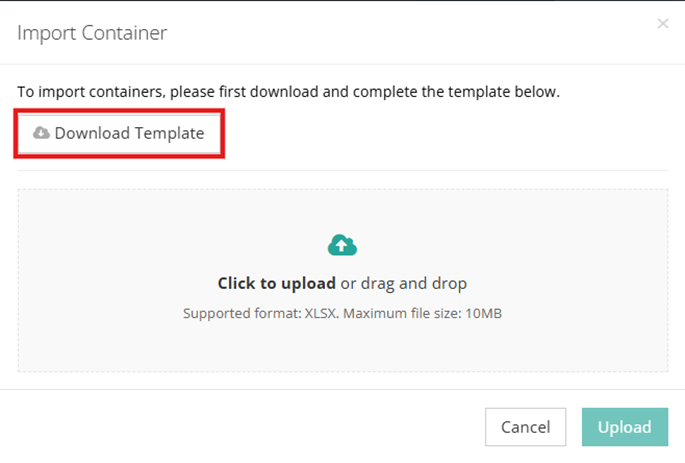
- Locate the downloaded file named GF Commodity and Container Upload Template in your designated download folder.
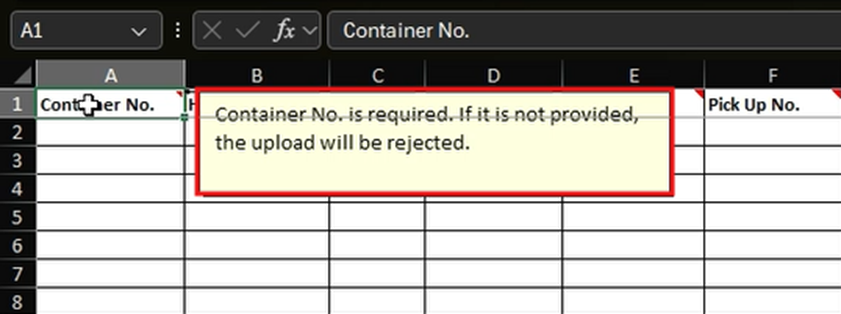
- Each column header in the Excel template contains specific instructions. Please read them carefully before entering your data.
Uploading the Excel File
- After filling in your template correctly, click on Import Container to upload the file.
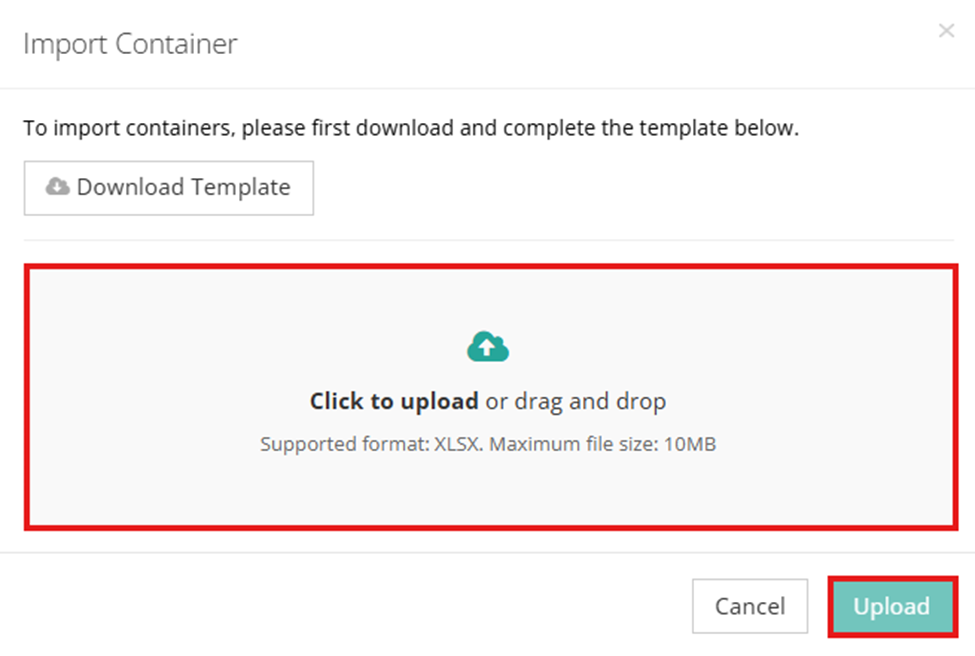
- If the Excel file does not meet the system requirements, the upload will be rejected. The system will display an “Upload failed:” message, indicating the specific field and row number that require correction.
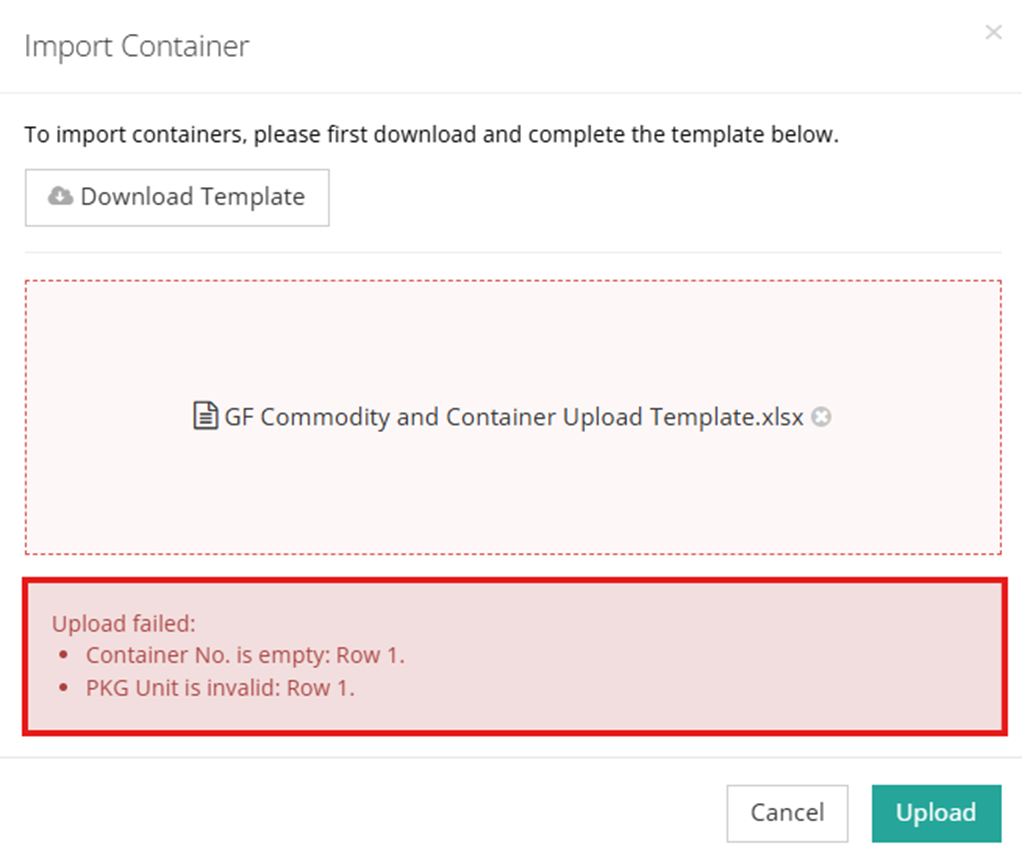
- Return to your Excel sheet, locate the specified column, and enter the required data based on the provided description.
- Once you correct the indicated error, re-upload the file. The system will display the corresponding data and automatically save the shipment.
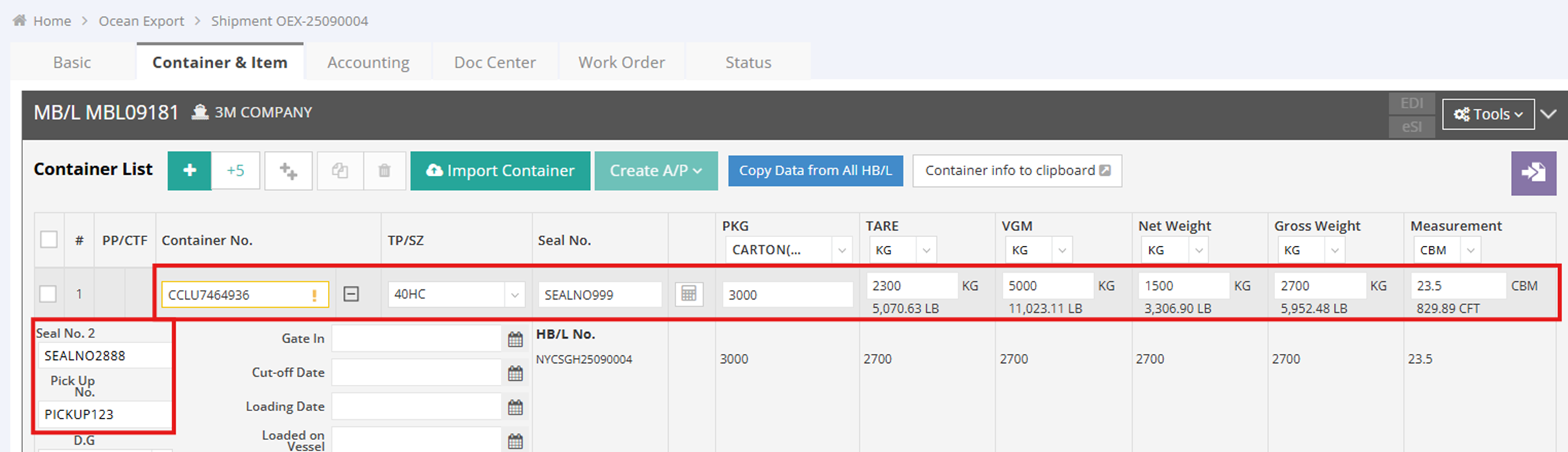

Note: You can repeatedly upload files to add container and commodity information to the shipment, but you cannot update existing container or commodity information.
You might also be interested in:
- Batch Update Container
- How to Complete Container Information?
- How to Batch Update Shipments?