
A HAR (HTTP Archive) file records the network requests between your browser and GoFreight. GoFreight Support can use it to investigate errors, blank pages, failed actions, and slow loading.
Before You Begin• Use Google Chrome or Microsoft Edge when possible.
• Open the GoFreight page where you can reproduce the issue.
• Note the approximate time when the issue occurs, including your time zone.
• Keep the recording as short as possible. Capture only the steps needed to reproduce the issue.
Security notice: A HAR file may contain confidential information, including URLs, request details, and business data. Use the sanitized export by default. Share the file only through your private GoFreight Support conversation. Do not upload it to a public channel or file-sharing link.
Record a HAR File in Google Chrome or Microsoft EdgeStep 1: Open Developer Tools
Stay on the affected GoFreight browser tab and open Developer Tools. There are three ways to open Developer Tools:
Way 1: Use keyboard shortcuts
- Windows or Linux: Press Ctrl + Shift + I.
- macOS: Press Command + Option + I.
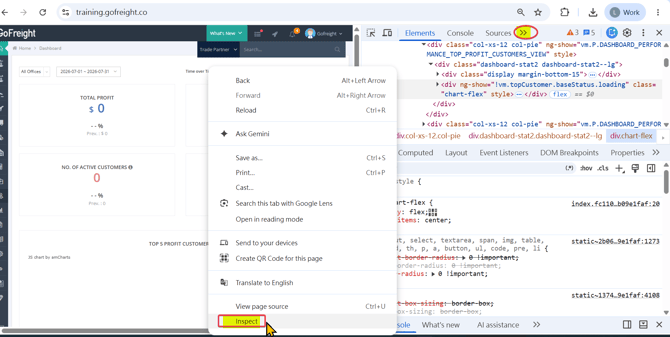
Way 2: Right-click the GoFreight page
- Right-click anywhere on the GoFreight page and select Inspect.
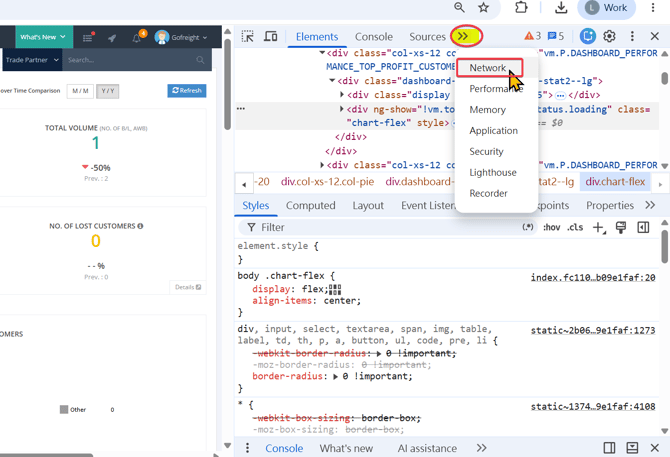
- Select the Network tab.
- If the Network tab is not visible, click the More tabs (») button and select Network.
Way 3: Use the browser menu
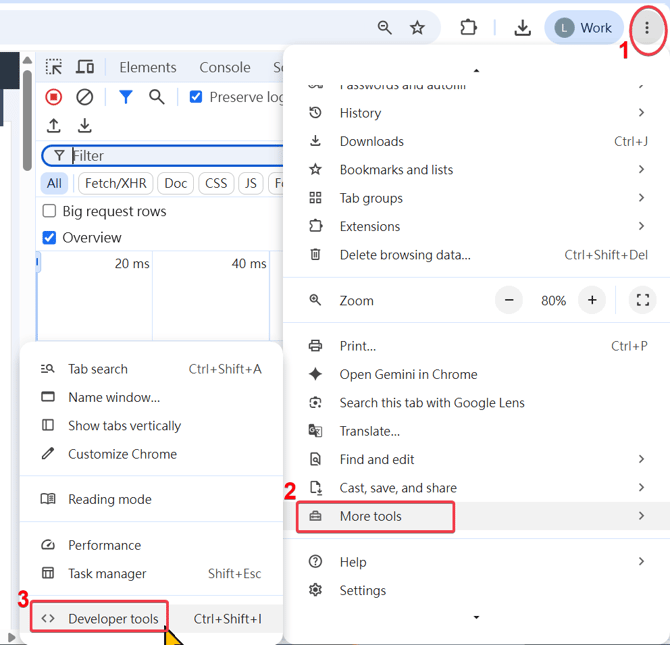
- Click the three-dot icon (⋮) in the top-right corner.
- Select More tools.
- Select Developer Tools.
Step 2: Prepare the Network Recording
Confirm the following before reproducing the issue:
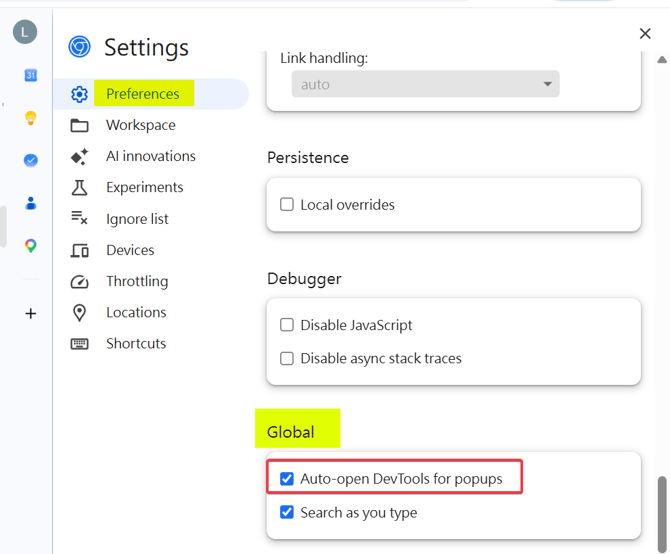
- Click on the top-right gear icon Settings, go to Preferences > Global, and check “Auto-open DevTools for popups”
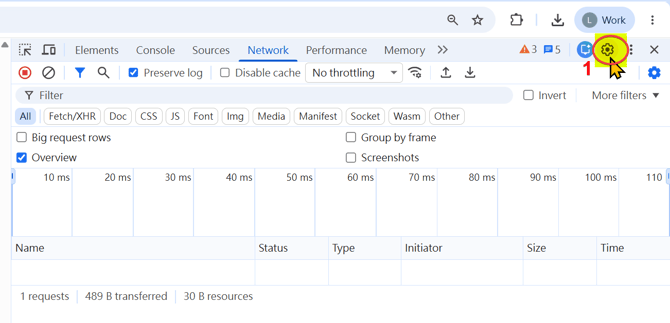
2. The round recording button is red. If it is gray, click it to start recording.
3. Select Preserve log so requests remain visible if GoFreight reloads or redirects.
4. Select All and clear any text from the Filter field.
5. Leave Disable cache unchecked unless GoFreight Support asks you to test a fresh, uncached page load.
6. Click Clear network log to remove requests captured before your test.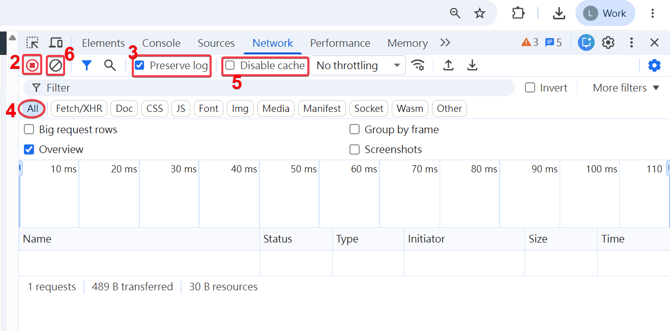
Step 3: Reproduce the Issue
Keep Developer Tools open and perform the exact steps that cause the issue in the GoFreight system.
• For a page-loading problem, refresh the page after the Network recording starts.
• For an error after clicking a button, start recording before you click the button.
• If the workflow opens a new browser tab or window, open Developer Tools in that new tab before reproducing the issue there.
• Stop after the error appears or the slow action finishes. Avoid unrelated actions.
Write down the exact time of the issue, including your time zone. Example: August 11, 2026, 2:35 PM UTC+8.
Step 4: Export the HAR File
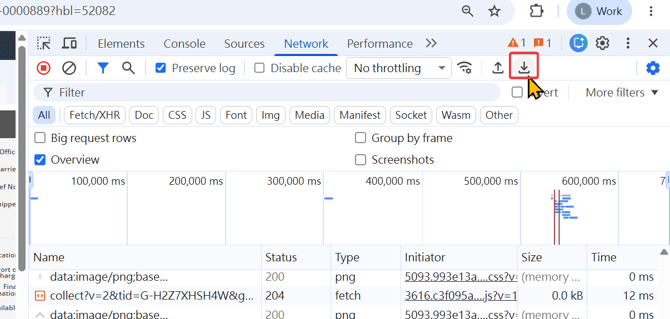
In the Network panel, click Export HAR (sanitized). This is the download-arrow icon near the top of the panel.
Save the file with a clear name. Example:
demo.gofreight.co -AN Print Issue.har
Special Attention! If the issue involves pop-up windows (such as being unable to preview an HBL or send emails from the GoFreight system), you will need to download the HAR files separately for the main system interface and the pop-up windows.
Therefore, in such cases, please download and provide at least two HAR files to the GoFreight team: one for the main system interface and another for the relevant pop-up window.
Step 5: Send the File to GoFreight SupportAttach the .har file to your existing private GoFreight Support ticket or email. Include:
• Your company name
• The affected GoFreight module and page
• The exact steps you performed
• The expected result and actual result
• The issue time and time zone
• The affected user's account ID
• Relevant shipment, invoice, or reference numbers
• A screenshot or screen recording, if the visible behavior is important
Do not send passwords. If the issue occurs during sign-in, contact GoFreight Support before recording the password-submission step because authentication requests may contain sensitive information.
Common Recording Problems• The request list is empty: Confirm recording is active, then refresh the GoFreight page or repeat the affected action.
• Requests disappear after the page reloads: Enable Preserve log in Chrome/Edge or Persist Logs in Firefox.
• Only a few requests are saved: Clear the filter field and select All before exporting.
• The issue happened before Developer Tools was opened: Clear the log and reproduce the issue again with Developer Tools already open.
• The HAR file is very large: Clear the log, record only one short reproduction, and export immediately.
• The issue happens in a new tab: Record the Network activity in the new tab. Developer Tools records only the browser tab it is attached to.
Final Checklist
Before sending the HAR file, confirm that:
☐ Developer Tools was open before the issue occurred.
☐ Network recording was active.
☐ Preserve log or Persist Logs was enabled.
☐ No request filter was applied.
☐ The issue was reproduced during the recording.
☐ The HAR file was exported after the issue occurred.
☐ The issue time, time zone, steps, and affected record were included.
☐ The file will be shared only through a private GoFreight Support channel.
Additional InformationA HAR file captures browser-level request and response timing. It does not record a video of your actions. Include a screenshot or screen recording when the visual behavior matters.
A HAR file and an MTR report serve different purposes. A HAR file records browser requests. An MTR report records the network route, latency, and packet loss. GoFreight Support may request both for performance or connectivity issues.
Browser References• Chrome DevTools: Network features reference
• Microsoft Edge DevTools: Network features reference
HAR Recording Video Example