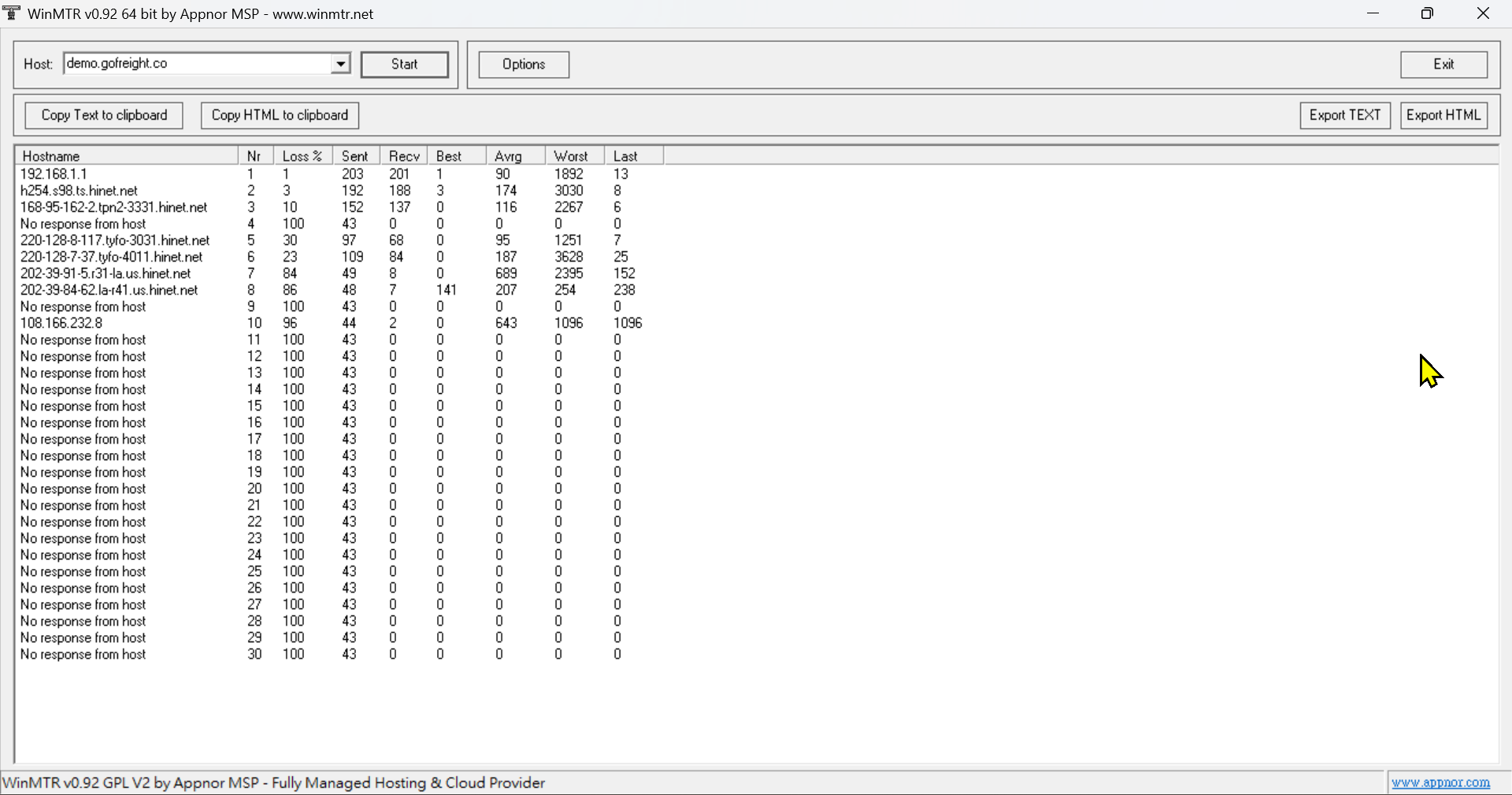
MTR.exe is a network diagnostic tool used to test the network connection between your computer and the GoFreight server. It can help us identify potential network or connectivity issues when you experience problems such as:
- GoFreight is running slowly.
- Pages take a long time to load.
- Frequent disconnections occur.
- Some users experience slowness while others do not.
- GoFreight occasionally becomes inaccessible.
What Does MTR Do?
MTR stands for My Traceroute. It combines the functions of Ping and Traceroute:
- Ping — Checks whether the destination is reachable and measures the response time.
- Traceroute — Identifies the network hops between your computer and the GoFreight server.
The MTR results can help our technical team determine whether the issue may be related to packet loss, network latency, or network routing.
How to Run the MTR.exe File
1. Download MTR.exe
Download the file to your computer using the following link:
2. Enter Your GoFreight Domain
Open the MTR.exe file.
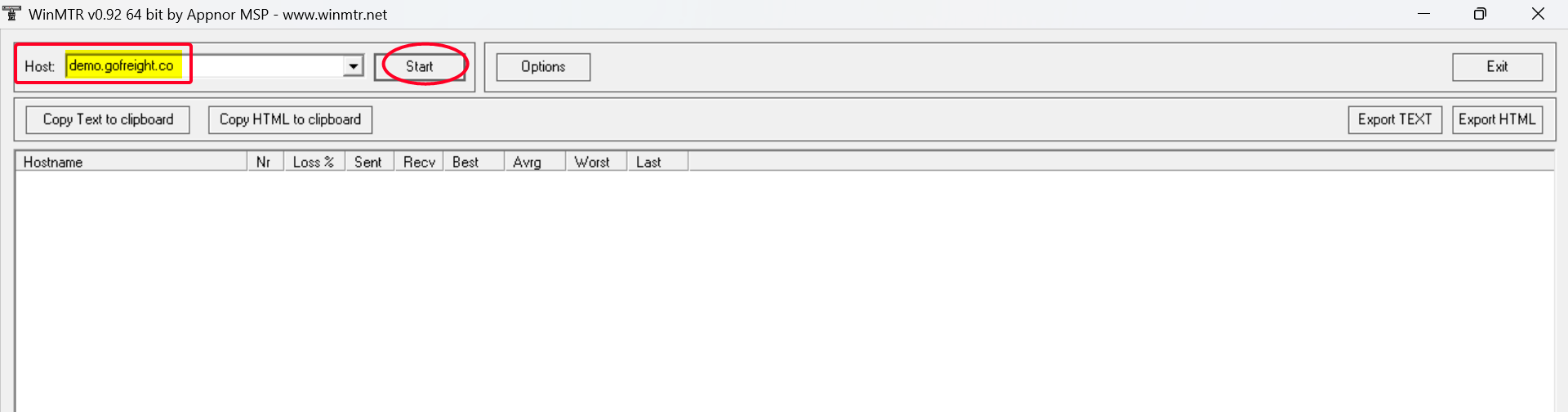
In the Host field, enter your GoFreight system URL domain, for example:
demo.gofreight.co
Then click Start.
Important: demo.gofreight.co is used only as an example in this guide. When running the MTR test, please enter your own GoFreight system URL domain in the Host field. Do not enter demo.gofreight.co.
3. Run the MTR Test
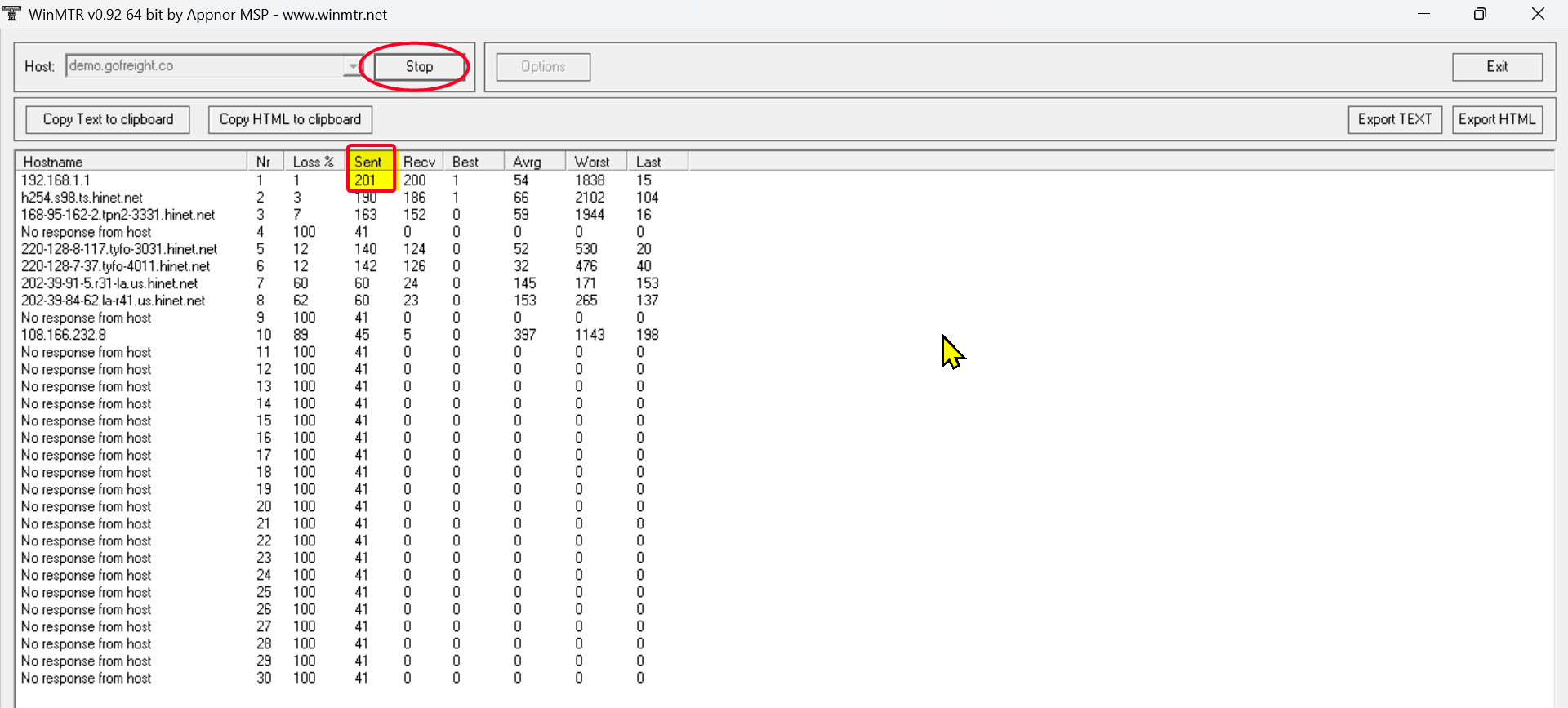
Wait until the number of packets in the Sent column exceeds 200.
Once it exceeds 200, click Stop.
4. Send Us the Results
Take a screenshot of the MTR results, as shown in the example below, and send it to our Support Team for further analysis.
The results will help our technical team identify any potential packet loss, high latency, or network routing issues between your computer and the GoFreight server.