
The purpose of an Aging Report is to track the time distribution of outstanding receivables or payables, helping businesses effectively assess collection risks or manage payment timelines. Therefore, this report is intended for internal use and analysis.
By default, only users with the roles of General Manager, Accounting Manager, and Accounting can generate an Aging Report in the GoFreight system.
Users in other roles can request this functionality with approval from an Admin or General Manager, after which a GoFreight support agent can grant access.
To search in the Aging Report, please follow these steps:
-
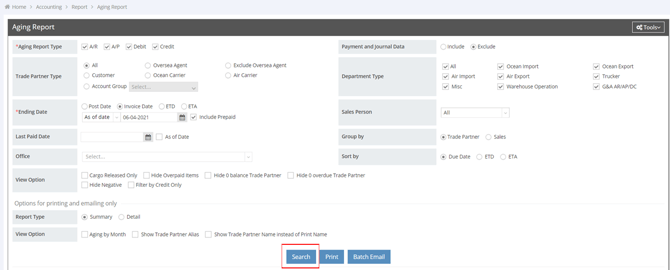
Navigate to "Accounting" > "Report" > "Aging Report".
-
Set the desired criteria, then click “Search”.
-
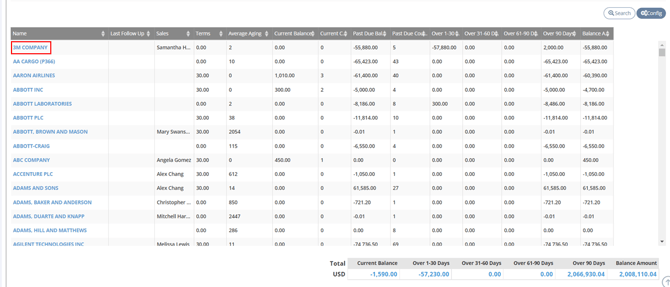
The results will be displayed below. Click on a Trade Partner to view overdue invoices.
-
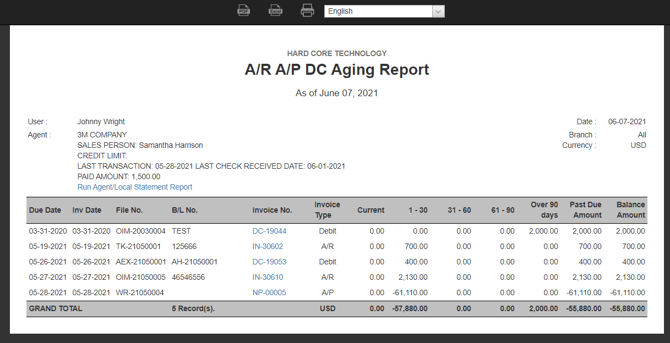
You can click the hyperlink of each invoice to view the invoice details.
-
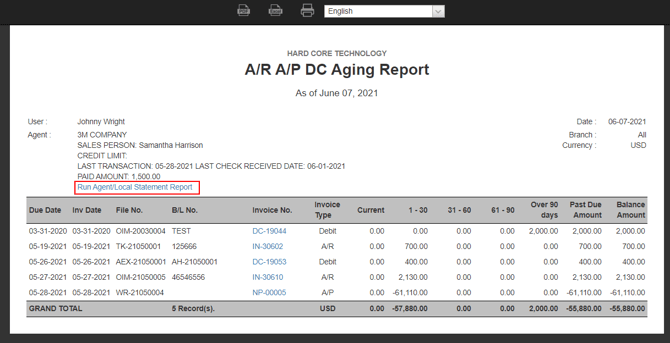
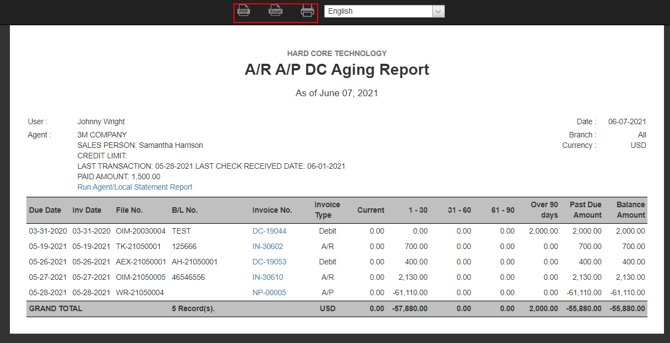
You can also click the hyperlink “Run Agent/Local Statement Report” to be directed to the Agent/Local Statement Report page.
-
You can download as PDF, Excel, or print the report by clicking the respective buttons at the top of the preview page.
Multi-Currency System Only - Print or export Detail with Aging Columns
Step 1: Select the Detail report
On the Aging Report page, find Options for printing and emailing only. Set Report Type to Detail.

Step 2: Enable aging columns
In the View Option row in the same section, select Show Aging Columns instead of Currency Columns. The checkbox is cleared by default. Leave it cleared to keep the currency-column layout.
Step 3: Open the report preview
Click Search to refresh the results and Trade Partner links after choosing the layout.
- For all matching Trade Partners, click Print below the options.
- For one Trade Partner, click its name in the refreshed search results.
The Print button uses the current criteria and layout options. Search refreshes the results and the links used to open a single partner's report.
Step 4: Download or print the result
Use the PDF, Excel, or Print icon at the top of the report preview.
When the checkbox is selected, the Detail output replaces the per-currency amount columns with:
- Current
- Over 1–30 days
- Over 31–60 days
- Over 61–90 days
- Over 91–120 days
- Over 120 days
- Amount Due

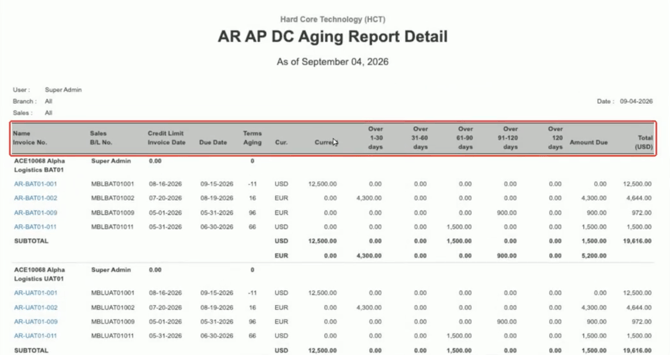
Amount Due contains overdue balances only and excludes Current. Overdue credits remain negative and can reduce Amount Due. Each balance remains identified by its currency.
The Sales, B/L No., and main-currency Total information remains. ETD and ETA are removed from this layout. An invoice with balances in more than one currency uses one row for each currency.
Both all-Trade-Partner and single-Trade-Partner Detail reports support this layout in print/PDF and Excel. The same option is used for Detail attachments generated through Batch Email. It does not change the on-screen search-results grid or the Summary report.
For a visual guide on this feature, please refer to the following video:
You might also be interested in:
- How to Send Emails Weekly Automatically in the Aging Report to Your Team?
- How to Generate a Freight Statement in GoFreight?
- How to Check AR/AP Status: Invoice / Cost List