
Before using AMS Direct, please contact the GoFreight Customer Support team at support@gofreight.com to request activation of the AMS EDI profile in your GoFreight system.
How to File AMS Direct
GoFreight supports AMS Direct filing for Ocean Export and Ocean Import shipments. After activation, you can submit AMS filings directly from the shipment page.
Complete all required shipment information before submitting AMS.
Step 1: Navigate to the Shipment Page
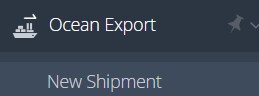
Go to Ocean Export/Import > New Shipment or open an existing shipment.
Step 2: Complete Shipment Information
In the MBL section, enter the required routing information. AMS Direct is available only when the Port of Discharge or Final Destination is a U.S. port.
Complete the required information in the Basic tab and Container & Item tab before submitting AMS.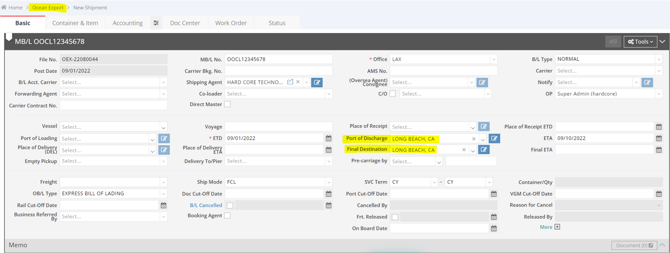
Step 3: Open the AMS Direct Page
Go to Tools > AMS Direct. AMS Direct can be accessed from both MBL Tools and HBL Tools.
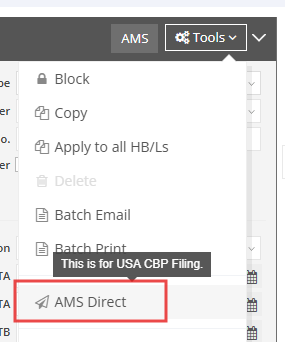
Review the AMS Direct page and confirm the shipment data is correct before filing.
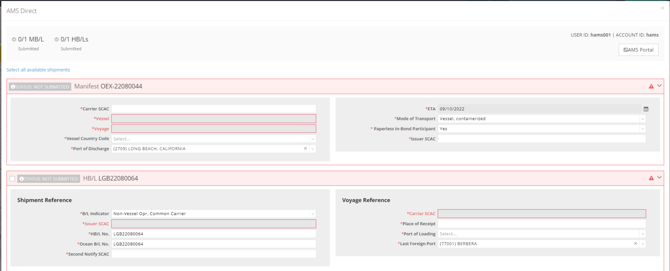
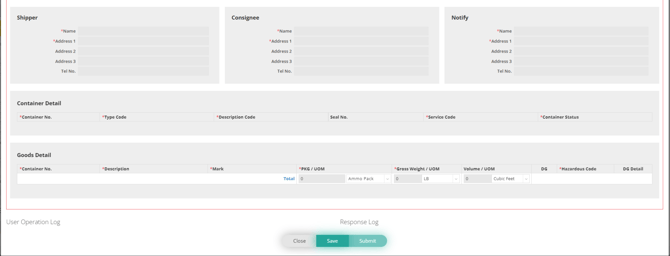
Step 4: Review, Save, and Submit the AMS Filing
You can click Save to save the current AMS filing data before submission. Saving does not submit the filing to CBP. Use Save if you want to continue editing later without submitting the filing.

After confirming the data is correct, submit the AMS filing.
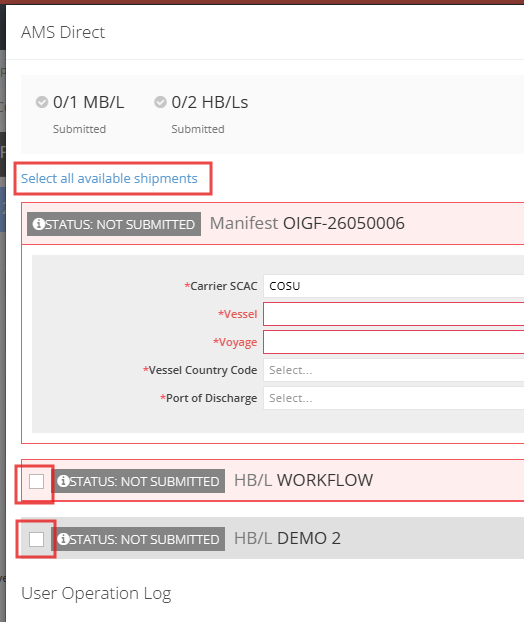
- Select HBL that needs to file or click Select all available shipments and confirm all available shipment checkboxes are selected.
- Click Save, then Submit to submit AMS for all selected shipments.

How to Read the Logs on the AMS Direct Page
After submitting AMS, review the filing logs on the AMS Direct page.
Response Log
Shows all the filing responses returned by the vendor or CBP. Use this section to confirm whether the filing was sent, rejected, or is still waiting for a response.
User Operation Log
Shows user updates made to the AMS filing data. Click More Detail to view additional change details.

For status definitions, see the AMS Filing Statuses section below.
How to View AMS Submission Status
You can check the AMS filing status in either of the following ways:
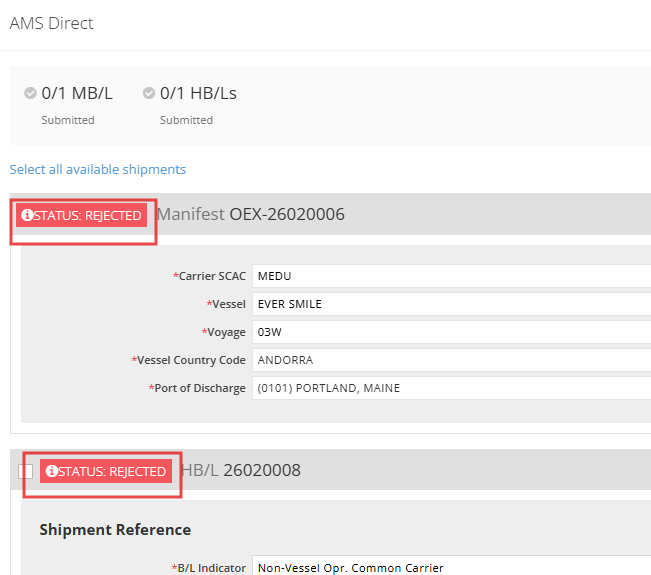
Option 1: Check Status on the AMS Direct Page
Go to the shipment, then click Tools > AMS Direct.
Option 2: Check Status from the MBL or HBL List
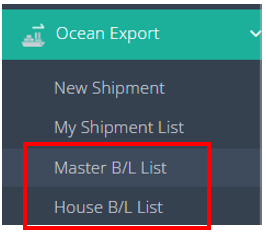
Go to Ocean Export > House B/L List or Master B/L List.
Click Config, select AMS Status, then click Apply to show the AMS Status column on the list.
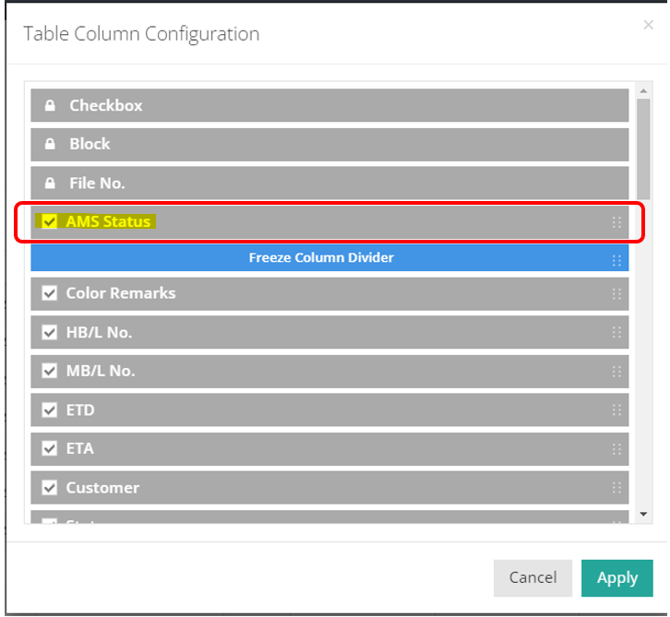
The AMS Status column will now be visible on the MBL or HBL list.
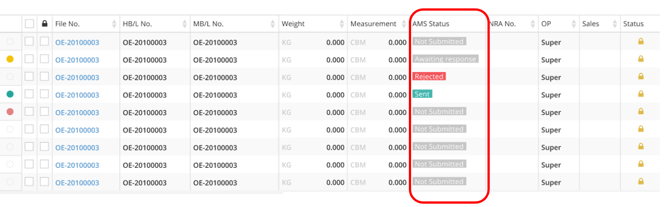
For status definitions, see the AMS Filing Statuses section below.
AMS Filing Statuses
Below are the common AMS statuses you may see in GoFreight:
|
Status |
Icon |
Details: |
|
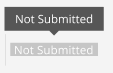
Not submitted |
|
- Not submitted to CBP. |
|
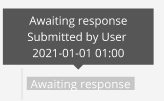
Awaiting response |
|
- Received vendor accepted response, and waited for CBP response. |
|
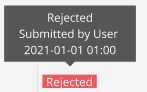
Rejected |
|
- Received vendor or CBP rejected response. |
|
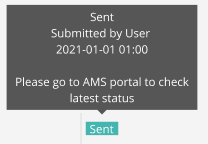
Sent |
|
- Filing accepted by CBP. - For 1Y, 3Z status, and more, login to the AMS portal to check for latest status. |
How to Resubmit AMS in GoFreight
If an AMS filing has already been submitted, you can amend supported fields and resubmit the filing directly from GoFreight without opening the eFreight portal.
Step 1. Edit the Allowed AMS Fields
Common amendment examples:
- Vessel: update the vessel name when the carrier changes.
- Voyage: update the voyage number after a vessel rollover. Example: change T002 to T004.
- ETA: update the estimated arrival date.
- Type Code: choose the AMS container type code. Example: 22V0.
- Description Code: choose the container description. Example: 40 CLOSED TOP.
- Service Code: choose the container service code. Example: Container Yard.
- Container Status: choose the container status. Example: Loaded.
Update Read-only HB/L Fields
Some values in AMS Direct are read-only because they mirror the house bill.
To change these values, edit the HBL itself, then return to AMS Direct and resubmit.
Read-only mirror fields include:
-
-
- Container No.
- PKG / UOM
- Gross Weight / UOM
- Volume / UOM
- Seal No.
-
Example: if the container number changes from CCCC0001 to the correct container number, update it on the HBL. AMS Direct will use the latest HBL value when you resubmit.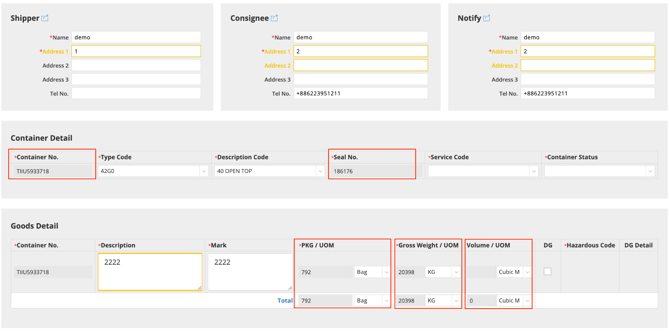
Step 2. Select the HBLs to Include
Select the checkbox beside each HBL that should be included in the amendment submission.
If you amended one HBL, select that HBL. If all available bills should be included, use Select all available shipments.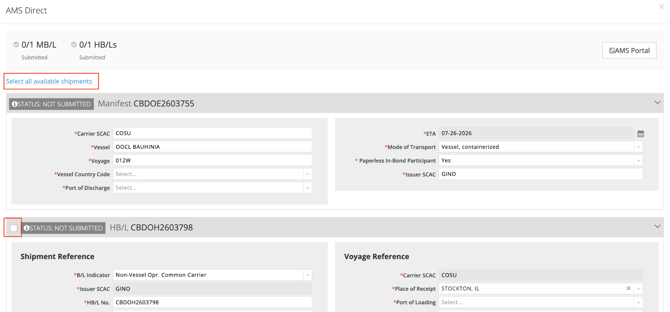
Step 3. Submit the Amendment
Click Submit to resubmit the corrected AMS Direct filing.
Step 4. Review the Filing History and Response
After resubmission, review the lower section of the AMS Direct window:
-
- User Operation Log shows who updated or submitted the manifest and when.
- Response Log shows the customs response, such as Submission Accepted or rejection details.
If CBP rejects the amendment, review the inline error or response log details, correct the filing, and submit again.
How to Check 1Y and 3Z Status
After AMS receives Sent status in GoFreight, you can check detailed disposition codes such as 1Y and 3Z in the AMS Portal.
Step 1: Open the AMS Portal
On the AMS Direct page, click AMS Portal in the top-right corner.

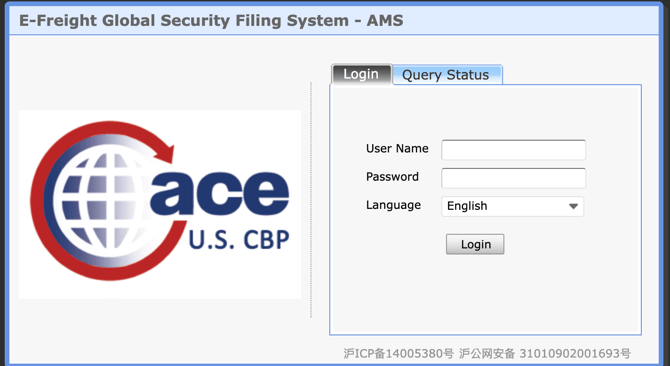
Step 2: Log In to the AMS Portal
-
- Go to the following URL: https://ams.gsf24.com/
- Log in with your User Account and Password provided by GoFreight.
- Language Selection: Available in English and Simplified Chinese.
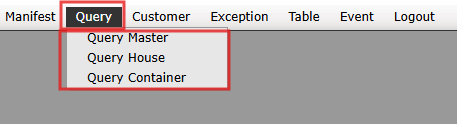
Step 3: Checking the AMS Query Results
Click Query > Query Master, House or Container.
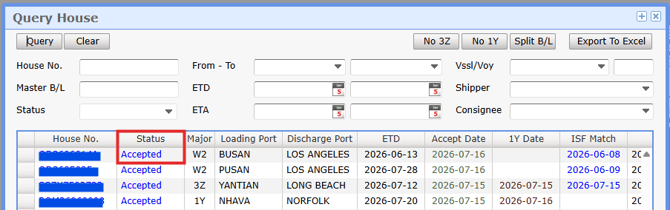
Step 4: Search by House Number
Click Status
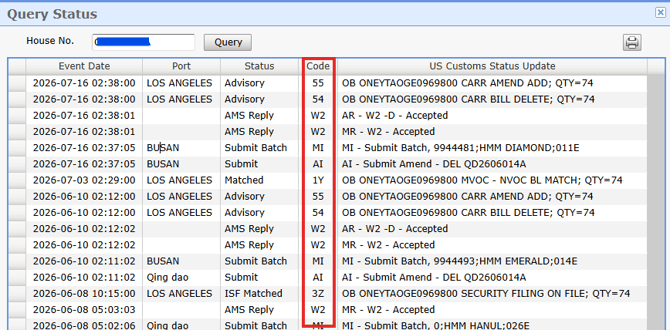
Step 5: Review the Disposition Code
In the Query Status section, review the Code column to check statuses such as 1Y or 3Z.
FAQ
Q1. Why can’t I see AMS Direct on the shipment?
AMS Direct must be activated for your account. It is also enabled based on shipment routing, such as when the Port of Discharge and/or Final Destination is a U.S. port.
Q2. Can I save the filing before submitting?
Yes. Click Save on the AMS Direct page to save your filing data. Saving does not submit the filing.
Q3. Where can I check CBP responses?
You can check responses in the Response Log on the AMS Direct page.
Q4. Where can I check 1Y or 3Z status?
After the AMS status becomes Sent, open the AMS Portal from the AMS Direct page and search by House No. to review the status code.
You might also be interested in:
- How to Submit AMS Filing via eFreight
- AMS 系统简介(eFreight)
- Responsibility Differences Between ISF and AMS