
Section 1: How to Create and Submit an AMS?
Step 1: Log In
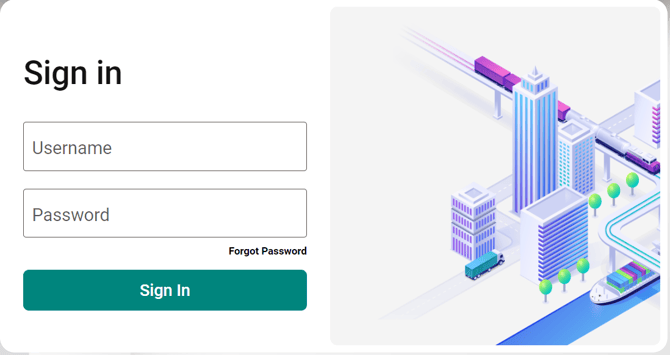
Log in to the AMS website below using your user ID and password.
For security reasons, the password will expire every 90 days, so make sure to update it regularly.
Home Page: https://compliance.globaletrade.services/na-mig/home
Step 2: Create a New Manifest
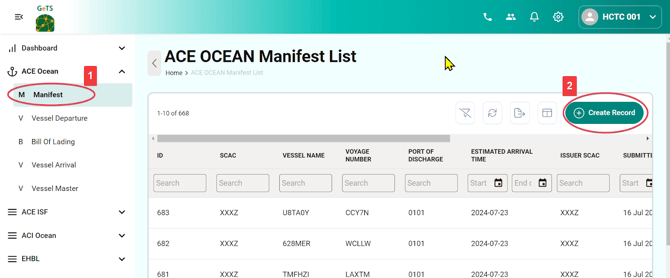
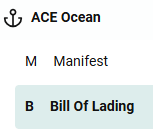
2-1. Click on ACE Ocean > Manifest in the menu bar.
2-2. Click Create Record to begin creating the manifest.
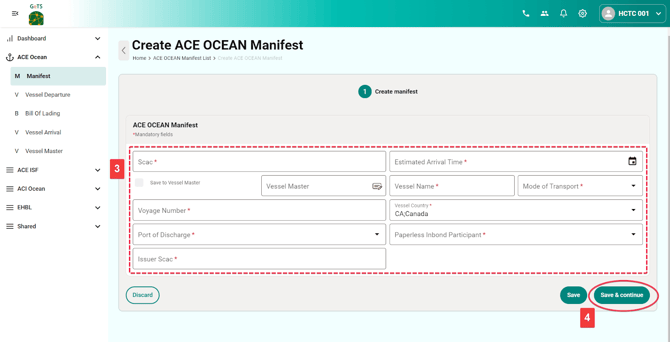
2-3. Fill in the manifest information.
Definitions of Columns:
- SCAC: Sender’s SCAC code
- Vessel Name: Name of the vessel
- Voyage Number: Voyage number
- Vessel Country Code: Enter the country code to save the vessel info into the Vessel Master under the Manifest menu for future reference.
- Port of Discharge: Port of Discharge (POD)
- Estimated Arrival Time: Estimated time of arrival (ETA)
- Mode of Transport: The usual case is "Vessel Containerized"
- Paperless In-bond Participant: Use the default value "Yes" for standard cases
- Issuer SCAC: The SCAC of the party who issued the Bill of Lading, which is typically the same as the SCAC code.
2-4. Click Save & Continue to complete the manifest creation and proceed to the next step of Bill of Lading creation.
Step 3: Add a Bill of Lading to the Manifest
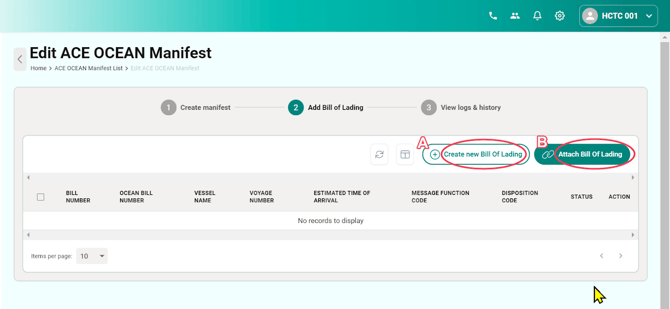
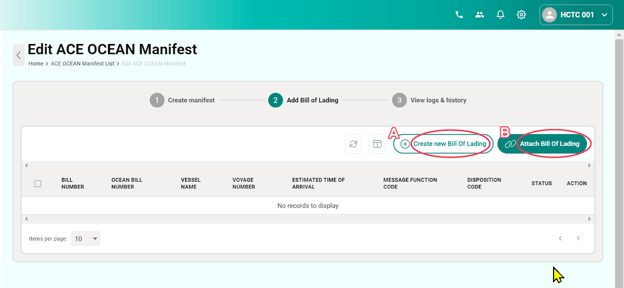
3-1. On the ACE OCEAN Manifest page, you can add a Bill of Lading in two ways:
- A. Click Create new Bill of Lading
- B. Click Attach Bill of Lading if there are existing Bills of Lading already created in the system.
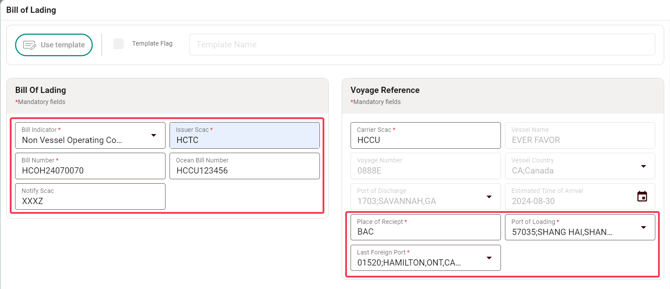
3-2. For creating a new Bill of Lading, fill in the required information and pay attention to the following fields:
Definitions of Columns:
- Bill Indicator: Choose the appropriate option based on your scenario; most will be 'Non Vessel Operating Common Carrier' (FROB)
- Issuer SCAC: The SCAC of the party who issued the Bill of Lading.
- Bill Number: Fill in the House Bill of Lading number.
- Ocean Bill Number: Fill in the Master Bill of Lading number.
- Notify SCAC: Usually the first 4 letters of the Ocean Bill of Lading number.
- Note: Notify SCAC is mandatory for NVOCC (insert SCAC of vessel operator).
- Place of Receipt: Indicate the place of receipt.
- Port of Loading: Specify the port of loading.
- Last Foreign Port: Indicate the last foreign port before arriving in the U.S.
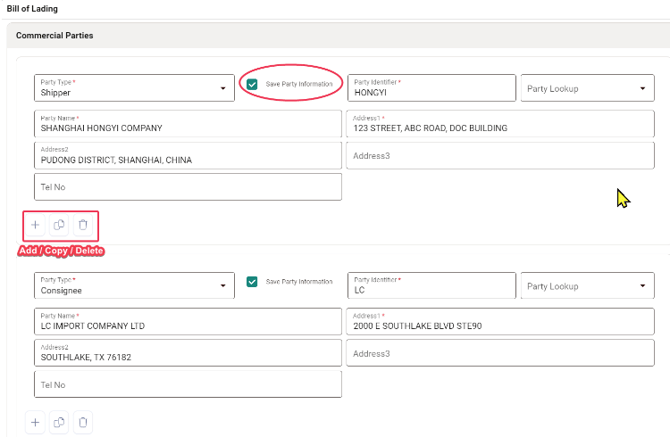
3-3. Fill in the details of commercial parties. Check Save Party Information for future use if necessary.
If you need to add more parties or copy/delete party information, click the icons below: + icon as Add and there are also Copy and Delete icons for selection based on the required information for AMS filings.
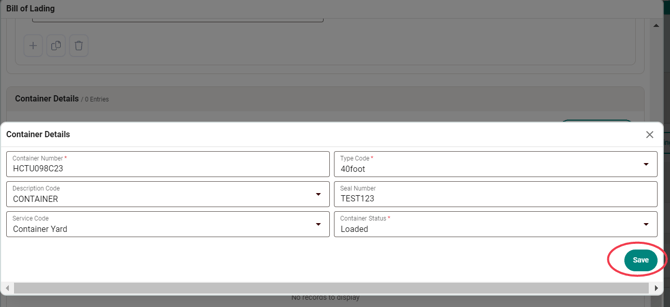
3-4. To fill in the Container Details, click Add Container, input the necessary information, and click Save.

3-5. Fill in the Goods Details by completing the mandatory fields. If it involves dangerous goods, toggle on the button beside Dangerous Goods and input the relevant information, then click Save.
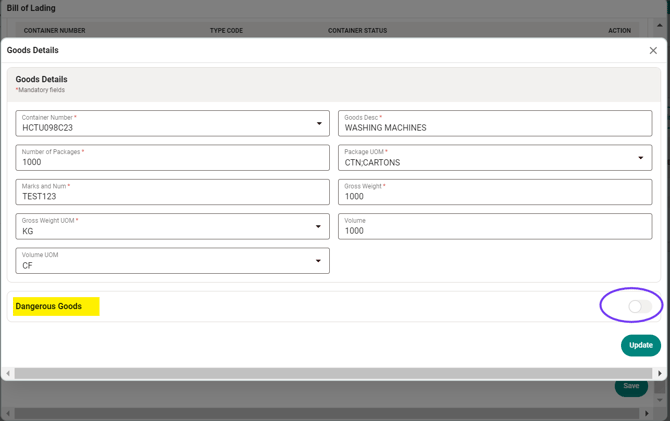
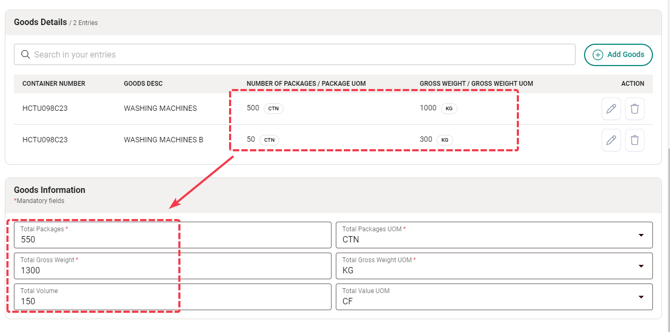
3-6. After completing the Goods Details, the total amount of goods will be automatically calculated and displayed in the Goods Information section. When all necessary information is filled, click the Save button to finalize the Bill of Lading creation.
Step 4: Submit AMS
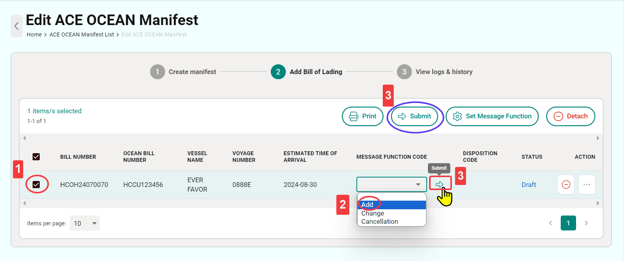
For first-time submissions or to add another Bill of Lading to the manifest:
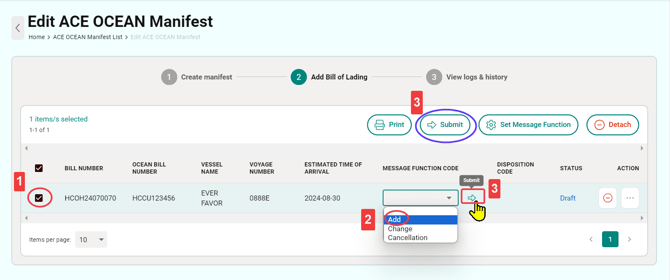
4-1. Select the checkbox for the Bill of Lading to be submitted.
4-2. Select Add under MESSAGE FUNCTION CODE.
4-3. Click Submit to complete the submission. (Either of the two buttons for submission will work).
Step 5: Check Submission Status
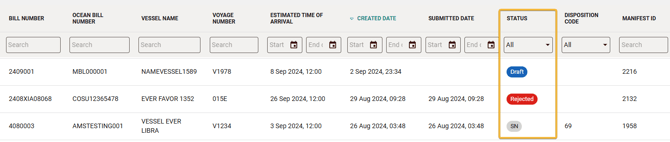
The overall submission status can be found under the Manifest or Bill of Lading listing pages where you will see the following statuses:
- Draft
- Sent
- Accepted
- Rejected
- SN (Status Notification)
- Cancel
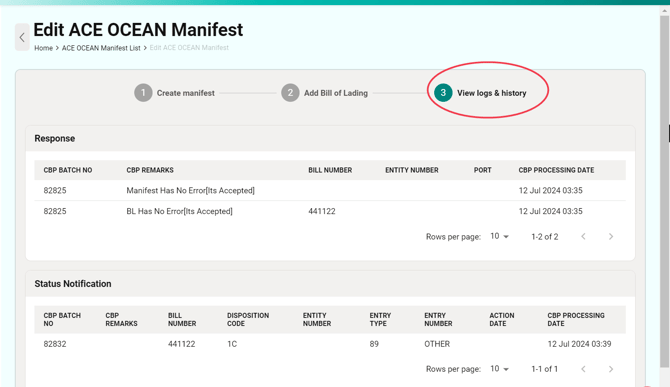
For detailed response histories, click View logs & history on the Manifest page.
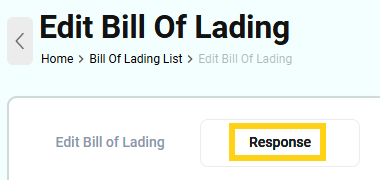
Alternatively, you can click the Response tab on the Bill of Lading page.
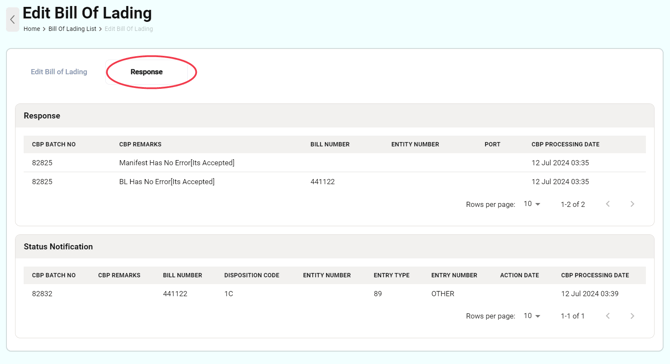
For a successful AMS filing, you should see the following responses:
3Z : SECURITY FILING ON FILE
1Y : MVOC - NVOC BL MATCH
- B. Click Attach Bill of Lading if there are existing Bills of Lading already created in the system.
Section 2: How to Modify or Remove the Bill of Lading After AMS Submission?
Modifying the Bill of Lading
To modify a submitted Bill of Lading, you must first cancel the submitted Manifest associated with the B/L.
Once the Manifest is canceled, you can make the necessary changes and resend the B/L as an "ADD" with the Manifest.
- Click the three dots (…) next to the Manifest and select Edit.
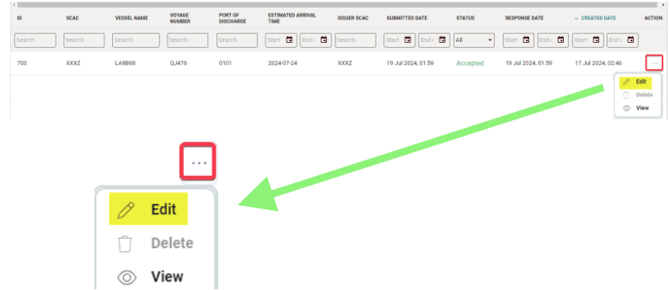
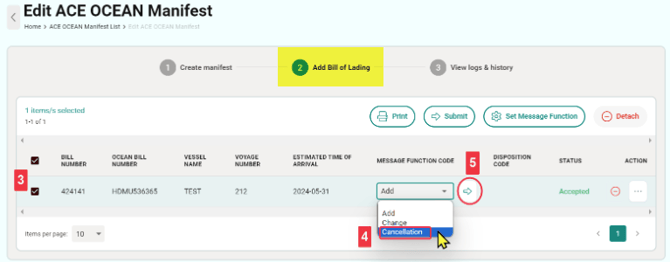
- You will be redirected to the Edit ACE OCEAN Manifest page.
- Click Add Bill of Lading at the top and check the box for the Bill of Lading you wish to modify.
- Select Cancellation under MESSAGE FUNCTION CODE.
- Click Submit to complete the action.
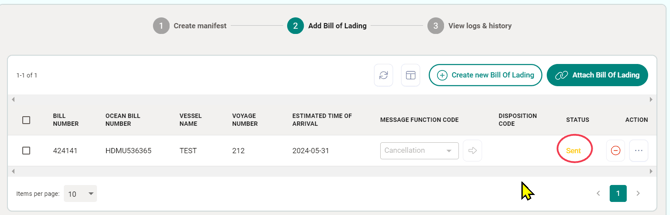
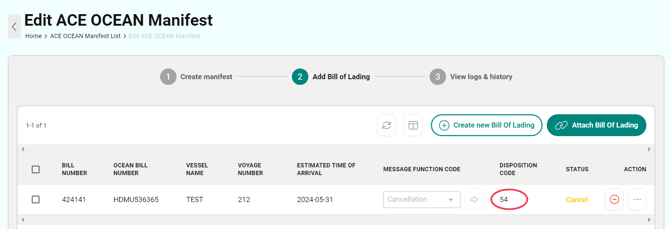
- Check for a response from "Sent" to the "CARR BILL DELETE (54)" message.
 *Once the original Bill of Lading has been canceled, you can begin updating the content of the Bill of Lading and submit it as “Add.”
 - Check the box for the Bill of Lading, click the three dots (…), select Edit, and navigate to the Bill of Lading page for modifications.
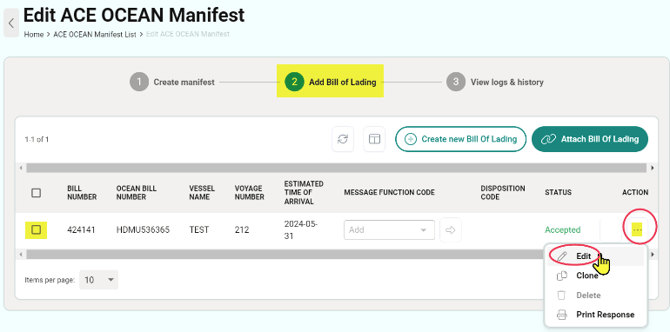
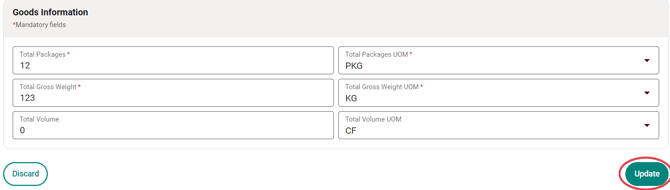
- *Click Update to save the changes in the Bill of Lading.
- Select Add under MESSAGE FUNCTION CODE.
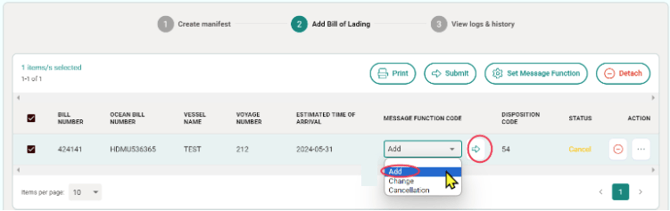
- Click Submit to complete the action.
- Wait for the response “DISPOSITION CODE (55)” message => Complete.
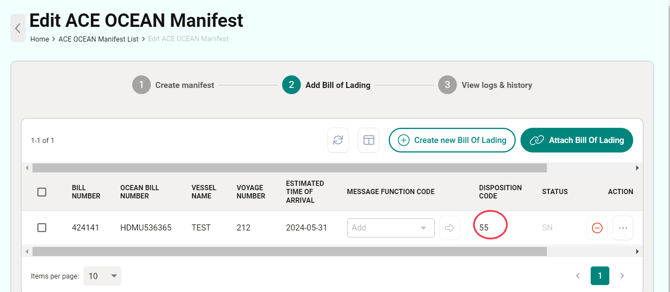
***Important: If the update involves changing the quantity of packages in the B/L, cancellation is not required; instead, use the "Change" option on the Manifest.
Removing (Detaching) a Bill of Lading from a Manifest
If a Bill of Lading has been submitted but needs to be removed, please cancel first:
- Select the checkbox for the Bill of Lading you want to remove.
- Select Cancellation under MESSAGE FUNCTION CODE.
- Click Submit to complete the action.
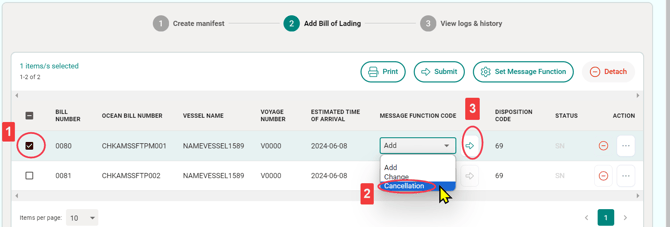
Next, to detach the Bill of Lading from the Manifest:
- Select the checkbox for the Bill of Lading you wish to detach.
- Select Detach to remove the Bill of Lading from this Manifest (there are two buttons available for detaching; either can be used).
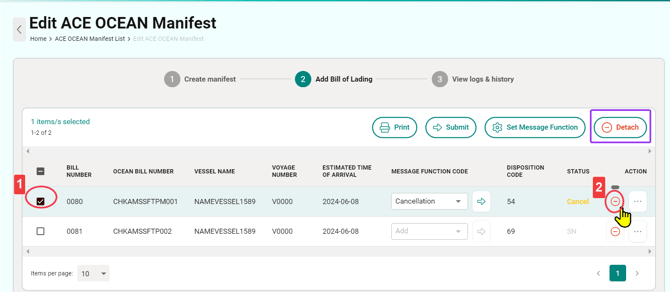
Section 3: How to Change the Vessel Name After AMS Submission?
Each vessel must have a corresponding manifest. To change the Bill of Lading vessel, you will need to cancel the original submission, detach the Bill of Lading from the old vessel's manifest, attach it to the new vessel's manifest, and then submit it again.
Remove Bill of Lading from a Manifest
- Select the checkbox next to the Bill of Lading to be removed.
- Select “Cancellation” under “MESSAGE FUNCTION CODE.”
- Click “Submit” to complete this action.
4. Once the cancellation has been completed (i.e., after receiving Disposition Code 54), detach the Bill of Lading from the original manifest by following the steps in Section 2: How to Modify or Remove the Bill of Lading After AMS Submission? > Removing (Detaching) a Bill of Lading from a Manifest.
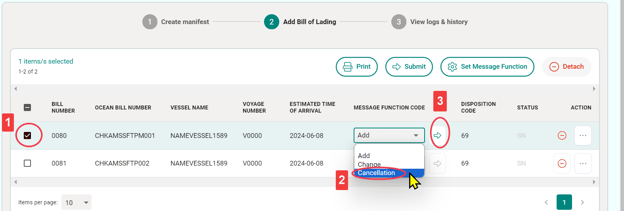
If there is no new manifest for the new vessel in the system, you will need to create a new manifest first.
Create a New Manifest
- Click ACE Ocean > Manifest on the menu bar.
- Click “Create Record” to initiate the manifest creation.
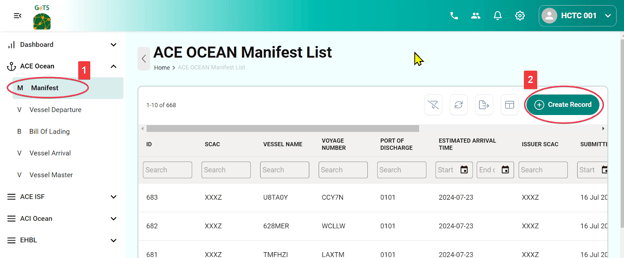
Fill in the Manifest Information
Click “Save & Continue” to complete the manifest creation and proceed to the next step of Bill of Lading creation.
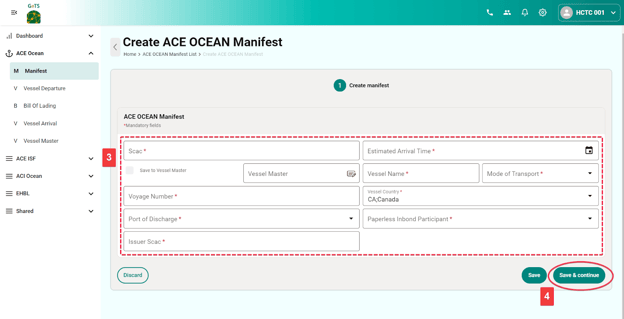
Definition of Columns
- SCAC: Sender’s SCAC code
- Vessel Name: Name of the vessel
- Voyage Number: Voyage number
- Vessel Country Code: Enter the country code; this will save the vessel info into the Vessel Master under the Manifest menu bar for future reference.
- Port of Discharge: Port of Discharge (POD)
- Estimated Arrival Time: Estimated Time of Arrival (ETA)
- Mode of Transport: The typical case is “Vessel Containerized.”
- Paperless In-bond Participant: Use the default value "Yes" unless otherwise specified.
- Issuer SCAC: The SCAC of the party who issued the Bill of Lading, is typically the same as the sender's SCAC.
Add a Bill of Lading to the Manifest
On the ACE Ocean Manifest page, there are two ways to add a Bill of Lading to this manifest:
For the Bill of Lading that requires a vessel change, there is usually an existing Bill of Lading in the system. Please select "Attach Bill of Lading" directly:
- Click “Create New Bill of Lading” to create a new entry.
- Or click “Attach Bill of Lading” if there are existing Bills of Lading already created in the system.
Submit AMS
For the first-time submission or when adding another Bill of Lading to the manifest:
- Select the checkbox of the Bill of Lading to be submitted.
- Select “Add” under “MESSAGE FUNCTION CODE.”
- Click “Submit” to complete the submission. (You can use either of the two submission buttons.)
Section 4: How to Change Package Details of the Bill of Lading After AMS Submission?
You can easily modify the Piece Count or Number of Packages in AMS. Follow the steps below:
- Click on the Manifest and select Add Bill of Lading at the top.

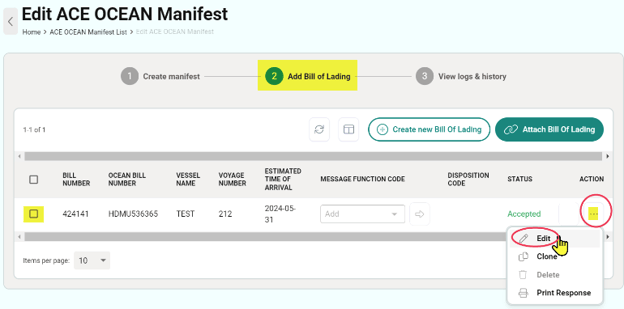
- Tick the box for the Bill of Lading you wish to modify. Click the three dots (...), select Edit, and navigate to the Bill of Lading page for modifications.
- Click the three dots (...) on the Manifest and select Edit. You will be redirected to the Edit ACE OCEAN Manifest page.
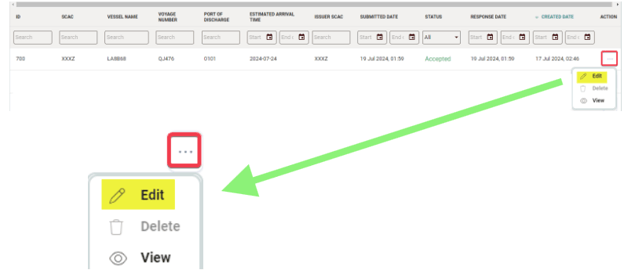
- Click on Add Bill of Lading at the top and check the checkbox of the Bill of Lading you want to edit.
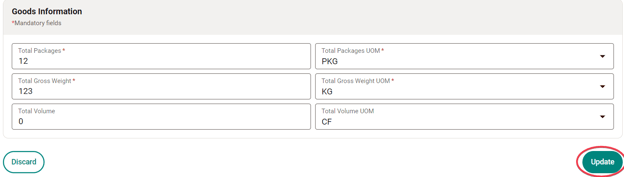
- Click Update to save the changes in the quantity (total packages) for the Bill of Lading.
- Return to the Manifest, select Add Bill of Lading, tick the Bill number, and choose Change to submit.
**Note: Only the update of package details can be submitted as a "Change."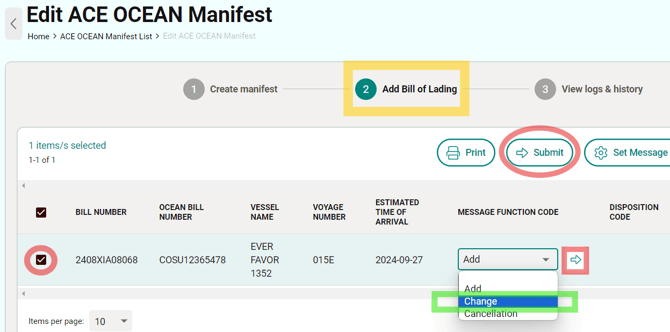
FAQ
Q1: Why is my account ID frozen, and how can I unfreeze it?
According to our vendor, Crimson, the password must be updated every 90 days for security reasons. A notification email will be sent to the user’s registered email address before the password expires.
Additionally, the account ID will be frozen automatically if an incorrect password is entered more than five times.
If your account ID is frozen, please contact us at support@gofreight.com, or our vendor, the CrimsonLogic team, at support@crimsonlogic.com for immediate assistance.
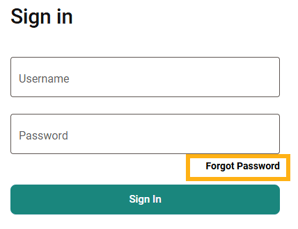
If you have forgotten your password, you can click "Forgot Password" and enter your account's user ID and registered email to request your credentials.
Q2: What if the status of AMS is stuck in “Sent”?
Typically, the CBP (Customs and Border Protection) responds shortly after successfully submitting the AMS filing.
If your AMS status has remained stuck in "SENT" for more than one hour, please contact us at support@gofreight.com or our vendor, the CrimsonLogic team, at support@crimsonlogic.com for assistance.
Q3: What is the invalid character?
The Shipper, Consignee, and Marks of Goods Description fields have character limits and restrictions on certain special characters.
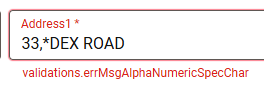
If invalid characters are detected, an alert message will appear in red below the relevant fields, showing which special characters are accepted.
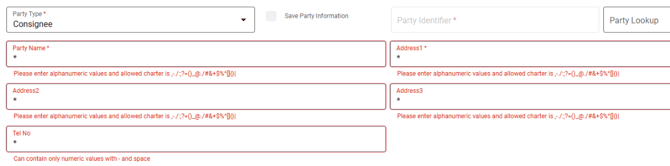
These are all applied not only to the Shipper and Consignee but also to the Goods Details of Goods Description and Marks and Num.
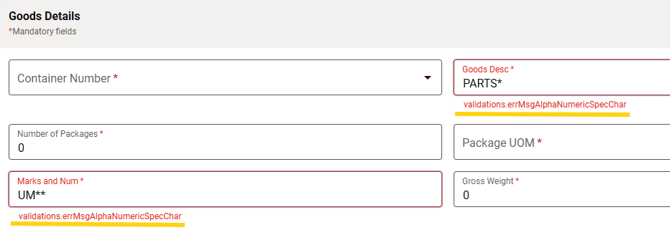
If you copy and paste into these fields and they contain invalid characters, you will see a red error message indicating a validation error as shown in the screenshot below.
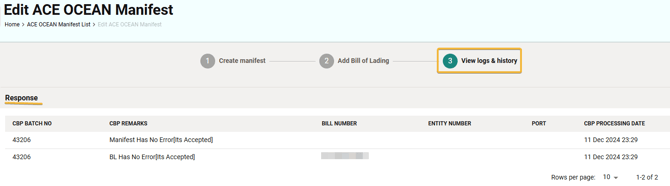
Q4: Where can I find the submission result?
To view submission results:
- Go to Manifest
- Click on the manifest data
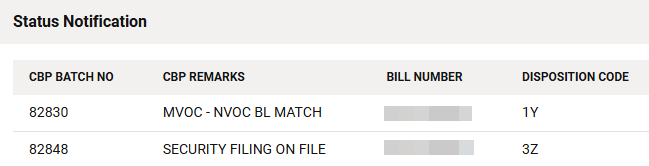
- Navigate to “3. View logs & history” to see the Response and Status Notification for all B/Ls attached to the manifest.
Q5: What is 1Y and 3Z?
For an AMS filing, it is important to receive the 1Y and 3Z status responses from CBP. These statuses indicate that the AMS filing has been successfully matched with the required filings in the CBP system, helping ensure smooth cargo processing upon entry into the United States.
When your AMS filing is successfully matched with both the carrier's AMS filing and the corresponding ISF filing in the CBP system, you will receive the 1Y and 3Z status responses.
- 1Y = Your AMS filing has been successfully matched with the carrier's AMS filing.
- 3Z = Your AMS filing has been successfully matched with the corresponding ISF filing.
Q6: Why has the AMS filing received AC (Accepted), but still has not received 1Y?
AC (Accepted) means that CBP has successfully accepted the AMS filing.
1Y means that the carrier has also submitted its AMS filing, and the customer's AMS has been successfully matched with the carrier's AMS in the CBP system.
The most common reason for not receiving 1Y is that the carrier has not yet submitted its AMS filing. Please confirm with the carrier whether they have already submitted their AMS filing.
Q7: Why has the AMS filing received AC (Accepted), but still has not received 3Z?
AC (Accepted) means that CBP has successfully accepted the AMS filing. 3Z indicates that the ISF has also been filed, and the AMS filing has been successfully matched with the corresponding ISF in the CBP system.
- The most common reason for not receiving 3Z is that the ISF filing has not yet been submitted by the ISF filer.
- Please confirm with your overseas agent (or the party responsible for the ISF filing) whether the ISF has already been submitted.
Q8: Why was my B/L rejected?
Both the Manifest and Bill of Lading List views have a column that displays the AMS status.
If a B/L has been rejected, the CBP remarks can be found under the Response section.
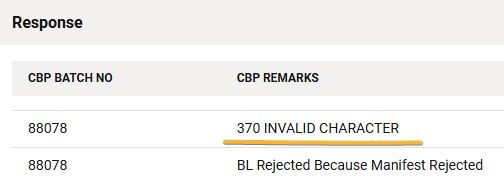
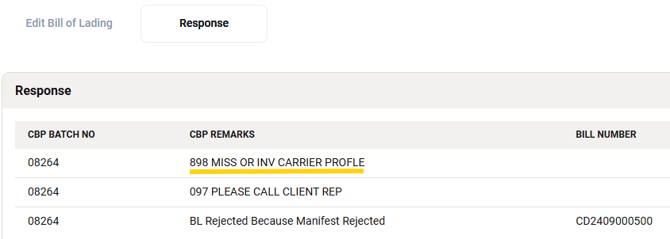
These codes indicate the status or results of CBP’s review of your submissions.
For a complete list and detailed explanations of the disposition codes, please refer to the attached file or visit the CBP website:
ACE Appendix D Disposition Codes (PDF)
Q9: AMS Reject Response: '299 INVALID B/L IN B04/N9'
If your NVOCC AMS Bill receives the rejection message "299 INVALID B/L IN B04/N9", it indicates that the corresponding carrier has submitted their AMS manifest with an incorrect Bill Type (Regular Bill).
A Regular Bill type submitted by the carrier indicates to CBP that there is no freight forwarder/NVOCC involved in the shipment. Therefore, CBP does not expect a separate NVOCC AMS Bill submission and will reject the NVOCC AMS Bill accordingly.
To resolve this issue, advise the carrier to amend the Bill Type to MVOCC or MVOCC (FROB). Once the carrier has successfully submitted the amendment, you can resubmit the AMS Bill with the message function code ADD.
Q10: What are the steps to change the vessel for a submitted Manifest?
To change the Bill of Lading vessel, you need to:
- Cancel the original submission.
- Detach the B/L from the original manifest (old vessel).
- Attach the B/L to the new manifest (new vessel) and submit it again.
For detailed steps, please refer to Section 3: How to Change the Vessel Name After AMS Submission?
You might also be interested in:
- Responsibility Differences Between ISF and AMS
- How to Apply Filing in GoFreight?
- How to Submit AMS Direct in GoFreight eFreight Vision?