
The ISF (Importer Security Filing) feature is not included by default in your GoFreight system. To enable it, you must:
- Request access and receive approval from CBP (U.S. Customs and Border Protection).
- Complete the application process.
- Contact a support@gofreight.com agent to enable ISF for you.
How to File an ISF
The system currently provides two ways to file an ISF. Please choose the method that best fits your workflow to minimize duplicate data entry.
- File ISF Before Creating a Shipment
- Create the shipment first, then file the ISF.
Method 1 - File ISF Before Creating a Shipment
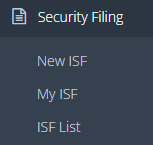
To add an ISF, navigate to Security > New ISF in the menu bar.
Fields marked with a red asterisk (*) are mandatory.
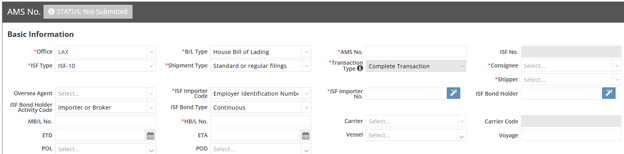
ZONE 1: Basic Information
- Office: The system defaults to the office linked to your SCAC as set in the backend.
- ISF Type: The required fields vary depending on the selected ISF type:
- ISF-10 (Importer Security Filing 10+2): Requires full data including seller, buyer, manufacturer, ship-to party, container stuffing location, HTS code, etc.
- ISF-5 (Importer Security Filing 5): Requires minimal data such as booking party, foreign port of unlading, place of delivery, ship-to party, and HTS code.
- B/L Type (Bill of Lading Type): Must match the level used in the AMS (Automated Manifest System):
- Ocean Bill of Lading - used for Regular Bills
- House Bill of Lading
- AMS No.: Provided by the AMS sender. Note: The AMS No. field supports a maximum of 16 digits, and symbols are not allowed. If symbols are detected, an orange exclamation mark (!) will appear with a reminder message. You can save the file, but ISF submission will be blocked until the issue is corrected.
- Shipment Type: Select the suitable type for your shipment.
- Consignee: If the selected Trade Partner has an Importer No. saved in the ISF Setting section of the Trade Partner list, the system will automatically populate the Importer No., ISF Bond Holder, and related Trade Party details when selected in the Consignee field.
- Shipper: Select the Shipper from your Trade Partner List.
- ISF Bond Holder Activity Code: Select the appropriate code from the drop-down list for your ISF.
- ISF Bond Type: Select the bond type of this ISF bond holder:
- Single Bond: Choose Single Transaction
- Annual Bond: Choose “Continuous”
- MB/L No. (Master Bill of Lading Number): Fill in based on AMS data received.
- HBL No. (House Bill of Lading Number): Input the HBL No. based on AMS data.
- The remaining fields, such as ETD, ETA, and voyage information, are optional.
ZONE 2: Shipment Info
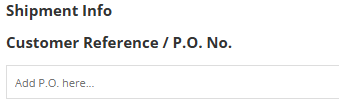
Customer Reference / P.O. No.: This optional field allows you to input the customer reference or purchase order number.
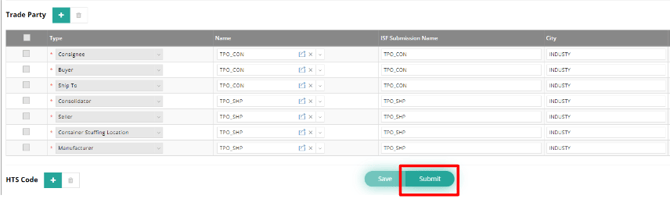
ZONE 3: Trade Party
- The fields Consignee, Buyer, and Ship To will be automatically filled out once you select the Consignee in the Basic Information section.
- The fields Consolidator, Seller, Container Stuffing, and Manufacturer are synchronized with the Shipper information selected previously.
- Note: The Zip Code and State fields are required if the Trade Partners are located in the United States, Canada, China, or India.
- If the Zip Code is already saved in the Trade Partner data, it will be automatically synchronized.
- For the State, please input it manually when dealing with Trade Partners from or to these four countries.

After filling in all the required fields, click the "Save" button to store the entered data. Once you have confirmed all entries are correct, click "Submit" to send the ISF to CBP.
Create Shipment
Once the ISF is “Accepted” and shows "Matched" from CBP, follow these steps to generate a shipment directly:
- Select “Create Shipment” from the drop-down menu under “Tools.”
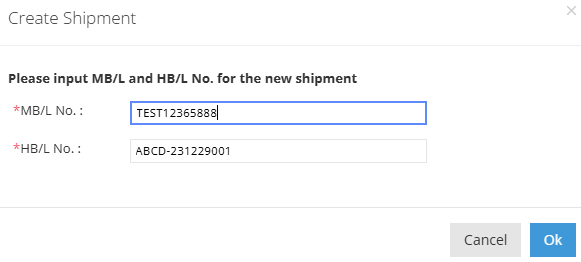
A pop-up window will show the MBL and HBL numbers for the new shipment. Click OK to proceed.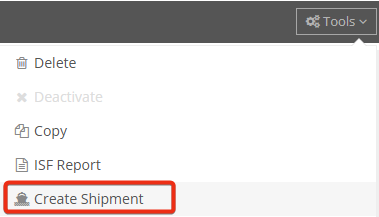
- The page will redirect to the Ocean Import shipment with the newly created MBL and HBL.
- If the original ISF did not include an ETA, please select the ETA date and click Save at the bottom of the page.
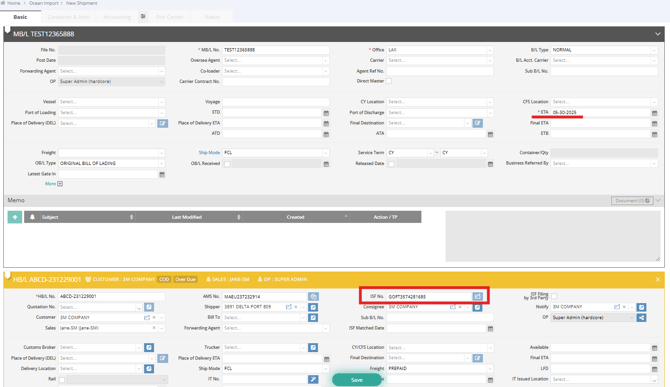
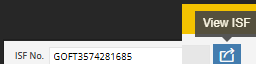
- The ISF No. will also be displayed in the HBL. You can click the icon at the end of the ISF No. field to view the ISF.
Note: Field Restrictions for Compliance with CBP Regulations
- Does not accept symbols in the following fields:
- AMS No.
- HBL No.
- ISF Submission Name
- Address Info
- Only allows alphabetic characters (A-Z, a-z) and numbers (0-9):
- If you encounter a failure when submitting, ensure that there are no special characters, such as slashes (/), dashes (-), or European characters (e.g., ä, à, â).
- City: Only alphabetic characters and numbers are allowed.
Method 2 - Create a Shipment Before Filing ISF
You can create a shipment first in the Ocean Import module and then submit the ISF directly from the shipment entry page. To do this:
- Click the 'Create ISF' icon next to the ISF No. field. You will be directed to a new ISF page with the basic shipment data pre-filled.

Once all data has been confirmed, click Save and then Submit this ISF to CBP.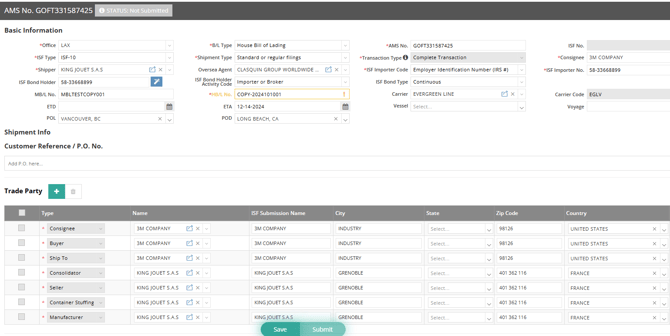
ISF Number Linkage to HB/L
Once the filing receives the ISF number returned by CBP, it will be linked to the corresponding HB/L.

ISF Status Definitions
The following are the different receipt statuses you may encounter:

- STATUS: Matched - This ISF has been matched with the AMS.

STATUS: Not Matched - ISF submission information is inconsistent with AMS; please confirm with the AMS submitter.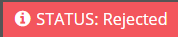
STATUS: Rejected - The information submitted is incorrect and cannot be accepted. Please refer to the CBP error code manual to modify it and resubmit.
STATUS: Submitted - The ISF has been sent. If there is no update after 10 minutes, please email support@gofreight.com. Note: This does not apply if the CBP ACE system is undergoing maintenance, including regularly scheduled maintenance on Sundays.
STATUS: Accepted - This ISF has been received by CBP. If the status does not update to "Accepted" after 5-10 minutes, please email support@gofreight.com. Note: This does not apply if the CBP ACE system is undergoing maintenance, including regularly scheduled maintenance on Sundays.
STATUS: Not Submitted - This ISF has not been submitted to CBP.
STATUS: Deactivating - You have clicked "Deactivate," and it is pending CBP approval.
STATUS: Deactivated - This ISF has been canceled by CBP. Please note that deactivated ISFs cannot be resubmitted. If you need to file the same ISF data again, you must create a new ISF entry.
How to Read the Status
Method 1:
Click "Submit" and generally wait 5-10 minutes; the status will be displayed at the top of the ISF entry.

CBP Response Log
You can also view the CBP Response Log at the bottom right corner; all responses will be displayed here.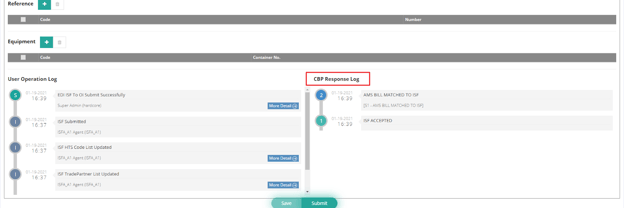
ACE Disposition Codes for ISF Filings
After submitting ISF filings, or making manifest updates through GoFreight to the CBP portal, you may see various ACE disposition codes (such as S1, S2, or 55) displayed in the CBP Response Log section.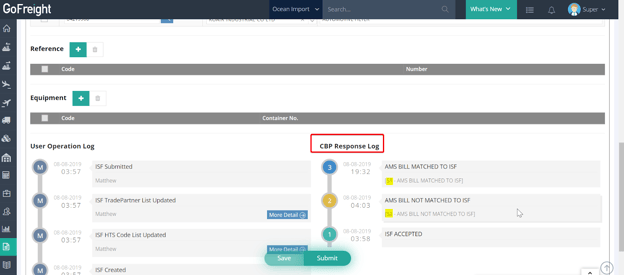
These codes indicate the status or results of CBP’s review of your submissions.
For a complete list and detailed explanations of the disposition codes, please refer to the attached file or visit the CBP website:
ACE Appendix D Disposition Codes (PDF)
User Operation Log
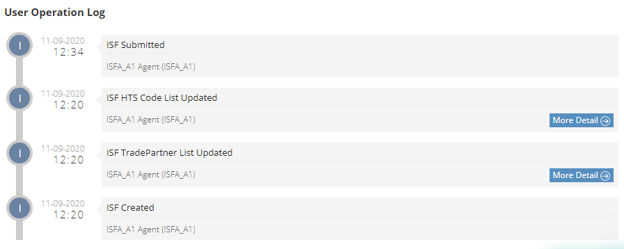
At the bottom left-hand side of the ISF page, the User Operation Log records all history related to this ISF data. Click "More Detail" to view detailed information on the edits.
Method 2:
You can verify your ISF files in the “ISF List” for an overview, with each ISF's status displayed in the “Status” field. To access this, click on the navigation bar and select Security Filing > ISF List.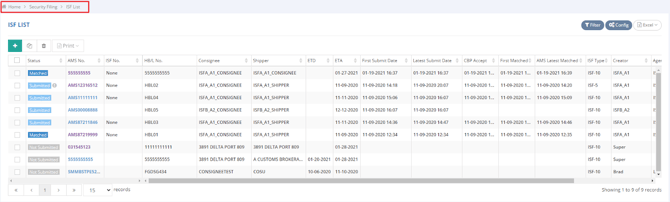
ISF Page Tools
At the upper right-hand side of the ISF page, you will find the Tools drop-down menu. This menu provides additional actions you can take on the ISF.
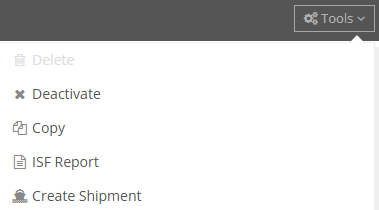
- Delete - Before submission, you can click "Delete" to remove ISFs. Note: Submitted ISFs cannot be deleted, only deactivated.
- Deactivate - After submission, if the ISF is confirmed as canceled and will no longer be used, you can click "Deactivate."
**Note: Canceled ISFs cannot be resubmitted; you must create a new ISF to submit. - Copy - By clicking "Copy," the system will duplicate the ISF, allowing you to only enter the AMS No., HBL No., and MB/L No. This feature saves time by eliminating the need to re-enter repeated information.
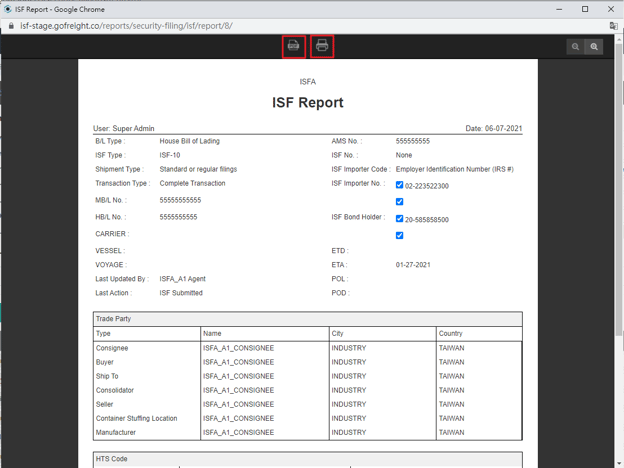
- ISF Report - After clicking, the system will display the ISF Report preview page, where you can download and print the PDF.
- Create Shipment - You can select “Create Shipment” to generate an HBL without retyping information such as MBL, HBL, AMS, Consignee, etc.
You might also be interested in:
- Responsibility Differences Between ISF and AMS
- How to Apply Filing in GoFreight?
- How to Submit AMS Filing via eFreight