
Agent EDI Overview and Mapping Behavior
This guide explains how to utilize the EDI History feature within the Ocean Import module, with a focus on how Agent EDI maps and imports shipment data into the system.
Agent EDI enables seamless transmission of shipment data from agents directly into GoFreight, eliminating the need for duplicate data entry.
Note: Agent EDI is one of GoFreight’s value-added services. If you’re interested, please reach out to our Support Team at support@gofreight.com for more details and pricing. Our Support Team will coordinate with your Customer Success Manager as needed
Purpose of EDI History
The EDI History section allows you to view all shipments received via Agent EDI. Once the EDI transmission is completed, the system will automatically generate shipment records in the Ocean Import module based on the transferred data.
Accessing EDI History
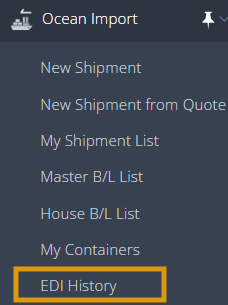
To access EDI History:
- Go to the Ocean Import module
- Select EDI History from the menu
EDI History List Overview
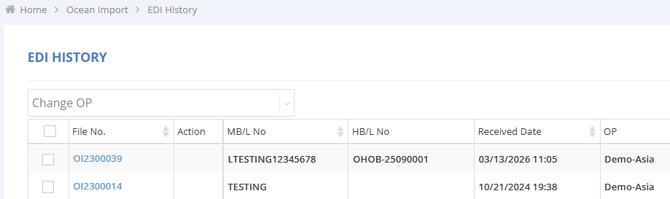
The list displays all shipments received through Agent EDI, including:
- File No.
- MBL (Master Bill of Lading) No.
- HBL (House Bill of Lading) No.
- Received Date
- OP (Operation)
Under the OP column, AGEDI is shown as the default operator for all imported EDI shipments.
Agent EDI Mapping Behavior
When shipment data is received via Agent EDI, the system performs automatic mapping as follows:
- Shipment Data Mapping
All shipment-related information (such as MBL, HBL, and cargo details) is automatically mapped into the corresponding fields in the Ocean Import module.
Using the Filter Function
To narrow down the shipment list:
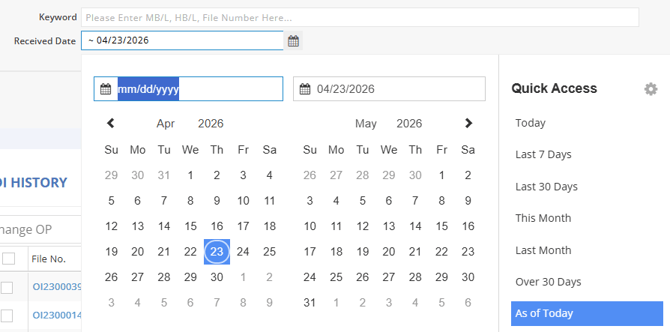
- Click the Filter button (top right)
- Select filter criteria:
- Keyword
- Source
- OP
- Received Date
- Click Apply

Example: To view today’s shipments, set Received Date to As of Today.
Assigning Shipments to a Different OP
You can batch-assign shipments to a different OP by following these steps:
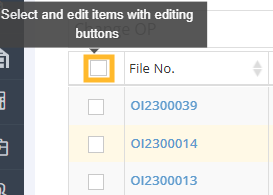
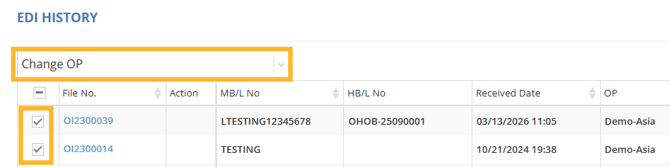
- Check the box in front of the File No. field at the top of the list to select all shipments, or select individual shipments using the checkboxes in the list.
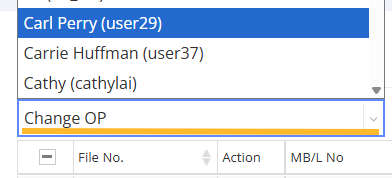
- Click “Change OP”.
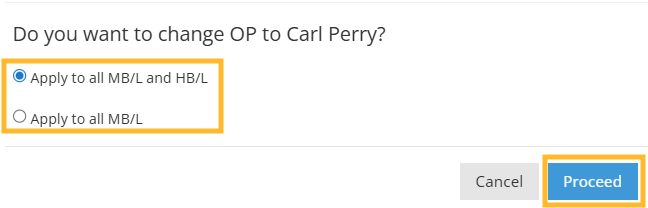
- A pop-up window will appear asking whether you want to update the OP for both MBL and HBL, or MBL only.
- Select your preferred option and click “Proceed”.
- A confirmation message, “OP in Charge Changed Successfully,” will be displayed at the top of the page, indicating the update has been completed successfully.
A confirmation message will appear once the update is successful.
Mapping Trade Partner
The system attempts to match incoming trade partner data, such as shipper, consignee, and notify party, with existing records in your Trade Partner list.
For automatic mapping to occur, the trade partner name must match the existing record exactly. The comparison is character-sensitive, which means any differences, such as extra spaces, missing spaces, punctuation marks, dashes, abbreviations, or variations in naming format, will be treated as a different trade partner. In these cases, the system will recognize it as a new entry and automatically create a new Trade Partner record.
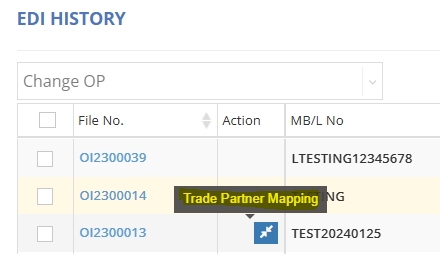
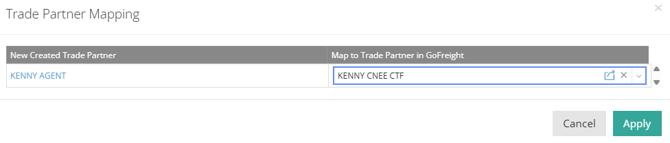
In such cases, a blue double-arrow icon will be displayed under the Action column next to the File No., indicating a Trade Partner mapping issue in this EDI shipment.
- Under the Action column, click the blue double-arrow icon
- The Trade Partner Mapping window will appear
- Compare the incoming data with existing trade partners
- Select the correct existing trade partner
- Click Apply to complete the mapping
By following these steps, you can efficiently manage EDI shipments, assign them to the appropriate OP, and ensure accurate trade partner information.
Once a Trade Partner has been manually mapped, the system will follow the saved mapping record for future transactions. After mapping is established, the mapped Trade Partner record will take priority even if the incoming name format contains minor differences.
For a visual guide on using this feature, please refer to the video below:
You might also be interested in:
- How to Exchange Shipment Data Using GoFreight-to-GoFreight EDI
- Receiving a Pre-Alert in Ocean Import