
GoFreight acts as a third-party service for email providers. To send documents from the GoFreight system, you must verify your email address under My Profile upon your initial setup.
Google periodically requires you to re-verify your account. In most cases, this occurs approximately every three months.
If you encounter a "Server Error" while sending documents, please re-verify your email under My Profile. (For a step-by-step demonstration, watch the tutorial video. )
Resolve Common Verification IssuesYou may encounter one of the following messages during the Gmail authorization process. Refer to the corresponding section below for instructions.
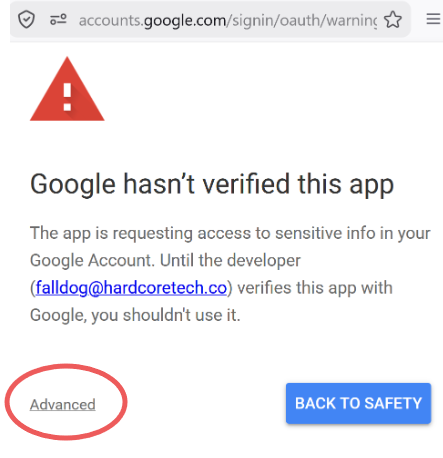
Google Hasn't Verified This App
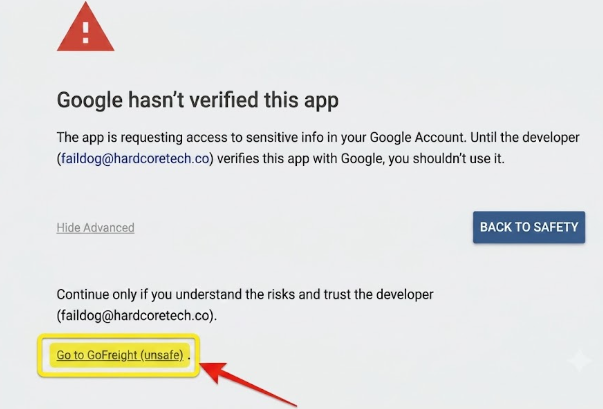
If you see the message "Google hasn't verified this app", follow these steps:
- Click “Advanced”.
- Click “Go to GoFreight”.
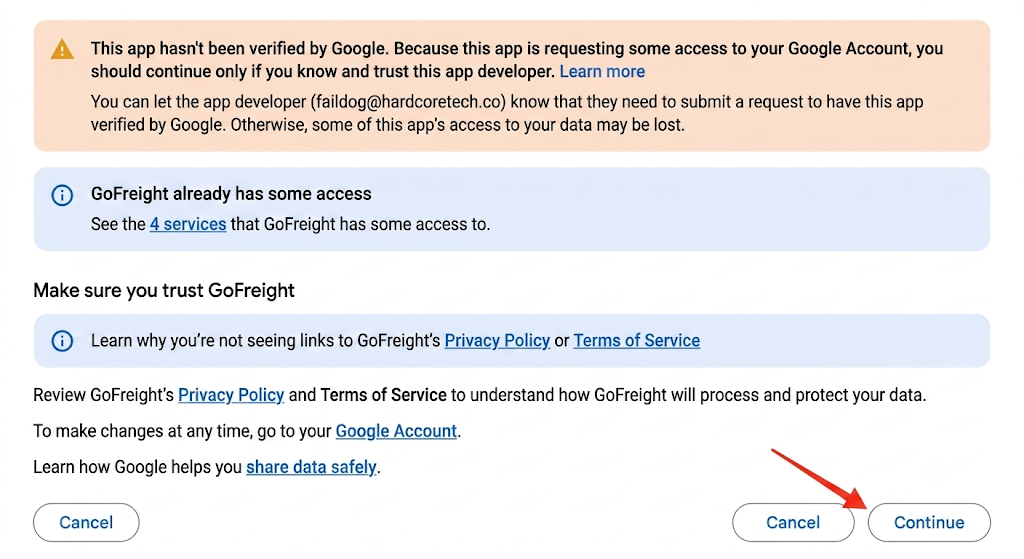
- Click “Continue” to proceed.
-
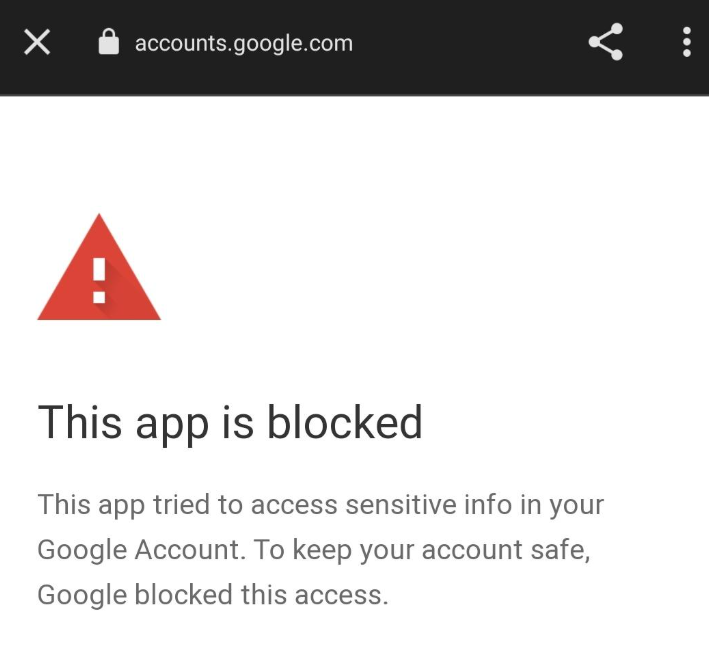
The App Is Blocked
If you see the message "The App Is Blocked" during email verification, it means Google has blocked the verification request due to your organization's security settings. This typically occurs when Google Workspace administrators restrict third-party application access.
To resolve this issue, contact your Company's IT or Google Workspace Administrator to approve the GoFreight application. They can follow these steps:
- Log in to the Google Admin Console.
- Navigate to: Security → Access and data control → API controls → Manage Third-Party App Access.
- Locate the GoFreight application.
- Change the access setting from Blocked to Trusted.
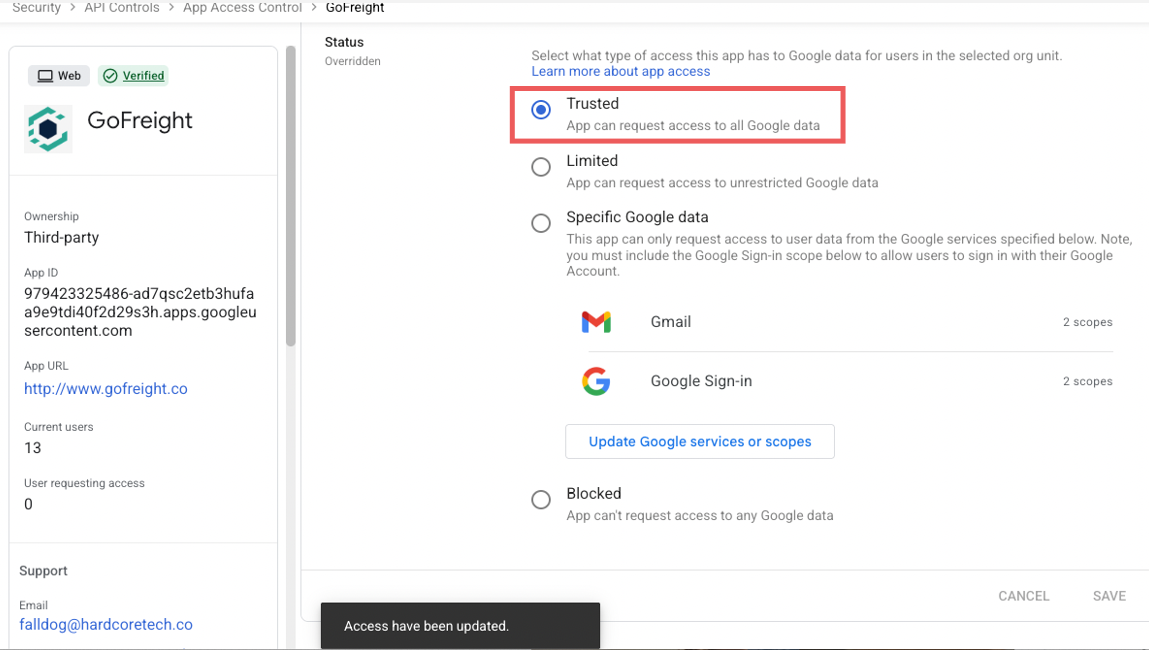
For more information, refer to the Google documentation:
Google Workspace App Access Control
Need Help?
If you continue to experience email verification issues, please contact GoFreight Support atsupport@gofreight.com.
You might also be interested in:
- How to Set Up Your GoFreight Account Email Address?
- How to Whitelist the GoFreight Domain in Your Email Server?
- [FAQ] What to do when your customer/vendor can not receive email from GoFreight or open GoFreight's PDF documents.