
Why Use Multi-Tax?
- Compliance: Meet requirements for regions where federal and provincial taxes (e.g., Canada GST & PST) must be reported separately.
- Automation: Eliminate manual calculations. Once configured, the system splits the tax lines automatically.
- Accounting Accuracy: Post each tax amount to its designated General Ledger (GL) account for seamless reconciliation.
How It Works
When you add a charge to an invoice, GoFreight checks for an assigned Multi-Tax Group. If identified, the system:
- Calculates each tax based on its specific rate.
- Generates individual tax lines on the invoice.
- Maps each tax amount to the correct Billing Code and GL Code.
Example: A $1,000 Origin Handling fee in a region requiring 5% GST and 3% Local Tax will automatically generate:
- GST: $50
- Local Tax: $30)
Each amount is posted to its respective liability accounts.
Configuration Guide
Follow these steps to set up Multi-Tax.
Note: We will use Canadian Sales Tax as our example.
Step 1: Create GL Codes
Navigate to Settings > Accounting > GL Code. Create separate accounts to track your tax balances.
|
GL Code |
Type |
Group |
Description |
|
10270 |
Asset |
Other Asset |
5% GST Receivable |
|
10271 |
Asset |
Other Asset |
15% HST Receivable |
|
20270 |
Liability |
Other Liability |
5% GST Payable |
|
20271 |
Liability |
Other Liability |
15% HST Payable |
Step 2: Create Billing Codes
Each tax type requires its own Billing Code to act as the bridge between the invoice and the GL.
|
Province / Tax Group |
Tax Type |
Billing Code Name |
Revenue GL |
Cost GL |
Credit GL |
Debit GL |
|
Alberta |
GST 5% |
GST ALB |
20270 |
10270 |
10270 |
20270 |
|
Northwest Territories |
GST 5% |
GST Northwest |
20270 |
10270 |
10270 |
20270 |
|
Nunavut |
GST 5% |
GST NU |
20270 |
10270 |
10270 |
20270 |
|
Yukon |
GST 5% |
GST Yukon |
20270 |
10270 |
10270 |
20270 |
|
New Brunswick |
HST 15% |
HST NB |
20271 |
10271 |
10271 |
20271 |
Important: Ensure these codes match your company’s Chart of Accounts. If you are unsure of the correct GL mapping, consult your CPA before proceeding.
Step 3: Contact GoFreight Support
Once your codes are created, contact our support team to activate the Multi-Tax grouping logic.
- Email: support@gofreight.com
- Include:
- Your tax region requires
- the list of GL Codes & Billing Codes created in Steps 1 & 2.
User Experience & Reporting
Once enabled, your workflow remains simple while your accounting data becomes more granular.
1. Invoice Entry
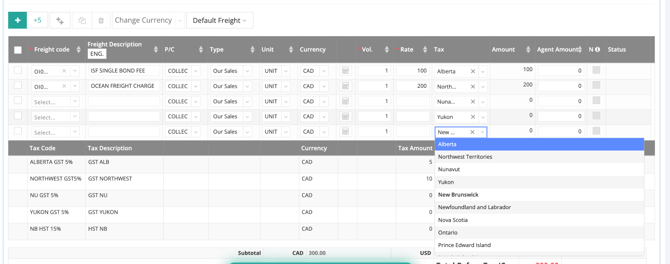
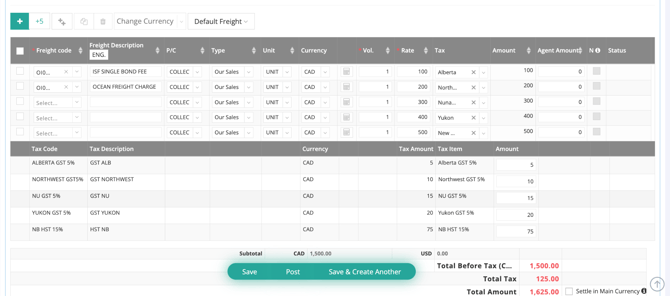
When creating an invoice, selecting a Province or Tax Group will automatically expand the tax section to show all applicable rates.
[Tax Selection Menu]
[Invoice Tax Calculation Breakdown]
2. Accounting Vouchers
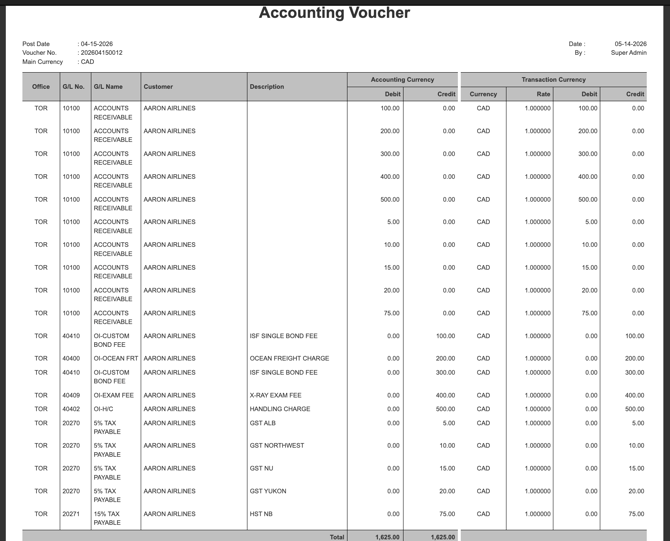
Each tax is listed as a separate line item in the accounting voucher, ensuring your Balance Sheet stays accurate.
[Voucher / GL Posting Example]
3. Financial Reports
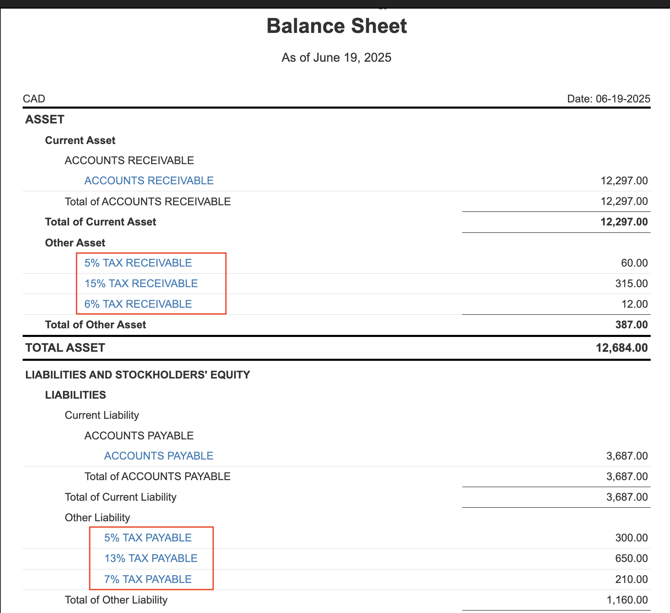
- Balance Sheet: View real-time liabilities for each specific tax type.
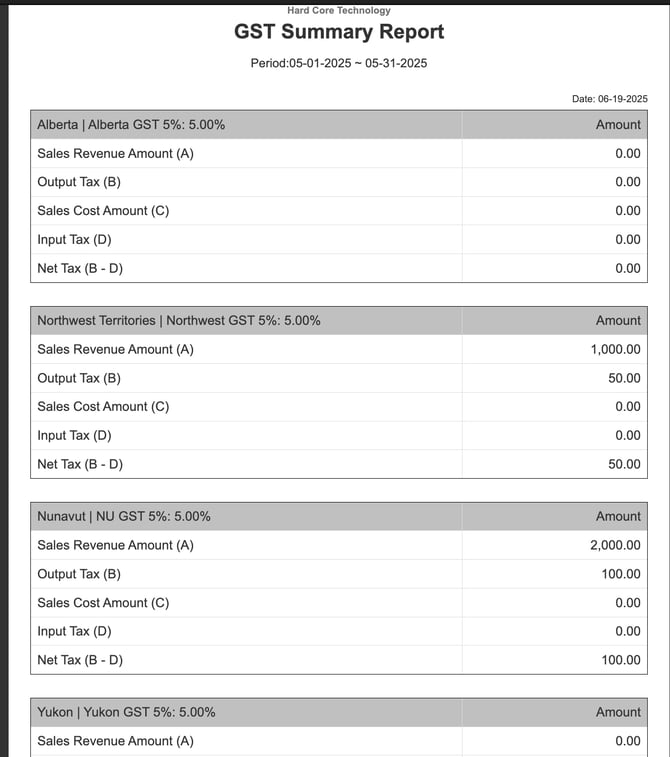
- GST/Tax Report: Generate reports filtered by Province or Tax Type for easy filing.
Best Practices
- Standardized Naming: Use clear and consistent names for Billing Codes (e.g., "BC-PST-7%") to avoid confusion during selection.
- Verification: Always review a Draft Invoice and the resulting Accounting Voucher when using a new tax group for the first time.
Notes
- You may download & use the attached template file when communicating your tax setup requirements to the GoFreight Support Team.
- You can either download the blank form (download here) and fill out your preferred codes.
- Or, you can utilize the sample template (download here), which consists of GL & Billing Codes.
- Although this guide uses Canadian sales tax as an example, the Multi-Tax feature can also support other countries or regions that require multiple tax types on the same transaction.
- The invoice tax menu is applicable to any currencies that are enabled in your GoFreight system.
- Additional tax types or tax rates can be added later as business requirements evolve.
- Tax configurations should always follow your company’s accounting and regulatory requirements. If you are uncertain about tax reporting structure or GL mapping, consult your CPA or accounting advisor before enabling Multi-Tax.
Need Assistance?
If you have questions regarding your specific tax structure or need help with GL/Billing Code mapping, please reach out to your dedicated GoFreight Support Team (support@gofreight.com).
You might also be interested in:
- How to Create a Billing Code?
- How to Set Up a French or Mandarin Remark on AR Invoices
- How to Generate the Singapore GST Report (For Singaporean Companies Only)?