
Are you trying to solve problems like these?
- "How can I find the total OE-Charge AR amount for Customer XYZ for the month of April?"
- "How do I quickly spot which shipments have negative profits so I can fix them?"
If you’ve ever found yourself digging through individual shipments to find these answers, this guide is for you.
Introduction
This manual provides a streamlined workflow for extracting specific freight codes and financial data from GoFreight. Instead of manual lookups, you will learn how to use system filters to generate bulk reports for accounting and profit analysis.
Limitations & Scope
- Data Range: While these reports are powerful, pulling data across multiple years in a single export may slow down performance. We recommend filtering by month or quarter for the fastest results.
- Permissions: Ensure your user profile has "Accounting" and "Report" viewing rights enabled to access these menus.
Key Benefits
- Speed: Reduce hours of manual data entry to a few clicks.
- Accuracy: Eliminate human error by exporting raw system data directly to Excel.
- Visibility: Instantly highlight financial "red flags" (like negative margins) before they impact your month-end closing.
Where to Use This
- Monthly Audits: Comparing AR/AP totals against agent statements.
- Sales Reviews: Evaluating which customers or trade lanes are most profitable.
- Dispute Resolution: Quickly finding specific surcharges for a customer inquiry.
What Can Be Changed (Flexibility)
The system is highly customizable. You can:
- Modify Columns: Drag and drop fields in the Excel Configuration to show only what you need.
- Adjust Grouping: Toggle between "Output Type" (e.g., by Shipper vs. by Agent) to change the entire perspective of your profit report.
Which Method Should I Use?
Before you begin, identify your primary goal to choose the correct tool:
|
Goal |
Use Method 1: Invoice/Cost List |
Use Method 2: Volume & Profit Report |
|
Primary Focus |
Individual Invoices. |
Total Profitability. |
|
Data Detail |
High. Shows specific invoice numbers and dates for every charge. |
Summary. Shows totals and margins across many shipments. |
|
Best For... |
Reconciling a statement or checking specific billing dates. |
Management reviews and finds shipments with losses. |
|
Key Output |
A detailed breakdown of "who owes what" on a per-charge basis. |
A "Big Picture" view of profit margins (AR vs. AP). |
Method 1: Invoice/Cost List (Detailed Breakdown)
Best for: When you need to see exactly which invoice a specific charge belongs to.
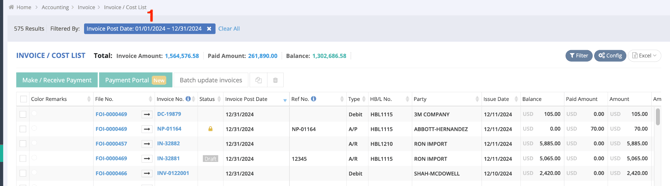
- Navigate to: Home > Accounting > Invoice > Invoice/Cost List.
- Filter your Data: Click the Filter button. Set your Post Date range (e.g., April 1st–30th) . You can also enter other search parameters, such as Trade Partner (e.g., Customer XYZ).
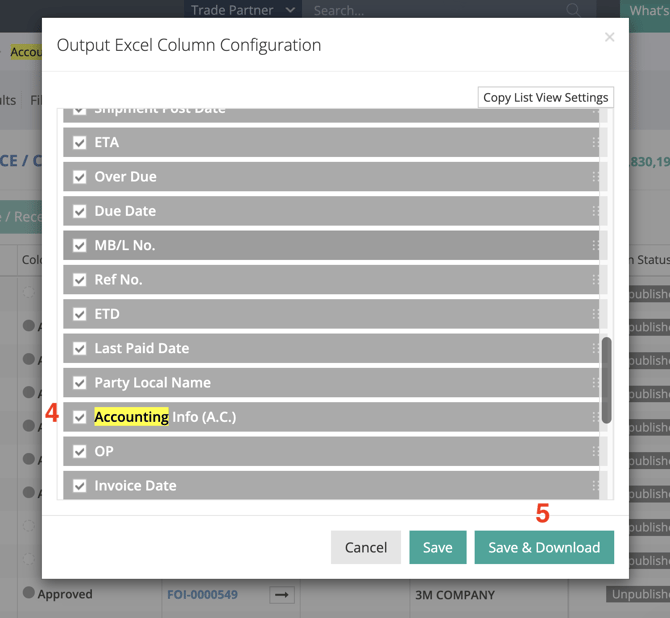
- In the Excel Column Configuration pop-up, scroll to Accounting Info. Ensure it is checked.
- Pro Tip: Drag and drop this field to the top of the list if you want it to appear in the first columns of your spreadsheet.
- Click Save & Download.
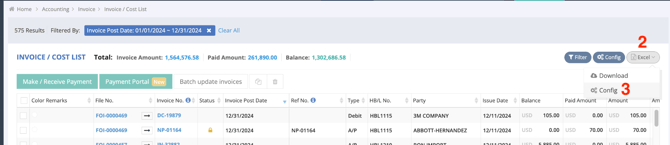
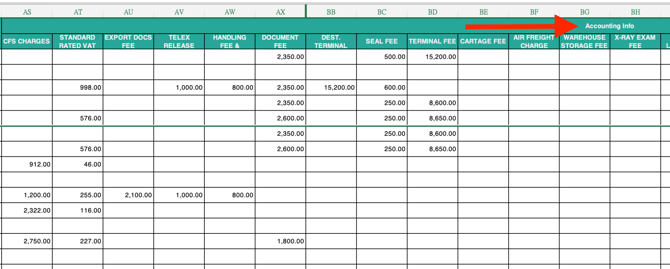
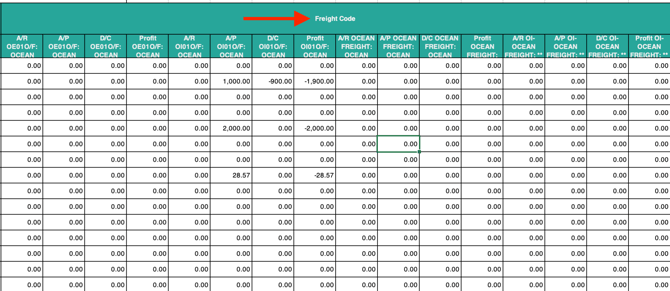
4. Review: Open the Excel file. The Accounting Info column will now display specific freight codes and their corresponding amounts for every invoice in your filtered range.
Method 2: Volume & Profit Report (High-Level Analysis)
Best for: Spotting trends, checking total profit margins, and finding "red flag" shipments quickly.
Step 1: Set Your Parameters
Navigate to: Home > Report > Volume & Profit Report.
Configure:
- Period: Select your date range.
- Freight Code: Type keywords (e.g., "Ocean Freight" or "OE-Charge") and select the specific codes you want to analyze.
- Details: Check Show Profit Detail (This is crucial for seeing margins).
- Output Type/By: Choose how you want to group the data (e.g., by Customer or Overseas Agent).
View: Click View to generate the report on-screen.
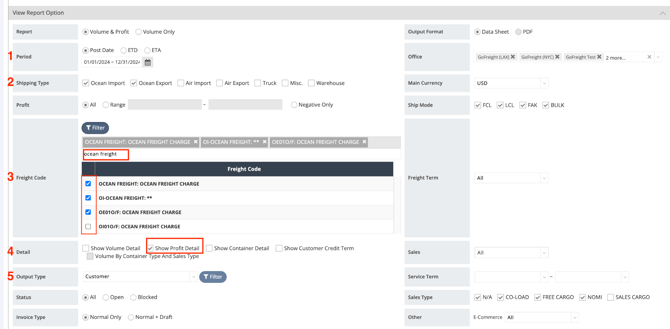
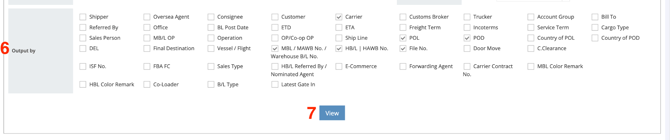
Step 2: Spot Negative Profits & View Details
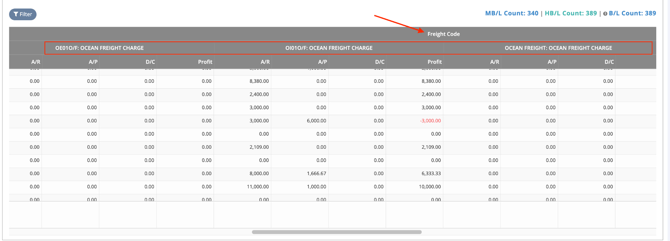
- Drill Down: Click any blue text/item to open the specific shipment details in a new tab.
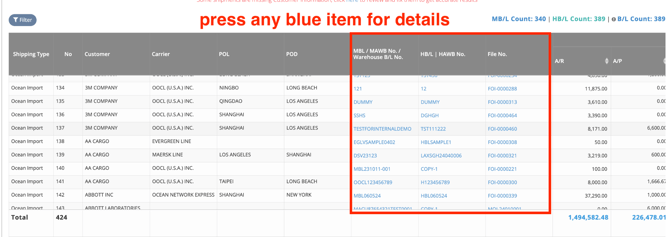
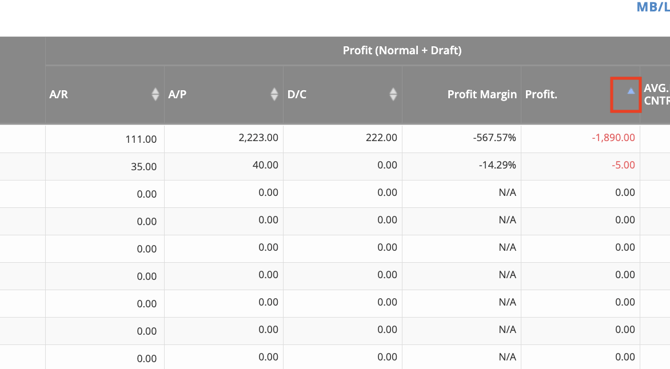
- Sort for Losses: Look for the blue arrow in the profit columns. Click it to sort. This allows you to immediately move shipments with zero or negative profits to the top of the list for investigation.
Step 3: Export & Templates
- Export: Click the Excel icon in the top right to save the report to your computer.

- Save Time: If you run this "Negative Profit" report often, use the Add to Favorite button.
If you run into any issues while pulling your reports, the GoFreight Support Team is here to help. Feel free to reach out at support@gofreight.com anytime.
You might also be interested in:
- How to Use the Invoice / Cost List & G&A Invoice / Expense List in GoFreight
- How to Check AR/AP Status through the Volume & Profit Report
- How to Generate a Revenue/Cost Report?