
General Questions
Question 1: What special features will I get if I purchase the QBO Premium Add-On Plan?
There are 4 more features you can integrate into your QBO Adapter as below:
- Cascade Delete Sync
- Custom Field Mapping
- Create QBO Customer/Vendor
- Office-to-Class Mapping
For foreign-currency syncing, QuickBooks Online Essentials, Plus, or Advanced is required. For class tracking, Plus or Advanced is required. Your plan determines which optional features and custom fields are available.
Question 2: How do I know which QBO Online subscription I am on?
-
Your QuickBooks Online subscription name: check Settings > Subscriptions and billing, or ask your QuickBooks administrator.
-
Multi-currency, if applicable: if you need foreign-currency syncing, confirm whether multi-currency is enabled under Settings > Account and settings > Advanced > Currency.
-
Class tracking and office mapping, if applicable: if you want reporting by GoFreight office, confirm class tracking is enabled under Settings > Account and settings > Advanced > Categories. Create the required QuickBooks Classes before setup and identify which Class corresponds to each office.
-
GoFreight User IDs, if restricting adapter access to specific users: use the IDs from your User Settings form or Settings > User Management in GoFreight.
Question 3: How do I tell whether I'm using QuickBooks Desktop or QuickBooks Online?
The GoFreight QBO Adapter is only compatible with QuickBooks Online.QuickBooks Desktop is not supported.
If you access QuickBooks through the URL https://quickbooks.intuit.com/ and typically use it via a web browser, then you are using the QuickBooks Online version.
Question 4: What happens when I unblock invoices or payments in GoFreight?
A: When you unblock an invoice or payment in GoFreight, an "Unblock" record will be logged in the QBO Adapter. This action will not affect any invoices or payments that have already been uploaded to QuickBooks.
Question 5: How can I modify invoices or payments that have already been uploaded to QuickBooks?
A: For payments, the steps below apply only when your company uses the GoFreight-to-QuickBooks sync direction.
- Unblock the invoice or payment in GoFreight.
- Make the necessary changes.
- Re-block the invoice or payment.
The QBO Adapter will then update the existing invoice or payment in QuickBooks Online with the modified data.
Question 6: What happens if I delete a synced document in GoFreight? Does it sync to my QBO Online Account?
A: Deleting a document in GoFreight does not automatically delete its matching record in QBO Online.
With QuickBooks Adapter 2.0, your GoFreight Team can enable a deletion-confirmation feature for synced invoices, bills, credit notes, and debit notes. Please contact support@gofreight.com if you'd like to purchase this premium add-on plan in your QBO subscription.
When this feature is enabled:
- Unblock and delete the document in GoFreight.
- Open the QuickBooks Adapter and locate the corresponding deletion entry.
- Review the QuickBooks document number, type, and amount.
- Confirm the deletion if you also want to remove the matching QuickBooks record.
The QuickBooks record remains unchanged until you confirm. After successful deletion, the QBO adapter retains a log entry for reference.
Deletion cannot be undone through the adapter. Check the record carefully before confirming. This workflow applies to the document types listed above; it does not describe payment deletion.
Question 7: What happens if I delete a synced invoice in QuickBooks?
A: Deleting an uploaded invoice in QuickBooks will not affect the corresponding invoice in GoFreight.
Question 8: Can I sync Credit and Debit notes to QuickBooks Online?
A: Yes. With QuickBooks Adapter 2.0, you can sync credit and debit notes. Please contact support@gofreight.com if you'd like this to be enabled.
- A GoFreight Credit Note syncs as a QuickBooks Credit Memo.
- A GoFreight Debit Note syncs as a QuickBooks Vendor Credit.
The trade partner must be mapped to the appropriate QuickBooks customer or vendor. You do not need to manually change the amounts to negative values before syncing.
Syncing a note and syncing a payment are different operations. For payments sent from GoFreight to QuickBooks, supported combinations include invoices with credit memos, or bills with vendor credits, provided the resulting payment amount is greater than zero. The related documents must already be synced.
Payments containing only credit or debit notes, or with a net amount of zero or less, are not supported.
Note that Credit/Debit Notes are not supported when Multi-Currency mode is enabled in the Adapter.
Question 9: Can I sync AP billing codes as QuickBooks items?
A: Yes. QuickBooks Adapter 2.0 supports two ways to map AP bill lines. Please contact support@gofreight.com if you'd like this to be enabled.
- GL Accounts: Map the GoFreight G/L Code to a QuickBooks account for account-based posting.
- Items: Map the GoFreight Billing Code to a QuickBooks Product or Service for item-based reporting. Vendor-side Item mapping is available for bills and vendor credits when enabled.
AP Item mappings are maintained separately from AR Item mappings. An existing AR mapping does not replace the AP setup.
For each QuickBooks Item used on a vendor-side charge:
- Select “I purchase this product/service from a vendor.”
- Assign an expense account.
If a transfer is marked FAILED because a billing code is not mapped, open Detail, select the appropriate QuickBooks Item for the charge line, and click Send to QuickBooks after resolving the error.
When switching from account-based to Item-based mapping, coordinate the change with Support and complete the Item mappings for the billing codes you use before transferring bills in the new mode.
Question 10: Do I need to map billing codes for every invoice?
No. You can configure mappings in advance using the Billing Code Mapping or General Ledger Mapping page in the QuickBooks Adapter. Select the corresponding QuickBooks Item or account for each GoFreight code.
Saved mappings are reused for subsequent transfers, so you do not need to repeat the setup for every invoice. Any new codes that remain unmapped will need to be matched.
Updating a mapping does not automatically retry earlier failed transfers. For an invoice marked FAILED because of a mapping error, open Detail, resolve the error, and click Send to QuickBooks.
Changing a mapping also does not automatically update documents that have already synced successfully.
Question 11: What should I do when invoice or payment integration fails?
Steps below:
- Navigate to the list view, then click on Config.
- Accounting > Invoice/Cost > Invoice/Cost List
- Accounting > Payment > Payment Received List
- Accounting > Payment > Payment Made List
- Enable the columns QBO SYNC Status and QBO SYNC Info, and move them to your preferred display position.
- Click Apply to save the changes.
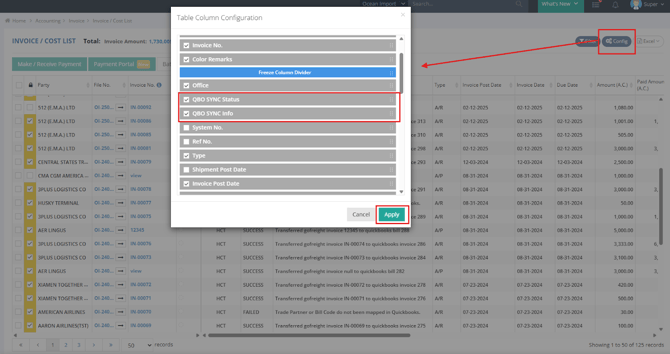
You will now be able to view the integration status directly in the list view.
- If the QBO SYNC Status shows as FAILED, refer to the QBO SYNC Info column for error details.
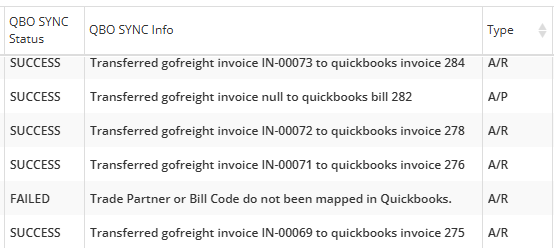
- If the sync information is unclear or difficult to interpret, please contact our support team at support@gofreight.com for assistance.
Question 12: Can payments sync in both directions?
No. Payment sync must first be enabled for your company, and only one direction can be active for a connection at a time:
-
GoFreight → QuickBooks: Payments recorded in GoFreight are sent to QuickBooks.
-
QuickBooks → GoFreight: Payments recorded in QuickBooks are sent to GoFreight.
Choose the direction based on where your accounting team records receipts and payments. Payment activity entered in the opposite system is not automatically synchronized back; this is not two-way reconciliation.
Check the banner on the adapter’s Payment page for the enabled status and current direction. Contact support@gofreight.com to enable payment sync or discuss your setup.
Question 13 : I have just configured a few Custom Fields on my QBO Online Account. Does GoFreight support mapping between GF and QBO?
Yes, Custom fields are extra fields you create in QuickBooks, such as a PO reference, shipment ETA, or HBL number. Please contact support@gofreight.com if you'd like to purchase this premium add-on plan in your QBO subscription.
Question 14: I have just configured “Class” on my QBO Online Account to identify which office each transaction belongs to. Does GoFreight support mapping between GF and QBO?
Yes, this allows you to report by office in QuickBooks Online (QBO). Synced invoices and vendor bills are assigned the Class mapped to their respective GoFreight office.
QuickBooks Online Plus or Advanced is required to use Class tracking.
Please contact support@gofreight.com if you'd like to purchase this premium add-on plan in your QBO subscription.
Question 15: If I have a new customer, do I need to go back to my QBO Online to create this customer every time, it sounds so time-consuming. Can I just create this customer (trade partner) on GoFreight and have it synced to QBO Online?
Yes, if enabled, this action is available to all users who can sign in to the adapter. Users must review the details and click Create to create a record; records are not created automatically during syncing.
Please contact support@gofreight.com if you'd like to purchase this premium add-on plan in your QBO subscription.
Question 16:Why can I not sync tax amounts from GoFreight to QBO Online?
GoFreight tax data is not carried over; the GoFreight Multi-Tax feature isn’t supported yet. The adapter does not send GoFreight tax codes, tax breakdowns, or the GoFreight tax amount to QuickBooks.
Common Errors in Payment Syncing
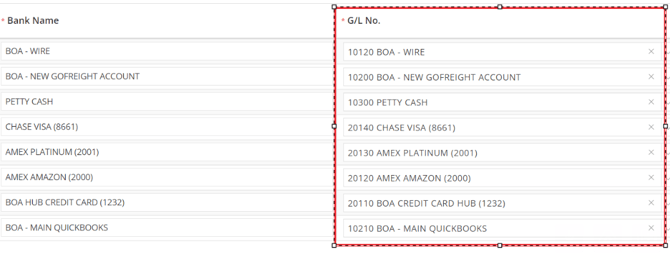
Error 1: ❌ The bank's GL code in GoFreight is not mapped to the corresponding account in the QuickBooks chart of accounts.
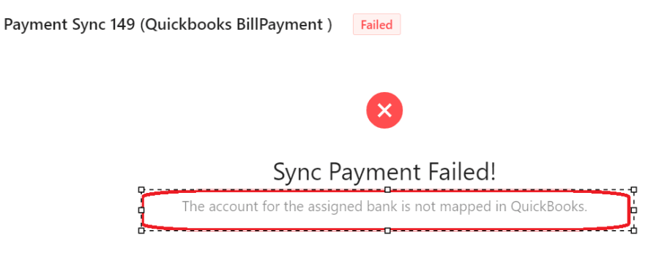
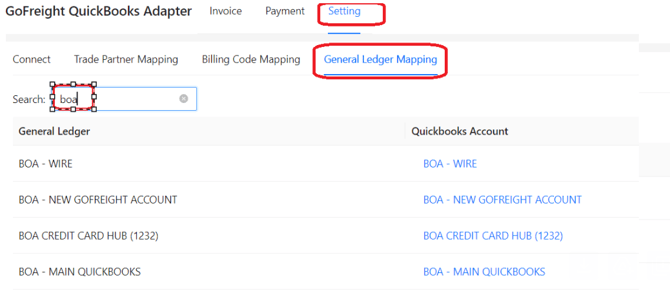
Solution:
- Please navigate to Settings > General Ledger Mapping.
- Ensure that the bank GL codes in GoFreight are correctly mapped to the corresponding accounts in the QuickBooks chart of accounts.
Error 2: ❌ The invoices referenced in the payments do not exist in QuickBooks.
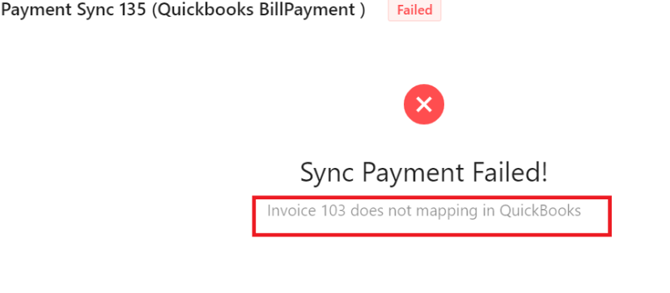
Solution:
Take this error, for example,
- Please locate this invoice in GoFreight
- Unblock it.
- Then re-block it to initiate the upload to QuickBooks.
- Confirm that the invoice’s Transfer Status is Success in the QuickBooks Adapter, then unblock and re-block the payment in GoFreight.
Limitations in Payment Syncing
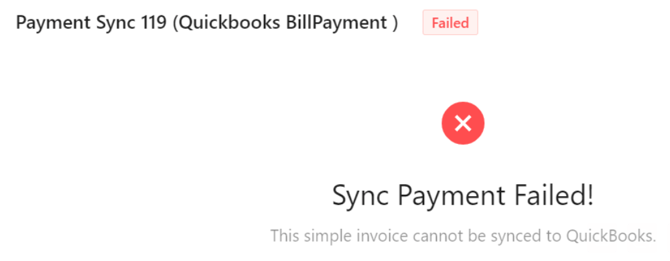
Limitation 1: ❌ The QBO Adapter currently does not support uploading:
- Simple Invoices : Payments that include simple invoices are not supported for synchronization from GoFreight to QuickBooks Online.
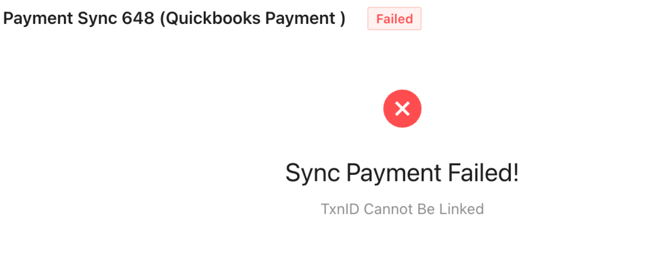
Limitation 2: ❌ QuickBooks Online Payments does not support applying a single payment to invoices from multiple customers.
All invoices linked to one payment must belong to the same customer or vendor. However, GoFreight (FMS) does not impose this restriction, which may lead to syncing conflicts.
(Click this link to learn how to make/receive payment for invoices of different parties on GoFreight)
Limitation 3: What does the adapter error “Payment does not contain invoice, sync is ignored” mean?
❌ This error indicates that the payment cannot be synced because it is not linked to any invoice. In order to sync a payment to QuickBooks Online (QBO), the corresponding invoice must first be successfully synced from the system.
The GoFreight QuickBooks Adapter does not support syncing standalone payments that are not linked to a supported, previously synced document. Confirm that the related invoice or bill has synced successfully before retrying the payment.
You might also be interested in:
- GoFreight QuickBooks Accounting Integration: Getting Started User Guide