
This guide explains how to maintain banking information for Trade Partners, create payments using the EFT (Electronic Funds Transfer) payment type, and display banking information on the Make Payment and Receive Payment Lists.
Note:
This feature primarily supports Canadian EFT payment processing. The banking information fields adhere to the Canadian banking format and include Bank No. (Institution Number), Transit No., Account No., and Currency.
The banking information stored for a Trade Partner can be displayed on the Make Payment and Receive Payment Lists, regardless of the selected Payment Type. These fields are specifically designed for Canadian banking information and do not accommodate international wire transfer details such as SWIFT/BIC codes or U.S. ABA routing numbers. This feature is still available to users in all countries. Non-Canadian users can also store Trade Partner banking information in these fields when the available field names and character limits fit their banking process.
PrerequisitesBefore using this feature:
- Users need both Make Payment / Receive Payment and Trade Partner Accounting Information permissions.
- If any user needs to adjust their permissions, please contact the GoFreight Support Team for assistance.
- Open the Trade Partner profile.
- Navigate to the Accounting Setting tab.
- Enter the banking information.
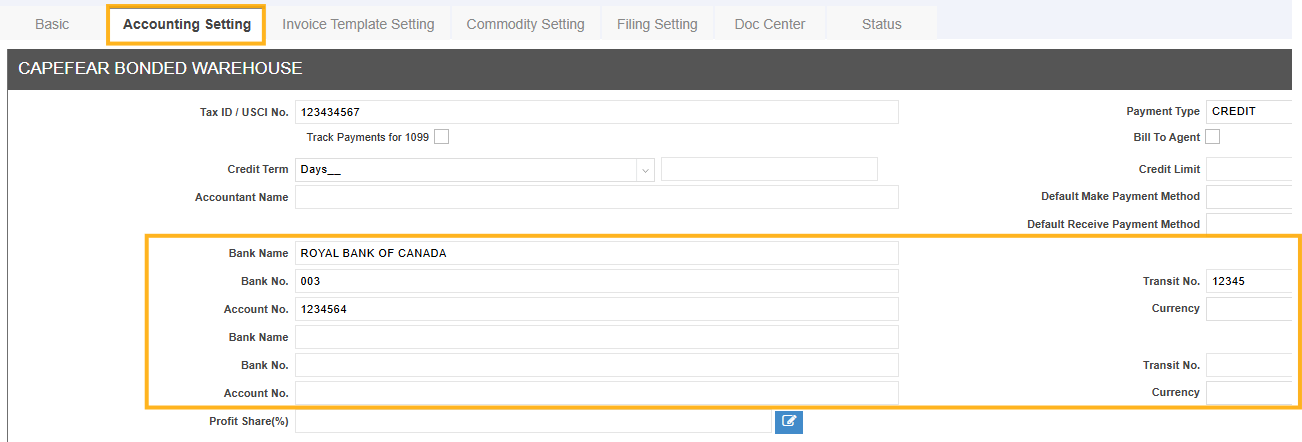
|
Field |
Description |
Example |
|
Bank Name |
Name of the financial institution. |
Royal Bank of Canada |
|
Bank No. |
Canadian institution (bank) number, typically 3 digits. This is not a SWIFT code. |
003 (RBC), 004 (TD) |
|
Transit No. |
Canadian branch (transit) number, typically 5 digits. |
12345 |
|
Account No. |
Trade Partner's bank account number. |
789012345 |
|
Currency |
Currency of the bank account. |
CAD |
The system provides two banking information groups:
- Group 1: Primary banking information
- Group 2: Secondary banking information (optional)
Use Group 1 for the primary banking information and Group 2 when the Trade Partner has an additional bank account.
Note: If your bank provides a Canadian routing number, enter the values as follows:
- Format: XXXXX-YYY
- Transit No. = XXXXX
- Bank No. = YYY
- Format: 0YYYXXXXX
- Bank No. = YYY
- Transit No. = XXXXX
For example:
- 12345-003 → Transit No. = 12345, Bank No. = 003
- 000312345 → Bank No. = 003, Transit No. = 12345
- Open Make Payment or Receive Payment.
- Select the Trade Partner.
- Set Payment Type to EFT.
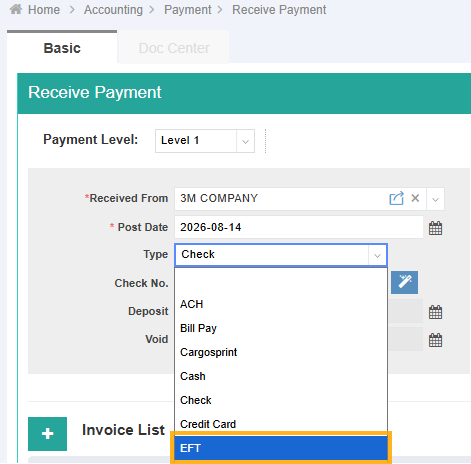
When EFT is selected, the reference number field changes to EFT No. 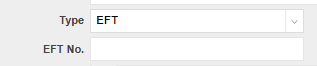 .
.
Enter the EFT reference number manually and save the Payment record after verifying the rest of the information.
Note:
- The system does not generate the EFT No. automatically. Enter the EFT reference number according to your organization's banking process.
- Any other Payment Type can still display, filter, and export the linked Trade Partner’s banking columns.
Navigate to the Payment Made List or Payment Receive List.
Click on “Config” to review the Columns and select the banking columns you wish to display.
Available columns include:
Primary Banking Information
- Bank No. 1
- Transit No. 1
- Account No. 1
Secondary Banking Information
- Bank No. 2
- Transit No. 2
- Account No. 2
These columns display the banking information stored for the linked Trade Partner.
Note:
These columns are optional and are hidden by default.
The banking information is displayed regardless of the selected Payment Type. If the linked Trade Partner does not have banking information entered, the corresponding columns remain blank. 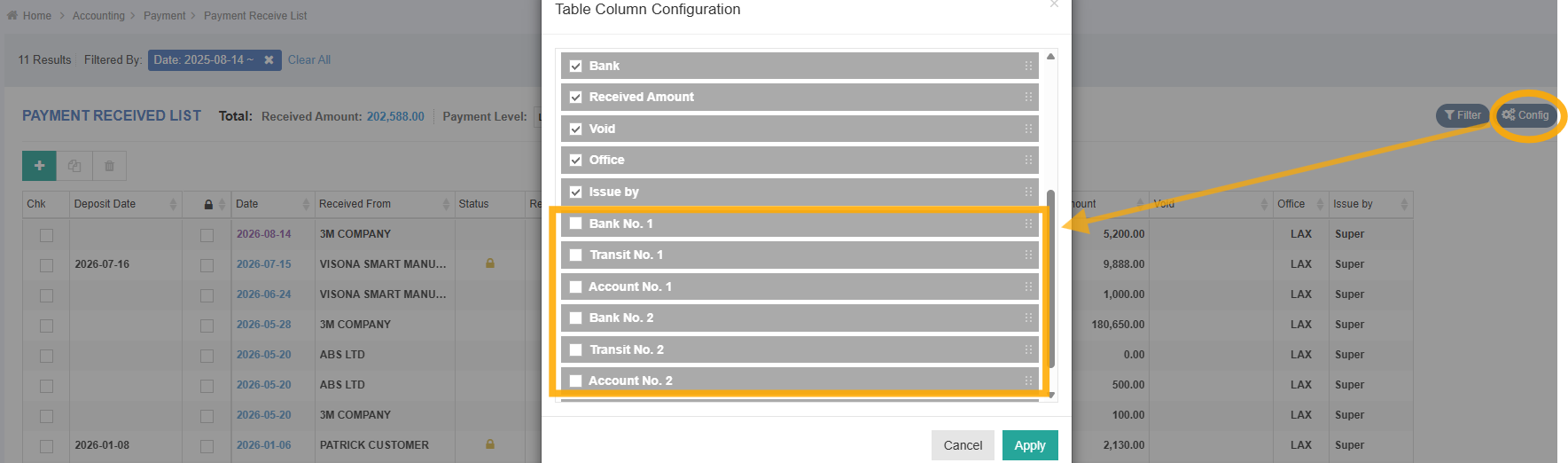

To locate payments associated with Trade Partners that have matching EFT banking details, use the banking filters on the Payment Made List or Payment Receive List.
When a filter is applied, the system searches both banking information groups for the linked Payment records.
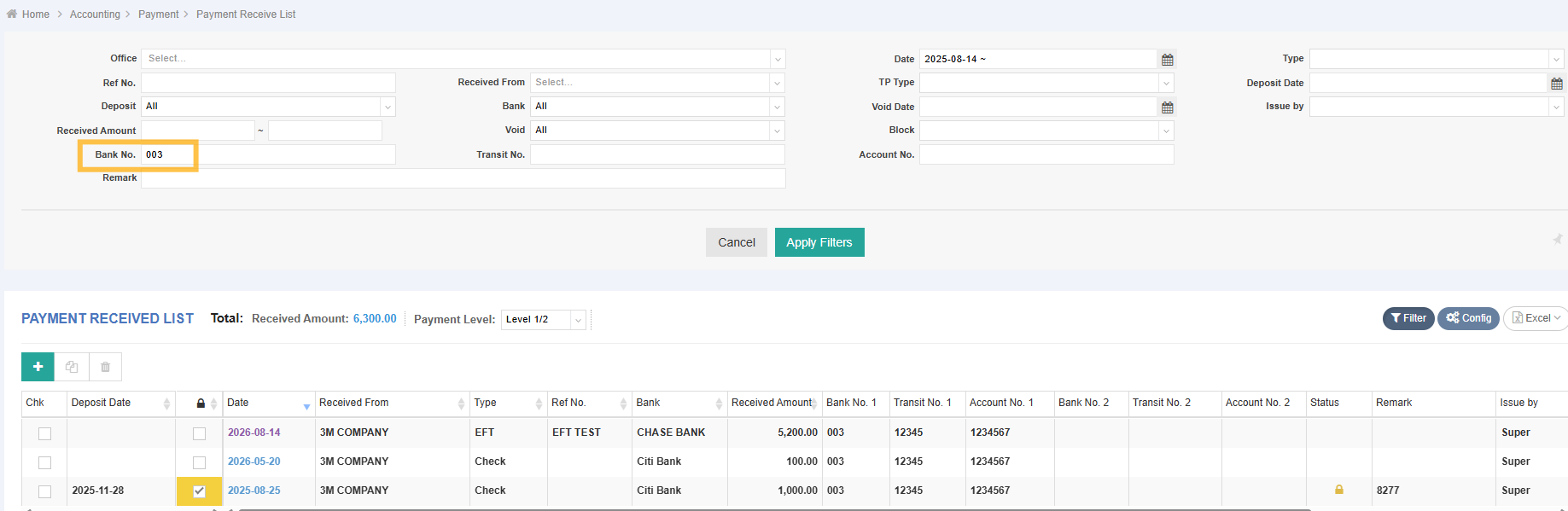
After displaying the desired banking columns and applying any filters:
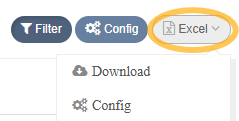
- Click Excel to export.
- Before downloading the filtered Payment List to Excel, you can set the configuration first.
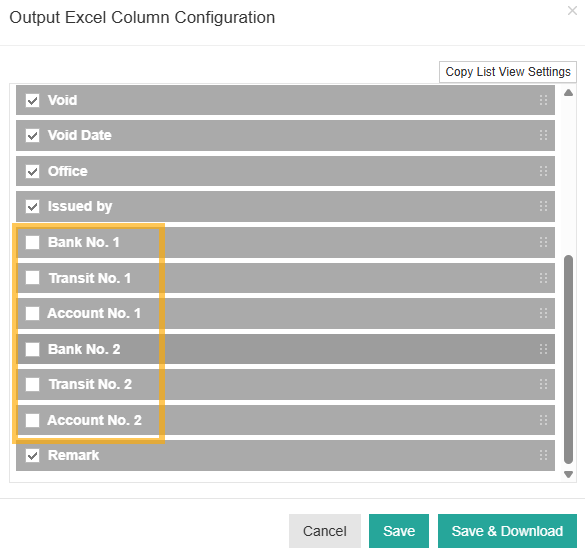
The exported results include the visible banking columns, enabling Accounts Payable (AP) and Accounts Receivable (AR) users to prepare payment information for external EFT processing without manually looking up each Trade Partner's banking details.
Note: Only enabled banking columns are included in the Excel export.
Summary of FeaturesWith this feature, you can:
- Store Canadian EFT banking information for each Trade Partner.
- Maintain primary and secondary banking information.
- Create payments using the EFT payment type.
- Record an EFT No. for payment tracking.
- Display banking information on the Make Payment and Receive Payment Lists.
- Filter payments by Bank No., Transit No., and Account No.
- Export payment information, including banking details, to Excel for external EFT processing.
Note: This feature stores Canadian banking information for payment processing and reporting. It does not generate bank files or submit EFT transactions directly to a financial institution. Bank file generation and payment submission should be completed using your organization's banking platform or third-party EFT processing solution.