
Use Batch Update Trade Partner to update TP Type, Sales, or OP for multiple selected Trade Partners in one submission. This article explains how to select records, choose a field and value, and apply the update.
The screenshots in this guide use OP as an example.
Before You Begin
- Edit permissions: You must have permission to edit every Trade Partner selected for the batch update. Being able to view the Trade Partner list does not necessarily mean you can edit the selected records. By default, users with the General Manager, Operation Manager, Accounting Manager, or Accounting role can create and edit Trade Partners.
Update Multiple Trade Partners at Once
Step 1 — Open the Trade Partner list
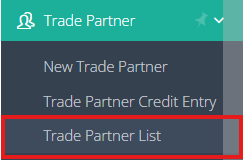
- Go to Trade Partner → Trade Partner list.
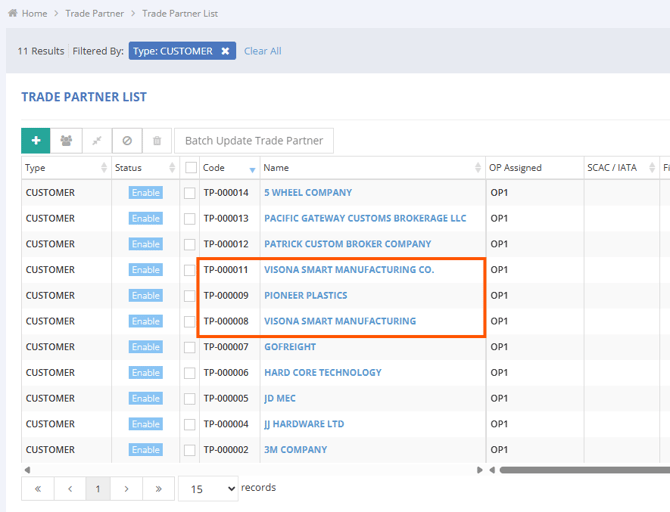
- Use the list's search or filters to find the Trade Partners you want to update.

- Check the Trade Partner names and codes to confirm that you have found the correct records.
Step 2 — Select the Trade Partners
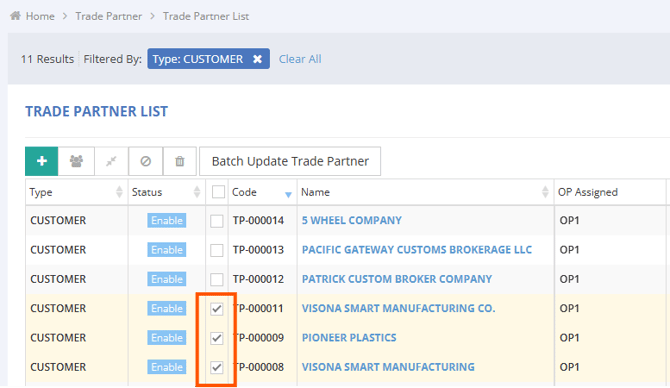
- Tick the checkbox beside each Trade Partner you want to update.
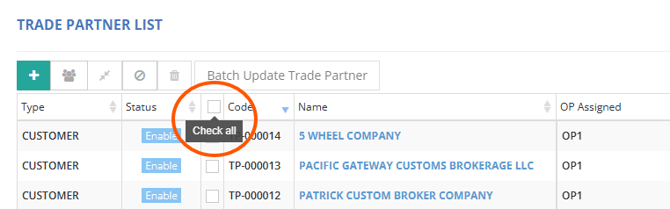
- To select all records on the displayed page, use the select-all checkbox.
- Review the selected Trade Partners before continuing. If Batch Update Trade Partner is disabled, confirm that you have selected records you can edit.
Note: Selection is limited to 200 Trade Partners per submission on the current page. Records on other pages are not included.
Step 3 — Open the batch update window
- Click Batch Update Trade Partner in the toolbar.
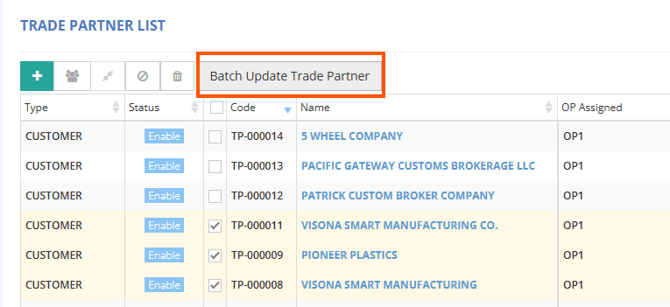
- The Batch Update Trade Partners window opens.
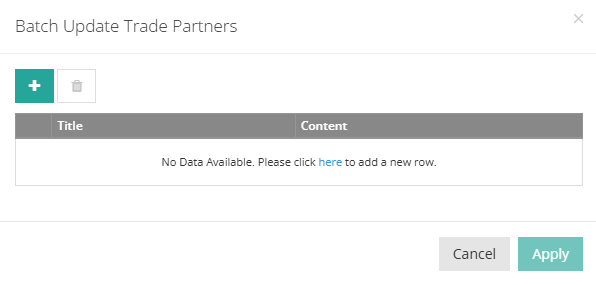
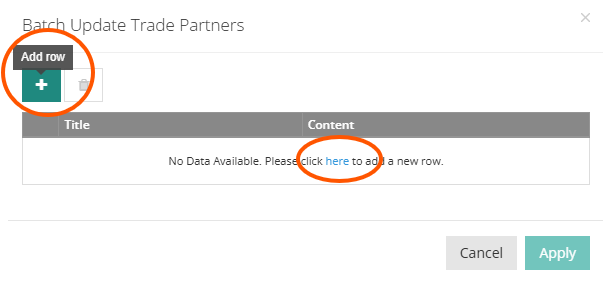
- Click the green + button to add a field row. You can also click No Data Available. Please click here to add a new row.
Step 4 — Choose the field and value
- In Title, select the field you want to update, such as OP.
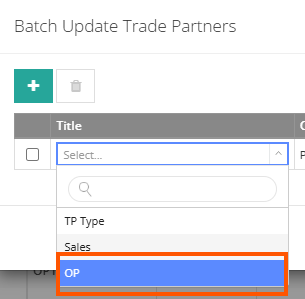
- In Content, select the new value.
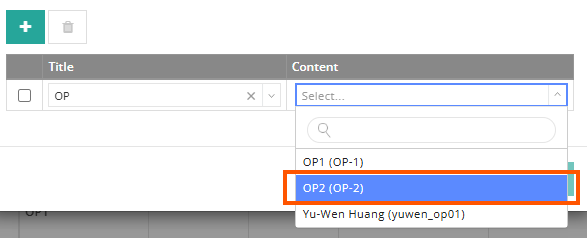
- For OP updates, select the user and check any office or assignment-slot options shown. If the intended OP is not listed, ask your administrator to check the user's eligibility and office or slot setup.
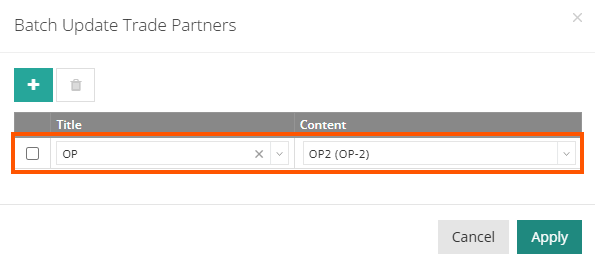
- Keep only the field rows you want to apply.
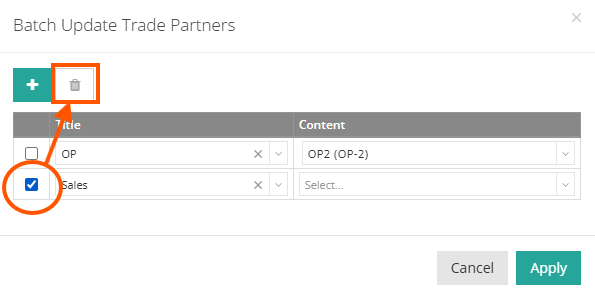
Note: A Sales row left empty can clear Sales assignments. To remove an unwanted row, tick its checkbox inside the window and click the trash button.
Step 5 — Review and apply
- Check the selected Trade Partners, field, and new value.
- If you change a row's Title, select its Content again; changing the field clears the previous value.
- Click Apply to save the update, or Cancel to close the window without saving.
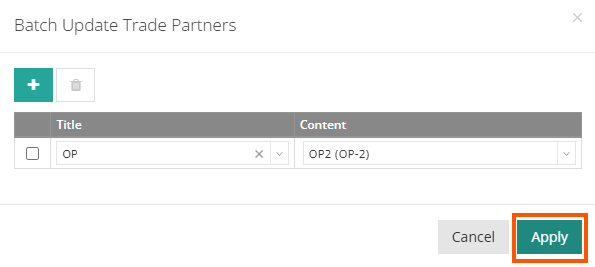
Apply saves immediately, with no additional confirmation dialog. If Apply is disabled, check the selected field values and remove incomplete extra rows.
Step 6 — Check the result
- Wait for the completion message.

- To view the recorded change, open a Trade Partner's Status tab, check Change Log, and click More Detail.

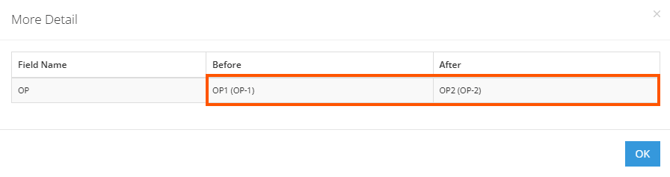
More Details for Completion Messages:
-
- If the completion message reads Batch Update Trade Partners Succeed, the window closes, and the list reloads.
-
- If only part of the batch succeeds, review the fields and Trade Partners not updated. Eligible records may already be changed. For OP updates, the assignment slot may be unavailable for the record's office, or the selected value may already be set. Open affected records to verify their values and check skipped records before retrying.