
In This Article
In this article, you will learn:
- What Dummy Trade Partners (Dummy TPs) are
- Why this feature exists
- Who can create Dummy TPs
- Where Dummy TPs can be created
- How to create and identify Dummy TPs
- How to find and edit Dummy TPs
- How to merge Dummy TPs into formal Trade Partner records
Quick Summary
Dummy Trade Partners (Dummy TPs) are simplified Trade Partner records created through the Light Create process. They can be created directly during shipment entry without going through the standard Trade Partner setup process.
This feature helps users quickly enter shipment information when a formal Trade Partner record does not yet exist. However, because multiple Dummy TPs can be created for the same company due to differences in spelling, punctuation, spacing, or address information, it is advisable to periodically review and merge them into formal Trade Partner records to maintain clean and accurate data.
💡Note:
Company names, Trade Partner codes, and other records shown in this article are sample data used for demonstration purposes only.
What Are Dummy Trade Partners (Dummy TPs)?
Dummy Trade Partners (Dummy TPs) are simplified Trade Partner records created directly during shipment entry by entering only a company name, without completing the standard Trade Partner creation process.
Unlike a formal Trade Partner record, a Dummy TP is not a fully configured Trade Partner profile.
How Can I Identify a Dummy TP?
The easiest way to identify a Dummy TP is by its Trade Partner Code. Dummy TPs use codes that begin with LT-, such as: LT-000123.
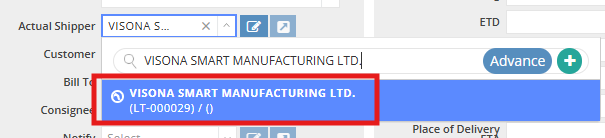
In contrast, formal Trade Partners typically use other prefixes, such as TP-000123 and CS-000123.
Why Use Dummy TPs?
Dummy TPs are designed to enhance operational efficiency. Operation users can quickly enter shipment information without creating a full Trade Partner profile.
For example, Ocean Export operators can use the Dummy TP feature in the Consignee field, while Ocean Import operators can use it in the Shipper field. This feature is also useful for one-time Trade Partner scenarios.
Once created, Dummy TPs can later be reviewed, updated, or merged into formal Trade Partner records.
|
Module |
Location |
Fields That Allow Dummy TPs |
|
Ocean Import |
MBL |
Shipper |
|
HBL |
Shipper, Notify |
|
|
Ocean Export |
Booking |
Actual Shipper, Consignee, Notify, HBL Agent |
|
MBL |
Shipping Agent, Consignee (Oversea Agent), Notify, Actual Shipper, Empty Pickup |
|
|
HBL |
Actual Shipper, Consignee, Also Notify, HBL Agent, Empty Pickup |
|
|
Air Import |
MAWB |
Shipper |
|
HAWB |
Shipper, Consignee, Notify |
|
|
Air Export |
MAWB |
Shipper (Shipping Agent), Actual Shipper |
|
HAWB |
Actual Shipper, Consignee, Notify |
|
|
Truck |
Shipment Entry |
Shipper, Consignee, Empty Pickup, Freight Pickup, Delivery To, Empty Return |
|
Misc |
Shipment Entry |
Shipper, Consignee |
|
Warehouse |
Warehouse Shipping / Warehouse Receiving |
Trucker |
|
Quotation |
Quotation Entry |
Customer |
|
Freight Rate / Destination Charge |
Carrier |
|
|
Invoice |
AR Invoice Entry |
Ship To |
Who Can Create Dummy TPs?
Any user who has permission to create shipment, quotation, and invoice records can create Dummy TPs in the feature-supported fields.
For example, by default, users with the Operation role in the GoFreight system do not have permission to create or edit formal Trade Partner records. They can create Dummy TPs during daily operations to quickly enter Trade Partner information, but they cannot edit or maintain Dummy TP records afterward. Any updates to Dummy TPs must be performed by users with Trade Partner maintenance permissions.
💡Note
The following user roles can create and edit formal and dummy Trade Partner records by default:
- General Manager
- Operation Manager
- Accounting Manager
- Accounting
If additional users or user roles require access to create and edit formal Trade Partners, please contact the GoFreight Support team after obtaining approval from your company's Admin or General Manager.
Where Can Dummy TPs Be Created?
Dummy TPs can only be created from specific Trade Partner fields throughout the system.
The following table lists all fields that allow users to create a Dummy TP by entering a name that does not match an existing Trade Partner record.
How to Create a Dummy TP
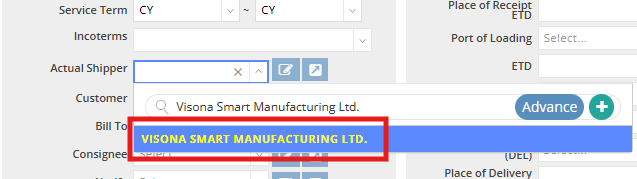
Step 1: Enter a Trade Partner name into one of the supported fields.
When the entered name does not match an existing Trade Partner, GoFreight displays the name in yellow text with a blue background, indicating that a new Dummy TP can be created.
Step 2: Select the highlighted value and save the file.
Once the file is saved, the Dummy TP is created automatically.
⚠️Important
GoFreight treats company names as different Dummy TPs if there are any differences in:
- Spelling
- Punctuation
- Spacing
- Abbreviations
- Address information
For example:
- Visona Smart Manufacturing Co., Ltd.
- Visona Smart Manufacturing Ltd.
These will be recognized as two separate Dummy TPs.
Additionally, even if the company name is identical, a different address may lead to the creation of another Dummy TP. For instance, if an existing Dummy TP has been updated with an address, and a user later enters the same company name, GoFreight will create a new Dummy TP.
How to Find Dummy TPs
To view all Dummy Trade Partners currently in your system:
- Navigate to Sales > Trade Partner > Trade Partner List.
- Select the Only Show Dummy TP checkbox in the filter section.
- Click Apply Filters.
The list will display all Dummy TPs currently available in your company database.

How to Merge Dummy TPs into a Formal Trade Partner
Over time, multiple Dummy TPs may be created for the same company due to differences in spelling, abbreviations, punctuation, or address information. When a formal Trade Partner record already exists, we recommend merging the related Dummy TPs into the formal Trade Partner to maintain data consistency.
Who Can Use Trade Partner Merge?
By default, the following user roles have access to the Trade Partner Merge function:
- General Manager
- Accounting Manager
If additional users require this permission, please contact GoFreight Support after obtaining approval from your company's Admin or General Manager.
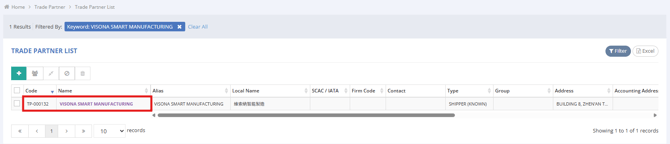
Step 1: Locate the Formal Trade Partner
First, identify the formal Trade Partner that should remain after the merge. In this example, the formal Trade Partner is: TP-000132 VISONA SMART MANUFACTURING.
Step 2: Locate the Dummy TP
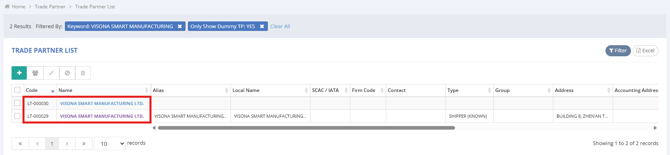
Next, use the Only Show Dummy TP filter and the keyword in the Trade Partner List to locate the Dummy TP you would like to merge.
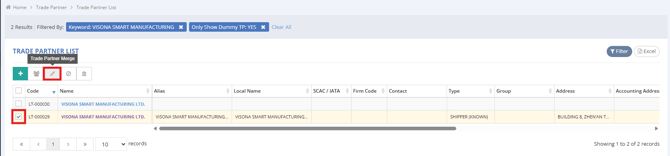
Step 3: Select the Dummy TP
GoFreight only allows one Trade Partner to be merged at a time. Select a single Dummy TP from the list.
In this example, we will merge: LT-000029 VISONA SMART MANUFACTURING LTD.
Once a single Trade Partner is selected, the Trade Partner Merge button becomes available. If multiple Trade Partners are selected, or if no Trade Partner is selected, the button will display a red prohibition icon (🚫) and cannot be used.
Step 4: Select the Target Trade Partner
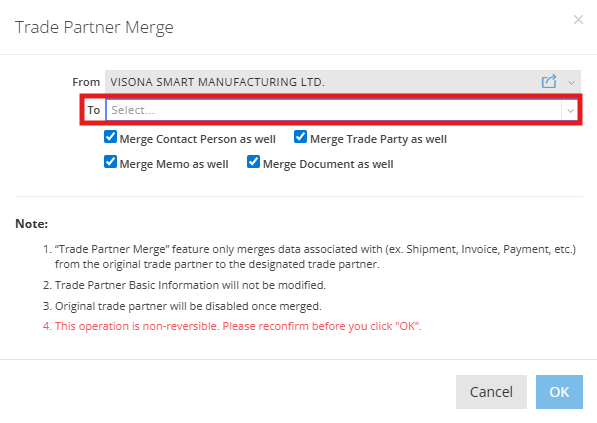
In the Trade Partner Merge window, use the To field to select the Trade Partner that will remain active after the merge.
In this example, select: TP-000132 VISONA SMART MANUFACTURING.
Step 5: Review the Merge Notes Carefully
Before clicking OK, carefully review all notes displayed in the Trade Partner Merge window.
⚠️ Important
Trade Partner Merge cannot be undone.
Once the merge is completed, all records associated with the Dummy TP will be transferred to the selected Trade Partner, and the original Dummy TP will be removed from those files.
Please carefully verify that you are merging the correct records before proceeding.

Step 6: Verify the Results
After the merge is completed successfully:
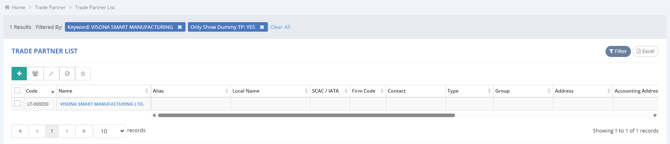
- The Dummy TP will no longer appear in the active Dummy TP list.
- All related shipment, invoice, quotation, and other transactional records will automatically reference the selected Trade Partner.
In this example, LT-000029 VISONA SMART MANUFACTURING LTD. is removed from the active Dummy TP list after the merge.
💡Note
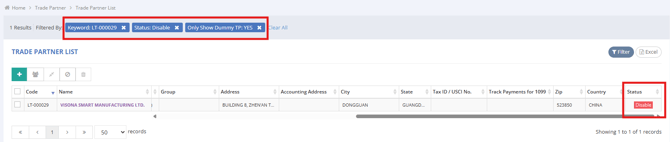
After a merge is completed, the source Dummy TP is automatically set to Disable, not deleted, but it can no longer be used in future transactions.
Step 7: Verify the Original Transaction Record
Return to the shipment, invoice, quotation, or other record where the Dummy TP was previously used. You will see that the Dummy TP has automatically been replaced with the formal Trade Partner.
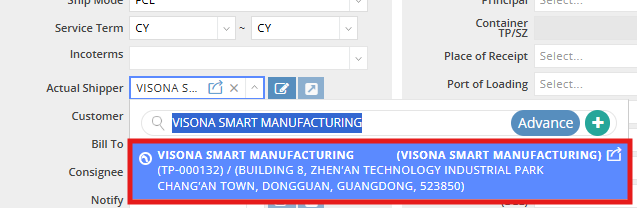
For example, the Actual Shipper field in an Ocean Export Booking file originally contained: LT-000029 VISONA SMART MANUFACTURING LTD.
After the merge, it now displays: TP-000132 VISONA SMART MANUFACTURING.
Need Help?
If you would like to enable or disable the Dummy TP feature for your system, please contact the GoFreight Support Team at support@gofreight.com.
💡Note
Enabling or disabling this feature will not affect existing Trade Partner records or historical files.
You might also be interested in:
- Enable Dummy Trade Partner (Dummy TP)
- How to Merge Trade Partners (TP)?
- How to Create and Manage Trade Partners