
Use the Accounting Setting tab to maintain a Trade Partner's payment and credit information, default payment methods, tax details, bank accounts, profit-share percentages, and accounting memos.
If you want to set default invoice charges, use the separate Invoice Template Setting tab.
Before You Begin
- Your account needs access to the Trade Partner and its Accounting Setting tab. Editing financial information requires Trade Partner edit access and accounting-information edit permission. Payment and credit fields may require additional permission. Ask your GM to contact GoFreight Support for help adjusting your system permissions.
- For Trade Partners in a Credit Limit Group, Payment Type, Credit Term, and Credit Limit are controlled by the group and are read-only on this tab. Permission to edit financial fields does not necessarily allow all memo actions or access to every accounting document.
- Confirm the correct Trade Partner and follow your company's approval process when changing payment terms, credit limits, bank details, or profit-sharing percentages.
- If a tab, field, or action is unavailable, contact GoFreight Support for help reviewing your access.
1. Accounting Setting Tab
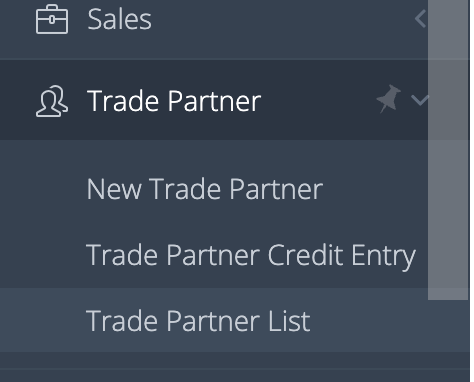
- In the left navigation, go to Trade Partner > Trade Partner List.
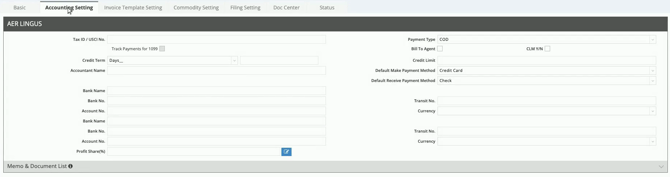
3. Select the Accounting Setting tab at the top of the record.
4. Confirm the Trade Partner's name before making changes.
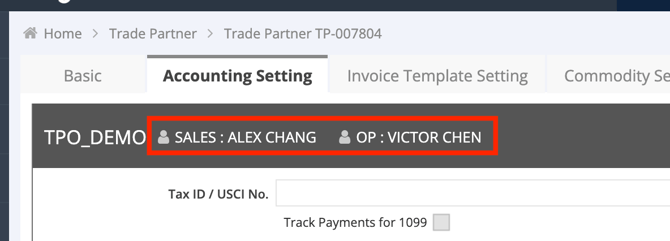
Note: The section header may also display assigned SALES and OP names. These names are shown for reference and cannot be edited from this header.
2.Payment Terms and Credit Settings
Review the following fields:
|
Field |
Purpose |
|
Payment Type |
The Trade Partner's payment classification, such as CREDIT, COD, or CASH AGAINST DOCUMENT. |
|
Credit Term |
The term used to calculate an invoice's Due Date. |
|
Credit Limit |
The Trade Partner's credit limit, or the shared limit supplied by its Credit Limit Group. |
|
Accountant Name |
The Trade Partner's accounting contact name. |
Payment Type is separate from a payment method such as Check or Wire. Review payment methods in Step 3.
How Credit Term Affects Due Date
In invoice entry, standard credit terms calculate Due Date from Invoice Date. Terms based on estimated time of departure (ETD) or estimated time of arrival (ETA) use the corresponding shipment date. If that date is unavailable, the calculation falls back to Invoice Date.
Credit Term does not set Invoice Date. Review the dates on the invoice to confirm the expected result.
What Is a Credit Limit Group
A Credit Limit Group allows multiple Trade Partners to share Payment Type, Credit Term, and Credit Limit settings. For example, a parent company and its child company can use one group when they should share a credit limit. GoFreight combines the members’ account balances when calculating the group’s credit balance.
For a Trade Partner in a Credit Limit Group, these shared fields are read-only and appear grayed out in the Accounting Settings tab. They cannot be changed independently for a Trade Partner within the group:
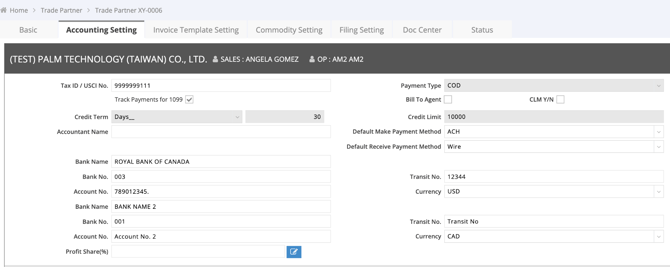
To review or change trade partners under the group, use the Credit Limit Group Name field under Basic > Trade Partner Information.

Manage the shared group settings under Trade Partner > Trade Partner Credit Entry > Group. Access depends on your permissions and office scope.

As additional information, an Account Group serves a different purpose: it groups Trade Partners for statements and reports. Placing Trade Partners in the same Account Group does not automatically make them share a credit limit.
3. Default Payment Methods
Review the two payment directions separately:
|
Field |
Purpose |
|
Default Make Payment Method |
The method for paying this Trade Partner. |
|
Default Receive Payment Method |
The method for receiving payment from this Trade Partner. |
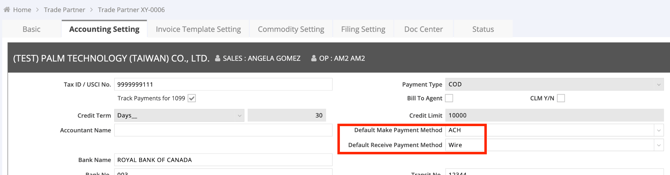
Select the appropriate method for each direction. These settings are maintained for each Trade Partner and are not shared through its Credit Limit Group.
How Payment Method Defaults Are Filled Automatically
- If a Trade Partner’s Default Make Payment Method or Default Receive Payment Method is blank, GoFreight can fill it automatically when you create a new, non-void payment with a payment method selected. For example, a new incoming payment using Check fills a blank Default Receive Payment Method with Check. Incoming and outgoing payments update their respective defaults independently.
- Once a default is set, later payments do not overwrite it. You can change or clear the default manually. After you clear it, the next qualifying new payment can fill it again.
- Only newly created payments trigger this update. Editing an existing payment, restoring a voided payment, or reassigning a payment to another Trade Partner does not fill a blank default. Voiding or deleting a payment does not clear a default that has already been saved.
4. Tax and Banking Information
Tax Information
- Enter Tax ID / USCI No., when applicable.
- If your accounting team has determined that the Trade Partner's payments should be tracked for 1099 reporting, select Track Payments for 1099.

Note: If you’d like a trade partner’s Tax ID to display on AR’s Bill To field, contact GoFreight Support for the configuration request.
The tracking checkbox requires a populated Tax ID / USCI No. Clearing that field also clears the checkbox. Access to the 1099 Report requires separate permission.
The GoFreight 1099 Report is for reference and cannot be used for official IRS submission. Follow your accounting or tax professional's guidance when deciding which payments to track. This article explains system settings only.
Banking Information
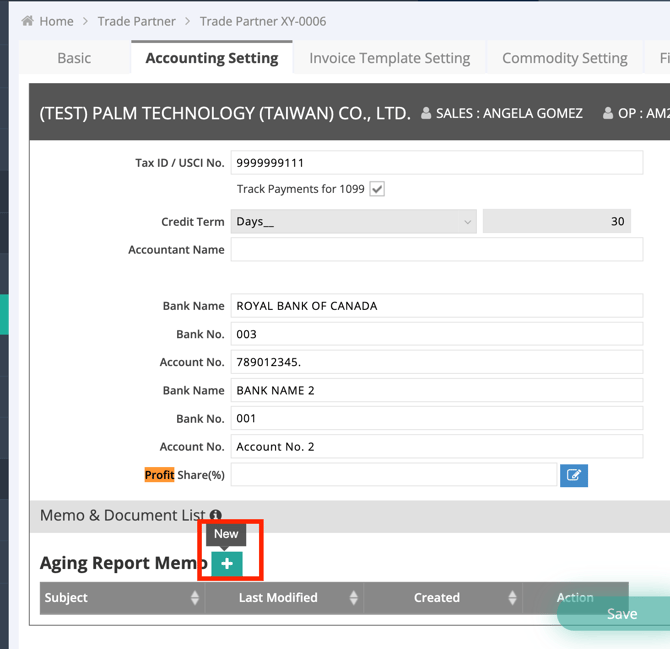
The tab provides two bank-information groups. Use the second group when the Trade Partner has an additional bank account.
|
Field |
What to enter |
Character limit |
|
Bank Name |
Financial institution name |
79 |
|
Bank No. |
Bank or institution number supported by your banking workflow |
8 |
|
Transit No. |
Branch or transit number supported by your banking workflow |
10 |
|
Account No. |
Bank account number |
30 |
|
Currency |
Bank account currency |
— |

Confirm the values against your approved banking records. Do not shorten an account or routing identifier to make it fit a field.
These fields support Canadian electronic funds transfer (EFT) banking details. Users in other countries can also store details when the available fields and limits fit their supported banking workflow. Dedicated SWIFT/BIC and U.S. ABA routing fields are not provided here.
Saving bank information does not generate a bank submission file or send a payment to a financial institution. For Canadian field formats and payment-list instructions, see the Canadian EFT guide under Related Articles.
5. Profit Share
If your company uses profit sharing, review the default Profit Share(%) value.

Click the edit icon beside the field to review percentages for:
- Ocean Import
- Ocean Export
- Air Import
- Air Export
- Truck / Misc. / Warehouse
A blank module percentage uses the default percentage. An entered 0 is a zero-percent override. Values can range from 0 to 100, with up to two decimal places.
Confirm the percentages with your accounting team. Check the resulting invoice or Debit/Credit Note separately when confirming the outcome of a profit-sharing workflow.
6. Save and Confirm Your Changes
- Review the values you added/changed.
- Click Save on the Trade Partner page.
- Correct any validation errors.
- Refresh or reopen Accounting Setting and confirm that the intended values remain saved.
The main Save button remains disabled until you make a change.
Review the actual invoice or payment when confirming its dates, charges, payment method, or other transaction details. Saving a Trade Partner setting does not confirm that an existing transaction has been updated.
7. Accounting Memos and Documents
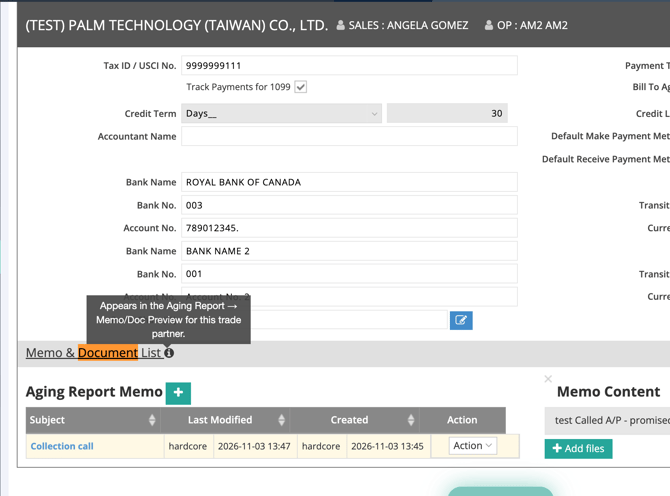
Expand Memo & Document List near the bottom of Accounting Setting.
Add an Accounting Memo
- In Aging Report Memo, click + (New).
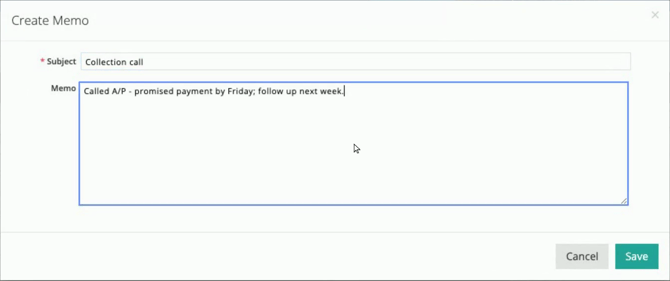
4. Confirm that the memo appears in the list.
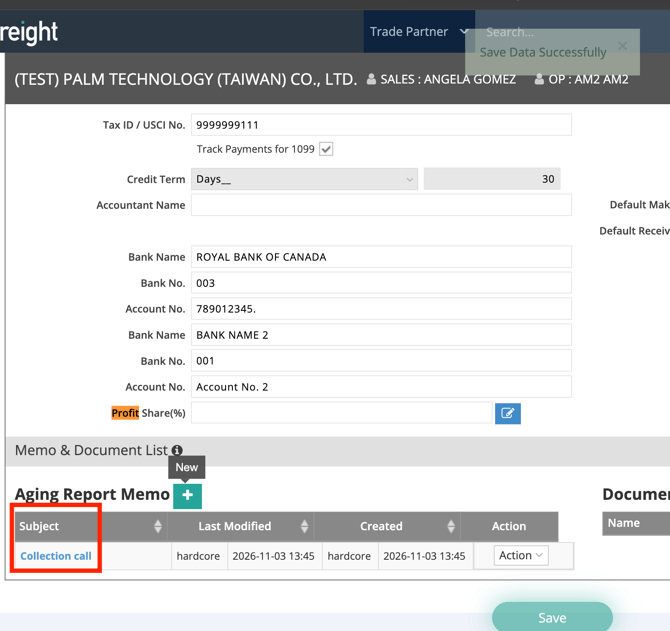
Edit Memo
To change a memo, click a memo's subject to open Memo Content, then use the row's Action > Edit option
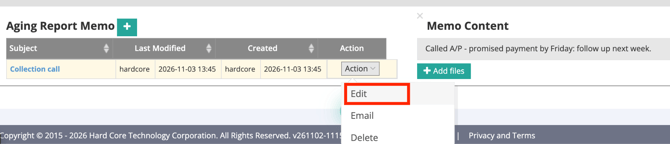
View Accounting Memos and Documents in the Aging Report
- Use Document List to review documents associated with the Trade Partner's accounting records.
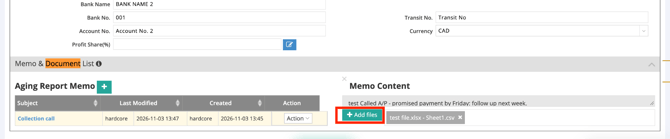
- It’s also possible to upload documents under Memo Content > +Add files.
- These accounting memos and documents are also available through Memo/Doc Preview in the Aging Report (Accounting > Report > Aging Report), subject to your access and the applicable document filters. Refresh or reopen the other page to review saved changes.
- Navigate to Accounting > Report > Aging Report
- Locate this trade partner
- Press the eye icon (Memo/Doc Preview)
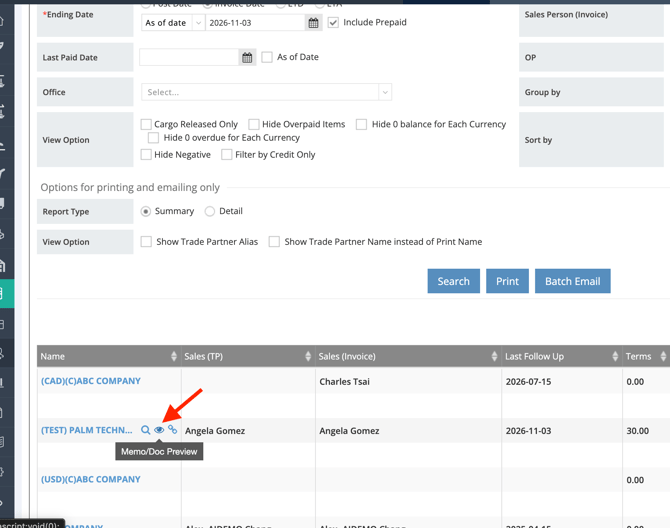
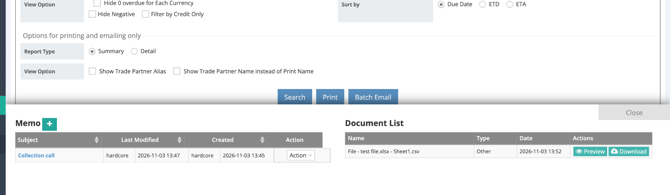
A zero balance does not delete these records, although Aging Report filters may omit the Trade Partner. Accounting memos and documents are separate from the regular Trade Partner memos and documents on the Basic tab.
Troubleshooting
|
Issue |
What to check |
|
Accounting Setting is missing |
Confirm that you have access to the intended Trade Partner. Contact GoFreight Support to review access to the tab. |
|
A payment or credit field is read-only |
Check Credit Limit Group membership on Basic. If the field is not group-controlled, ask Support to review your editing permissions. |
|
Save is disabled |
Make a change first. If saving is still unavailable, ask Support to review your access and company settings. |
|
An invoice's Due Date is unexpected |
Review Invoice Date, Credit Term, and any applicable ETD or ETA. Contact Support if the result is still unexpected. |
|
A bank identifier exceeds a field's limit |
Confirm the supported banking workflow with Support. Do not truncate the identifier or place it in an unrelated field. |