
Before You Begin
- To configure tasks: You need access to Settings > To Do List Setting. By default, only users with the General Manager role can access these settings.
- To update task status: You need permission to view the shipment.
- Plan your tasks: Decide what work you want to track and which date-based trigger should make the task appear.
Procedure 1: Create a Manual To-do Task
Step 1: Open the task settings
- Go to Settings > To Do List Setting.
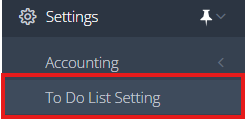
- Create a new task or open an existing one for the work you want to track.
- Give the task a clear name, such as Buy insurance.

Step 2: Set the start trigger
Set a valid trigger in When to Start.
For example, use 0 Days After MBL: ETA to start the task on the Master Bill of Lading (MBL) estimated time of arrival (ETA) date.
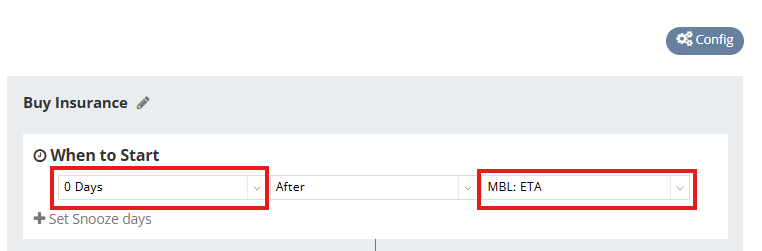
When to Start is required for manual tasks, even when Condition is turned off.
Step 3: Turn off Condition
Click the “X” on the right side of the Condition section to turn it off. The task can then be completed manually.
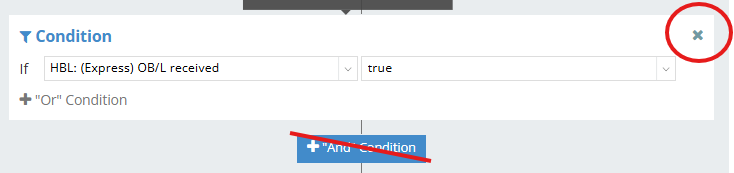
The Condition control determines whether the task is completed manually. There is no separate manual-completion toggle.
Step 4: Save the task
Click Save.
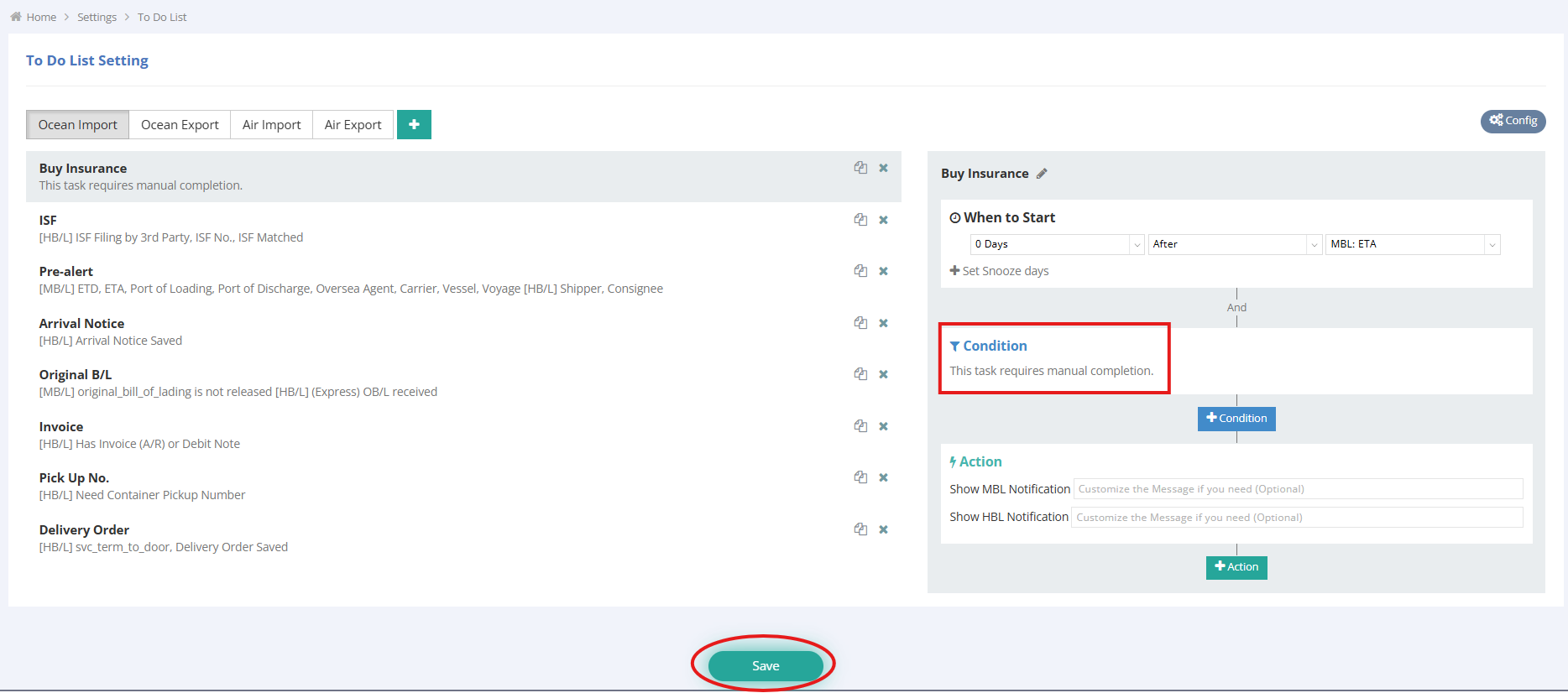
Expected result: The task settings are saved with a valid When to Start trigger and Condition turned off.
Procedure 2: Complete a Manual To-do Task
Step 1: Open the shipment's To-do List
After the configured When to Start trigger occurs:
- Open the relevant shipment
- Go to Shipment Entry > Status > To-do List.
- Locate the manual task.
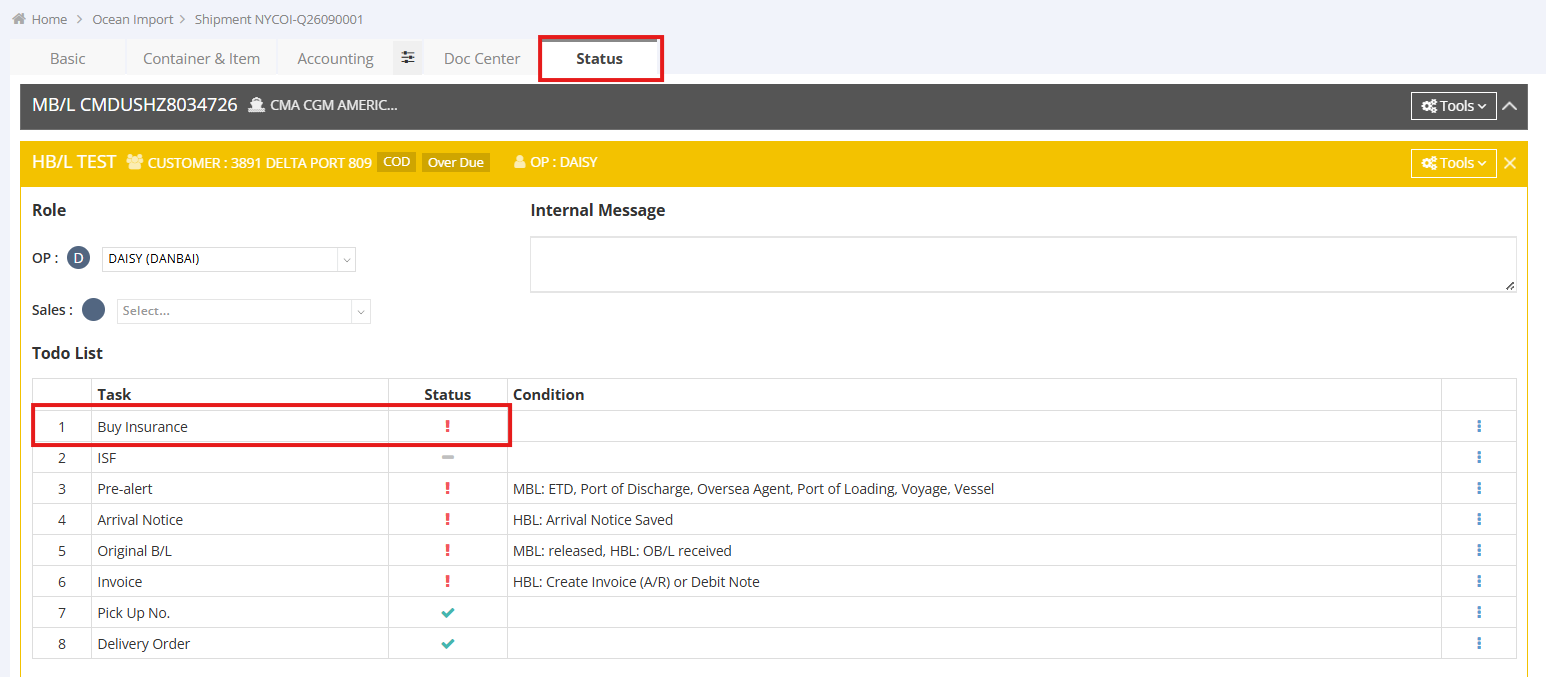
Expected result: The manual task appears with a status of Pending.
Step 2: Complete the required task
Carry out the work described in the task, such as buying insurance or paying the required port fees.
Mark the task as complete only after you have finished the work.
Step 3: Mark the task complete
- Open the task menu
- Click Mark as Complete.

Expected result: Task Status changes to Completed. GoFreight records who completed the task and when.


What Happens After Completion
- The completed task is no longer included in the in-app To-do warning.
- The task is counted as completed in the House Bill of Lading (HBL) workflow.
Optional Actions
Reopen a completed task
Reopen a task if the work needs to be done again or if the task was marked as complete by mistake.
- Find the completed manual task in Shipment Entry > Status > To-do List.
- Open the task menu and click Mark as Incomplete.

Expected result: The task returns to Pending. The in-app warning and red-dot indicators apply again based on the configured When to Start trigger.
Mark a task as non-applicable
Use Mark as Non-Applicable when the task does not apply to the shipment. Use Mark as Complete when you have finished the work.

A task cannot be both Completed and Non-Applicable. When one status is set, the action for the other status is unavailable.