
1. Overview
The Settle in Main Currency feature allows users to settle all charges on an invoice using the office’s primary currency. This streamlines the payment process and prevents exchange rate gains or losses during settlement.
2. When to Use This Feature
This feature is ideal when:
- An invoice contains charges in multiple currencies.
- The customer requests that the invoice total and payment be handled entirely in the main currency.
3. User Story
“As an accounting user, I want to settle a multi-currency invoice in the office’s main currency so that I can process the payment seamlessly in one currency without incurring exchange gains or losses.”
4. Prerequisites
Before using this feature, ensure the following conditions are met:
- Multiple Currency must be enabled.
- User Defined Rate must be enabled.
- The invoice must not have any existing payments applied to it (if you need to change this setting).
5. How It Works
The Standard Workflow:
- Open the target invoice.
- Review or enter the User Defined Rate.
- Check the Settle in Main Currency box.
- The system automatically converts all invoice settlement amounts into the office’s main currency. (Note: Freight lines may still display in their original/document currency, but the actual settlement and payment will be processed in the main currency.)
Example Scenario:
- Main Currency: CAD
- Currencies on Invoice: USD
- Total Invoice Amount: CAD 137
- Invoice Post Date: - 08-31-2026
- Payment Post Date: 10-01-2026
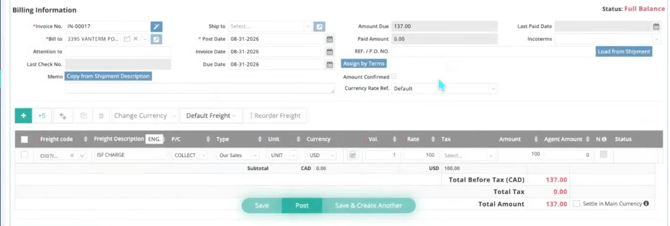
System Behavior Comparison:
The following compares the system behavior when Settle in Main Currency is Not Enabled versus Enabled.
Scenario 1: Settle in Main Currency Not Enabled
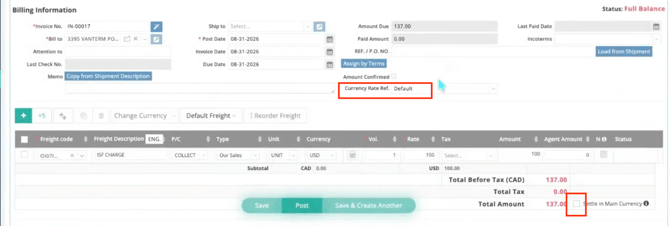
1. Invoice Entry
Go to the Invoice Entry page and review the following:
- Settle in Main Currency is disabled.
- Currency Rate Ref. displays Default, indicating that the exchange rates are sourced from the Currency Table. (Currency Table User Guide Here: Link)
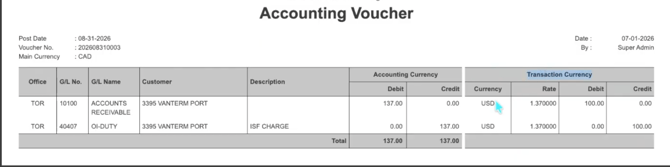
2. Invoice Voucher Print
Navigate to Tools > Voucher Print and review the voucher.
You will find that the transaction currency(USD) is displayed with its original amounts and exchange rates under Transaction Currency.
3. Receive Payment
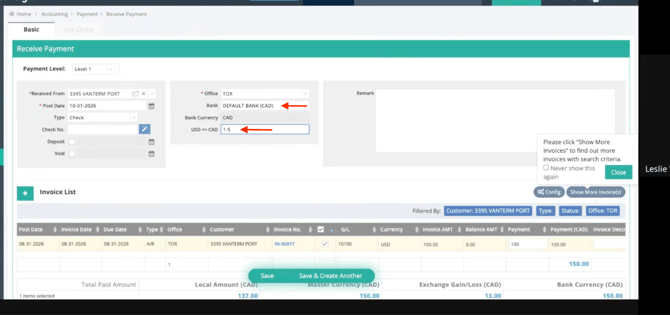
Navigate to Tools > Receive Payment.
On the Receive Payment page:
- Receive this payment in the CAD Bank Account, which is the system’s main currency
- The currency exchange rate field USD-> CAD is editable, and any changes to the exchange rates will be reflected in the payment amount. Let’s enter a rate here (1.5), which is different from the Currency Table (1.37).
“1.37” is sourced from the Currency Table:
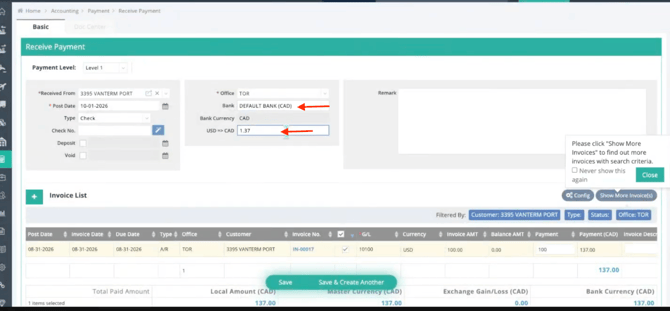
Next, manually enter “1.5”:
4. Payment Voucher Print
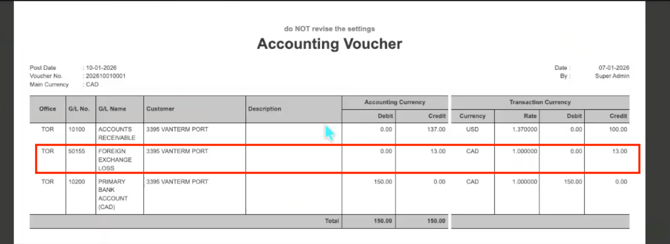
Navigate to the payment, Tools > Voucher Print, and review the voucher.
You will notice that the transaction currency (USD and CAD) is displayed with their original amounts and exchange rates under Transaction Currency. The exchange gain/loss is generated due to the exchange rate discrepancy (Currency Table versus Self-Entered Rate).
Scenario 2: Settle in Main Currency Enabled
1. Invoice Entry
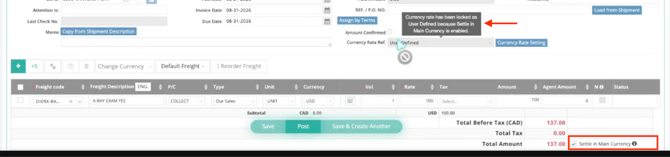
Go to the Invoice Entry page, enable Settle in Main Currency, and review the changes:
- Settle in Main Currency is enabled.
- Currency Rate Ref. displays User Defined and is greyed out.
- Hovering your cursor over Currency Rate Ref. displays the following message: Currency rate has been locked as User Defined because Settle in Main Currency is enabled.
2. Invoice Voucher Print
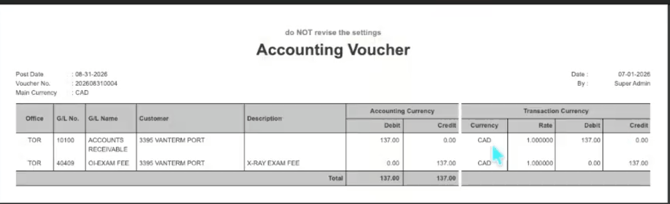
Navigate to Tools > Voucher Print and review the voucher.
Only the main currency (CAD) is displayed under Transaction Currency, and all transaction amounts have been converted into the main currency.
3. Receive Payment
Navigate to Tools > Receive Payment.
On the Receive Payment page:
- Receive this payment in the CAD Bank Account, which is the system’s main currency
- The currency exchange rate field “ USD-> CAD” is editable; however, any changes to the exchange rates will NOT be reflected in the payment amount. Likewise, let’s enter a rate here (1.5), which is different from the Currency Table (1.37).
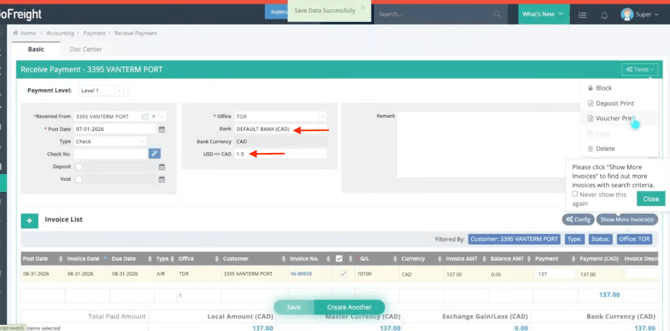
4. Payment Voucher Print
Navigate to the payment, Tools > Voucher Print, and review the voucher.
Only the main currency (CAD) is displayed under Transaction Currency, and all transaction amounts have been converted into the main currency. No exchange gain/loss is generated.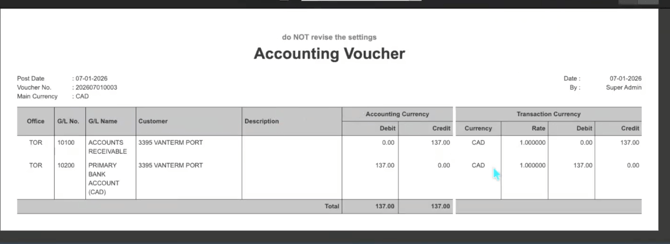
6. FAQ
- Can I use the Currency Table rate with this option? No, this feature requires a User Defined Rate.
- Can I enable or disable this feature after a payment has been made? No, the setting is locked once a payment exists.
- Will all freight lines display in the main currency? Not necessarily. Individual lines may still display their original/document currency, but the final settlement and payment will be executed in the main currency.
- Does this create an exchange gain/loss? No, the feature is specifically designed to avoid exchange gains or losses when the invoice is paid in the main currency.
You might also be interested in:
- User Guide: Currency Table, Currency Rates, & AR Invoice Styles
- How to Receive a Payment (Full Receive or Partial Receive) ?
- How to Make a Payment (Full Paid, Partial Paid)?