
Overview
This guide explains how to:
• Maintain exchange rates in the Currency Table.
• Understand the difference between Internal and External Rates.
• Use Default and Self-Defined Rates in invoices.
1. Access, Permissions, & Navigation
Who can manage the Currency Table
Only users with the required permissions can edit and maintain exchange rates. By default:
- Admin
- General Manager
If you’d like to adjust the default permissions for any user/role, please ask the General Manager to email GF Support at support@gofreight.com.
How to Navigate
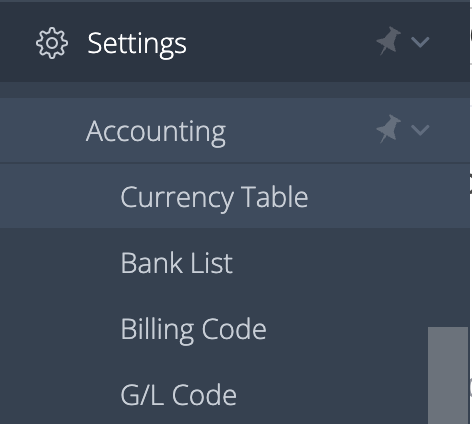
Go to Dashboard > Settings > Accounting > Currency Table.
2. Managing the Currency Table
Because GoFreight does not automatically pull live exchange rates from banks or external platforms for this native workflow, your team must manually maintain this table.
Step 1: Select the Source and Target Currency
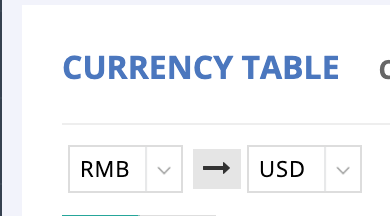
To set up or update a currency pair, select your source and target currencies at the top of the page.
- Example: To set the exchange rate from RMB to USD, select RMB as the Source Currency and USD as the Target Currency.
Step 2: Set the Exchange Rates
You can maintain rates using two methods: default fallback rates or date-specific rates.
- Understanding Default Rates: The first entry in the table without an As of Date serves as your system's default fallback rate. GoFreight will use this rate if no specific, date-based rate is available for a transaction.
- Setting Date-Specific Rates:
- Click the green plus (+) button to add a new rate entry.
- Select the As of Date to define the validity period of the rate.
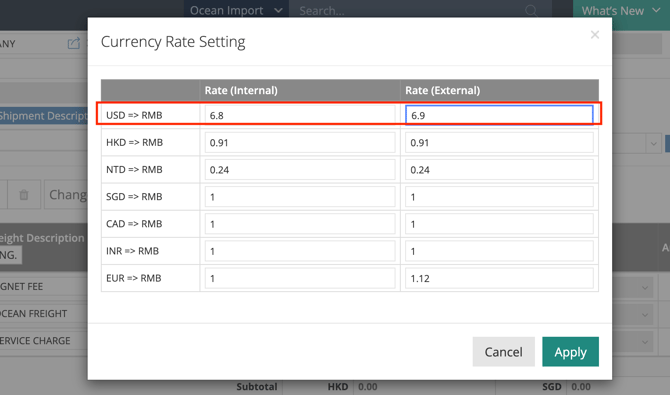
- Enter the rate in both the Internal Rate and External Rate fields (see Section 3).
- The most recently added rate will automatically display at the top of the table.
🛑 How "As of Date" Works:
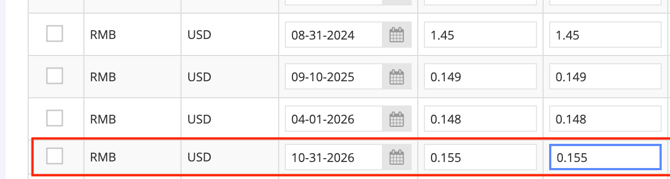
In the GoFreight Currency Table, the "As of Date" means "UP UNTIL a certain date"—it does NOT mean "beginning from/starting on" that date.
Example: If you set a rate with an As of Date of October 31, GoFreight will apply that rate (0.155) to transactions occurring up to and including October 31. It is the end/ceiling of the rate’s validity period, not the start.
04/02/2026 ----- 10/31/2026
Rate = 0.155
Step 3: Editing and Saving Rates
- To modify an existing rate, directly update the numeric values in the table fields.
- Click Save to apply your changes.
🛑 Important Restriction: You cannot modify or edit exchange rates if their date range falls before your company’s latest Accounting Block Date.

For a visual guide on using this feature, please refer to the following video:
3. Understanding Rate Types: Internal vs. External
GoFreight allows you to maintain two separate exchange-rate values for the same currency pair in the Currency Table. This lets you present one rate to customers while using another for internal bookkeeping.
|
Rate Type |
Primary Purpose |
How GoFreight Uses It |
|
External Rate |
Customer-Facing |
Displayed on customer AR invoice documents (when the invoice style is configured to show exchange rates). |
|
Internal Rate |
Internal Accounting |
Used for internal accounting conversion, profit/reporting review, settlement, and exchange gain/loss calculations. |
- Pro-Tip: In most cases, companies use the same value for both rates unless they intentionally separate customer-facing and internal accounting rates. (e.g., if the RMB to USD rate is 0.1454, enter 0.1454 in both fields).
- If you want the external rate to display on ARs for your customer, you will need to switch your default AR form style from “Default” to “Rate” Style. Please ask your GM to contact support@gofreight.com for the adjustment.
Currency Table

Internal
External
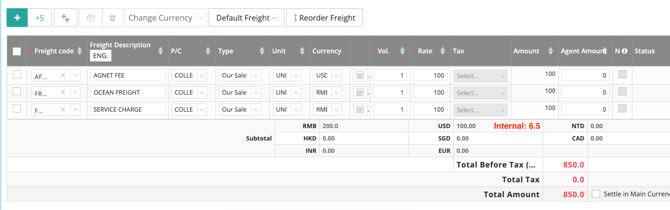
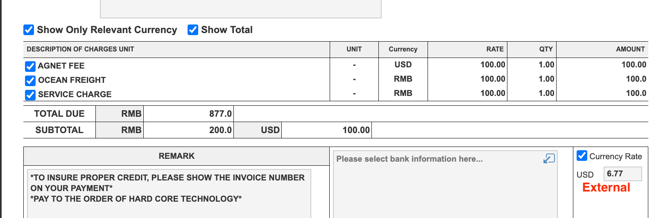
(Screenshot below is configured with AR “Rate” Style)
4. Choose the Invoice Rates: Default Rate vs. Self-Defined Rate
When working inside a multi-currency invoice, users will see a currency rate reference marked as either Default Rate or Self-Defined Rate (also referred to as User-Defined Rate).
Default Rate
Selecting Default Rate tells GoFreight to pull the exchange rate directly from your globally maintained Currency Table.
- Use this when: The Currency Table already has the correct rate, the invoice should follow standard date-based rules, and no special custom rate is needed.
Self-Defined Rate / User-Defined Rate
Selecting Self-Defined Rate allows you to type a custom exchange rate directly into the invoice. This rate overrides the Currency Table rate for this specific invoice only.
- Use this when: Your company and the customer have agreed on a special fixed rate for the invoice, or you need the invoice to settle in the office’s main currency using a non-standard rate.
💡 Important Self-Defined Rate Behaviors:
- It is saved locally on the invoice and does not update or overwrite the global Currency Table.
- It does not affect any other invoices.
- It is used strictly for that specific invoice's conversions and immediate accounting calculations.
Steps
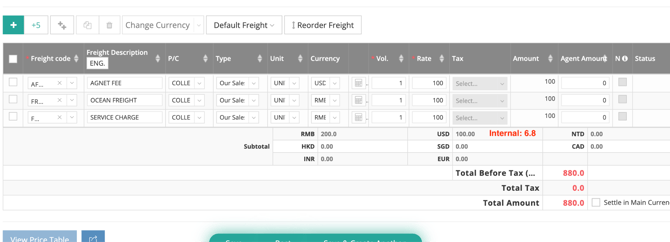
Within an AR/AP/DC Note invoice > Currency Rate Ref. > User Defined > Input Rates. They will apply to this invoice only.
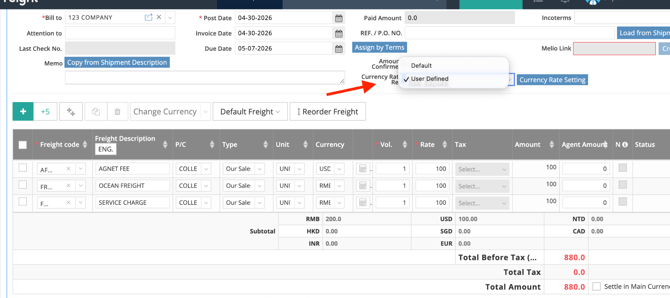

Invoice Entry Page
AR
(Screenshot below is configured with AR “Rate” Style)
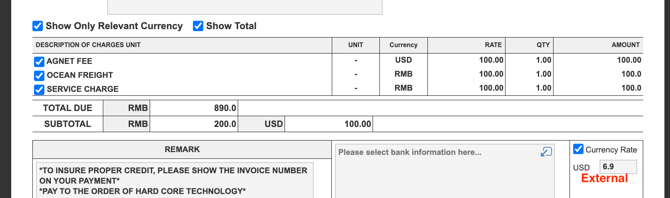
Note: You can untick the “Currency Rate” box from the bottom right so your customer won’t see the exchange rate indicated here.
5. Limitations & Guardrails
- No Live Feeds: Exchange rates must be maintained manually; they do not auto-populate from external financial feeds.
- Accounting Lockout: Rates dated before the Accounting Block Date are permanently locked in the Currency Table and cannot be edited.
- Layout Constraints: Invoice display is strictly dependent on your company's configured invoice style. Missing or incorrect Currency Table entries will result in incorrect invoice conversions.
6. FAQ
1.) Why doesn't my invoice use the new exchange rate?
Check whether:
- the invoice uses Default Rate
- the transaction date matches the Currency Table
- the invoice uses a Self-defined Rate
2.) Can I edit old exchange rates?
No. Rates before the Accounting Block Date cannot be modified.
3.) Why doesn't my customer see the exchange rate?
The AR form style must be configured to use the Rate style, or the Currency Rate option may be disabled.
You might also be interested in:
- How to Settle Payment In Main Currency?
- Multi-Tax User Guide: Streamlining Tax Calculations
- How to Generate a General Ledger Report in GoFreight?