
In GoFreight, creating an invoice is the initial step. After an invoice is created, you can optionally use the Post function to record it in the system. This guide details the Post action, distinguishes between posting a single invoice and batch processing, and addresses common posting issues.
Invoice Status: Draft, Save, and PostUnderstanding how GoFreight manages invoices at different stages is essential for accurate accounting:
|
Invoice Status |
Description |
Impact on Financial Records |
|
Save as Draft |
Keeps the invoice as a temporary working copy. |
Does not affect official records; can be edited or deleted freely. |
|
Save |
Saves the current data entries but keeps the file unblocked. |
Does not lock the invoice; fields can still be modified. |
|
Post |
Converts the invoice status from Draft to Normal and Blocked. |
Permanently locks the file from normal editing to make it official. |
Role Requirements
Only authorized users can post invoices. The system grants Invoice Edit and Invoice Block permissions to the following roles:
- Accounting Manager
- General Manager
If any other user or role requires access to the Post Invoice feature, please contact the GoFreight Support team at support@gofreight.com for assistance.
Feature Limitations
Invoices cannot be posted under these conditions:
- Action Availability: If all invoices in a shipment or booking are blocked, the Post Invoices button is disabled.
GoFreight offers two methods for finalizing billing records, depending on whether you're handling a single charge or an entire shipment:
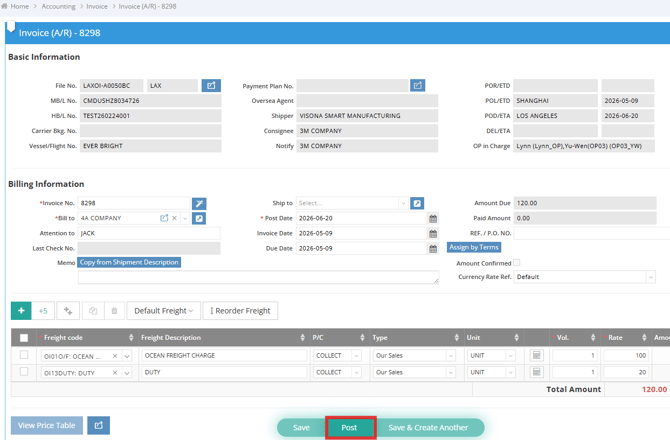
1. Post a Single Invoice
- Location: Bottom of the individual invoice entry page.
- Function: Clicking Post updates the invoice status to Normal and applies an invoice block.
- Ideal For: Finalizing an invoice after a detailed review.
2. Post All Invoices (Batch Action)
- Location: Under the Accounting tab, select Tools and then Post All Invoices.
- Function: Processes all eligible invoices in the file, changing their status to Normal and blocking them.
- Master B/L Level: Processes all invoices in the shipment, including House B/L invoices.
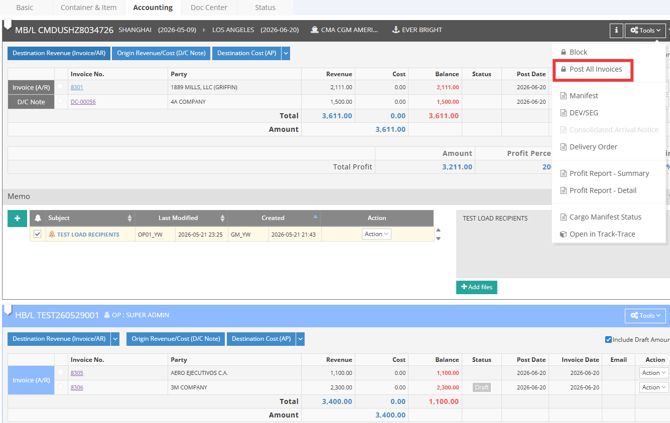
- House B/L Level: Processes invoices linked to a specific House shipment. Useful for complex shipments with multiple House records.

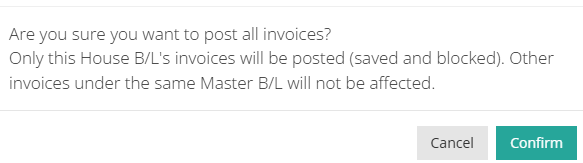
- Note: A confirmation window appears before processing when selecting Post All Invoices under the House Tools menu.
- Warehouse and Booking Contexts: Applies to invoices displayed in the specific record or module view.

- Ideal For: Finalizing an entire shipment's billing through a batch process.
- Once invoices are posted successfully, a confirmation notice appears.

Upon successfully posting an invoice, GoFreight automatically updates backend accounting configurations according to your office settings.
- Accounting Block Periods: If your financial team has closed and blocked periods up to a certain date, GoFreight will automatically adjust the post date of new invoices to the next available open date.
- Partial Success in Batch Posting: During batch actions, each invoice is processed independently. If one invoice encounters a validation error and fails, all other valid invoices in that batch will still be posted and locked successfully.
Can I edit an invoice after it has been posted?
No, once an invoice is posted, it is locked to protect your financial history. To make changes, authorized users must either unblock the invoice or issue a credit/debit note, depending on your company's accounting policies.
Who can unblock blocked invoices?
Users with Unblock Invoice permissions can unblock posted invoices. By Default, roles such as Accounting Manager and General Manager have these permissions in GoFreight. After reviewing and correcting the data, the invoice can be re-posted using the same workflow.
If a specific user requires access to the Post Invoice feature, please contact the GoFreight Support team at support@gofreight.com for assistance.
Why did my invoice date or due date change after posting?
This change occurs because your company uses automated date updates upon posting. The system refreshes these dates to reflect the actual day the invoice became official, ensuring accuracy in aging reports and payment terms.
If you'd like to adjust this default setting, please have your GM send a request to support@gofreight.com. We'll be happy to assist with the configuration change.
I am synchronizing GF invoices to QBO Live, but why did only some of my invoices post successfully?
During batch posting, each invoice is processed independently. If a batch includes both valid and invalid files, GoFreight will post the valid ones and bypass those with errors.
Invoices may fail to post due to the following situations:
- Billing Code or G/L Mapping – Billing codes must be mapped to the correct General Ledger (G/L) accounts.
- Trade Partner Mapping – Customers, vendors, or other trade partners must be properly configured and mapped.
- Currency Settings – The invoice currency must be supported by the accounting setup and any connected accounting software.
- QuickBooks Online Integration – If using QuickBooks Online (QBO), the integration setup, mappings, synchronization settings, and connection status must be completed correctly.
- Required Accounting Information – All required accounting fields and invoice details must be completed before posting.
- Invoice Status – The invoice must be eligible for posting and cannot already be posted, voided, incomplete, or restricted by another status.
- AR vs. AP Setup – Accounts Receivable (AR) customer settings and Accounts Payable (AP) vendor settings are configured separately. One side may be completed while the other requires additional setup.
Review and correct the affected invoices, then try posting them again.
You might also be interested in:
- How to Create Accounts Receivable (AR) Invoices in Invoice Mode?
- How to Block or Unblock an Invoice?
- How to Print an AR Invoice?